
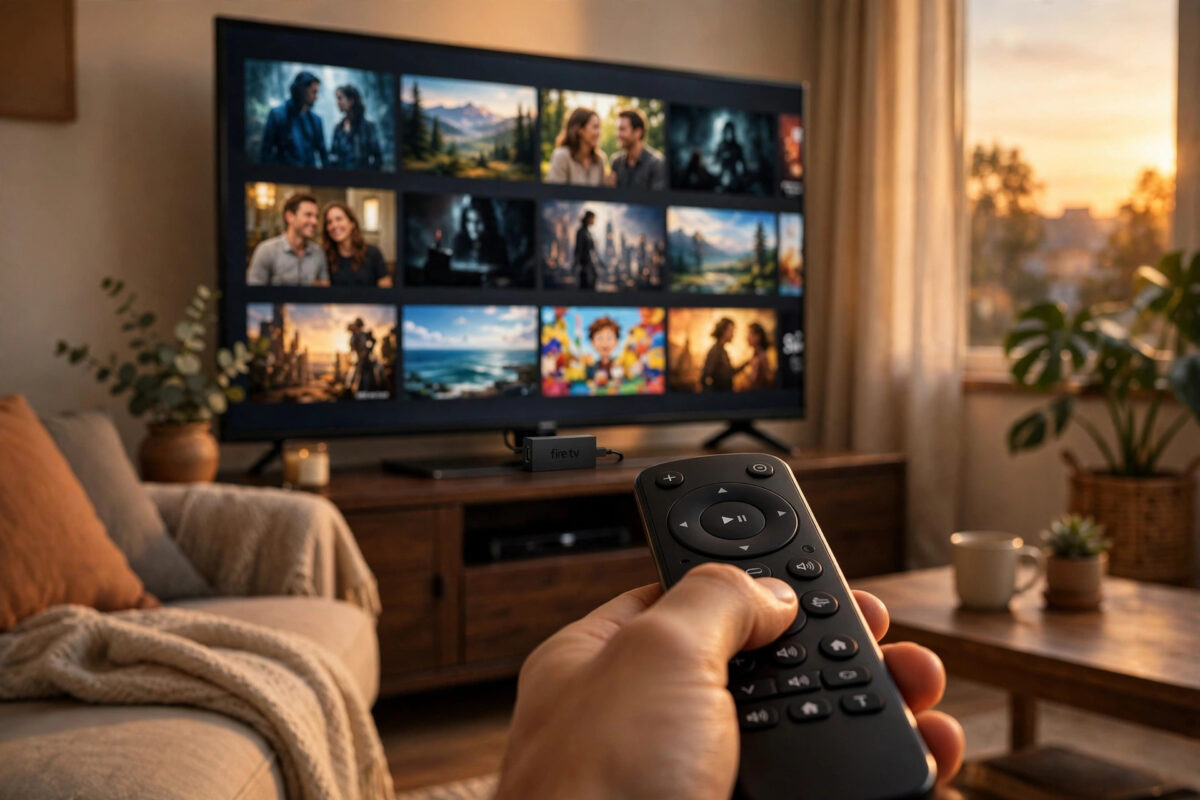
Few things are more frustrating than settling down to watch a film, only for the picture to freeze, spin, and stutter every few minutes. If your Fire TV Stick used to play smoothly and has slowly become sluggish, a bloated app cache is one of the most common causes. The good news is that clearing it takes less than two minutes, you do not lose your accounts or watch history, and it often fixes buffering on the spot.
Quick Answer
To clear an app cache on a Firestick, go to Settings, open Applications, choose Manage Installed Applications, select the app that buffers, and choose Clear cache. Repeat this for your other streaming apps, then restart the Firestick from Settings, My Fire TV, Restart. This removes temporary files the app no longer needs and gives it a clean, fast start.
What Is App Cache and Why Does It Cause Buffering?
Every app on your Firestick stores small temporary files. These are called cache files. A streaming app might save poster images, search results, thumbnails, and small pieces of video data so that it can load faster the next time you open it. Used in small amounts, cache is helpful. It saves time and reduces repeated downloads.
The problem starts when the cache grows too large or becomes damaged. Some apps are poor at cleaning up after themselves, so weeks of browsing can leave hundreds of megabytes of old data sitting on the device. The Firestick has limited storage and limited memory, especially older models. When space runs low, the app has less room to hold the video it is trying to play, and playback begins to pause while it waits. A corrupted cache file can be even worse, causing an app to freeze, crash, or refuse to load a stream at all.
Clearing the cache simply deletes those temporary files. The app itself stays installed. Your sign-in details, settings, and watch lists are stored separately, so you stay logged in. The next time you open the app it will rebuild a fresh, small cache, which is why the first load after clearing can take a few extra seconds.
How to Clear App Cache on Firestick, Step by Step
The process is the same on most Fire TV Stick, Fire TV Stick 4K, and Fire TV Cube models, although the exact wording on screen can vary slightly between software versions.
- Press the Home button on your remote to return to the main screen.
- Move across to the gear icon and open Settings.
- Scroll to Applications and select it.
- Choose Manage Installed Applications.
- Wait for the list to load. Each app shows how much storage it is using.
- Select the app that is buffering, for example your main streaming app.
- Look at the cache figure shown on the right side of the screen.
- Select Clear cache and wait a few seconds for the figure to drop to a small number or zero.
- Press the Back button and repeat the process for your other video apps.
Start with the apps you use most, because those usually hold the largest caches. Video and live TV apps tend to build up the most data.
How Often Should You Clear the Cache?
There is no fixed schedule, but a simple routine works well for most households. Clear the caches of your main streaming apps once a month, or sooner if you notice any of these signs:
- Buffering that starts after several weeks of smooth playback.
- Apps taking much longer than usual to open.
- Menus feeling slow or the remote seeming to lag.
- A warning that storage space is running low.
- An app showing old or incorrect thumbnails and titles.
Clear Cache or Clear Data? The Important Difference
On the same screen you will see another option called Clear data. It sounds similar, but it does something very different, and choosing the wrong one wastes time.
Clear cache removes only temporary files. You stay signed in, your preferences remain, and nothing important is lost. This is the safe first step for almost every playback problem.
Clear data resets the app completely, as if you had just installed it. You will be signed out, your settings will be removed, and downloads inside that app may be deleted. Use Clear data only when clearing the cache has not helped and the app still crashes, refuses to sign you in, or behaves strangely. After using it, you will need to sign in again, so make sure you know your password before you choose it.
A third option, Force stop, simply closes the app fully. It is useful when an app is frozen on screen, and it pairs well with clearing the cache. Force stop first, then clear the cache, then reopen the app.
What to Do After Clearing the Cache
Clearing the cache works best when you finish with a proper restart, because a restart also clears the device memory and closes background processes that may be slowing things down.
- Go back to the main Settings menu.
- Select My Fire TV.
- Choose Restart and confirm.
- Wait for the Firestick to reboot fully. This usually takes about a minute.
- Open the app you cleared and play something for a few minutes to test it.
If buffering continues, the cause is likely a weak signal or slow connection. Our guide on the real reasons a Firestick keeps buffering and how to fix each one walks through those causes in order.
If Buffering Continues After Clearing the Cache
Cache is a common cause, but it is not the only one. Work through these checks next, from the easiest to the most involved.
Check Your Internet Speed at the TV
A speed test on your phone near the router does not tell you what the Firestick is receiving behind a television, often inside a cabinet or against a wall. Metal and other electronics can weaken the signal. Open the network settings on the Firestick to see the signal strength, and if your streaming app has a built-in speed test, use it. Standard definition needs only a few megabits per second, high definition needs more, and 4K needs a comfortable margin above twenty-five megabits per second to play without pauses.
Restart Your Router as Well
Routers also build up problems over time. Unplug yours for thirty seconds, plug it back in, and give it a few minutes to reconnect fully before testing again. This simple step fixes a surprising number of streaming complaints, especially in homes where the router has been running for months without a break.
Check for Overheating and Power Problems
A Firestick tucked behind a warm television can overheat and slow itself down. Use the short HDMI extender to move it away from the back of the TV, and power it from the wall adapter rather than a USB port on the television, which often supplies too little power.
Amazon’s own guidance on playback problems is also worth reading. The Amazon Fire TV help pages for video and playback issues cover service-side checks and device troubleshooting in detail.
Common Mistakes to Avoid
- Clearing data instead of cache. This signs you out of everything and removes your settings, which is rarely necessary for a buffering problem.
- Clearing only one app and giving up. If several apps buffer, each one may hold a large cache. Clean the main ones before you judge the result.
- Skipping the restart. A restart frees memory and closes stuck background processes. Without it, you may only get half the benefit.
- Installing cache cleaner apps. Third-party cleaner apps often use more storage than they save, show adverts, and ask for permissions they do not need. The built-in settings do the job safely.
- Expecting cache clearing to fix a slow connection. If your internet speed at the TV is genuinely too low, no amount of cleaning will create bandwidth that is not there.
- Uninstalling apps out of frustration. Reinstalling should be a last resort, after cache, data, updates, and a restart have all been tried.
Conclusion
Clearing the app cache is the fastest and safest first fix for a Firestick that has started to buffer. It takes under two minutes, it costs nothing, and it removes the clutter that builds up silently during everyday use. Remember the order that solves most cases: force stop the app, clear its cache, restart the Firestick, and then test. If the problem survives that routine, the cause almost certainly lies with your signal, your connection speed, or overheating, and each of those has its own straightforward fix.
Frequently Asked Questions
Will clearing the cache sign me out of my apps?
No. Clearing the cache removes temporary files only. Your account, sign-in, settings, and watch history stay in place. Signing out only happens if you choose Clear data, which is a separate and stronger option.
How much space does clearing the cache free up?
It depends on the app and how long it has been used. A busy streaming app can easily hold several hundred megabytes of cache, and clearing three or four large apps can free up more than a gigabyte in total.
Why does the cache fill up again so quickly?
That is normal behaviour. Apps rebuild their cache as you browse and watch, because those files make loading faster. The goal is not to keep the cache at zero forever, but to stop it growing so large or damaged that it slows playback down.
Can I clear the cache for all apps at once?
Fire TV does not offer a single button to clear every app cache together. You need to open each app in the list and clear it individually. In practice, clearing your three or four biggest streaming apps gives you almost all of the benefit.
My Firestick still buffers after clearing everything. What next?
Test your speed at the TV, restart your router, move the Firestick away from heat, and power it from its wall adapter. If one single app still misbehaves while others play fine, update that app or, as a last step, clear its data and sign in again.



Leave a Reply