
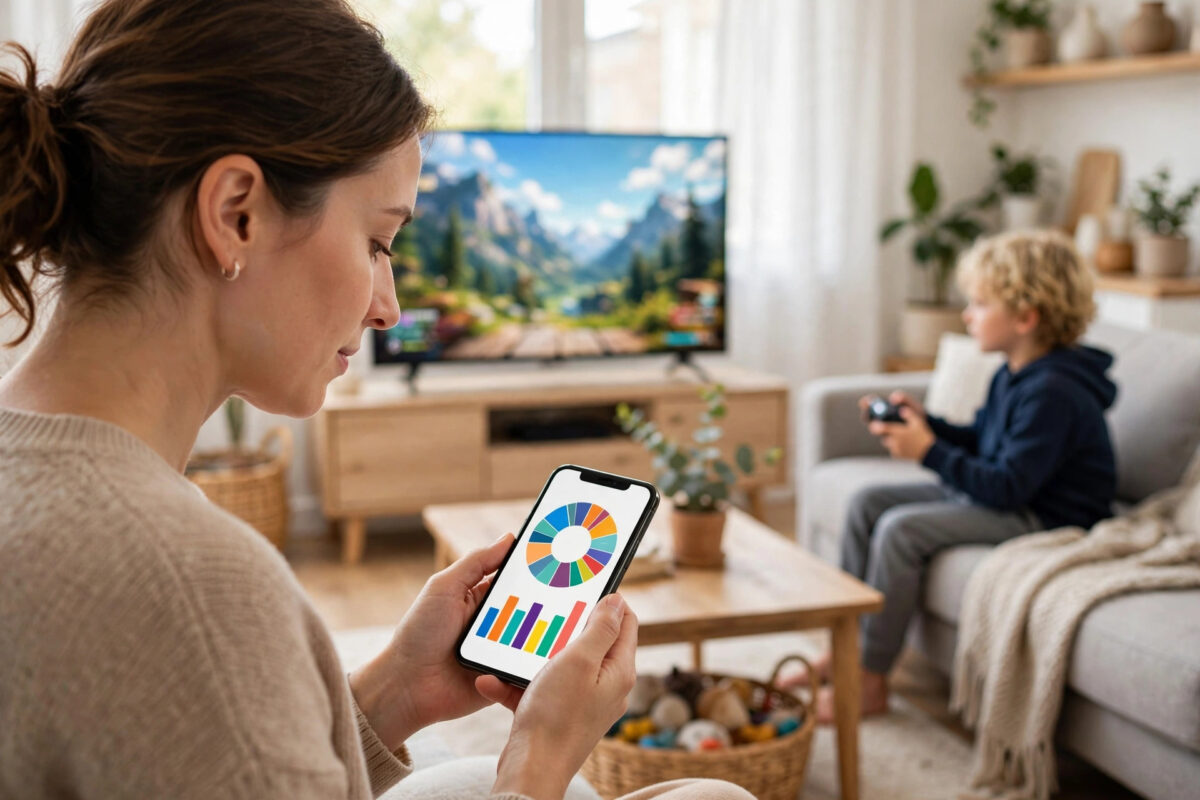
Most parents have asked the same question at bedtime: how long have you actually been playing? Memory and honesty do not always agree, especially when a game is exciting and time disappears.
Every major console tracks play time, but each one hides the numbers in a different place. Some show a helpful weekly report. Others only show total hours buried in a profile page.
This guide shows where to find play time reports and screen time on PlayStation, Xbox, and Nintendo Switch. You will also learn how to set limits that match the reports and how to talk about the numbers calmly.
Quick Answer
Check Nintendo Switch play time in the Parental Controls app, which shows daily play time and a monthly summary. On Xbox, open the Xbox Family Settings app to see activity reports and screen time schedules for each child. On PlayStation, view total hours per game in the profile Games tab and manage child play time in Family Management. For clear daily child reports, Nintendo and Xbox give the best data.
What Play Time Reports Can and Cannot Tell You
- Total game hours: How long a profile has played a specific game in total. Good for spotting favourites.
- Daily screen time: How long the console or profile was used on a given day. Best for checking daily limits.
- Activity breakdown: Time split between games and apps on some platforms.
- What reports miss: Paused menu time often counts. Time on a friend’s console, a PC, or a phone does not appear in your home report.
- Shared profile problem: If two children share one profile, the report mixes their time and cannot separate them.
Use reports as a calm guide, not a court case. Ten minutes over a limit because a game was paused during dinner is different from two extra hours of active play. Look at patterns over a week rather than fighting over a single day.
Check Play Time on Nintendo Switch
Nintendo has the strongest family play time reporting, thanks to its dedicated parental controls app.
Use the Parental Controls App
- Download the Nintendo Switch Parental Controls app and pair it with your console from System Settings, Parental Controls.
- Open the app and select your console. The home screen shows today’s play time.
- Tap Play Activity to see which games were played and for how long each day.
- Check the Monthly Summary for days played, average daily time, and most played games.
Nintendo describes these features in its official Nintendo Switch parental controls overview, including how play time limits and alarms work alongside the reports.
Check Hours Without the App
On the console, select a user profile at the top left of the home screen and open Profile. Under Play Activity you will see games with rounded total time, such as played for 10 hours or more. A game must have been played on more than one day before its time appears. This view is handy for adults, but the app is far more accurate for children and daily limits.
Check Play Time and Activity on Xbox
Use the Family Settings App
- Open the Xbox Family Settings app and sign in as the organiser.
- Select the child’s profile. The activity screen shows screen time for today and the past week.
- Open the detail view to see time per game and app, and time on each linked device, including Windows PCs.
- Or visit the Microsoft Family website, choose the child, and open Screen Time or Activity.
- Turn on Activity Reporting in the child’s settings if any day shows no data. Reporting must be on to collect history.
The cross-device view is a real strength. If your child plays the same account on an Xbox and a PC, the combined report stops them finishing time on one device and starting again on another. Microsoft covers this in its Xbox support guide to setting up screen time limits for a family member.
For per-child checks on the console itself, our detailed guide to checking screen time on Xbox step by step describes each menu version in full.
Check Your Own Hours
Adults can open a game’s store page or achievements view. Many games show Time Played in their stats section. It is less tidy than the family report, but it reveals your biggest time sinks.
Check Play Time on PlayStation 5 and PS4
PlayStation shows total hours per game clearly, but its daily child reporting is weaker than Nintendo and Xbox. You need to combine two views for the full picture.
See Total Hours for Each Game
- Select your profile picture at the top of the home screen and choose Profile.
- Go to the Games tab. Each game shows total hours played underneath it.
- For a child, switch to their user on the console and open their profile the same way.
Check Child Play Time Settings
- Go to Settings, then Family and Parental Controls, then Family Management, and select the child.
- Review Play Time Settings to see the limits in place.
- Open the PlayStation App as the family manager and check the family section to adjust play time.
- Set a daily allowance and choose whether the console notifies the child or logs them out when time ends.
Be aware of the gap: PlayStation reliably tells you a child has played a game for 85 hours in total, but a precise daily breakdown is limited. If daily accuracy matters for a young child, note the total before and after a session for a rough daily number.
Set Screen Time Limits That Match the Reports
- Nintendo Switch: In the app, set a play-time limit per day and turn on Suspend Software or an alarm when time runs out.
- Xbox: Set a daily schedule with allowed hours and a maximum duration. School days and weekends can differ.
- PlayStation: Set play time duration and playable hours for each child. Choose Notify Only for older children, or enforced log-out for younger ones.
- Agree numbers with your child first, write them down, and review after two weeks using real reports.
- Remember other screens. Console limits do not cover phones or laptops, so a family plan needs the full picture.
Give a warning before time ends. All three systems can show a notice as the limit approaches. A child who gets a ten-minute warning and saves calmly will accept limits far better than one whose game closes mid-match.
How to Read a Weekly Report Without Conflict
- Look at the whole week first. One long Saturday with friends is not the same as every school night running late.
- Compare the report to the agreement. Two hours and five minutes against a two-hour limit is success, not failure.
- Ask about big spikes with curiosity. A new game, a rainy weekend, or a visiting cousin explains most jumps.
- Check which games take the time, not just how much time. Creative building and a stressful shooter affect mood and sleep differently.
- Adjust together if the limit fails every day. A fair limit that holds most days builds trust.
Common Mistakes to Avoid
- Sharing one profile: Reports become meaningless when siblings share an account. Separate profiles make every report trustworthy.
- Checking only total hours: A total of 200 hours sounds shocking until you realise it covers two years. Use daily and weekly views for daily decisions.
- Forgetting paused time: A console left on a pause menu adds fake hours. Teach children to close games fully.
- Setting limits before reporting: Turn reporting on first, collect one normal week, then set a fair limit from real data.
- Ignoring other devices: Use the cross-device family view where it exists, or play time will hide on a second device.
- Nightly interrogations: Review weekly, calmly, and briefly. Daily policing turns a helpful tool into a daily fight.
Conclusion
Finding play time is easy once you know where each console hides it: the Parental Controls app for Switch, the Family Settings app for Xbox, and profile game hours plus Family Management for PlayStation. Nintendo and Xbox give the clearest daily child reports, while PlayStation is strongest on total hours per game.
Turn reporting on, watch one normal week, then set limits that match real life and review them together. Used that way, reports end bedtime guesswork and help the whole family agree on healthy gaming time.
Frequently Asked Questions
Can I see exactly how long my child played yesterday on PS5?
PlayStation is limited here. You can see total hours per game and review Family Management settings, but a precise daily breakdown like the Nintendo or Xbox apps is not fully provided. Compare total hours across days for an estimate.
Why does a game show no play time on Nintendo Switch?
Nintendo shows play activity only after a game has been played on more than one day, and totals are rounded. Check again after another day, or use the Parental Controls app, which records daily activity from pairing day.
Does screen time on Xbox include time on a Windows PC?
Yes, if the child uses the same Microsoft account and activity reporting is enabled. The Microsoft Family report combines Xbox and Windows time, which stops device swapping from hiding play time.
My child’s report shows time when they were at school. What happened?
Usually the console was left on, a game was paused, a sibling used the profile, or home screen time counted. Check which profile and game recorded the time, and remind everyone to close games fully and use their own profiles.
Can I get a weekly report sent to me automatically?
Microsoft Family offers activity summaries for organisers, and the Nintendo app monthly summary is easy to check on your phone. On PlayStation, use the PlayStation App family section and set a weekly reminder to review it.



Leave a Reply