
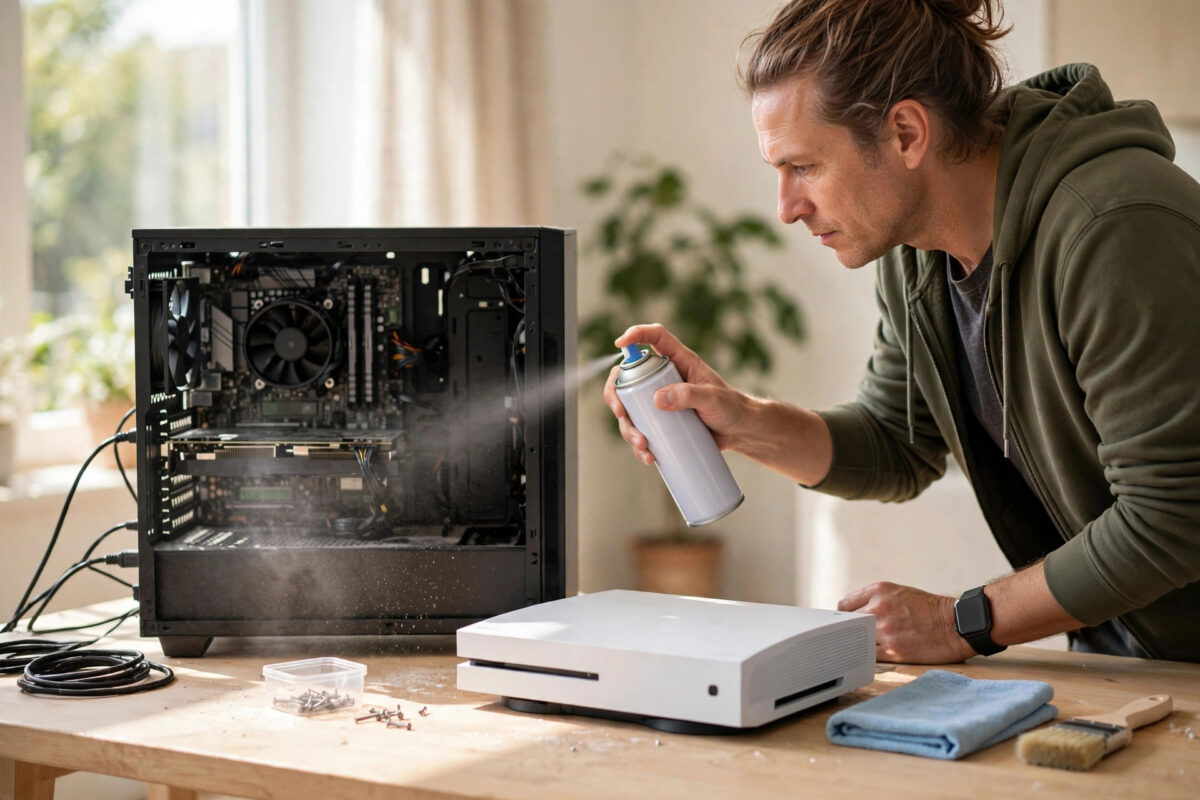
Dust is the quiet enemy of every gaming setup. It creeps into fans, coats filters, and traps heat inside your PC and console. Over time, that heat means louder fans, lower performance, and parts that wear out sooner. The good news is that cleaning dust away is easy, as long as you do it the safe way.
This guide covers both a gaming PC and a home console. You will learn what to use, what to avoid, and the exact order to work in, so your machines come out cleaner without a single damaged part.
Quick Answer
Turn the device fully off and unplug it, then take it to a well-lit, open space. Use short bursts of compressed air or an electric air duster to blow dust outwards, while holding fan blades still so they cannot spin. Finish by wiping outside surfaces with a soft microfibre cloth, and never use a household vacuum cleaner inside the machine.
Why Dust Is Worse Than It Looks
Dust does more than look untidy. A layer of dust on a heatsink works like a blanket, stopping heat from escaping. Dust in a fan makes it work harder and louder to move the same air. Dust on filters chokes the fresh air supply for the whole system.
Consoles suffer just as much as PCs. A console in a TV unit has limited space around it, so when its vents clog, temperatures climb quickly. The fan then spins at full speed to cope, which is why an old, dusty console can sound far louder than it did when it was new.
Regular gentle cleaning, every three to six months for most homes, prevents that slow decline. Homes with pets, carpets, or smokers in the room may need cleaning more often.
What You Need Before You Start
- A can of compressed air, or a mains-powered electric air duster if you clean often.
- Soft microfibre cloths for wiping cases and screens.
- A soft, clean paintbrush or anti-static brush for loosening stubborn dust.
- Screwdrivers that match your PC case or console covers, if covers need removing.
- A torch or phone light so you can see inside dark corners.
- Optional: isopropyl alcohol at 90 percent or higher, and cotton buds, for sticky grime on fan blades and controller surfaces.
Good preparation also includes where you work. Clean outdoors, in a garage, or near an open window if you can, so the dust does not simply settle back onto your desk. Lay the device on a clean, hard surface, not on a bed or carpet. Keep drinks far away from the work area.
If controllers need attention too, our separate guide on how to clean a gaming controller safely without damaging the sticks or buttons covers that job in detail.
Safety Rules That Protect Your Hardware
- Shut down fully and unplug. Do not clean a device that is in sleep or rest mode. Remove the power cable completely.
- Wait a few minutes. If the device was just used, let hot parts cool down before you touch them.
- Ground yourself. Touch a large metal object, or the metal of the unplugged case, before reaching inside. This drains static electricity from your hands.
- Hold fans still. Always stop fan blades with a finger or a plastic tool while blowing air at them. Letting a fan spin freely from air pressure can damage its motor and can even send power back into the board.
- Keep cans upright. Tilting a compressed air can can spray freezing liquid. Use short, controlled bursts.
- Never open a power supply. A PC power supply can hold a dangerous charge even when unplugged. Clean its outside grille only, and leave the inside alone.
Step-by-Step: Dusting a Gaming PC
- Shut down the PC, unplug every cable, and press the power button once to drain leftover power.
- Move the case to your cleaning area and remove the side panel, usually the left one when viewed from the front.
- Take a photo of the inside. It helps you remember cable positions if anything moves.
- Slide out or remove the dust filters from the front, top, and bottom of the case. Wash them with water if the maker allows it, or brush and tap them clean outdoors. Let washed filters dry fully before refitting.
- Starting from the top, blow short bursts of air across the heatsinks, graphics card, and motherboard. Work dust towards the open side and out of the case, not deeper into corners.
- Hold each fan still while you blow through it, including case fans, the processor cooler fan, and the graphics card fans.
- Use the soft brush to loosen dust that air alone will not shift, especially on fan blades, then blow it away.
- Blow out the power supply grille from outside the case. Do not insert anything into it.
- Wipe the inside of the side panel and the case floor with a dry microfibre cloth.
- Refit the dry filters, close the panel, reconnect the cables, and start the PC. Check that every fan spins and listen for anything unusual.
Step-by-Step: Dusting a Console Safely
Consoles are more sealed than PCs, so your job is mainly vents, fan openings, and the space around the machine. Only remove covers if the maker designed them to come off by hand, as on PlayStation 5. Never force a sealed console open just to dust it, because that can void the warranty.
- Shut the console down fully, not rest mode, and unplug it.
- Move it out of its shelf or TV unit into open space.
- Wipe the whole outside shell with a dry or very slightly damp microfibre cloth.
- Blow short bursts of air across the vents and intake areas, angling the air so dust comes out rather than being pushed deeper in.
- For a PlayStation 5, lift off the side covers as Sony describes, and use the built-in dust catcher holes with low suction from a handheld vacuum only on those holes, as instructed by Sony. Our linked official source below explains this design.
- For an Xbox, blow air through the top or rear vent area while the console is unplugged, and wipe the fan grille area gently.
- Clean the area where the console lives. Dusty shelves refill clean vents very quickly.
- Put the console back with clear space around its vents, reconnect it, and run a game to confirm the fan sounds normal.
Sony explains the removable covers and dust catchers in its own official PlayStation support guidance on removing and replacing PS5 console covers. Microsoft offers similar care advice through its official Xbox support page on how to clean an Xbox console and accessories. Follow the maker for your model, because vent layouts differ.
Common Mistakes to Avoid
- Using a household vacuum inside a PC. Vacuum nozzles build up static and can knock small parts. They are risky inside electronics.
- Letting fans spin freely under air pressure. This is one of the most common causes of cleaning damage. Hold every fan.
- Using long, close blasts of air. Powerful air too close can bend delicate fins or push dust into connectors. Short bursts from a sensible distance are safer.
- Spraying liquid cleaners inside. Liquids and circuit boards do not mix. Keep any damp cloth work to outside surfaces only.
- Cleaning while plugged in or in rest mode. Fans can start without warning, and power plus tools is a bad mix.
- Opening sealed parts to chase dust. Power supplies and sealed console sections are not user-serviceable. Outside cleaning is enough.
- Rushing the filters. Putting a damp filter back traps moisture inside the case. Wait until filters are completely dry.
How Often Should You Clean?
For most homes, a light dusting every three months and a deeper clean every six months is a good rhythm. Check filters monthly if the PC sits on the floor, because floor-level cases pull in far more dust. If fan noise creeps up or temperatures rise a few degrees for no other reason, dust is the first thing to check.
Prevention helps too. Keep the PC on the desk or a stand rather than carpet, keep consoles out of closed cupboards, and vacuum the room regularly. Less dust in the room means less dust in your machines.
Conclusion
Safe cleaning comes down to a few habits: power fully off and unplugged, fans held still, short bursts of air directed outwards, and no vacuums or liquids inside the machine. Follow those rules and dusting a PC or console takes fifteen to thirty minutes, keeps temperatures down, and helps your hardware last for years.
Frequently Asked Questions
Can compressed air damage my PC?
Used correctly, no. Keep the can upright, use short bursts, stay a few inches away, and hold fans still. Damage usually comes from tilting the can so liquid sprays out, or from letting fans overspin.
Is an electric air duster better than canned air?
For regular cleaning, often yes. An electric duster never runs out, does not spray cold liquid, and costs less over time. Canned air is fine for occasional use. Either is safer than a vacuum cleaner inside a case.
Should I remove my graphics card to clean it?
Usually not. You can clean its fans and fins well while it stays installed, holding the fans still as you blow. Remove it only if dust is truly trapped and you are confident about reseating it and reconnecting its power cables.
Will dusting my console void the warranty?
External cleaning and removing covers the maker designed to come off by hand will not void a warranty. Forcing open sealed parts or removing warranty screws can. When in doubt, stick to vents, covers, and surfaces.
Why is my PC still loud after cleaning?
The cause may be fan settings, an ageing fan bearing, or a heatsink that needs fresh thermal paste. Check temperatures while gaming first. If they are normal but noise is high, a gentler fan curve in the BIOS or maker software usually helps.



Leave a Reply