
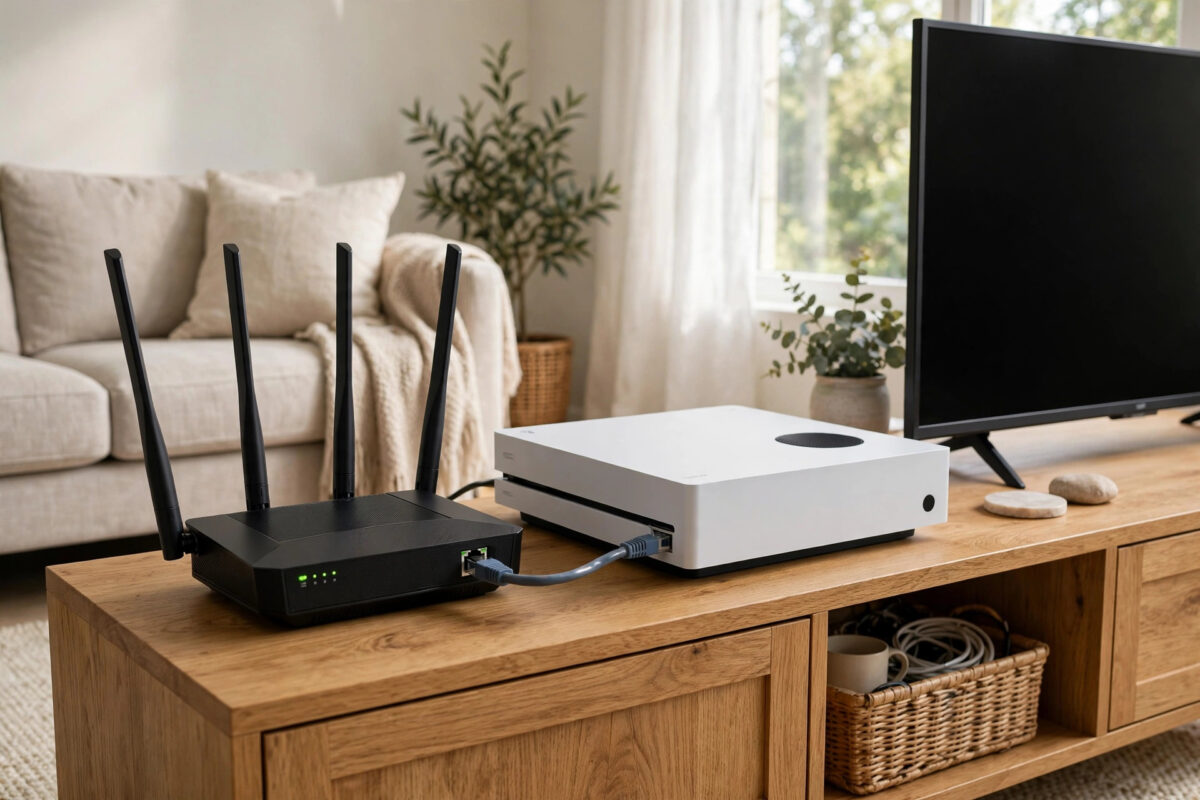
You bought a good console, you pay for fast internet, and yet online matches still stutter at the worst moments. Characters skip, shots land late, and voice chat crackles while someone else in the house is streaming a film. Very often the missing piece is not your console or your internet package. It is your router, quietly using default settings that were never designed for gaming.
Routers come set up for convenience, not for low lag. A handful of changes in the router’s settings page can make console gaming noticeably smoother, especially in a busy home. This guide explains the settings that genuinely matter, in plain language, and the order to apply them safely.
Quick Answer
Connect your console by Ethernet cable if you can, then enable Smart Queue Management or QoS on your router and prioritise the console. Use the 5 GHz Wi-Fi band with a clear channel if you must play wirelessly, keep the router firmware updated, and place the router centrally. These settings cut lag spikes and give consoles the lowest, steadiest latency your connection can offer.
Before You Change Anything: The Golden Rules
One careless change can knock your whole home offline. A little preparation keeps everything safe and reversible.
- Note your current settings or use the router’s backup option to save a copy of the configuration.
- Change one setting at a time, then test a match before changing the next thing.
- Keep your router’s admin password private and different from your Wi-Fi password.
- Know how to reach the settings page. It is usually a local address printed on the router’s label, opened in a browser, or the maker’s phone app.
Work through the settings below from biggest impact to smallest.
Setting 1: Wired Connection Beats Every Wi-Fi Tweak
No router setting can fully match a simple Ethernet cable. Wi-Fi, even excellent Wi-Fi, must share airtime with neighbours, walls, and every other device in the house. A cable gives your console its own private lane.
If your console sits near the router, plug it straight in. If not, a long flat Ethernet cable can run along a wall, powerline adapters send the network through your electrical wiring, and a mesh node near the console lets you run a short cable from that node, which is far steadier than Wi-Fi across the house.
Once wired, run your console’s connection test to confirm it. Everything else in this guide still helps, because the router still prioritises that traffic.
Setting 2: QoS and Smart Queue Management
This is the most important router setting for gaming in a shared home. QoS stands for Quality of Service. Its job is to decide which traffic goes first when your connection is busy. Without it, a big download or a 4K stream can grab the full connection and your game packets wait in line, which you feel as lag spikes.
How to set it up
- Log in to your router settings and look for QoS, Smart Queue Management, SQM, Traffic Prioritisation, or a gaming mode section.
- If your router offers SQM with options like cake or fq_codel, choose that. These modern systems are excellent at killing lag spikes caused by busy connections, a problem known as bufferbloat.
- Enter your real download and upload speeds, slightly below your tested maximum, usually around 90 to 95 percent. This small sacrifice lets the router control the queue properly.
- Add your console as a prioritised or gaming device if the router uses device-based rules.
- Save, then test a match while another device streams video, and compare how it feels.
One warning: very old routers can slow down when QoS is enabled because their processors are weak. If speeds drop sharply, your router may not be up to the job.
Setting 3: Wi-Fi Band, Channel, and Placement for Wireless Consoles
If wiring truly is not possible, these settings decide whether wireless play feels fine or frustrating.
- Use 5 GHz, not 2.4 GHz: The 5 GHz band is faster and far less crowded, which means lower delay. Its weakness is range, so it works best in the same room or one room away. The newer 6 GHz band on Wi-Fi 6E and Wi-Fi 7 routers is even cleaner if your console and router support it.
- Pick a clear channel: In the Wi-Fi settings, set the 5 GHz channel manually after checking which channels neighbours use with a free Wi-Fi analyser app. A quiet channel can transform a struggling connection.
- Use wider channels carefully: An 80 MHz channel width on 5 GHz offers more speed, which is fine for gaming, but in very crowded areas a 40 MHz setting can be steadier. Test both if your area is dense with networks.
- Place the router well: Central, raised, out in the open, and away from thick walls, fish tanks, metal cabinets, and microwaves. Placement is a setting too, and it costs nothing.
- Split the bands if needed: If your router merges both bands under one network name and your console keeps landing on 2.4 GHz, give the 5 GHz band its own name and connect the console to that.
Console makers agree with these steps. The PlayStation connection troubleshooting page on PlayStation.com and the Xbox network connection support page on Xbox.com both stress wired connections, NAT type, and console network tests.
Setting 4: NAT Type, UPnP, and Port Basics
NAT type decides how easily your console can connect to other players. A strict NAT can block voice chat, make matchmaking slow, and prevent you joining friends, even when your ping is low.
- Run your console’s network test and note the NAT type. You want Open on Xbox or Type 2 on PlayStation for normal play.
- Make sure UPnP is enabled in your router settings. This lets the console open the ports it needs automatically and safely.
- Avoid putting your console in the router’s DMZ unless a support guide for your exact setup tells you to. It is rarely needed with UPnP working.
- Watch out for double NAT. If your internet provider’s modem is also acting as a router and you added your own router behind it, you have two layers doing the same job. Putting the provider box in bridge mode, or using only one router, fixes many stubborn NAT problems.
- Do not forward ports manually unless the game maker publishes a specific list and UPnP has failed. Wrong manual forwards create security risks without helping.
Setting 5: DNS, Firmware, and the Small Settings That Add Up
These changes keep a good setup running well.
- Update the firmware: Check for router updates every few months or enable automatic updates. Updates fix bugs, improve Wi-Fi handling, and patch security holes.
- DNS settings: Changing DNS can make menus, stores, and matchmaking lookups feel snappier, though it does not lower in-game ping directly. Your provider’s DNS is usually fine, and any reputable public DNS is a safe alternative if yours is unreliable.
- Turn off unused extras: Old features like certain traffic analysers, parental logging at heavy levels, or outdated security add-ons can strain a weak router. If your router struggles under load, disabling non-essential features can help.
- Schedule a reboot: Some routers let you schedule a weekly overnight restart, which clears slow memory leaks and keeps performance steady.
If you want to measure whether all this work actually helped, our guide on how to improve Wi-Fi signal for gaming walks through testing signal strength and spotting weak spots around your home.
Common Mistakes to Avoid
- Chasing the fastest speed test instead of the steadiest connection: Gaming uses very little bandwidth. Low, stable latency is what matters, and QoS protects exactly that.
- Setting QoS speeds to your full package speed: The queue only works if the router controls traffic slightly below the real limit. Set it too high and lag spikes return.
- Enabling every gaming feature at once: Overlapping boosters and accelerators often conflict. Turn one on, test, and keep only what proves itself.
- Putting the router in a cupboard or behind the TV: Hidden routers look tidy and perform badly. Signal needs open air.
- Ignoring double NAT: Two routers in a chain is one of the most common hidden causes of strict NAT and failed party chat in homes with provider modem-routers.
Conclusion
The lowest lag comes from proven settings, not the most expensive router. Wire the console if you can, let QoS protect your game traffic, use a clean 5 GHz channel if wireless, keep NAT open with UPnP, and stay on current firmware. Change one thing at a time and test a real match after each step. That steadiness matters more than any headline speed.
Frequently Asked Questions
Does a gaming router actually reduce lag compared to a normal router?
It can, mainly through better QoS, a stronger processor, and cleaner Wi-Fi. The label itself guarantees nothing. A mid-range router with SQM set up correctly will beat an expensive gaming router left on defaults.
What is the best NAT type for console gaming?
On Xbox you want Open NAT, and on PlayStation Type 2 is the normal, healthy result for a home router. Type 1 usually means the console is connected directly without a router in between, which is uncommon at home. Type 3 or Strict is the one to fix, as it limits matchmaking and voice chat.
Should I use QoS or a gaming mode on my router?
Proper Smart Queue Management, such as cake or fq_codel, is the most reliable option for removing lag spikes. Simple gaming modes that just prioritise one device can still help in busy homes. Try SQM first if your router offers it, and test matches under load to judge the result.
Will changing my DNS lower my ping in games?
Not directly. DNS only translates names into addresses when connections start, so a better DNS can make stores, menus, and matchmaking respond faster, but it does not change the path your in-game data takes. Keep DNS in the fine-tuning category rather than treating it as a ping fix.
How often should I update or restart my router?
Check for firmware updates every few months, or turn on automatic updates. A monthly restart keeps many routers running smoothly.



Leave a Reply