
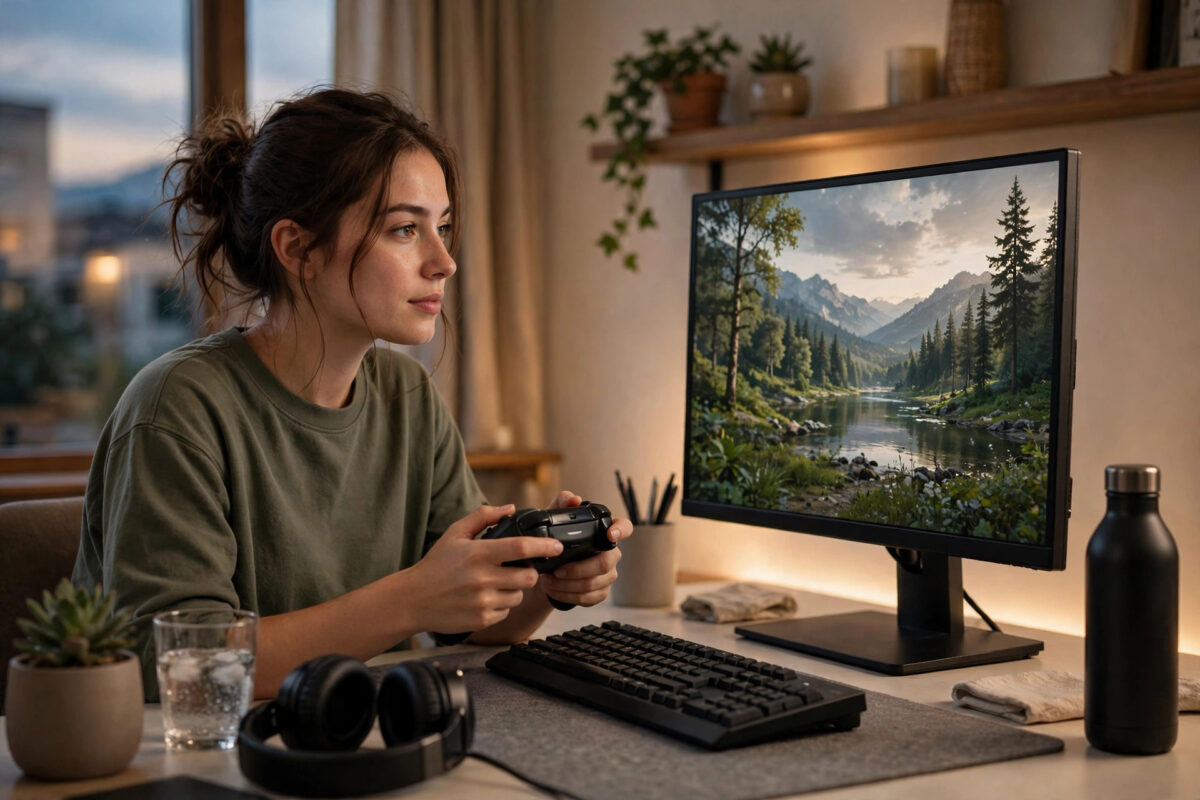
You sit down to play a new PC game with your Xbox controller. The game works fine, the character moves, the menus respond. But every on-screen instruction shows a circle, a cross, or a square. The game keeps telling you to press buttons that do not exist on the controller in your hands.
This mismatch is very common on PC. Some games were built first for PlayStation, some detect the wrong controller type, and some simply have a fixed prompt style. The good news is that you have several solid options, from learning a simple translation to changing the prompts themselves. This guide covers them all.
Quick Answer
You can keep using your Xbox controller even when a game shows PlayStation prompts, because the button positions match one to one. Learn the simple position swap, or fix the prompts properly by disabling Steam Input for that game, using a prompt-swap mod, or choosing the Xbox prompt option if the game offers one in its settings. Start with the in-game and Steam settings before installing anything extra.
Why PC Games Show PlayStation Prompts With an Xbox Controller
A game shows button prompts based on what it thinks is connected, not always on what is actually in your hands. That guess can go wrong for a few reasons.
Some games were developed mainly for PlayStation and their PC version kept those prompts as the default. Others rely on Steam Input, which can present your Xbox controller to the game as a generic or PlayStation-style device depending on settings. A few older titles also show PlayStation icons when they detect any controller through a certain input method, even a genuine Xbox pad.
If Steam Input is translating your controller, a Steam setting fixes it. If the game only shipped with PlayStation prompts, you will need its own options or a community mod instead.
The Button Positions Are the Same
Before fixing anything, it helps to know that the layouts line up by position. Once you know the four swaps, you can play any mismatched game without looking down at the controller.
- Cross, in the bottom position, does the same job as A on Xbox.
- Circle, in the right position, matches B on Xbox.
- Square, in the left position, matches X on Xbox.
- Triangle, in the top position, matches Y on Xbox.
- Options matches Menu, Create matches View, and the touchpad click often matches the View button or a menu function.
- L1 and R1 match LB and RB, while L2 and R2 match LT and RT.
Method 1: Check the Game’s Own Settings First
Many modern games quietly include a prompt style option. Developers know PC players use both controller families, so they often let you pick which icons to display.
- Open the game’s settings menu and look under Controls, Gamepad, Accessibility, or Interface.
- Search for options named Button Prompts, Controller Icons, Input Display, or Prompt Type.
- If you find it, set it to Xbox, XInput, or Type A, depending on the wording used.
- Restart the game if the change does not apply straight away.
- Trigger a tutorial prompt or open a menu to confirm the icons have switched.
This is the cleanest fix when it exists: no extra software, no side effects, and it survives updates.
Method 2: Fix It Through Steam Input Settings
If you play through Steam, Steam Input sits between your controller and the game. It is powerful, but its translation layer can make a game believe a different controller is connected. Adjusting it per game is often enough.
- In your Steam library, right-click the game and open Properties.
- Go to the Controller section.
- Change the setting from Use Default Settings to Disable Steam Input.
- Connect your Xbox controller before launching the game.
- Launch the game and check whether the prompts now show Xbox buttons.
Disabling Steam Input lets the game talk to your Xbox controller directly through Windows XInput, which almost every PC game recognises correctly. The official Steam Input and controller support guide on Steam Support explains how these per-game overrides work and when to use them.
Keep in mind that a small number of games need Steam Input to work with any controller at all. If the controller stops responding after disabling it, go back to the same menu and set it to Enable Steam Input instead, then try the other methods in this guide.
Method 3: Make Sure Windows Sees a Genuine Xbox Controller
Sometimes the problem starts before the game even loads. Old drivers, a generic receiver, or another virtual controller can make Windows report your pad in a way that confuses games.
Simple checks that help
- Disconnect other controllers, racing wheels, and remapping tools, leaving only the Xbox controller connected.
- Open joy.cpl and confirm the controller is listed and responds as an Xbox-style gamepad.
- Update the controller using the Xbox Accessories app from Microsoft if you have never done so.
- If you use a wireless dongle or Bluetooth, test a wired USB connection once to rule out a pairing issue.
- Close programs that create virtual PlayStation controllers, as games may read those first.
Microsoft’s own guidance on the Xbox controller connection support page on Xbox.com covers pairing, updating, and troubleshooting for both wired and wireless connections, and it is worth following if Windows itself seems unsure what is connected.
Method 4: Use a Prompt-Swap Mod or Configuration File
When a game truly only contains PlayStation prompts, the community usually fills the gap. Many popular titles have small mods that replace the prompt images with Xbox ones, or a simple configuration edit that does the same.
- Search for the game’s name together with the words Xbox prompts mod on trusted mod sites.
- Read recent comments to confirm the mod works with the current game version.
- Back up any file the mod asks you to replace, storing the original somewhere safe.
- Install exactly as the mod page describes, then launch the game and check the prompts.
- After major game updates, be ready to reinstall the mod, since updates often overwrite changed files.
Only download mods from well-known community sites. If a supposed prompt fix asks for unusual permissions or bundles unrelated software, walk away and use the position-translation method instead.
Method 5: Just Learn the Positions and Play
It sounds basic, but for many players this is the lasting answer. The face buttons sit in identical positions, and after an hour or two your thumbs learn the translation automatically. It works in every game, never breaks after an update, and means you can later pick up a PlayStation controller and feel at home there too.
If input confusion is only part of your frustration and online matches also feel sluggish, our guide on the best Xbox network settings for online gaming can help you clean up the connection side of things as well.
Common Mistakes to Avoid
- Installing a remapper to solve a display problem: The controller already works. Remappers that disguise it as another device usually make prompt detection worse, not better.
- Changing Steam Input globally: Disabling Steam Input for your whole library can break other games that depend on it. Always change it per game.
- Forgetting a second connected controller: A forgotten pad in a drawer, still paired, can be the device the game is reading prompts from.
- Assuming the game is broken: Fixed PlayStation prompts are often a deliberate porting choice, not a bug, so a settings or mod fix is the realistic path.
- Mixing two fixes at once: Change one thing, test, then move on. Stacking a mod, a remapper, and Steam changes together makes new problems hard to trace.
Tips for a Smoother Experience
Keep the translation list on your phone for the first few sessions with a new game. In games with quick-time events, lower the difficulty for the first hour if you are still translating under time pressure. And open any controller test screen in the options once at the start, so you know which prompt set the game has chosen.
Conclusion
PlayStation prompts with an Xbox controller look confusing, but your controller was never the problem. Check the game’s prompt setting first, then try disabling Steam Input for that title, and make sure other tools are not confusing detection. If the game only shipped with PlayStation icons, a small mod or learning the four position swaps will carry you through. Within a session or two, the game feels natural again.
Frequently Asked Questions
Do Xbox and PlayStation buttons really line up exactly?
For the four face buttons, bumpers, triggers, and sticks, yes. The positions and functions match, only the labels and symbols differ. The main exceptions are the touchpad and Create button on PlayStation pads, which games usually map to the View or Menu button on an Xbox controller.
Will disabling Steam Input break my controller in the game?
For most games that natively support Xbox controllers, no. It usually improves detection. A few games rely on Steam Input for all controller support, and in those the pad may stop responding. If that happens, re-enable Steam Input for that game in its Properties and use another method.
Why do prompts switch back and forth between keyboard and PlayStation icons?
The game is reacting to whichever input it last received. Touching the keyboard or mouse switches prompts to keyboard, and a controller input switches them back. If it flickers constantly, something is sending stray inputs, often a second controller, a drifting stick, or a background remapping tool.
Can I force Xbox prompts in every Steam game at once?
There is no single reliable switch for every game, because prompt style is decided by each game. Per-game Steam Input settings and in-game options are the dependable route. A global change risks breaking games that need Steam Input, so adjust titles one by one as you play them.
Are prompt-swap mods safe to use in online games?
Mods that only change local image files are generally low risk, but any modification can conflict with anti-cheat systems or game terms. For online and competitive games, the safer choices are the in-game prompt setting, Steam Input adjustments, or learning the button positions without modifying files.



Leave a Reply