
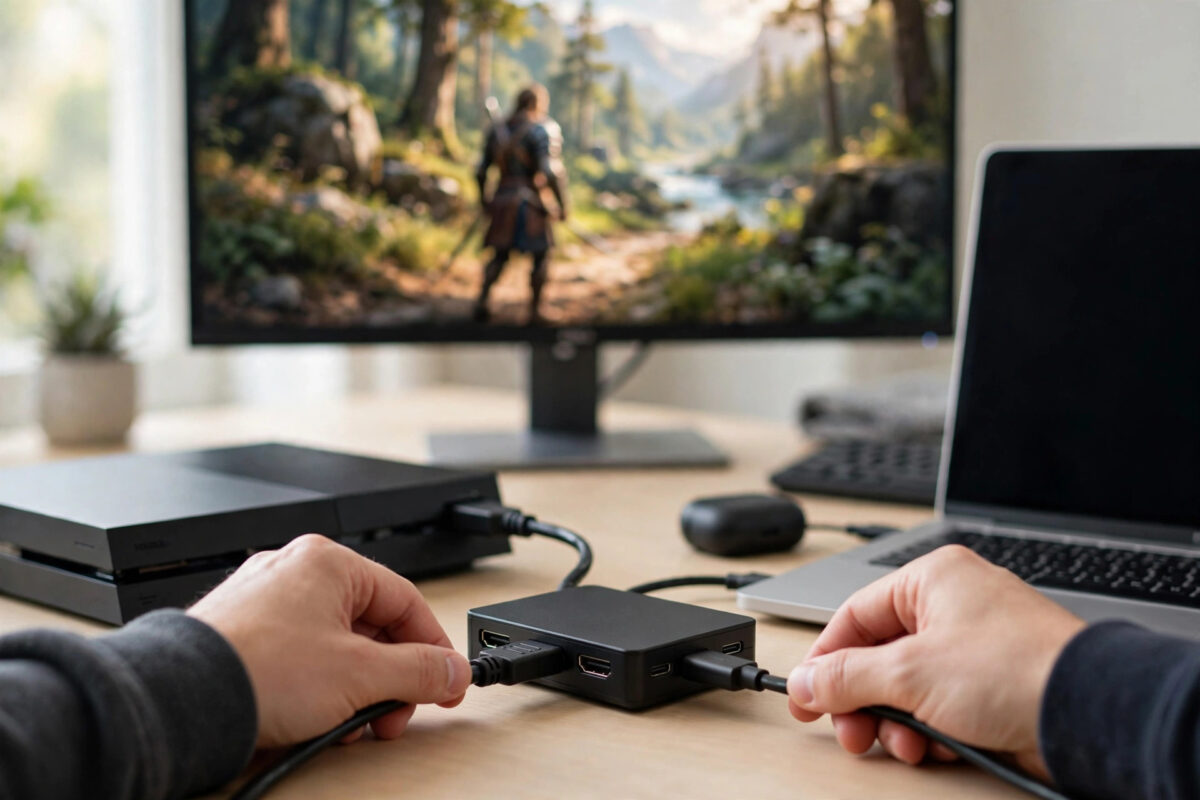
Streaming directly from your console is simple, but it limits what you can show on screen. No custom overlays, no fancy alerts, no scene changes, and very little control over your audio. A capture card solves all of that by sending your console picture and sound to a PC, where streaming software gives you full control.
The good news is that the setup is mostly just plugging cables in the right order. The confusion usually comes from not knowing which cable does what, or from one setting like HDCP blocking the picture. This guide explains the whole chain in plain language, from unboxing to your first test recording.
Quick Answer
Connect an HDMI cable from your console to the HDMI IN port on the capture card, then another HDMI cable from the HDMI OUT port to your TV or monitor. Connect the capture card to your PC with USB, open OBS Studio, and add the card as a Video Capture Device. Turn off HDCP on PlayStation, set the correct resolution, and test your audio before going live.
What a Capture Card Actually Does
A capture card takes the video signal coming out of your console and copies it into your PC. Your console still sends its picture to your TV through the card, so you play as normal with no extra delay on your screen. At the same time, the PC receives its own copy of that picture and sound, which your streaming software can record or broadcast.
There are two main types. Internal cards slot into a PCIe slot inside a desktop PC. External cards connect by USB and work with desktops and laptops. For most beginners, an external USB card is easier because there is nothing to install inside the computer and you can move it between machines.
What to Check Before You Buy
- Passthrough resolution: This is what you see on your TV. A card with 4K passthrough lets you play in 4K while streaming in 1080p.
- Capture resolution: This is what your stream or recording gets. 1080p at 60 frames per second is plenty for Twitch.
- USB speed: USB 3.0 or faster is important for smooth 1080p60 capture. Older USB 2.0 cards often limit quality.
- Software support: Make sure the card works with OBS Studio on your operating system.
Do not overspend for your first card. A reliable 1080p60 card from a known brand will serve you for years. Our related guide on how to reduce input lag on your TV for console gaming is also worth reading, because you should always play from the passthrough TV signal, not the PC preview, to keep your gameplay responsive.
What You Need for the Setup
- Your console, such as PS5, Xbox Series X|S, or Nintendo Switch
- A capture card, internal or external
- Two HDMI cables, one for console to card and one for card to TV
- A USB cable for the card to PC connection, usually included in the box
- A PC or laptop with OBS Studio installed for free
- A headset and microphone for your commentary
Use the HDMI cables that came with your console where possible. Old or damaged cables are a common cause of black screens and flickering.
Step-by-Step Capture Card Setup
- Turn everything off first. Connect cables while devices are off to avoid handshake problems.
- Plug the first HDMI cable into your console HDMI output, and the other end into the port labelled HDMI IN or INPUT on the capture card.
- Plug the second HDMI cable into the port labelled HDMI OUT or OUTPUT on the capture card, and the other end into your TV or monitor.
- Connect the capture card to your PC using the USB cable. Use a USB 3.0 port directly on the computer, not a cheap unpowered hub.
- Turn on your TV, then your console, then open your PC software. You should see the console picture on the TV as normal.
- On PlayStation, go to Settings, System, HDMI, and turn off Enable HDCP. Without this step, the PC will often show a black screen because HDCP is copy protection that blocks capture.
- On your PC, download and install any driver or utility the card maker recommends, then restart the PC if asked.
- Open OBS Studio, click the plus button in the Sources box, and choose Video Capture Device.
- Name the source, select your capture card from the device list, and click OK. The console picture should appear in the OBS preview.
- Right-click the source, open Properties, and set the resolution to 1080p and frame rate to 60 if your card and console support it.
If the TV shows the game but OBS shows black, the problem is almost always HDCP, the wrong HDMI port, or the wrong device selected in OBS. Swap your attention in that order and you will fix most cases quickly.
Getting the Audio Right
Game audio normally arrives with the video through HDMI, so OBS receives it automatically with the capture device. Your voice is separate. Add your microphone in OBS under Settings and Audio, or as an Audio Input Capture source in your scene.
The tricky part is hearing the game yourself without delay or echo. The best method is to listen through your TV or monitor speakers at low volume, or connect your headset to your controller or TV. Avoid listening to the OBS preview audio for gameplay, because it can be slightly delayed. In OBS, open Advanced Audio Properties for the capture card and set Audio Monitoring to Monitor Off for streaming-only setups, or Monitor and Output only if you understand the delay and need to hear it in your PC headset. If you hear an echo, you almost certainly have the same audio playing twice, once from the card and once from a desktop audio source.
Set levels so your voice peaks louder than the game. A good starting point is game audio around minus 18 to minus 24 decibels in the OBS mixer, with your voice peaking near minus 6 to minus 10. Watch a short test recording back in full before you stream.
Setting Up Your First OBS Scene
Start simple: the capture card video filling the screen, your microphone, and optionally a webcam in a corner.
- Set your OBS canvas to 1920 by 1080 under Settings and Video.
- Add the capture card source and stretch it to fill the canvas.
- Add a Video Capture Device for your webcam if you use one, resize it, and place it in a corner that does not cover game menus or health bars.
- Add a second scene with just a Starting Soon image or simple text, so you have somewhere to sit while viewers arrive.
- Use the Studio Mode preview to check everything before you press Start Streaming.
Download OBS only from the official OBS Studio website for free streaming software to avoid bundled junk from copycat sites. For card-specific wiring diagrams and firmware updates, the Elgato support pages for capture card setup help are useful even as a general reference for how passthrough connections should look.
Recording a Test Before You Go Live
Never make your first test a public stream. In OBS, press Start Recording instead, play for two or three minutes, talk as you normally would, open menus, and create some loud game moments. Then stop and watch the whole file.
Check four things: sharp, smooth picture, clear game sound with no echo, a voice that is easy to understand, and audio in sync with the picture. Fix one problem at a time and record again.
Common Mistakes to Avoid
- Swapping IN and OUT cables: Console goes to IN, TV goes to OUT. Reversing them gives you no picture.
- Leaving HDCP on: On PlayStation this blocks capture and causes a black screen in OBS.
- Playing from the OBS preview: The preview has delay. Always play from the TV passthrough signal.
- Using a USB hub or USB 2.0 port: This can cause stutter, dropped quality, or the device not appearing at all.
- Double audio: Having both capture card audio and desktop audio active creates echo. Use one path for game sound.
- Skipping the test recording: Most audio and sync problems are only obvious when you watch a recording back.
Conclusion
A capture card setup is just a short chain: console to card IN, card OUT to TV, card to PC by USB, and then one video source inside OBS. Turn off HDCP on PlayStation, use proper USB 3.0 ports and good HDMI cables, set your levels with a test recording, and the system becomes very reliable. Once this foundation works, you can add overlays, alerts, and extra scenes one at a time without ever rebuilding the core setup.
Frequently Asked Questions
Do I need a powerful PC to use a capture card?
No. The console does the hard work of running the game. Your PC only needs to encode video for streaming, and a modest modern laptop or desktop with a recent processor can handle 1080p streaming in OBS comfortably.
Why does OBS show a black screen from my PS5?
The most common reason is HDCP being turned on. Go to PS5 Settings, System, HDMI, and disable Enable HDCP. Also check that you selected the correct capture device in OBS and that the HDMI cables are in the right ports.
Will a capture card add lag to my gameplay?
Not if you play from the passthrough signal on your TV. Passthrough is designed to be effectively instant. Lag only appears if you try to play by watching the delayed preview inside OBS.
Can I use one capture card for PS5, Xbox, and Switch?
Yes. You can move the HDMI IN cable between consoles, or use an HDMI switch. Just remember that PlayStation needs HDCP off for capture, while the Switch must be docked to output video.
What resolution should I capture for Twitch?
1080p at 60 frames per second is the standard choice. It looks sharp for most games and matches what Twitch handles well. Capturing in 4K uses far more PC power and gives viewers little extra benefit on Twitch.



Leave a Reply