
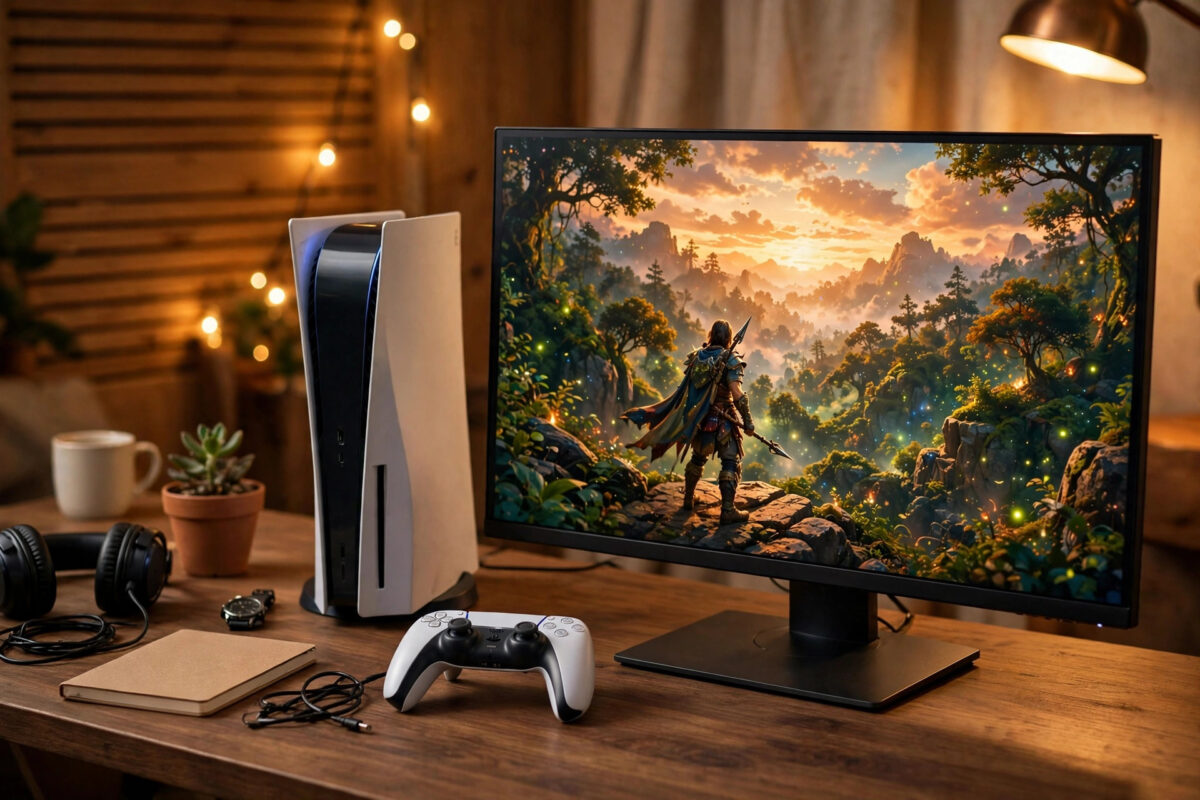
A gaming monitor can make a console feel faster, sharper, and more responsive than a large TV. The smaller screen, low input lag, and high refresh rate are ideal for competitive play. But a monitor will not give you its best picture automatically. You need the right cable, the right port, and the right settings on both the console and the monitor.
This guide walks you through the full setup step by step. It covers PlayStation 5, Xbox Series X and S, and Nintendo Switch, along with HDR, resolution, refresh rate, and the picture settings that matter most for gaming.
Quick Answer
Connect your console to your gaming monitor with the HDMI cable that came in the console box, ideally into the monitor’s HDMI 2.1 port. On the monitor, turn on Game Mode, set the response time to Fast or Medium, and enable HDR. On the console, set the resolution to Automatic or 4K, turn on HDR and 120Hz output if your monitor supports it, and run the built-in HDR calibration tool so colours and brightness look correct.
What You Need Before You Start
Getting the basics right first saves a lot of troubleshooting later. Check these items before you change any settings.
- The original HDMI cable: The cable supplied with the PS5 and Xbox Series X is an Ultra High Speed HDMI cable rated for 4K at 120Hz. Cheap or old cables may limit you to 60Hz or cause flickering.
- A compatible port: Many monitors have several HDMI ports, but only one or two support the full bandwidth. Check the label next to the port or the manual.
- Power and placement: Sit roughly an arm’s length from a 27-inch monitor and a little further back from a 32-inch model. Your eyes should be level with the top third of the screen.
- Audio plan: Some monitors have weak speakers or none at all. Decide in advance whether you will use a headset, a soundbar, or external speakers.
Step-by-Step Setup for Console and Monitor
Step 1: Connect the Cable Correctly
- Turn off both the console and the monitor.
- Plug one end of the HDMI cable firmly into the console and the other end into the monitor’s best HDMI port.
- Turn the monitor on first, then the console, so the two devices detect each other properly.
- Use the monitor’s input or source button to select the correct HDMI input if the picture does not appear.
A loose HDMI connection is a common cause of a black screen or dropouts. Push the cable in firmly at both ends and avoid sharp bends.
Step 2: Set the Monitor’s Gaming Options
Open the monitor’s on-screen menu with its joystick or buttons. Look for a picture preset called Game, FPS, or Racing. These presets usually lower processing and reduce lag.
- Select the Game preset as your starting point.
- Find the response time or overdrive setting and choose Fast or Normal. Avoid the highest setting, often called Fastest or Extreme, because it can create bright trails behind moving objects.
- Turn off dynamic contrast, noise reduction, and any eco or energy-saving mode. These add processing and can dim the picture during dark scenes.
- Set brightness so white looks clean but not harsh. In a dim room, a lower brightness is easier on the eyes during long sessions.
- Set colour temperature to Warm or 6500K if you want accurate colours, or leave it on Normal if you prefer a cooler look.
Understanding response time also helps you understand responsiveness in general. If you want a deeper explanation, our guide on what input lag is and how to reduce it on your TV explains why these settings make controls feel instant.
Step 3: Configure the Console Video Output
On a PS5, go to Settings, then Screen and Video, then Video Output. Set Resolution to Automatic, turn on 120Hz Output if your monitor supports it, and set HDR to Always On or On When Supported. Run the Adjust HDR tool and follow the on-screen patterns until the symbols are just barely visible.
On an Xbox Series X or S, go to Settings, then General, then TV and Display Options. Select 4K or 1440p to match your monitor, set the refresh rate to 120Hz if available, and tick Allow HDR10 and Auto HDR. Use the Calibrate HDR for Games app for the best result.
On a Nintendo Switch, the output is simpler. The original model and Switch 2 dock output up to 1080p on most monitors, so set TV Resolution to Automatic and RGB Range to Full if your monitor handles it well. If colours look washed out, switch RGB Range back to Limited.
How to Set Up HDR Properly
HDR, or High Dynamic Range, makes bright highlights shine while keeping detail in dark areas. It only works well when it is calibrated. An uncalibrated HDR picture often looks too dark or too washed out, which is why many players turn it off too quickly.
- Make sure HDR is enabled on both the monitor and the console. If it is on in only one place, the picture may look dull.
- Run the console’s HDR calibration tool in the lighting you normally play in. Close curtains if you usually play at night.
- On the monitor, look for an HDR mode such as HDR Game or DisplayHDR. Leave local dimming on if your monitor has it, as it improves contrast.
- Test with a game that has a bright sky and a dark interior. You should see detail in both at the same time.
Not every monitor handles HDR equally. Entry-level monitors with HDR400 certification can accept an HDR signal but have limited peak brightness. On those models, SDR may actually look punchier. Try both and keep the one that looks better to you. Official guidance on supported formats is available through PlayStation Support for PS5 video and HDR settings and Xbox Support for display and HDR calibration.
Getting 120Hz Working on Console
A 120Hz mode halves the time between frames compared with 60Hz, so movement looks smoother and aiming feels more direct. Not every game offers it, and it usually runs at a lower resolution, but competitive titles benefit the most.
For 120Hz to appear as an option, three things must line up. The monitor must support 120Hz over HDMI, the cable must be rated for high bandwidth, and the game itself must include a performance or 120fps mode. If the option is greyed out, check each link in that chain. Also note that some monitors only reach their highest refresh rate over DisplayPort, which consoles cannot use. Always check the HDMI refresh rate in the specifications, not just the headline number on the box.
Variable Refresh Rate, or VRR, is also worth turning on if both devices support it. VRR matches the monitor’s refresh rate to the game’s frame rate, which removes screen tearing and reduces stutter when the frame rate dips.
Picture Settings That Work for Most Players
Every panel is different, but these starting points work well for most gaming monitors.
- Brightness: Around 40 to 60 percent for indoor play, higher in a bright room.
- Contrast: Near the default value. Raising it too far crushes detail in bright areas.
- Sharpness: Low or default. Extra sharpening creates halos around text and edges.
- Black equaliser: Raise it slightly only if enemies hide in shadows. Too much makes dark scenes look grey and flat.
Save your settings as a custom profile if the monitor allows it, so you can keep one profile for gaming and another for films.
Common Mistakes to Avoid
- Using the wrong HDMI port: Plugging into a slower port can cap you at 4K 60Hz or disable VRR without any warning message.
- Maxing out overdrive: The fastest response setting often causes overshoot and ghosting. Medium is usually the sweet spot.
- Skipping HDR calibration: Default HDR values rarely match your room or panel. Two minutes in the calibration tool fixes most complaints.
- Leaving eco mode on: Energy-saving features change brightness automatically and add processing delay.
- Judging HDR in a bright menu: Test HDR in actual gameplay, including a dark scene, before deciding it looks wrong.
- Stacking cables and adapters: Extra adapters and extenders can reduce bandwidth and cause dropouts. Use one good cable.
Conclusion
Setting up a gaming monitor for a console is mostly about removing limits. Use the supplied high-speed HDMI cable in the best port, choose the Game preset with a sensible response time, and let the console output its highest supported resolution and refresh rate. Calibrate HDR on the console rather than guessing, turn on VRR if you have it, and test everything in a real game. Once those basics are in place, a monitor delivers the fast, clean, and responsive picture that makes console gaming feel at its best.
Frequently Asked Questions
Is a 1440p or 4K monitor better for PS5 and Xbox?
Both work well. A 4K monitor gives the sharpest image for story games, while a 1440p monitor usually costs less and still supports 120Hz on both consoles. Choose based on screen size and budget rather than resolution alone.
Why does my monitor say no signal after connecting my console?
Check that the correct HDMI input is selected, reseat the cable at both ends, and restart the console. If it still fails, try a different cable and a different port to find which part is causing the problem.
Why does HDR look washed out on my monitor?
This usually means HDR is enabled on the console but not on the monitor, or the calibration was skipped. Turn HDR on in both places, run the console calibration tool, and make sure RGB range matches on both devices.
Can I get 120fps on a 60Hz monitor?
No. The monitor can only display as many frames as its refresh rate allows. A 60Hz monitor will show a maximum of 60 frames per second, even if the console outputs more.
Do I need HDMI 2.1 for console gaming?
You need HDMI 2.1 for 4K at 120Hz. For 1440p or 1080p at 120Hz, HDMI 2.0 is often enough. If you plan to keep the monitor for years, HDMI 2.1 is the safer choice.



Leave a Reply