
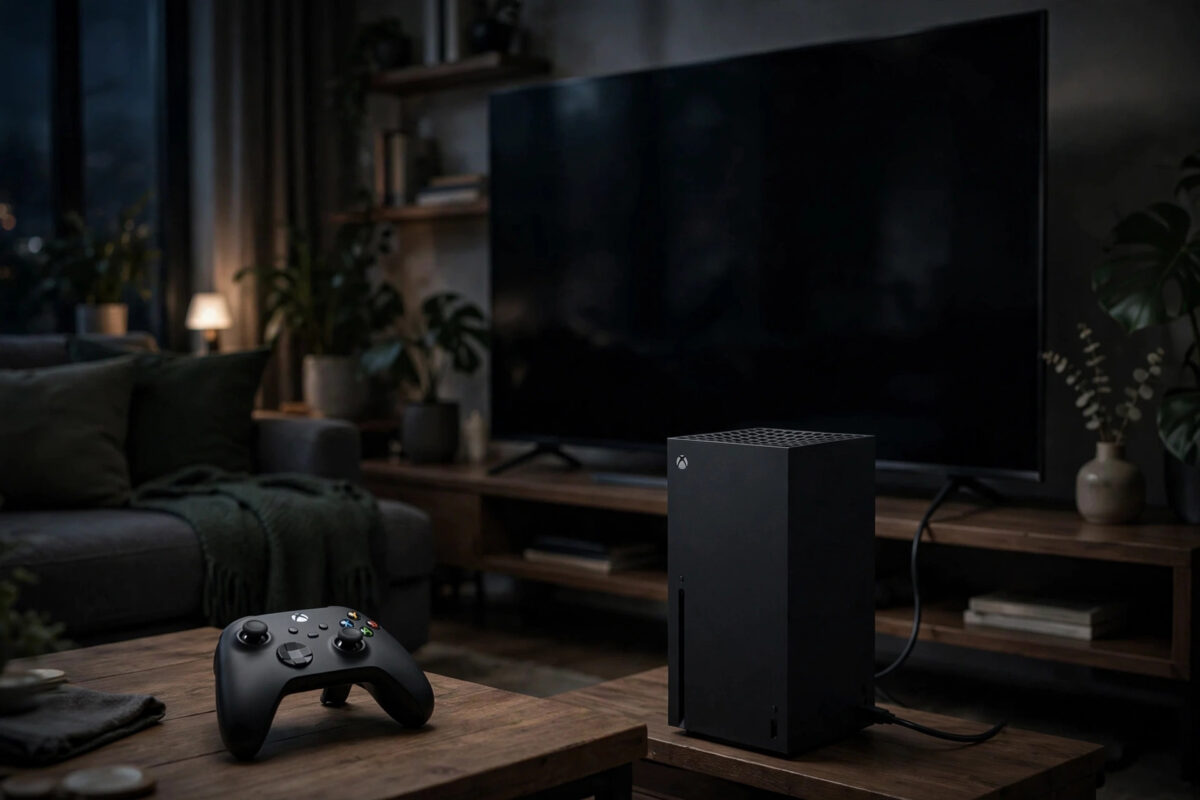
A system update should take a few minutes and end with your home screen. When it ends with a black screen instead, it feels like the update has broken the console. In most cases your Xbox is not broken at all. The display signal, the startup files, or the TV handshake has simply got stuck.
Work through the fixes below in order, from a simple restart to the offline update option. Most black screen problems after an update are fixed in the first three steps, without losing any games or saves.
Quick Answer
To fix an Xbox black screen after a system update, hold the power button for 10 seconds, unplug the console for two minutes, then restart it while holding the eject and pair buttons to open the troubleshooter and choose Reset and keep my games and apps. Before resetting, check the HDMI cable, TV input, and resolution by starting in low-resolution mode. This clears the faulty update state while keeping your installed games.
First, Check It Is Not Just a Display Problem
A black screen does not always mean the console has failed to start. Sometimes the Xbox is running normally but the TV is not showing the picture. Sounds, controller lights, and fan noise are useful clues.
If you can hear menu sounds when you move the stick, the console has loaded and the problem is the picture. If there is complete silence and no light, the problem is more likely power or startup.
Quick Display Checks
- Check the TV is on the correct HDMI input for the Xbox.
- Unplug the HDMI cable at both ends and plug it back in firmly.
- Try a different HDMI cable and a different HDMI port on the TV.
- Remove any HDMI switch, capture card, or soundbar from the chain for testing and connect the Xbox directly to the TV.
- Turn the TV off, unplug it for 30 seconds, then turn it on again to reset its HDMI handshake.
Modern TVs and consoles talk to each other when they connect. After an update changes video output, that conversation can fail once and then stay stuck until both devices fully restart.
Step 1: Do a Full Power Cycle
A normal restart from the controller may not be possible on a black screen, and it would not clear the temporary files anyway. A full power cycle drains the power and forces a clean start.
- Hold the power button on the console for a full 10 seconds until it shuts down completely.
- Unplug the power cable from the back of the console.
- Wait at least two minutes. Press the power button once while unplugged to help drain remaining power.
- Plug the cable back in firmly and turn the console on.
- Give it up to five minutes on the first start after an update, as it may finish applying changes in the background.
Do not keep turning the console on and off rapidly if the screen stays black. Give each attempt time, and move to the next step if a clean power cycle does not help.
Step 2: Start in Low-Resolution Mode
Updates can leave the console trying to send a picture your TV cannot show, such as a resolution or refresh rate the HDMI port does not support. Low-resolution mode forces a safe 640 by 480 picture that almost any TV can display.
- Make sure the console is fully off, not in sleep mode.
- Press and hold the pair button and the eject button on the console. On a Series S, which has no eject button, hold the pair button only as directed for your model.
- While holding them, press the power button once. Keep holding the other buttons until you hear a second startup sound, about 10 seconds later.
- If the picture appears in low resolution, go to Settings, General, TV and display options, and set a resolution your TV supports, such as 1080p or 4K.
- Restart normally to confirm the picture stays.
If low-resolution mode works, the update itself was fine. The problem was the display setting, and you have fixed it without resetting anything.
Step 3: Use the Startup Troubleshooter and Reset Keeping Games
If the screen is still black, use the Xbox Startup Troubleshooter. This menu loads before the normal system, so it often appears even when the home screen does not.
- With the console fully off, hold the pair and eject buttons, press power, and keep holding until the second sound, as in the step above.
- Instead of the home screen, the troubleshooter menu should appear.
- Choose Reset this Xbox.
- Select Reset and keep my games and apps. This is the important choice. It refreshes the system software but keeps your games installed.
- Sign in again with your Microsoft account and let the console finish setting up.
Your cloud saves are stored with your account, and locally installed games stay in place with this option. You may need to set some preferences again, such as your home console and display settings, but you should not need to download your library again.
If your console also had performance problems before the update, refreshing the system cache afterwards can help. See how to clear the cache on Xbox Series X for a safe method that does not delete saved games.
Step 4: Try an Offline System Update
If the troubleshooter reset does not fix the black screen, the update files themselves may be damaged. An offline update replaces them using a file from Microsoft on a USB drive.
You will need a Windows computer, a USB drive with at least 6 GB of space formatted as NTFS, and some patience. The official steps and download are provided through Xbox Support for offline system updates, and you should use only the file for your exact console model.
- Download the offline update file from the official Xbox support site on your computer.
- Extract it and copy the system update folder to the root of the USB drive, not inside another folder.
- Plug the USB drive into the fully powered-off Xbox.
- Open the Startup Troubleshooter again with the pair and eject button method.
- Choose Offline system update and follow the on-screen instructions without unplugging anything.
Do not interrupt an offline update. If the power goes off during the process, you may need to start it again from the troubleshooter.
When to Suspect Hardware Instead
Software fixes solve most post-update black screens, but not all. These signs suggest a hardware issue that happened to appear at the same time as the update:
- No startup sound, no fan, and no light at all after checking power
- The troubleshooter never appears, on any TV or cable
- Strange coloured blocks, lines, or flicker before the screen goes black
- The console was dropped, moved while running, or suffered a power surge
- Black screens happened often before this update as well
Test the console on a completely different TV with a known good cable before deciding it is faulty. If it fails there too and the troubleshooter will not load, contact support for repair options rather than opening the console.
Common Mistakes to Avoid
- Choosing the wrong reset option: Reset and remove everything deletes your games. Always pick keep my games and apps first.
- Unplugging during an update: Never switch off at the wall while an update progress bar is moving.
- Testing with the same faulty cable: A damaged HDMI cable can survive for menus and fail at higher resolutions.
- Skipping the TV restart: TVs get stuck HDMI states too. Unplug the TV as well as the console.
- Downloading update files from random sites: Use only the official Microsoft file for your model.
- Assuming saves are lost: Cloud saves are tied to your account. Sign in with the same account to get them back.
Conclusion
A black screen after an Xbox update is alarming, but it is usually a display handshake or a stuck update state, not a dead console. Power cycle fully, test the HDMI chain, start in low-resolution mode, and then use the troubleshooter reset that keeps your games. Keep the offline update as your last home fix. If the troubleshooter itself will not appear on any screen, that is the point to hand the console to a repair service.
Frequently Asked Questions
Will resetting my Xbox delete my saved games?
Not if you choose Reset and keep my games and apps. That option refreshes the system software only. Your saves are also backed up to the cloud when you are signed in to Xbox Live, so they return when you sign in again.
How long should a system update take on Xbox?
Most updates finish in 5 to 20 minutes depending on size and internet speed. A black screen for a minute or two during a restart can be normal. If there is no picture after 10 minutes with no progress, start the power cycle steps in this guide.
Why can I hear sound but see no picture on my Xbox?
The console has started, but the video signal is not reaching or not matching the TV. Check the HDMI input, swap the cable and port, and start in low-resolution mode to reset the display output to a safe setting.
What does the second startup sound mean when holding buttons?
It confirms the console has entered its special startup mode. Depending on the buttons used, you will get either low-resolution start or the Startup Troubleshooter menu, both of which load outside the normal system.
Can a faulty HDMI port cause a black screen after an update?
Yes, but it is less common than a cable or setting problem. The timing with an update is often a coincidence. Testing another port, another cable, and another TV quickly tells you whether the port is to blame.



Leave a Reply