
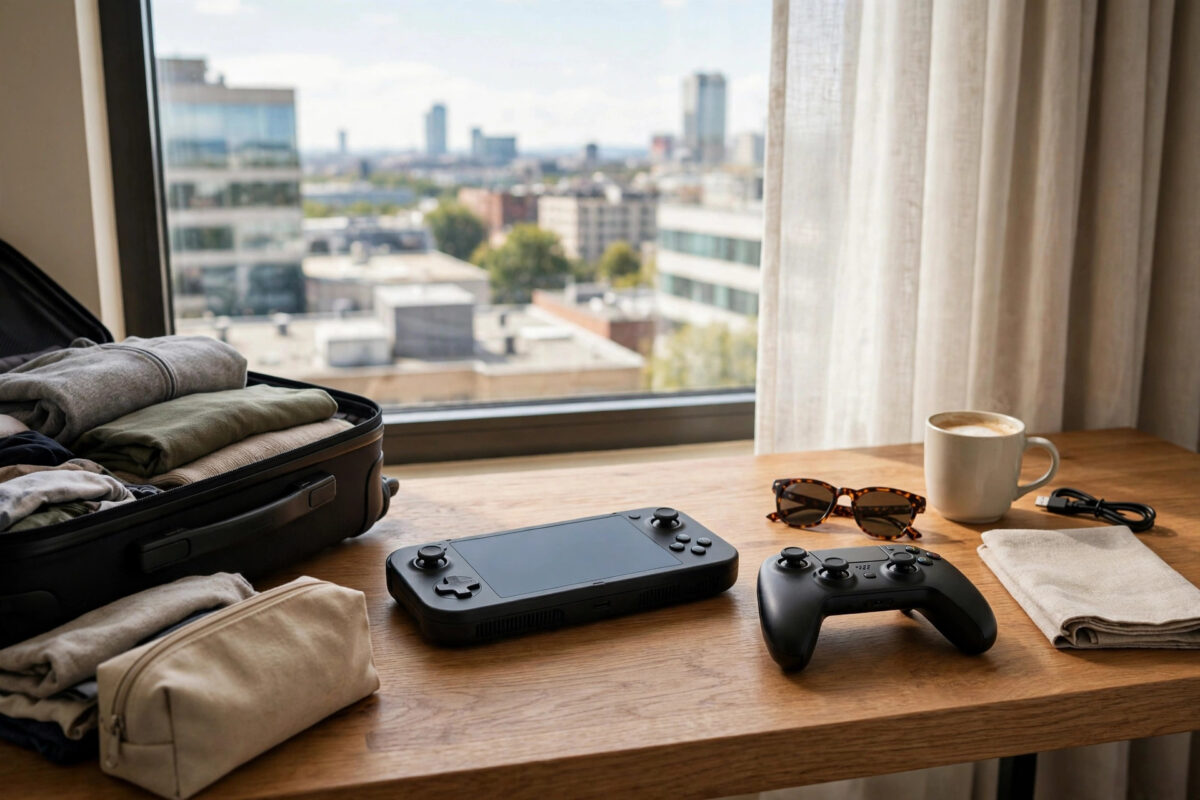
Taking your console on a trip sounds great until you meet hotel Wi-Fi. Most hotels use a login page (a captive portal) that consoles cannot open, so the connection fails even though the network is right there. This guide explains the workarounds that actually succeed, from using your phone as a bridge to asking the hotel to whitelist your console.
Quick Answer
To connect a games console to hotel Wi-Fi, first try connecting normally — some hotels use a simple password with no login page. If a login page blocks you, the most reliable fix is to connect your phone or laptop to the hotel network, complete the login, then share that connection to the console via a hotspot, or ask the hotel’s IT support to whitelist your console’s MAC address. A travel router you control is the most consistent long-term solution for frequent travellers.
Why Consoles Struggle With Hotel Wi-Fi
Hotels rarely use a plain password. Instead, you join an open network, then a web page appears asking for your room number and surname before internet access is granted. Phones and laptops handle this with a browser popup. Consoles have limited browsers (the Xbox has Edge; the PS5’s browser is buried and awkward), so the login page never appears and the connection test fails. Hotel networks also often isolate devices from each other, which breaks local features, and their speeds and NAT are heavily restricted, so online multiplayer may still be poor even after you connect.
Method 1: Try the Direct Connection First
- On the console, go to network settings and choose Set up wireless connection.
- Select the hotel network from the list.
- If it asks for a password, enter the one reception gave you.
- Run the connection test. If the hotel uses a password-only system, you may simply be online.
Some hotels offer a separate gaming or streaming network, or a wired Ethernet port in the room. Always ask at reception; front desks deal with console guests often and may have a documented process.
Method 2: Use the Console’s Hidden Browser (Xbox) or a Trick (PS5)
On Xbox, connect to the network, then open Microsoft Edge and try to visit a plain website. The hotel login page usually hijacks the request and appears, letting you enter your room details. On PS5 there is no obvious browser, but opening the User’s Guide or a game help page can sometimes trigger the built-in browser, where the login page may load. Results vary wildly by hotel, so treat this as a bonus attempt rather than the plan.
Method 3: Phone or Laptop as a Bridge (Most Reliable)
This method works because your phone can complete the hotel login, then shares its connection in a form the console understands:
- Connect your phone to the hotel Wi-Fi and complete the login page.
- Turn on your phone’s personal hotspot. Note: some phones cannot share Wi-Fi while receiving Wi-Fi, and will share mobile data instead — check your data allowance before gaming for hours.
- On a laptop, the trick is cleaner: connect the laptop to hotel Wi-Fi, log in, then enable the laptop’s mobile hotspot feature (Windows has one built in) or share the connection over an Ethernet cable to the console.
- Connect the console to the hotspot network like any normal Wi-Fi.
Method 4: Ask the Hotel to Whitelist Your Console
Hotel IT teams can add your console’s MAC address to an allow list so it bypasses the login page. Find the MAC address in the console’s network settings (View Connection Status on PS5, Advanced settings on Xbox), then call reception or the hotel’s Wi-Fi support line and politely ask them to register it. Many large chains do this routinely for long-stay guests. Microsoft and Sony both note this approach in their travel guidance; the Xbox guide to connecting on other networks covers MAC addresses and hotel networks specifically.
Method 5: Bring a Travel Router
If you travel often, a pocket travel router pays for itself. You connect the router to the hotel Wi-Fi once, complete the login page from your phone through the router, and the router creates your own private network with your own password. Your console, phone, and laptop all join your network and stay connected for the whole stay, with no per-device login fights. It also gives you a consistent NAT setup you control, within the limits of the hotel connection itself.
What to Expect Once Connected
Be realistic: hotel Wi-Fi is shared by hundreds of guests, so speeds swing wildly and NAT is almost always Strict or Moderate with no way for you to change it. Downloads of large games can take all night. Single-player games, smaller updates, cloud saves syncing, and streaming apps work best. Competitive online multiplayer is usually playable but rarely great. If online gaming is the main goal, your phone’s mobile data hotspot (with enough allowance) often outperforms hotel Wi-Fi. And note the difference from home: at home you can fix NAT yourself with the steps in our guide on changing NAT type to Open; in a hotel, you cannot.
Mistakes to Avoid
- Factory resetting network settings repeatedly. It does not bypass a login page and wastes time. The barrier is the portal, not your console.
- Sharing your phone’s hotspot without checking data. A single game update over mobile data can consume a month’s allowance.
- Entering payment details on a suspicious login page. Legitimate hotel portals ask for room number and name, not card details for standard Wi-Fi. If a page demands payment unexpectedly, confirm with reception.
- Leaving your console signed in unsecured. In a hotel room, set a sign-in PIN or passkey so nobody else can access your account if the console is left unattended.
Packing List for Console Travel
A small kit makes hotel gaming dramatically easier. Pack a compact travel router, a short Ethernet cable, a spare HDMI cable (hotel TVs occasionally have damaged ports or missing leads), and a USB stick for moving captures. Add your controller’s charging cable, since hotel USB ports charge painfully slowly. Photograph your console’s MAC address page before you leave home so the whitelist request takes one phone call instead of a settings hunt. Finally, download the games and updates you actually plan to play before the trip — hotel bandwidth is for enjoying games, not fetching 120GB of them.
Conclusion
Hotel Wi-Fi and consoles clash because of login pages, not because your console is faulty. Try a direct connection, then bridge through a phone or laptop that has completed the login, or ask the hotel to whitelist your console’s MAC address. Frequent travellers should carry a travel router and skip the whole battle. Set expectations for speed and NAT, and your console becomes a perfectly good travel companion.
Frequently Asked Questions
Why does my console say “connected” but the internet test fails in a hotel?
It has joined the Wi-Fi network but the hotel’s login page has not been completed, so real internet traffic is blocked. Complete the portal login through a browser, a bridge device, or a MAC whitelist.
Is it safe to use hotel Wi-Fi with my console account?
Generally yes for gaming, since console traffic to PlayStation Network and Xbox is encrypted. Still, enable two-step verification on your account and use a sign-in PIN on the console for travel.
Can I use hotel Ethernet instead?
If the room has a live Ethernet port, absolutely — it is usually faster and more stable than the Wi-Fi. Some hotels still gate wired access behind the same portal, in which case the bridge or whitelist methods apply.
Will a VPN help me connect in a hotel?
A VPN does not bypass the login page; you must get past the portal first. After connecting, a VPN running on a travel router can work, but it often worsens NAT and ping for games.
Why is my NAT Strict in the hotel even though it is Open at home?
The hotel’s network equipment controls NAT, not your console. Hotel networks are built for web browsing by many guests, not peer-to-peer gaming, so Strict NAT there is normal and unchangeable from your side.



[…] strategy, adventure, and turn-based games feel perfect even on average connections. Our guide on connecting consoles on tricky networks also explains why network type matters more than headline speed for streamed […]