
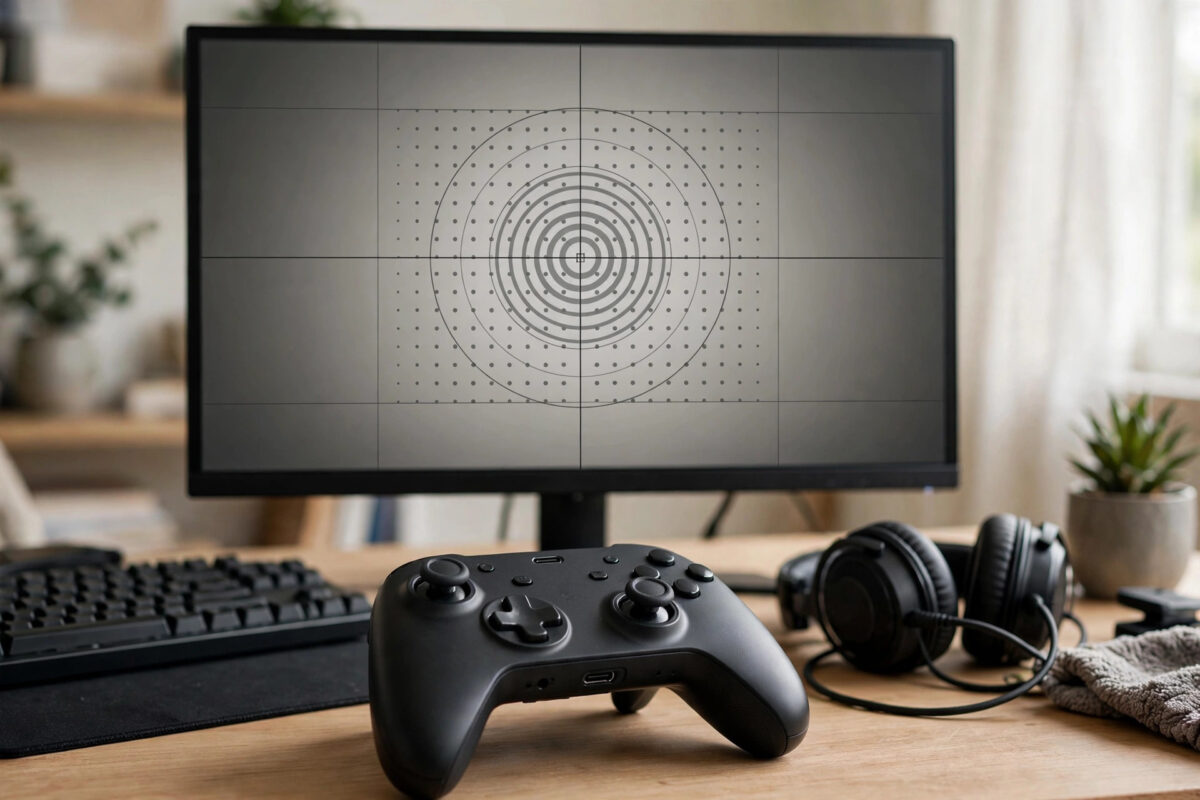
Light stick drift on an Xbox controller does not always mean the hardware is dying. Xbox controllers include a built-in recalibration tool, and Windows and Xbox games offer dead zone settings that can absorb small unwanted movements. This guide explains how to calibrate an Xbox controller properly, how to clean it so the calibration holds, and how to tell when drift is beyond software help.
Quick Answer
To calibrate Xbox controller sticks and reduce drift, open the Xbox Accessories app on your Xbox or Windows PC, select your controller, and run the Recalibrate option, moving the sticks and triggers exactly as the on-screen steps describe. Afterwards, raise the stick dead zone slightly in the games you play. Combine calibration with a careful clean around the stick base, because calibration cannot compensate for dirt that keeps shifting the stick’s resting position.
What You Need
- Your Xbox Wireless Controller (Xbox Series X|S or Xbox One model)
- An Xbox console or a Windows PC with the free Xbox Accessories app installed
- A USB cable, which makes calibration more reliable than a wireless link
- Compressed air and a cotton bud for cleaning
- The controller’s firmware updated to the latest version first, as old firmware can confuse the calibration tool
Step-by-Step: Recalibrating in the Xbox Accessories App
- Connect the controller to the console or PC with a USB cable.
- Open the Xbox Accessories app. On Xbox, it is under My games and apps, Apps. On PC, download it free from the Microsoft Store.
- Select your controller, then choose the three-dot menu to open device options.
- Choose Recalibrate and start the process. The app will first ask you to leave both sticks and triggers untouched so it can record their true resting positions.
- When prompted, push each stick fully in every direction, slowly, and press each trigger fully. Follow the on-screen sequence exactly and do not rush.
- Save the new calibration when the app confirms it has finished, then test in a game.
Microsoft documents the same flow on its Xbox controller recalibration support page, including which controller models support the tool. If your controller does not show the recalibrate option, update the Xbox Accessories app and controller firmware, then look again.
Calibrating on Windows Without the App
Windows also has a basic calibration panel. Search for “Set up USB game controllers”, select your controller, open Properties, then the Settings tab, and choose Calibrate. This older wizard centres the sticks and axes for Windows games. It is less intelligent than the Accessories app tool, so prefer the app when available, but the Windows wizard is a useful fallback for older controllers.
Reduce Remaining Drift With Dead Zones
Calibration recentres the stick, but a slightly worn stick may still wobble around centre. A dead zone is the area the game ignores around that centre point. Many Xbox games expose inner dead zone sliders in their controller settings, and Steam Input lets you set a dead zone per game on PC. Increase the value gradually, testing your aim each time, until the unwanted movement stops. Xbox owners dealing with a similar problem on a DualSense will recognise the same principle behind our guide to fixing PS5 controller drift, since the underlying cause and cure are closely related.
Clean the Stick Before You Judge the Result
Calibration works best on a clean controller. Work compressed air around the base of each stick in short bursts while rolling the stick in circles. Wipe the rim with a dry or very slightly alcohol-dampened cotton bud to lift sticky residue, then let it dry fully. Skin oil, dust, and food crumbs are the top cause of drift that appears suddenly, and they can keep moving after calibration if left in place. Clean first, then calibrate, and your results will be far more consistent.
Signs the Drift Is Hardware Wear
If calibration and dead zones only help for a few days, or the stick feels loose, gritty, or uneven in one direction, the internal sensor is probably worn. Other clues are drift that is strong in one direction only and a resting position that never returns to centre on a gamepad tester. At that point your realistic options are a warranty claim, a repair service, or replacing the controller. For Elite Series 2 owners, also check that the stick tension adjustment has not been set unevenly, because mismatched tension can feel like drift.
Common Mistakes to Avoid
- Touching the sticks during the resting-position step. The tool records whatever position the sticks are in. Even a resting thumb will bake in a permanent offset.
- Calibrating over a wireless connection with a low battery. A dropout mid-calibration saves bad data. Use a cable and a charged controller.
- Skipping the firmware update. Microsoft occasionally changes how the calibration behaves. Update first so you are using the current tool.
- Setting a huge dead zone. It hides drift but makes small aim adjustments mushy. Use the smallest value that stops the movement.
- Calibrating a dirty controller. Debris keeps shifting the centre, so the calibration goes stale quickly. Clean first.
Calibration vs Replacement Parts: Setting Expectations
It helps to know what calibration physically does. Your controller’s sticks report their position thousands of times per second, and calibration simply teaches the controller where “centre” and “fully pushed” currently are, compensating for the sensor ageing slightly. It cannot restore worn carbon tracks inside the sensor or tighten a loose stick mechanism. That is why calibration shines for drift that appeared gradually and mildly, and disappoints for sticks that crunch, wobble, or jump wildly. Think of it like aligning a car: alignment fixes a car that pulls gently to one side; it does not fix a bent wheel. Diagnose honestly and you will not waste an evening calibrating hardware that genuinely needs a repair.
Looking After Sticks So Drift Stays Away Longer
Prevention is unglamorous but effective. Store the controller somewhere it will not get knocked off a desk or crushed under cushions, since impacts and constant pressure age stick mechanisms fast. Wash the snack dust off your hands before long sessions, and give the stick rims a quick wipe and a puff of compressed air every month or so before grime builds up. Avoid third-party stick caps that fit too tightly and add leverage strain. Finally, if you play one game intensely for months — a racing title that holds the stick at full lock, for example — rotate to a second controller if you have one, spreading the wear across both.
Conclusion
Between the Xbox Accessories recalibration tool, sensible dead zone settings, and a five-minute clean, most mild Xbox controller drift can be removed or reduced to something you never notice. Work through those steps with the controller plugged in and untouched at the right moments, and only start thinking about repair or replacement when drift survives all three fixes.
Frequently Asked Questions
Does recalibration work on Xbox One controllers?
The Accessories app recalibration tool supports Xbox Series X|S controllers and recent Xbox One controllers with updated firmware. If the option is missing, update the app and the controller, or fall back to the Windows calibration wizard.
How often should I recalibrate my controller?
Only when you notice drift or after a repair. There is no benefit to recalibrating on a schedule, and doing it while the sticks are perfectly fine changes nothing.
Why does drift return a week after calibrating?
Usually because debris is still inside the stick mechanism or the sensor is worn. Clean thoroughly and calibrate again. If it still returns quickly, the hardware is likely at the end of its life.
Can I calibrate an Xbox controller on a phone?
No. The recalibration tool lives in the Xbox Accessories app on Xbox consoles and Windows PCs. Phones can pair the controller for games but cannot run calibration.
Will a factory reset of the controller fix drift?
A reset clears pairing and profile data, not stick behaviour. Drift is about the stick’s reported resting position, so calibration and dead zones are the correct tools for it.



Leave a Reply