
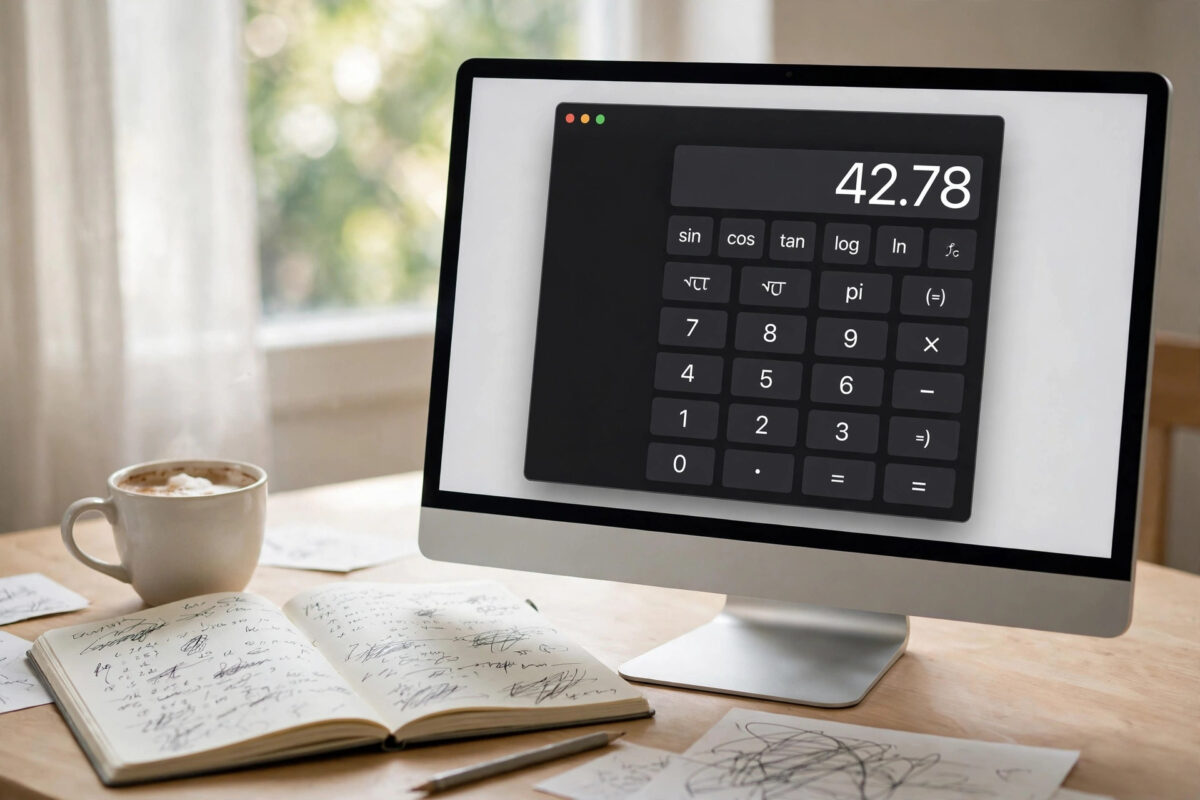
Most Mac users open Calculator, work out a quick sum, and close it again without a second thought. It looks like a plain, simple tool. Under that calm surface, though, the built-in Calculator app hides a surprising amount of power, including conversions, scientific functions, and a programmer mode.
You do not need to buy or download anything to use these features. They are already on your Mac, waiting to be switched on. This guide reveals the best hidden features one by one, with steps you can try as you read.
Quick Answer
The Mac Calculator hides three extra modes: Scientific, Programmer, and a new Math Notes style in recent versions. It also converts currency, length, weight, temperature, and more, speaks results aloud, shows a paper tape of your work, and supports powerful keyboard shortcuts and pasted calculations. Open the View menu, or click the calculator mode icon, to unlock them all for free.
Feature 1: Switch Between Basic, Scientific, and Programmer Modes
The app you see by default is only the basic calculator. Changing modes takes seconds:
- Open Calculator from Applications or by searching with Spotlight.
- Click View in the menu bar, or the small calculator icon at the top-left of the window on newer versions.
- Choose Basic, Scientific, or Programmer.
- Resize the window if needed to see all the new buttons.
Scientific mode adds powers, roots, logarithms, memory buttons, and trigonometry like sine, cosine, and tangent. It also adds a Rand button for a random number, handy for quick tests and games. Programmer mode is built for developers. It shows binary, octal, decimal, and hexadecimal values at once, and includes logic operations such as AND, OR, and XOR, plus byte and word size options.
Tip: in Scientific mode, click the 2nd button to reveal a second set of functions. Many users never notice it, yet it doubles what the calculator can do.
Feature 2: Convert Currency, Units, and Measurements
This is the feature people are most surprised by. Calculator can convert between hundreds of units:
- Type the number you want to convert.
- Choose Convert from the menu bar, or use the convert option in newer versions.
- Pick a category such as Currency, Length, Weight, Temperature, Speed, or Energy.
- Select the from and to units, for example US dollars to British pounds.
- Read the converted result on screen.
Currency rates are updated from the internet when you are online, which makes the tool genuinely useful for travel budgets and online shopping. The full category list is long: area, volume, pressure, power, time, and data storage are all included. Apple covers these options in its user guide page on how to use Calculator on Mac, which lists every mode and conversion type.
You should still double-check big money decisions with your bank, because card and bank rates include fees. For quick estimates, though, the built-in converter is fast and close enough.
Feature 3: See and Save Your History With the Paper Tape
Long calculations are easy to mess up. The paper tape shows every step, so you can check your work:
- Do some calculations as normal.
- Choose Window, then Show Paper Tape, or press Command-T on some versions.
- Review each entry and result in the tape window.
- Copy entries, or save and print the tape from the File menu if available.
This is perfect for adding up expenses, checking a bill split, or keeping a record for homework. On newer versions of macOS, the app also keeps a history list you can open from the sidebar or menu, letting you click an old result to reuse it. No more typing the same long number twice.
Feature 4: Speak Results Aloud
Calculator can read your results to you. Open Settings or Preferences inside the app, depending on your version, and turn on the option to speak the button presses or the result. This helps when you are typing numbers from a paper document and want to keep your eyes on the page. It is also a useful accessibility feature for many users. If the option is not in the app settings on your version, your Mac’s general accessibility and speech settings can read selected text instead.
Feature 5: Paste Calculations and Use Spotlight Instead
You can copy a written sum from any document and paste it straight into Calculator to get the answer. For example, copy 245*18+60, paste it in, and the app works it out. You can also copy the result out with Command-C and paste it into a document, email, or spreadsheet.
Even faster: skip the app entirely for simple sums. Press Command-Space to open Spotlight, type your calculation, and the answer appears right in the search results. Spotlight also handles many conversions, such as typing 50 usd to gbp or 10 miles to km. Once you learn this habit, quick math takes two seconds.
Feature 6: Keyboard Shortcuts That Speed Everything Up
Your keyboard turns Calculator into a fast tool instead of a clicking exercise. Learn these essentials:
- Number keys and +, -, *, / work as you would expect; press Return for equals.
- Press Esc or C to clear the current entry.
- Press Option and the minus key to switch a number between positive and negative.
- Press % for percent calculations, and . for the decimal point.
- In Programmer mode, letter keys A to F enter hexadecimal values.
- Press Command-T for the paper tape on versions that support it.
Percent deserves a quick example. Type 200, press *, type 15, press %, and then Return. The calculator works out 15 percent of 200 and shows 30. This is the fastest way to find discounts, tips, and tax amounts without extra steps.
Feature 7: Math Notes and Smarter Results in Newer macOS
On the newest versions of macOS, Calculator gained Math Notes. You type or write math in a note, and the app solves it as you go, including variables you define on earlier lines. Change one number, and every result below it updates. It feels like a smart notebook, and it is ideal for budgets, estimates, and homework drafts.
Newer versions also fix an old annoyance: pressing equals again repeats the last operation, and results can show in a cleaner history view. If your app looks older than described here, update macOS through System Settings, General, Software Update, and check again.
Calculator is just one of several built-in tools with hidden depth. Our friendly roundup on useful built-in Mac apps you did not know about shows similar tricks in Preview, Stickies, and other free apps already on your Mac.
Common Mistakes and Helpful Tips
Even a simple app trips people up in a few predictable ways. Watch out for these:
- Wrong angle mode: In Scientific mode, trig results differ in degrees versus radians. If sine and cosine answers look wrong, check which angle mode is selected.
- Forgetting the mode: Programmer mode hides the decimal point for some bases, which confuses everyday sums. Switch back to Basic for normal math.
- Trusting currency rates for final payments: Built-in rates are estimates without bank fees. Use them for planning, not as the final bill.
- Not checking the tape: One mistyped digit ruins a long sum. Glance at the paper tape or history before you trust the result.
- Missing the 2nd functions: If a function seems absent in Scientific mode, click 2nd first. Half the advanced buttons live there.
One more tip: you can keep Calculator floating and use several windows of it on some versions, which helps when you compare two calculations side by side. Try opening a second window from the File menu and test it on your version.
Conclusion
The humble Mac Calculator is far more than a four-function toy. Scientific and Programmer modes, unit and currency conversion, a paper tape history, spoken results, paste support, Spotlight math, and Math Notes make it a complete everyday math toolkit, already installed and free. Spend five minutes switching modes and trying the converter today, and you may never reach for a third-party calculator app again.
Frequently Asked Questions
How do I open the scientific calculator on my Mac?
Open Calculator, click View in the menu bar or the mode icon in the window, and choose Scientific. The window expands with extra functions, including powers, roots, and trigonometry. Choose Basic in the same menu to go back.
Can the Mac Calculator convert currency with live rates?
Yes. Enter an amount, open the Convert options, choose Currency, and pick your two currencies. Rates update online when you have an internet connection. Treat the result as a close estimate, since banks add their own fees and margins.
Where is the history of my past calculations?
Choose Window and Show Paper Tape, or open the history view in newer versions of the app. You will see each calculation and its result, and you can reuse, copy, save, or print them depending on your macOS version.
What is Programmer mode used for?
Programmer mode helps developers work with binary, octal, and hexadecimal numbers. It shows values in several bases at once and offers logic operations like AND, OR, and XOR, plus bit shifting and byte-size controls.
Can I do calculations without opening Calculator at all?
Yes. Press Command-Space, type your sum or conversion into Spotlight, and read the answer in the results. It handles everyday arithmetic, percentages, and many unit and currency conversions instantly.



Leave a Reply