
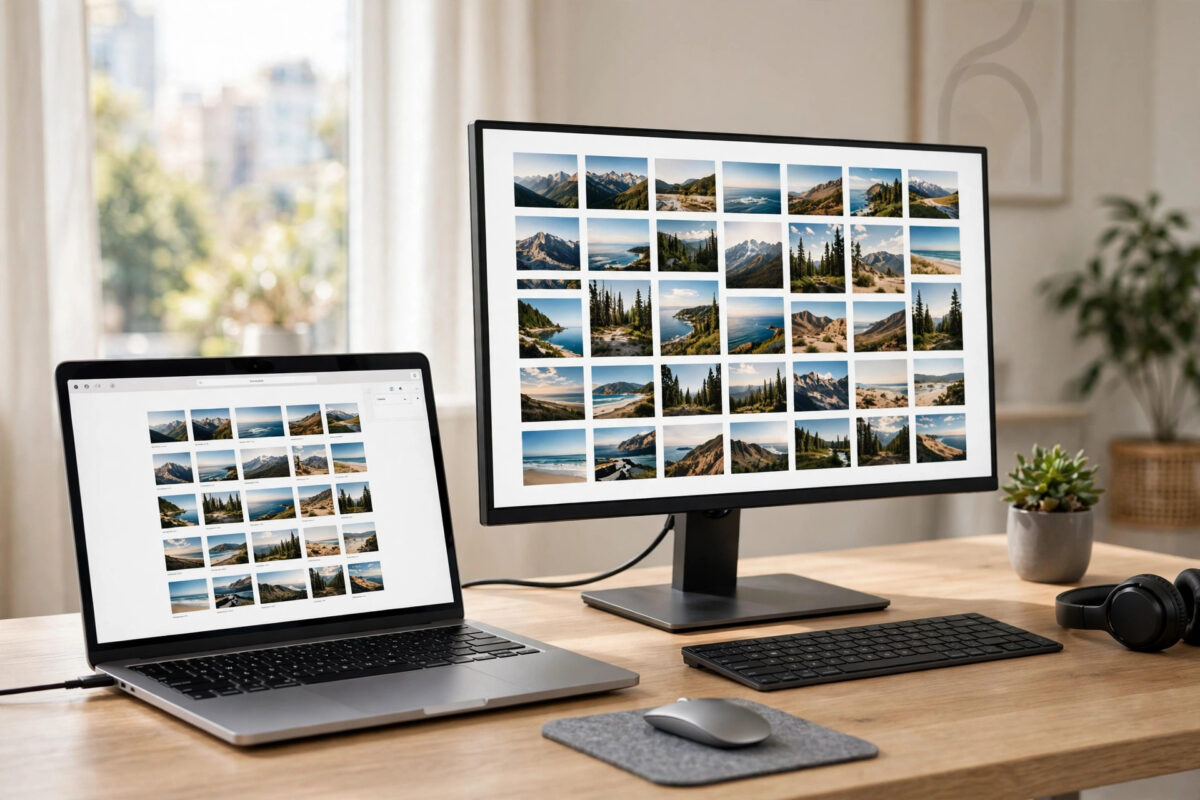
Have you ever connected a new monitor to your Mac and found that everything looks too small, too big, or slightly blurry? Or maybe text on your MacBook screen feels tiny when you work for long hours. These are all resolution and scaling problems, and macOS gives you simple tools to fix them.
Unlike older computers, modern Macs do not expect you to pick a raw pixel resolution and live with it. Instead, macOS uses scaling so text and windows stay sharp while you choose how much space you want. This guide explains how resolution and scaling work, how to change them step by step, and how to get the sharpest picture on both built-in and external displays.
Quick Answer
To change screen resolution and scaling on a Mac, open System Settings, go to Displays, and choose one of the scaling options such as Larger Text or More Space. For an external monitor, select the display first at the top of the window, then pick its resolution or scaling setting.
Resolution and Scaling Explained in Simple Words
Resolution is the number of pixels your screen shows, written like 1920 by 1080 or 2560 by 1440. More pixels can show more detail. A pixel is one tiny dot of light, and together millions of them make the image you see.
Scaling is different. Most Macs have Retina displays with so many pixels that showing everything at true one-to-one size would make text impossibly small. So macOS draws the interface at a comfortable size but uses extra pixels to keep it sharp. When you choose More Space, windows and text become smaller so you can fit more on screen. When you choose Larger Text, everything becomes bigger and easier to read, but you fit less at once.
Apple explains the concept in its support page on changing the resolution of your Mac display with scaling. The key point is that the options you see, such as Default, Larger Text, and More Space, are the normal and recommended way to control size on a Mac.
How to Change Scaling on Your MacBook or iMac Display
Changing the built-in display takes less than a minute:
- Click the Apple menu in the top-left corner.
- Open System Settings. On older macOS, open System Preferences.
- Click Displays in the sidebar.
- Look for the scaling options shown as preview tiles or a list, such as Larger Text, Default, and More Space.
- Click the option you want. The screen adjusts instantly.
- Use your Mac for a few minutes, then change it again if the size does not feel right.
If you mostly read and write, one step toward Larger Text often reduces squinting. If you edit video, work with spreadsheets, or keep many windows open, one step toward More Space gives you helpful extra room. There is no single correct choice. Your eyes and your work decide.
How to Change Resolution on an External Monitor
External displays add a few extra steps, because each screen can have its own setting.
- Connect your monitor to your Mac and turn it on.
- Open System Settings and go to Displays.
- At the top, you will see icons for each connected display. Click the monitor you want to adjust.
- Choose a scaling option, or select a specific resolution from the list.
- If you do not see the resolution you want, turn on Show all resolutions to reveal the full list.
- Check the refresh rate setting as well, and pick the highest smooth option your monitor supports, such as 60Hz or higher.
For the sharpest result on an external monitor, use its native resolution. That is the resolution the panel was built for, often printed on the box or in the monitor manual. Running a monitor below its native resolution without proper scaling can make text look soft or fuzzy.
If you use two displays, arrange them correctly on the same Displays page by dragging the screen icons so they match your real desk layout. This matters more than most people realise. When the layout matches your desk, your mouse moves smoothly from one screen to the other without jumping to the wrong edge.
You can also decide which screen is the main display, which is where the Dock and menu bar live by default. If you want more ideas for a comfortable two-screen workspace, our guide to connecting an external monitor to a MacBook covers cables, adapters, and arrangement in detail.
How to Fix Blurry Text After Changing Resolution
Blurry text usually has a simple cause. Work through this checklist:
- Use the native resolution: Avoid odd low resolutions on external monitors unless you truly need very large text.
- Check your cable and adapter: Old or poor quality adapters can limit resolution. A proper USB-C, DisplayPort, or HDMI cable rated for your monitor makes a real difference.
- Avoid scaled resolutions marked low resolution: In the full resolution list, options labelled low resolution will look softer. Pick a Retina or high-resolution option instead.
- Restart the app: Some older apps look blurry until they are closed and reopened after a display change.
- Check the monitor’s own menu: Set the monitor’s sharpness to its neutral middle value and turn off any overscan or picture stretching options.
If text looks sharp on your MacBook screen but blurry only in one app, the app itself may not support Retina displays. Updating the app or replacing it with a modern version usually solves that single-app problem.
Choosing the Best Setting for Your Work
Different jobs suit different scaling choices. Use this as a starting guide, then fine-tune for your own eyes:
- Writing and office work: Default or one step toward Larger Text keeps documents comfortable for long reading sessions.
- Spreadsheets and coding: More Space shows extra columns and lines of code, which saves scrolling.
- Photo and video editing: Default scaling gives a good balance of preview size and tool space. Check fine detail at 100 percent zoom inside your editing app.
- Presentations: Match the projector or TV resolution, often 1920 by 1080, so slides fill the screen without black bars.
- Low vision needs: Larger Text plus the Accessibility zoom features gives the clearest result without forcing a low, blurry resolution.
Remember that changing scaling on the Mac does not change the size of printed documents or exported images. It only changes how big things appear on your screen while you work.
Advanced Options Worth Knowing
Night Shift, True Tone, and colour profiles live near these settings, but they affect colour, not size. Apple documents all of the standard options in its guide on changing Displays settings on Mac. For 4K and 5K monitors, a HiDPI scaled option that looks like 2560 by 1440 is often the sweet spot: a large workspace with Retina sharpness.
Common Mistakes and Useful Tips
Mistake 1: Picking the highest number without thinking. The maximum resolution is not always the most comfortable. Tiny text causes eye strain and mistakes. Choose a size you can read calmly for hours, not the biggest number on the list.
Mistake 2: Blaming the Mac for a bad cable. Cheap cables and old adapters are a very common cause of a monitor being stuck at a low resolution. Before changing deep settings, try a known good cable connected directly to the Mac.
Mistake 3: Forgetting each display has its own setting. Changing your MacBook screen does nothing to your external monitor. Always select the correct display at the top of the Displays window before changing anything.
Tip: After picking a new scaling option, open a page of normal text and a photo. Text shows you readability, and the photo shows you sharpness. That two-minute check tells you more than the numbers do.
Tip: Take a screenshot of your working settings once you are happy. If an update or a new monitor changes things later, you can return to your preferred setup in seconds.
Conclusion
Resolution and scaling on a Mac are simpler than they first sound. Use the built-in Larger Text to More Space options for your main display, pick each external monitor’s native or HiDPI scaled resolution for sharpness, and adjust until reading feels effortless. Fix blur with the right cable, the right resolution, and an app restart before you assume anything is broken. A few minutes of setup gives you a screen that fits your eyes and your work every day.
Frequently Asked Questions
Will lowering resolution make my Mac faster?
It can help slightly on older Macs or with very large external displays, because fewer pixels are easier to draw. On modern Macs the difference is small. If your Mac feels slow, closing heavy apps and freeing up storage usually helps more than changing resolution.
Why does my external monitor only show 1920 by 1080?
The usual causes are the cable, the adapter, or the port. Some HDMI cables and older adapters cannot carry higher resolutions. Try a direct USB-C or DisplayPort connection with a cable rated for 4K. Also check Show all resolutions in Displays settings to see the full list.
What is the best scaling for a 4K monitor on Mac?
Most people prefer the scaled option that looks like 2560 by 1440. It gives a roomy workspace with sharp Retina-style text. If you want maximum space and have good eyesight, a higher option works. If text feels small, step toward Larger Text instead.
Does changing scaling affect screenshots and recordings?
Yes, it can affect the pixel size of screenshots, because screenshots capture what the display is rendering. If you need screenshots at an exact size for work, check the image dimensions after capturing, or use a screenshot tool that lets you set export size.
Can I use different scaling on each display?
Yes. Every connected display has its own scaling and resolution settings. Select each display in turn in System Settings, then Displays, and set it independently. Your Mac remembers the settings for that monitor when you connect it again.



Leave a Reply