
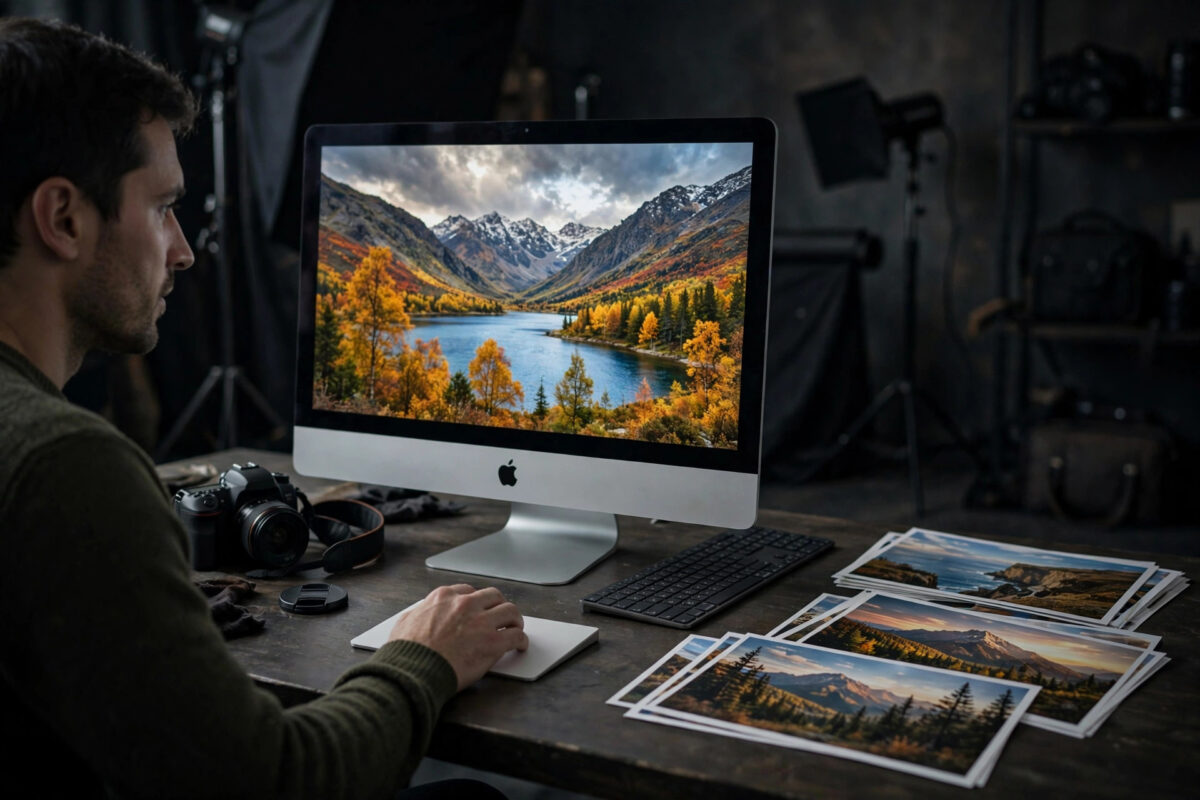
If you edit photos on your Mac and the colours look different on your phone, on another screen, or in print, your display calibration is the first thing to check. A screen that is too bright, too cool, or too saturated will lead you to make wrong editing choices, even if your camera and software are excellent.
The good news is that every Mac includes a built-in calibration tool, and modern Mac displays are already quite accurate from the factory. For most photographers, careful brightness control, the right colour profile, and the built-in Display Calibrator Assistant are enough to get trustworthy colours. This guide walks you through the whole process in plain language.
Quick Answer
To calibrate your Mac screen for photo editing, set brightness to a steady mid level, turn off Night Shift and True Tone, then run Display Calibrator Assistant from System Settings under Displays and Colour Profile. Save the new profile and set it as default for editing work.
Why Calibration Matters for Photo Editing
Every screen shows colours slightly differently. One display may add a blue cast, another may boost reds, and a very bright screen will make you darken photos too much because everything looks washed out while you edit. When you print those photos or share them online, the results disappoint you.
Calibration means adjusting your display so it shows colours as accurately as it can, following a known standard. For most photo work, that standard is a white point close to D65, which is average daylight, and the sRGB colour space for images shared on the web. Wide-gamut Mac displays also support Display P3, which is great for viewing, but your editing decisions still need a known, consistent starting point.
Prepare Your Mac and Room Before You Calibrate
Preparation matters as much as the calibration tool itself. A few minutes here gives you a much better result:
- Warm up the display: Use your Mac for at least 30 minutes before calibrating so the screen reaches its normal brightness and colour.
- Clean the screen: Dust and fingerprints change how colours look. Wipe gently with a soft, dry microfibre cloth.
- Control room light: Close bright curtains and avoid strong coloured light falling on the screen. A dim, neutral room is best.
- Set a steady brightness: Turn off automatic brightness, then set brightness to a comfortable mid level you can keep every editing session.
- Turn off colour-changing features: Disable Night Shift and, for serious editing, turn off True Tone so colours stop shifting with room light.
You can control automatic brightness and True Tone from System Settings under Displays. Night Shift lives in the same area under its own settings button. Apple lists these display controls in its guide on changing Displays settings on Mac, which is a useful reference while you prepare.
How to Use the Built-In Display Calibrator Assistant
macOS includes a step-by-step tool called Display Calibrator Assistant. It guides you by eye, which is the best free method available:
- Open System Settings and click Displays in the sidebar.
- Select the display you edit on, if you have more than one connected.
- Find the Colour Profile setting. It may show as a pop-up menu or a list of profiles.
- Click the option to customise, open, or calibrate, depending on your macOS version. On some versions, hold the Option key to reveal the Calibrate or expert options.
- Display Calibrator Assistant opens. Tick Expert Mode if offered, so you get all the adjustment steps.
- Follow each screen carefully. You will adjust how light and dark tones look by moving sliders until a shape or Apple logo nearly disappears into its background.
- Choose a target white point when asked. D65 is the safe standard choice for photo editing.
- At the end, give your profile a clear name such as Mac Editing Calibrated plus the date, and save it.
- Make sure the new profile is selected as the active profile for that display.
Take your time on each step. Sit at your normal editing distance, look straight at the screen, and make small slider changes. Rushing through with big movements is the main reason by-eye calibration fails. If a step confuses you, go back one screen and try again rather than guessing forward.
Choosing the Right Colour Profile for Daily Work
After calibration, your Mac may show several profiles. Here is how to think about them:
- Your new calibrated profile: Use this as your everyday editing profile. It reflects your actual screen in your actual room.
- Display P3: The factory profile for many modern Macs. It is accurate for general viewing and Apple content, but it is not a personal calibration of your specific screen and lighting.
- sRGB: The standard for web images. Your editing software manages image colour spaces separately, so you do not normally need to set your whole display to sRGB.
Keep it simple: leave the calibrated profile active and let apps like Lightroom or Photoshop handle each image’s colour space. Our beginner’s guide to editing photos on Mac covers profiles and exports in a practical order.
If you work with two screens, calibrate each one separately. Pick one as your main editing screen and use the other for tools and previews.
Checking Your Calibration With a Simple Test
Once you save the profile, test it before trusting it with important work:
- Open a photo you know well, ideally one with skin tones, grey areas, and deep shadows.
- Check that grey looks truly grey, with no strong blue, green, or pink cast.
- Look at shadow areas. You should see detail in dark tones without them turning flat grey.
- View a black and white photo. It should look neutral, not tinted.
- Compare one edited photo on your phone at normal brightness. Small differences are normal, but big colour shifts mean something is still off.
If skin still looks orange or grass looks neon on a test image, repeat the calibration more slowly or lower your brightness and try again.
When You Should Use a Hardware Calibrator
The built-in tool works by eye, which is good but limited. A hardware calibrator is a small device that sits on your screen and measures colour directly. It builds a far more accurate profile than human eyes can.
Consider one if you sell prints, do paid client work, or edit product photos where colour must match the real item. For hobby editing and social media, the built-in method plus sensible brightness is usually enough.
Whichever method you use, repeat it regularly. Displays change slowly as they age. Recalibrate every one to two months for serious work, and always recalibrate after changing your main editing room or moving your desk to a brighter spot.
Apple’s professional guidance on colour profiles and how macOS manages colour explains how profiles work across apps, which helps if you move images between editing, printing, and web tools.
Common Mistakes and Useful Tips
Mistake 1: Editing with brightness at maximum. A very bright screen makes photos look washed out, so you add too much contrast and darkness. When others view the image at normal brightness, it looks heavy and dark. Pick a moderate brightness and keep it the same for every edit session.
Mistake 2: Leaving Night Shift on. Night Shift makes everything warmer. Skin tones, whites, and product colours will all be wrong. Turn it off before editing and before calibrating. This single mistake explains many colour complaints from new editors.
Mistake 3: Calibrating in bright sunlight. Strong light on the screen changes what you see and ruins by-eye adjustments. Calibrate in the same controlled light you normally edit in, ideally in the evening or with curtains closed.
Tip: Write the calibration date in the profile name, so you can see at a glance when it is due for a refresh.
Tip: Keep your old profile instead of deleting it. If the new profile looks worse, you can switch back in seconds from the Colour Profile list while you work out what went wrong.
Conclusion
Calibrating your Mac screen is a short job with a long payoff. Prepare the room, warm up the display, turn off Night Shift and automatic features, then run Display Calibrator Assistant slowly and save a dated profile. Test it with familiar photos, keep your brightness steady, and repeat the process every month or two. Your edits will become more consistent, prints will hold fewer surprises, and you will spend less time fixing colours that were never wrong in the photo itself.
Frequently Asked Questions
How often should I calibrate my Mac screen?
For regular photo editing, every one to two months is a good rhythm. Displays drift slowly over time. Recalibrate sooner if you change rooms, change your main monitor, or notice that greys and skin tones start to look tinted again during normal editing.
Is the built-in Mac calibrator good enough?
Yes, for hobby editing, online sharing, and learning, the built-in assistant plus careful brightness control is good enough. It is a by-eye method, so it has limits. Paid client work, print sales, and product photography benefit from a hardware calibrator that measures colour directly.
Should True Tone be on or off for photo editing?
Turn True Tone off for serious editing. True Tone constantly adjusts the display to match room light, which means the same photo can look slightly different from hour to hour. A fixed, calibrated screen is more trustworthy. You can turn True Tone back on for reading and general use.
Which white point should I choose during calibration?
Choose D65, which matches average daylight and is the standard for most photo and web work. It gives neutral whites that travel well to other screens and prints. Only choose a warmer white point if a print lab or client specifically asks for that workflow.
Why do my edited photos look different on my phone?
Small differences are normal because phones have their own brightness, colour settings, and screen technology. Big differences usually mean your Mac brightness was too high, Night Shift was on, or the phone is using a vivid colour mode. Calibrate your Mac, export in sRGB for sharing, and compare at similar brightness levels.



Leave a Reply