
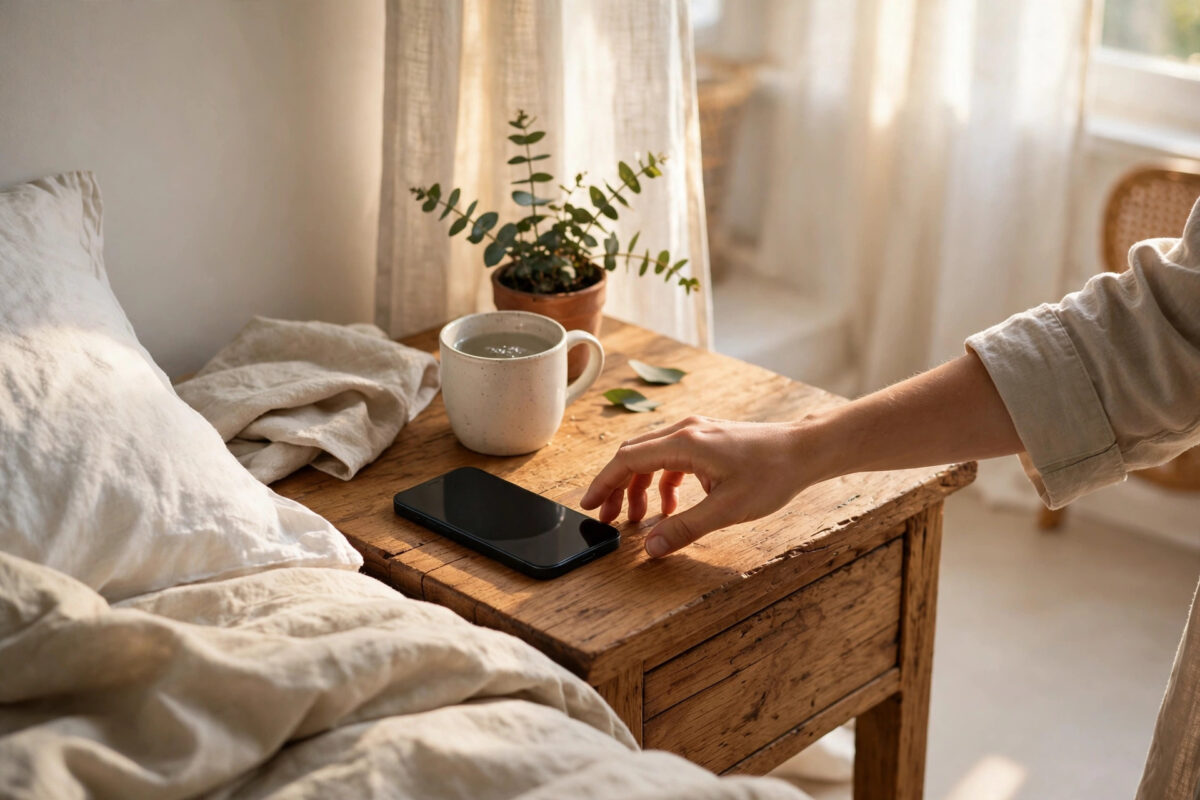
Missing an alarm or a call because your iPhone was too quiet is frustrating, and it happens to almost everyone. Your alarm barely wakes you, or calls go unheard in a noisy kitchen or busy street. The tricky part is that iPhone volume is not one control. Ringtone volume, media volume, call earpiece volume, and Focus settings all work separately, so pressing the side buttons does not always fix the sound you need.
This guide explains how to make your iPhone genuinely louder for alarms and calls in iOS 27, on the iPhone 18 range and older models, including the right slider, louder tones, speaker cleaning, and hidden settings that quietly lower your sound.
Quick Answer
To make your iPhone louder for alarms and calls, go to Settings, Sounds and Haptics, and drag the Ringtone and Alerts slider fully to the right with a loud tone selected. Turn off Change with Buttons so media volume cannot lower it by accident, check your alarm sound in the Clock app, turn off Attention Aware and silencing Focus modes, and clean the speaker grilles. For hearing a caller, raise the volume during an active call.
Understand the Different Volumes
Media volume controls music, videos, and games. Ringtone and alert volume controls calls, alarms, timers, and notifications, and has its own slider in Settings. Many people have it set surprisingly low without realizing. Earpiece volume during a call is separate again: pressing the buttons while you hold the phone to your ear adjusts how loudly you hear the other person, and that level is remembered on its own.
Once you know which sound is too quiet, the fix is fast. Alarms and ringing follow the Ringtone and Alerts slider. Hearing the caller is adjusted during the call itself. Notifications are also affected by Focus and Do Not Disturb. Work through the sections in order, testing as you go with a call from another phone or a test alarm set for one minute from now.
Turn Up Ringtone and Alarm Volume Correctly
Start with the main slider. This step alone solves the problem for most people.
- Open Settings and tap Sounds and Haptics.
- Find the Ringtone and Alerts slider. Your ringtone plays as you move it, so test somewhere considerate.
- Drag the slider all the way to the right for maximum ringtone, alarm, and alert volume.
- Turn off Change with Buttons. With it off, the side buttons will no longer lower ringtone and alarm volume when you turn down a video or game.
- Tap Ringtone and choose a loud, sharp tone. Bright, high-pitched tones are heard far more easily than soft, low, melodic ones.
- Tap Text Tone and other alerts if messages are also too quiet, and choose similarly clear sounds.
From now on, use the side buttons freely for media. Alarms and calls will stay at the level you set, and you change them only from this slider. Apple describes these controls in its guide to changing iPhone sounds and vibrations.
Make Your Alarm Louder in the Clock App
Alarms use the same volume slider, but they have two extra traps: the tone inside the alarm itself, and the wake-up alarm linked to your Sleep schedule.
- Open the Clock app and tap Alarms.
- Tap your alarm, then Sound, and choose one of the loudest, sharpest tones. Avoid gentle gradual-waking sounds if you sleep deeply.
- Save the alarm with Snooze on if you need it.
- If you use a Sleep schedule, open the Health app, go to Sleep, and check the wake-up alarm there too. Its sound can be separate, and a soft or haptic-only wake-up is a common cause of oversleeping.
- Make sure the Sleep Focus ends at your wake-up time so it does not muffle the morning.
Keep the same alarm tone every day. Your brain learns to recognize a consistent sound and wakes faster. Place the phone on a hard surface such as a wooden table, not on bedding or under a pillow. A hard surface projects sound and adds vibration, while fabric absorbs a surprising amount of volume. For family routines, our guide on how to set screen time limits for kids on iPhone explains downtime schedules that pair well with reliable alarms.
Make Calls Louder and Easier to Hear
Raise Volume During a Call
Call a friend or your voicemail, keep the call active, and press Volume Up on the side of the phone until it reaches maximum. This sets call earpiece and speaker volume only, and your iPhone remembers it. Many people never do this and assume the phone is faulty, when the call volume was simply never raised.
Use Speaker and Accessibility Options
In a noisy place, tap Speaker during the call and keep the bottom speaker uncovered. Then open Settings, Accessibility, Audio and Visual. If voices sound muffled, test Phone Noise Cancellation on and off where available, as a few users hear more clearly without it. Turn on Mono Audio if you hear better in one ear, so both channels play on both sides.
Check the Silent Switch and Your Case
The Ring/Silent switch above the volume buttons, or an Action button set to Silent Mode on newer models, can silence the ringtone completely. Make sure silent mode is off. Thick wallet cases can also muffle the speaker badly, so remove the case and test a call to compare.
Stop Focus and Attention Features Silencing You
Even at maximum volume, smart features can make calls and alarms seem silent. Review these once to avoid mystery missed calls.
- Focus and Do Not Disturb: Check Focus in Control Centre. If a Focus is on, calls and alerts may be silenced except for allowed people. In Settings, Focus, allow key contacts and the Clock app, and check schedules end in time.
- Silence Unknown Callers: In Settings, under Phone, this option sends unknown numbers to voicemail without ringing. Turn it off if you expect calls from new numbers, schools, doctors, or drivers.
- Attention Aware: On Face ID models, open Settings, Face ID and Passcode, and turn off Attention Aware Features. It lowers ringtone and alarm volume when the phone thinks you are looking at it, even a glance in bed.
- Per-app notifications: If one app is quiet, open Settings, Notifications, choose the app, and confirm Sounds is on and alerts are not set to deliver quietly.
Reduce Loud Sounds under Headphone Safety only limits headphone volume, not the speaker, so it is not the fix for quiet alarms despite its name.
Clean the Speakers and Add Vibration
If volume has faded over months, the cause is often physical. The bottom speaker grilles and earpiece mesh collect lint, dust, and makeup, and a blocked grille can cut volume dramatically.
Look at the small holes beside the charging port and the earpiece slot at the top in good light. Brush them gently with a clean, dry, soft-bristled brush, such as a new soft toothbrush. Never push a pin or SIM tool into the holes, and never use water or sprays, which can damage the speaker and seals.
Then add vibration. Go to Settings, Sounds and Haptics, tap Ringtone, then Vibration, and choose a strong pattern or create a long custom one. A loud tone plus strong vibration on a hard surface is very hard to miss, even in a noisy room or a deep pocket. Apple covers vibration choices in its support guide to iPhone sounds, haptics, and notifications.
Common Mistakes and Extra Tips
- Only pressing the side buttons: Without turning off Change with Buttons, the fix is temporary. Set the Settings slider instead.
- Gentle alarm tone: Soft tones are easy to sleep through. Use a sharp tone for waking and save pleasant tones for daytime reminders.
- Phone under bedding: Fabric muffles the speaker. Leave the phone face up on a hard surface overnight.
- Bluetooth left connected: Rings may play through headphones or a speaker in another room. Disconnect Bluetooth at night if you have missed alarms before.
- Volume booster apps: They cannot exceed Apple’s hardware limits for ringtones and alarms. The built-in settings give you the real maximum.
- Ignoring a real fault: If one speaker is silent or sound is distorted after cleaning and settings checks, back up and contact Apple Support. A failing speaker needs repair.
Finish with a real test: set an alarm for two minutes from now, lock the phone, and step into the next room. If you hear it clearly, you are done.
Conclusion
A quiet iPhone is almost always a settings problem, not a broken phone. Push the Ringtone and Alerts slider to maximum, turn off Change with Buttons, choose sharp tones, and raise call volume during a live call. Remove the silent traps of Focus schedules, Silence Unknown Callers, and Attention Aware, then clean the speaker grilles and add strong vibration. Do those steps once, and your alarms will wake you and your calls will be heard every time.
Frequently Asked Questions
Why is my alarm quiet even though my music is loud?
Music uses media volume, while alarms use the Ringtone and Alerts slider in Settings, Sounds and Haptics. Set that slider to maximum and turn off Change with Buttons so videos cannot lower it again.
Why does my ringtone get quieter when I pick up the phone?
Attention Aware lowers the ringtone when Face ID sees you looking at the phone. Turn off Attention Aware Features in Settings, Face ID and Passcode, to keep full volume.
Can I make my iPhone louder than the maximum slider?
No safe setting or app exceeds the hardware limit for ringtones and alarms. You can sound louder in practice with a sharper tone, clean speakers, a hard surface, and strong vibration.
Why do unknown numbers not ring at all?
Silence Unknown Callers or a Focus mode is likely blocking them. Turn off Silence Unknown Callers if you need new numbers to ring, and review your Focus allowed-people list.
Does cleaning the speaker really help?
Yes, often a lot. Lint blocking the grilles and earpiece can cut volume noticeably. Gentle dry brushing restores loudness, as long as you never insert sharp objects or liquids.



Leave a Reply