
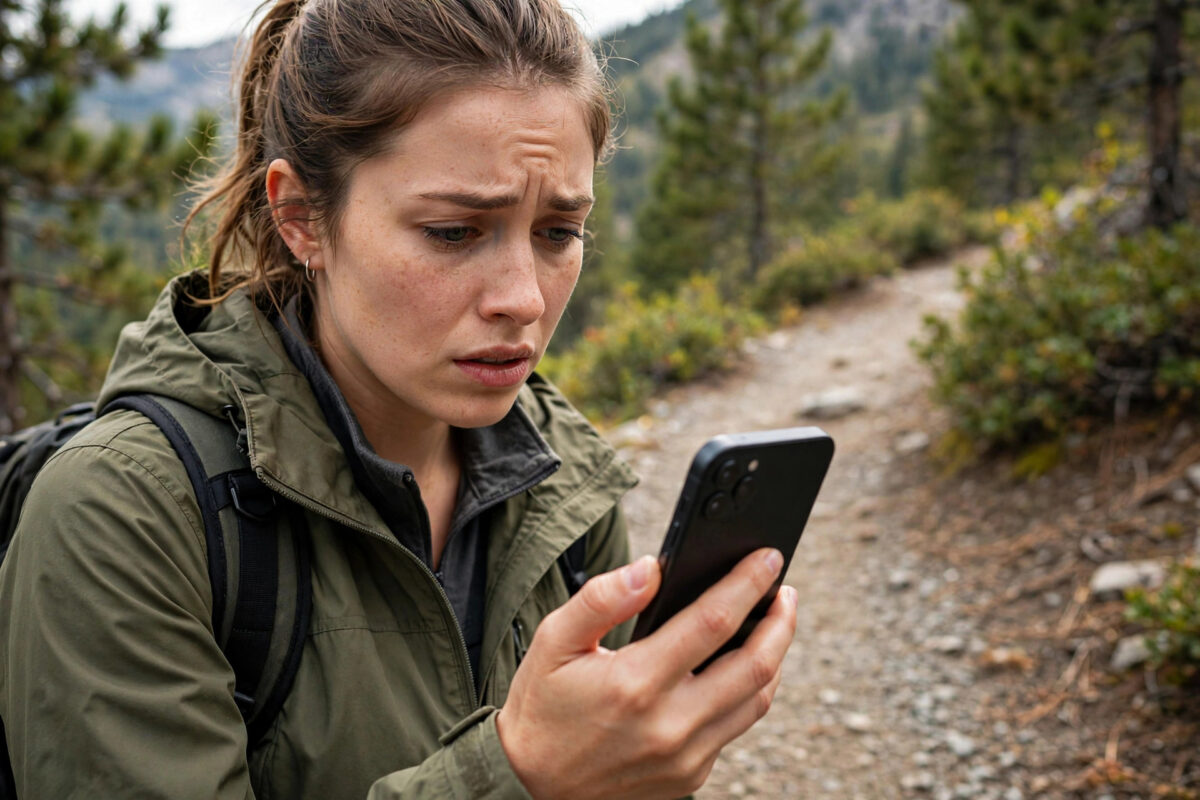
In an emergency, you may not have time to unlock your iPhone, open the Phone app, and dial a number. Emergency SOS solves that problem. With a few quick presses of the side button, your iPhone can call emergency services, play a warning sound if you choose, and alert your emergency contacts afterwards.
The feature is built into every modern iPhone, but the exact press pattern and settings confuse many people. Some users turn it on by accident and panic at the loud countdown. Others never enable the fastest option at all. This guide explains how Emergency SOS works on iOS 27, how to turn on each method, and how to practise safely without calling anyone.
Quick Answer
To turn on Emergency SOS on iPhone, go to Settings, tap Emergency SOS, and turn on Call with 5 Button Presses and Call with Hold and Release. Pressing the side button five times quickly, or holding the side and a volume button, will then start a countdown and call emergency services. Add emergency contacts in the Health app so they are notified after the call.
What Emergency SOS Does
Emergency SOS is a fast way to call your local emergency number. Your iPhone works out the right number from your location, so you do not need to know it when travelling. In the United Kingdom that is 999 or 112, in the United States it is 911, and in many other countries the phone connects you to the local equivalent.
After an Emergency SOS call ends, your iPhone can send a text message to your emergency contacts. The message says you used Emergency SOS and shares your current location. If your location changes for a short time afterwards, your contacts can receive an update. This helps family know you needed help even if you cannot explain what happened.
Extra Safety Features Linked to SOS
- Emergency contacts: People chosen in your Medical ID who are alerted after a call.
- Countdown sound: A loud warning sound while the countdown runs, which you can turn off for quieter calling.
- Satellite help on supported models: On recent iPhones such as the iPhone 18 range, Emergency SOS via satellite can connect where there is no mobile signal, in supported regions.
- Crash and fall features: Separate settings on iPhone and Apple Watch can call for help after a severe car crash or hard fall if you do not respond.
How to Turn On Emergency SOS Step by Step
- Open Settings on your iPhone.
- Scroll down and tap Emergency SOS.
- Turn on Call with Hold and Release. With this on, holding the side button and either volume button shows the Emergency SOS slider and, if you keep holding, starts a countdown to call.
- Turn on Call with 5 Button Presses. With this on, pressing the side button five times quickly starts the countdown.
- Decide about Countdown Sound. Leave it on if you want a clear warning before the call, or turn it off if you may need to call quietly.
- Scroll down and review the emergency contacts shown from your Medical ID. Tap the link to edit them in the Health app if the list is empty or out of date.
- Leave Settings. Your choices save automatically.
You do not have to enable both calling methods. Many people keep both on, because stress affects everyone differently. In a frightening moment you might remember pressing repeatedly but forget the hold method, or the other way round. Having two routes gives you a backup.
The Two Ways to Make an Emergency SOS Call
Hold and Release
- Press and hold the side button and either volume button at the same time.
- The power off screen appears with an Emergency SOS slider.
- Either drag the slider, or keep holding both buttons.
- If you keep holding, a countdown starts and an alert may sound.
- When the countdown ends, your iPhone calls emergency services.
If you release the buttons before the countdown finishes, the call does not go through. That detail matters during practice: you can view the screen and let go safely.
Five Button Presses
- Press the side button five times, quickly and evenly.
- A countdown begins, with a sound if Countdown Sound is on.
- Wait for the countdown to finish to place the call, or tap Stop to cancel if it was a mistake.
On iPhone models with Face ID this is simple to learn, but practise the rhythm once so it does not feel strange later. Apple describes both methods and the satellite option in its official guide on using Emergency SOS on your iPhone.
How to Cancel an Accidental Emergency SOS Call
Accidental triggers happen, especially with tight cases, pockets, or children playing with a phone. Stay calm. If the countdown is still running, tap Stop and then confirm that you want to stop the call.
If the call has already connected, do not just hang up in silence. Stay on the line for a few seconds and tell the operator it was an accidental call from an iPhone and that you do not need help. Operators deal with this often, and explaining avoids them calling back or sending help to check on you.
If accidental calls keep happening, review your settings. You can turn off Call with 5 Button Presses and keep only Hold and Release, which is harder to trigger by chance. Also check that your case is not pressing the side button on its own.
Set Up Emergency Contacts First
Emergency SOS works much better when your contacts are ready. These contacts come from your Medical ID in the Health app, not from a separate SOS list.
- Open the Health app and tap your profile photo.
- Tap Medical ID, then tap Edit.
- Scroll to Emergency Contacts and add at least one or two trusted people.
- Turn on Show When Locked so responders can also see the list.
- Tap Done.
If you have not created that health profile yet, follow our full walkthrough on how to set up Medical ID on iPhone for emergencies and then return to check your SOS switches. The two features are designed to work together.
Emergency SOS via Satellite: What to Know
On supported iPhone models in supported countries, Emergency SOS via satellite appears when you try to call emergency services and no mobile or Wi-Fi network is available. The phone guides you on screen, asks a few short questions about the emergency, and helps you point the phone towards a satellite.
This is not a replacement for a normal signal and it can take longer to connect. Messages are short, the connection needs a reasonably clear view of the sky, and heavy tree cover, hills, or being indoors can slow or block it. Still, for walkers, drivers in remote areas, and travellers, it is a valuable last resort on the iPhone 18 and other recent models.
Apple offers a demo mode inside Settings under Emergency SOS on supported phones, so you can see the screens without contacting anyone. Try the demo at home to learn the steps calmly.
Common Mistakes and Problems
- Never checking the settings: Do not assume SOS is ready. Open the settings page once and confirm your preferred methods are on.
- No emergency contacts added: The call still works, but nobody close to you gets notified afterwards.
- Panicking at the countdown sound: The sound is meant to warn you. Learn what it sounds like in advance, or turn it off in settings.
- Hanging up silently after a mistake: Always tell the operator it was accidental if the call connects.
- Testing by making a real call: Never place a test emergency call. Use the on-screen demo and read the steps instead.
- Thick or faulty cases: A case that squeezes the side button can trigger presses. Replace a case that causes repeated false alarms.
Tips for Families and Carers
Show older relatives and teenagers how SOS works before they need it. Walk through the hold method, point out the Stop button, and make sure their emergency contacts are correct. For children, explain that it is only for real emergencies, not a game, because the countdown sound alone often makes the feature feel exciting to press.
Conclusion
Emergency SOS is one of the most important features on your iPhone, and turning it on takes less than two minutes. Open Settings, enable Call with 5 Button Presses and Call with Hold and Release, choose your countdown sound preference, and add trusted emergency contacts in the Health app. Learn how to cancel a false alarm, try the satellite demo if your model supports it, and you will be ready to get help fast if a real emergency ever happens.
Frequently Asked Questions
Does Emergency SOS call the right number in other countries?
Yes. Your iPhone connects to the local emergency number based on your location, so travelling users do not need to memorise a new number for each country.
Will my emergency contacts be told if I use SOS?
After the emergency call ends, your iPhone can text your Medical ID emergency contacts, tell them you used SOS, and share your location. You can stop location updates from the message thread.
Can I turn off the loud countdown sound?
Yes. Go to Settings, tap Emergency SOS, and turn off Countdown Sound. The call will then be placed more quietly after the countdown, which some people prefer for personal safety situations.
What if I trigger Emergency SOS by accident?
Tap Stop during the countdown to cancel. If the call connects, stay on the line briefly and explain to the operator that it was accidental and you are safe.
Does Emergency SOS work without mobile signal?
Normal SOS needs a mobile or Wi-Fi calling connection. On supported recent models in supported regions, Emergency SOS via satellite can help when no network is available, as long as you have a clear enough view of the sky.



Leave a Reply