
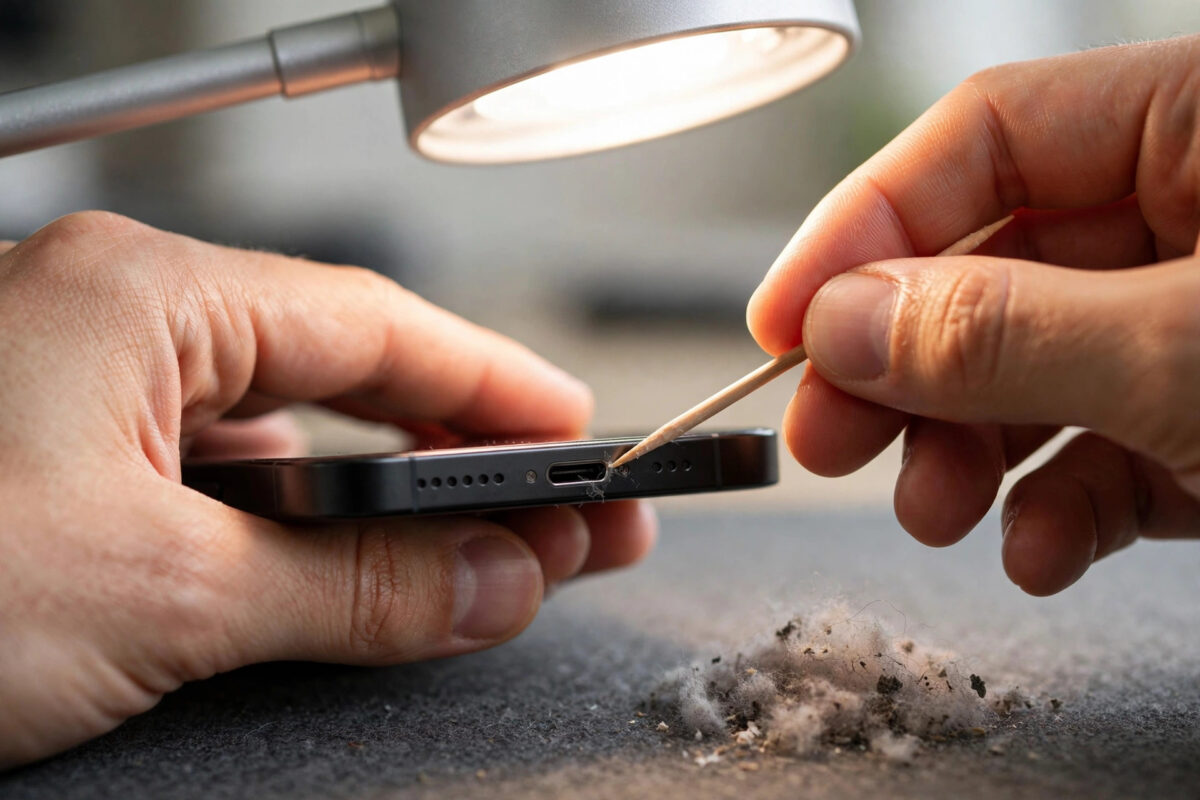
Your charging cable used to click in firmly and charge every time. Now it feels loose, falls out on the desk, or only works when you hold it at a strange angle. Before you blame the cable or the phone, look at the charging port. For most iPhones, the real problem is a small plug of pocket lint packed deep inside it, and cleaning it out safely takes about five minutes.
Quick Answer
To clean your iPhone charging port safely, switch the phone off, shine a light into the port, and gently lift out lint and dust with a wooden or plastic toothpick or a SIM ejector tool wrapped in care, using light scooping motions away from the centre pins. Finish with short bursts of compressed air held upright. Never use metal needles, water, or cleaning liquids, because they can bend the contacts or cause corrosion.
Signs Your Charging Port Needs Cleaning
A dirty port rarely stops charging all at once. It usually gets worse slowly, which makes the signs easy to miss.
- The cable plug does not sit flat against the bottom of the phone and leaves a small gap.
- Charging starts and stops when the phone or cable moves slightly.
- Your iPhone charges on one cable but not another, even though both cables work on other phones.
- You see a dark layer of fluff when you shine a torch into the port.
- Accessories such as wired earphones or car adapters connect only sometimes.
The iPhone 18 and other recent models use a USB-C port, while older models use Lightning. Both collect lint in the same way, because both live at the bottom of a phone that spends the day in pockets and bags.
What You Need Before You Start
Gather a few simple items first so you are not searching mid-job with the phone in your hand.
- A bright torch or a second phone with its light on.
- A wooden or plastic toothpick, or the SIM ejector tool that came with your iPhone.
- A can of compressed air, optional but helpful.
- A soft, dry brush, such as a clean, soft toothbrush.
- A magnifying glass or your iPhone camera zoom, if your eyes need help.
How to Clean the Port Step by Step
- Turn the iPhone off. Hold the side button and a volume button, slide to power off, and wait for the screen to go fully dark. Working with the power off removes any risk of a short circuit.
- Remove the case. Cases can trap extra dust around the port opening and block your view and your angle.
- Look inside first. Shine the torch straight into the port. On a USB-C port you will see a thin tongue in the middle. On a Lightning port you will see a flat floor with small contacts. Note where the lint sits before you touch anything.
- Loosen the lint gently. Hold the toothpick almost flat and slide it along the bottom and sides of the port with very light pressure. Use a gentle scooping motion to drag fluff outwards. Keep away from the centre tongue on USB-C models and never scrape hard against the contacts.
- Work in small passes. Pull the tool out, wipe off the fluff, and repeat. Most ports release one large compacted plug of lint. Take your time; two minutes of patience is cheaper than a repair.
- Brush and blow out the remains. Sweep the opening with the soft brush, then give two or three short bursts of compressed air with the can upright and the nozzle a few centimetres away. Do not shake the can or tilt it, as that can spray cold liquid.
- Test the fit. Plug in your charging cable. It should now slide in fully and sit flush with a firm feel. Power the phone on and confirm the charging symbol appears.
Apple’s own guidance on handling and cleaning your iPhone safely stresses keeping moisture away from openings and avoiding abrasive materials, which matches the dry, gentle method above.
What to Do If the Port Is Still Not Working
If the port looks clean but charging is still unreliable, try these checks before paying for a repair.
- Test with a different cable and a different power adapter, ideally official or certified ones.
- Try wireless charging. If wireless charging works perfectly, the problem is limited to the port or the cable.
- Restart the iPhone and check for an iOS 27 update in Settings, General, Software Update.
- Look closely for a bent centre tongue, green corrosion, or a contact that looks broken. Physical damage needs a technician.
If the cable now fits but the battery itself seems weak, our guide explaining why your iPhone will not charge past 80 percent covers the settings and battery features that can look like a charging fault but are actually working as designed.
Common Mistakes That Damage the Port
- Using a metal pin or paperclip. Metal can short the contacts, scratch the pins, and bend the USB-C centre tongue. This is the most common way people turn a free cleaning job into a paid repair.
- Blowing into the port with your mouth. Breath carries moisture and saliva, which encourages corrosion on the contacts.
- Using water, sprays, or alcohol. Liquids should never go into the port. If your iPhone warns about liquid in the connector, Apple advises leaving it to dry, as described in its note about what to do when you see a liquid detection alert.
- Pushing harder when the tool meets resistance. The resistance is usually the compacted lint plug. Scoop it out in layers instead of forcing the tool deeper.
- Cleaning while the phone is on or charging. Always switch off and unplug first.
How to Keep the Port Clean for Longer
You cannot stop lint completely, but you can slow it down. Keep your phone in a pocket by itself rather than with tissues or receipts. Give the port a quick visual check every few months. Some people use a slim dust plug when travelling, which is fine as long as it fits loosely and you remove it before charging. A case with a port cover also helps if you work in dusty places such as building sites or warehouses.
Conclusion
A loose cable and unreliable charging usually mean lint in the port, not a broken iPhone. Switch the phone off, use a wooden or plastic toothpick with a very light touch, finish with a soft brush and short air bursts, and the cable should click home again. Avoid metal, water, and force at all times, and if careful cleaning does not restore charging, have Apple or a trusted repairer inspect the port for real damage.
Frequently Asked Questions
Can I use a needle to clean my iPhone charging port?
No. A metal needle can bend the contacts, scratch the USB-C centre tongue, and cause a short circuit. A wooden or plastic toothpick is firm enough to move lint and soft enough to protect the port.
How often should I clean the charging port?
Check it every three to six months, or whenever the cable starts to feel loose. Most people only need a proper clean once or twice a year, depending on how dusty their pockets and bags are.
Is compressed air safe for the charging port?
Yes, when used correctly. Hold the can upright, keep a small distance, and use short bursts. Never tilt or shake the can, because the spray can turn cold and wet.
My cable fits now but charging is still slow. Why?
The port may still hold fine dust, the cable or adapter may be weak, or your battery health may be low. Test with a known good charger and check battery health in Settings, Battery.
Will cleaning the port void my warranty?
Gentle cleaning with a soft, non-metal tool does not void your warranty. Damage caused by forcing metal objects or liquids into the port is not covered, which is why the careful method matters.



Leave a Reply