
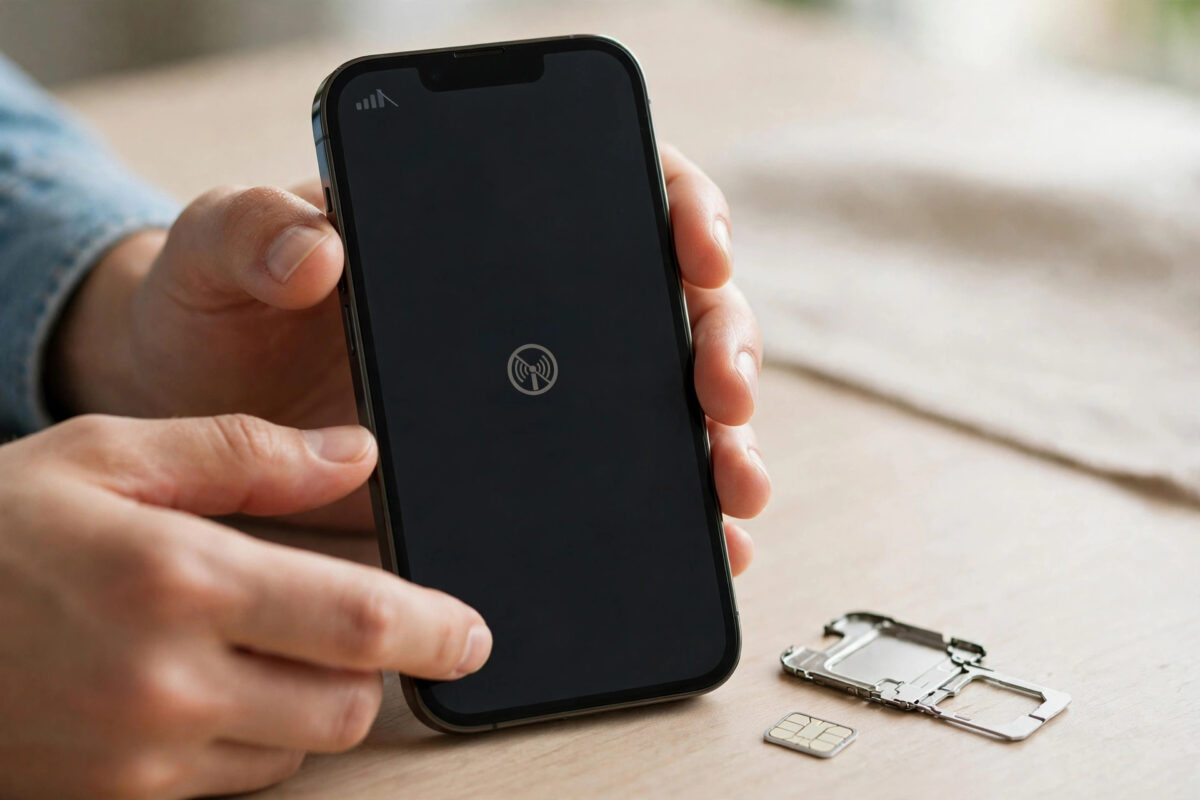
Few messages stop you in your tracks like “SIM failure” on your iPhone. One moment you have full signal, and the next your calls stop working, mobile data disappears, and your phone seems cut off from the world. The good news is that this error is very common, and in most cases you can fix it yourself in a few minutes.
A SIM failure message means your iPhone cannot properly read or communicate with your SIM card or eSIM. Sometimes the card itself is slightly dirty or loose. Sometimes a small software glitch after an iOS update causes the problem. In rarer cases, the SIM has worn out or your carrier needs to refresh your line.
Quick Answer
Your iPhone says “SIM failure” when it cannot read your SIM card or eSIM properly, usually because of a loose or dirty card, a temporary software glitch, or outdated carrier settings. Start by restarting your iPhone and toggling Airplane Mode on and off. If that fails, remove and clean the SIM card, update your carrier settings, and reset network settings as a last step before contacting your carrier.
What Does “SIM Failure” Actually Mean?
Your SIM card is the small chip that connects your iPhone to your mobile network. It stores your phone number and proves to your carrier that your phone is allowed on their network. When your iPhone shows a SIM failure alert, it means the phone tried to read that chip and something went wrong.
Many newer iPhone models use an eSIM, a digital SIM built into the phone, instead of a physical card. An eSIM can show the same error, but the cause is usually software or a carrier profile problem instead of a loose card.
Common causes of the error
- A physical SIM card that has shifted slightly in its tray
- Dust, moisture, or scratches on the gold contacts of the card
- A temporary iOS glitch, often after an update or a restart
- Outdated carrier settings that no longer match the network
- A damaged or very old SIM card that needs replacing
- A carrier-side problem with your account or line
- In rare cases, water damage or a fault with the SIM tray
Fix 1: Restart Your iPhone
A restart clears temporary glitches that often cause SIM errors. It forces your iPhone to read the SIM again from scratch, which solves the problem surprisingly often.
- Press and hold the side button and either volume button until the power slider appears.
- Drag the slider and wait about 30 seconds for the phone to turn off fully.
- Press and hold the side button again until you see the Apple logo.
- Wait for your phone to finish starting, then check whether the error is gone and signal bars appear.
Fix 2: Toggle Airplane Mode On and Off
Airplane Mode switches off all wireless radios in your iPhone, including the connection to your mobile network. Turning it on and off forces the phone to search for your carrier again, which can clear a stuck connection.
- Swipe down from the top of the screen to open Control Centre.
- Tap the aeroplane icon so it turns orange.
- Wait at least 15 seconds.
- Tap the icon again to turn Airplane Mode off.
- Give your iPhone a few seconds to reconnect and check for signal.
Fix 3: Remove, Clean, and Reseat the SIM Card
If your iPhone uses a physical nano-SIM, a card that is even slightly out of place can trigger the failure message. Taking it out and putting it back carefully is one of the most reliable fixes.
- Turn your iPhone off completely.
- Find the SIM tray on the side of your phone and insert a SIM eject tool or a straightened paperclip into the small hole.
- Press gently until the tray pops out, then slide it out fully.
- Lift the SIM card out and check it for dust, marks, or damage.
- Wipe the gold contacts gently with a soft, dry, lint-free cloth. Do not use water or cleaning spray.
- Place the card back in the tray, matching the angled corner so it sits flat.
- Slide the tray back in firmly and turn your iPhone on.
While the card is out, you can also test it in another phone if you have one available. If the same error appears there, the card itself is probably faulty and needs replacing. Apple explains the supported SIM types and tray locations in its guide on how to remove or switch the SIM card in your iPhone.
Fix 4: Check for a Carrier Settings Update
Carriers regularly release small settings updates that tell your iPhone how to connect to their network. If those settings are out of date, SIM errors can appear even when the card is fine.
- Connect your iPhone to Wi-Fi.
- Open Settings, then tap General, then About.
- Stay on that screen for about 30 seconds.
- If an update is available, a pop-up will ask you to update your carrier settings. Tap Update.
- Restart your iPhone after the update finishes.
If no pop-up appears, your settings are already up to date. Learn more in Apple’s guide on updating carrier settings on iPhone manually.
Fix 5: Update iOS to the Latest Version
Bugs in an early version of a new iOS release can affect how the phone handles the SIM. Apple fixes these quickly in smaller updates, so staying current matters.
- Connect to Wi-Fi and make sure your battery is above 50 percent, or plug in your charger.
- Open Settings, tap General, then Software Update.
- If an update is available, tap Update Now and follow the on-screen steps.
- After your iPhone restarts, check whether the SIM error has cleared.
Fix 6: Check Your eSIM If You Use One
If your line uses an eSIM, there is no card to clean or reseat. Instead, check that the eSIM line is switched on and set up correctly.
- Open Settings and tap Mobile Service, which may be called Cellular in some regions.
- Under SIMs, tap your line and make sure “Turn On This Line” is enabled.
- Make sure Data Roaming and network selection are set the way your carrier recommends.
- Restart your iPhone and watch for the error.
If the eSIM profile itself seems broken, your carrier may need to send you a fresh QR code to set it up again. Before deleting anything, read our guide on how to add an eSIM to your iPhone step by step so you understand the setup process. Never delete your eSIM on your own, because you may lose your number until your carrier issues a new profile.
Fix 7: Reset Network Settings
If none of the earlier steps worked, resetting network settings gives your connections a clean start. This removes saved Wi-Fi networks, Bluetooth pairings, and mobile settings, but it does not delete your photos, apps, or messages.
- Open Settings, tap General, then Transfer or Reset iPhone.
- Tap Reset, then choose Reset Network Settings.
- Enter your passcode if asked and confirm the reset.
- Your iPhone will restart. Reconnect to Wi-Fi and check your signal.
Common Mistakes to Avoid
- Forcing the SIM tray: The tray should slide in smoothly. Forcing it can bend the card or damage the tray.
- Cleaning the SIM with liquid: Water and sprays can make contact problems worse. Use a dry cloth only.
- Deleting an eSIM without a backup plan: You cannot always restore it yourself, so speak to your carrier first.
- Ignoring a repeating error: If the message returns every day, the SIM or tray is likely failing and needs attention.
- Using a damaged or cut-down SIM: Old cards that were cut to fit often sit poorly and cause repeated failures.
When to Contact Your Carrier or Apple
If you have tried every fix above and still see the error, the problem is probably outside your control. Your carrier can check your account, refresh your line from their side, and issue a free or low-cost replacement SIM if yours has failed. This is especially likely if your card is several years old.
If a new SIM shows the same error, the phone may have a hardware fault, such as a damaged SIM reader. Book an inspection with Apple, and back up your iPhone before the visit.
Conclusion
A “SIM failure” message looks serious, but it is usually caused by something small: a loose card, a dusty contact, or a software glitch. Restarting, reseating the SIM, updating carrier settings, and resetting network settings solve the problem for most people. If the error keeps coming back, a replacement SIM from your carrier is the next step, and it is normally quick and cheap.
Frequently Asked Questions
Why does my iPhone keep saying SIM failure randomly?
Random SIM failure messages usually point to a card that is not sitting firmly in its tray, a worn-out SIM, or a software glitch. Reseat the card, update iOS and your carrier settings, and ask your carrier for a replacement SIM if the problem continues.
Will resetting network settings delete anything important?
No. It only removes saved Wi-Fi networks and passwords, Bluetooth pairings, and mobile and VPN settings. Your photos, apps, messages, and accounts stay exactly as they are, but you will need to reconnect to Wi-Fi afterwards.
Can a SIM card suddenly stop working?
Yes. SIM cards wear out over time, and their contacts can corrode or get scratched. A card that worked for years can fail without warning, which is why carriers replace them cheaply or free of charge.
Does SIM failure mean my iPhone is broken?
Not usually. Most SIM failure errors come from the card, the settings, or the carrier, not the phone. Hardware faults are uncommon and are only likely if a brand-new SIM also fails in your iPhone but works in another phone.
How do I fix SIM failure on an iPhone with eSIM only?
Make sure the eSIM line is turned on in Settings under Mobile Service, restart your phone, and update iOS and carrier settings. If it still fails, ask your carrier to reissue your eSIM profile, because the digital profile itself may be corrupted.



Leave a Reply