
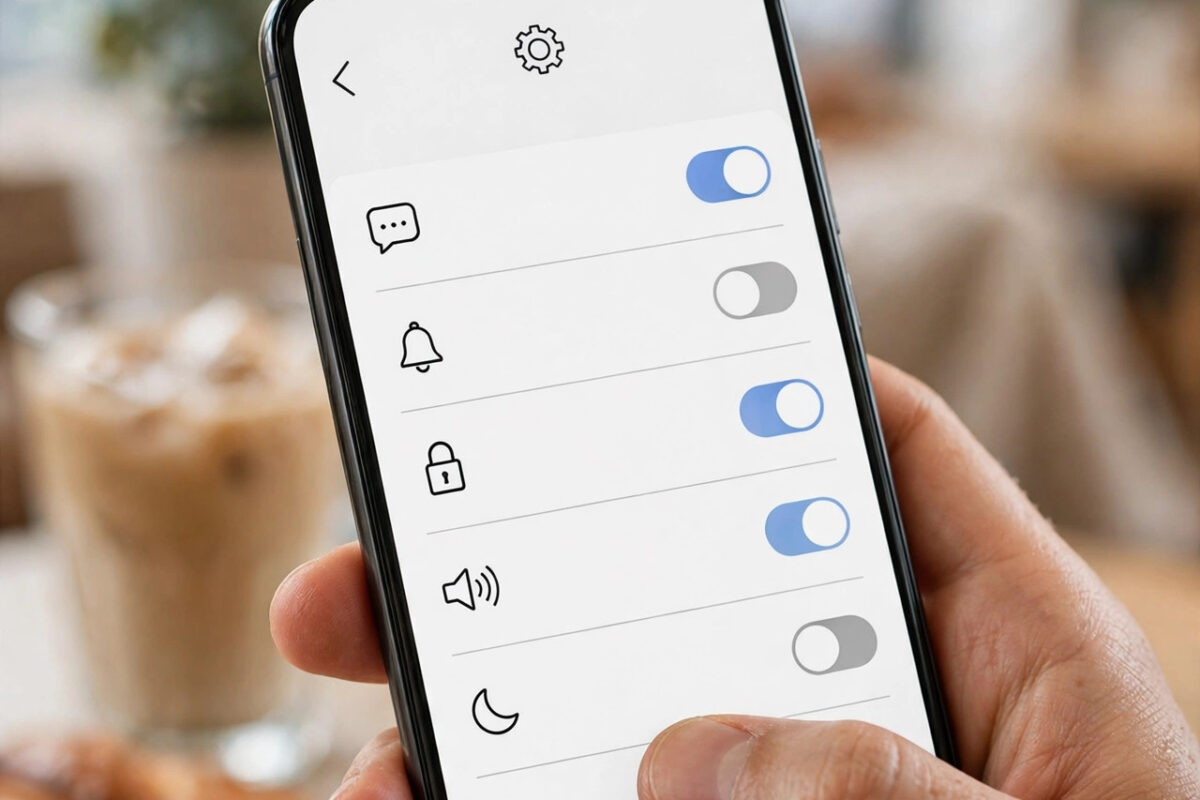
There are good reasons to turn off iMessage. Maybe you are switching from an iPhone to an Android phone, maybe you are travelling and want simple text messages, or maybe iMessage keeps failing and plain SMS is more reliable for you. Whatever the reason, the important thing is to switch it off correctly. If you just remove your SIM card or move it to a new phone without turning iMessage off first, your messages can get stuck in Apple’s system and never reach you.
This guide explains exactly how to turn off iMessage on your iPhone, how to deregister your number completely if you have already switched phones, and how to make sure normal SMS text messages work afterwards. The steps reflect iOS 27 on the iPhone 18 range, and they apply to older iPhones as well.
Quick Answer
To turn off iMessage and switch back to SMS, open Settings, tap Apps, tap Messages, and turn off the iMessage switch. Your iPhone will then send and receive regular SMS and MMS text messages through your mobile carrier instead of Apple’s servers. If you already moved to a non-Apple phone, deregister your number on Apple’s Deregister iMessage website so texts from iPhone users reach you again.
What Changes When You Turn Off iMessage?
iMessage is Apple’s internet-based messaging service. It works over Wi-Fi and mobile data, shows blue bubbles, and offers read receipts, typing indicators, high-quality photos, and end-to-end encryption between Apple devices. SMS is the older carrier-based system. SMS messages show as green bubbles, travel through your mobile network, and work between any phones, Apple or not.
When you turn iMessage off, a few things change straight away. Your messages to other iPhone users will be sent as SMS or MMS instead, which may cost money depending on your mobile plan. Read receipts and typing indicators disappear. Group chats that were iMessage groups will behave differently, because they fall back to MMS group messaging if your carrier supports it. Features such as message effects, tapbacks in some cases, Apple Pay in Messages, and high-resolution video sharing will no longer work in those conversations.
Nothing is deleted when you switch. Your old conversations stay in the Messages app exactly as they were. You simply start sending new messages in a different way. You can also turn iMessage back on at any time by flipping the same switch, so this decision is never permanent.
How to Turn Off iMessage on Your iPhone
If you still have your iPhone in your hand, this is the safest and simplest method. Do it before you erase the phone, sell it, or move your SIM or eSIM to another device.
- Make sure your iPhone is connected to Wi-Fi or mobile data and your SIM or eSIM is still active in it.
- Open the Settings app.
- Scroll down and tap Apps, then tap Messages. On some older iOS versions, Messages appears directly in the main Settings list.
- Turn off the switch next to iMessage. The switch should turn grey.
- Wait a few minutes. Apple needs a short time to update its servers.
- Open Messages and send a test text to a friend who has an iPhone. Your message should now appear in a green bubble, which confirms SMS is working.
While you are in the Messages settings, also check that “Send as SMS” makes sense for the future. That option only matters when iMessage is on, so it is not needed now. More importantly, confirm that your phone number is correct under Settings, your name, Phone, and that your carrier connection shows signal bars.
Also Turn Off FaceTime If You Are Leaving iPhone Completely
If you are switching away from Apple for good, turn off FaceTime as well so that video calls are not still routed to your old iPhone. Go to Settings, tap Apps, tap FaceTime, and turn off the FaceTime switch. This takes only a few seconds and prevents the same kind of missed-call confusion that stuck messages cause. If you are only turning iMessage off temporarily and staying on iPhone, you can leave FaceTime on.
Already Switched Phones? Deregister Your Number Online
The most common problem happens when someone moves their SIM to an Android phone first and only later discovers that texts from iPhone friends are vanishing. This happens because Apple’s servers still think your number belongs to iMessage, so iPhones try to deliver messages there instead of as SMS.
Apple provides a free solution for exactly this situation, described in its official support guidance on how to deregister iMessage if you no longer have your iPhone. You do not need the old iPhone at all.
- Put your SIM card in your new phone, or make sure your number is active on it if you use eSIM.
- On any browser, open Apple’s Deregister iMessage page at selfsolve.apple.com/deregister-imessage.
- Enter your phone number in international format and tap Send Code.
- You will receive a six-digit confirmation code by SMS.
- Type the code on the website and tap Submit.
After deregistration, it can take a few hours for Apple’s systems to update fully. Ask an iPhone-owning friend to delete your old conversation thread and start a fresh one, then send you a test message. Starting a new thread forces their iPhone to check again and deliver the message as SMS.
Making Sure SMS Works Properly Afterwards
Turning iMessage off is only half the job. You also want plain texting to work smoothly. Run through these checks:
- Check your mobile signal and plan. SMS is handled by your carrier, so you need signal and, on some plans, text messages included or credit available.
- Turn on MMS Messaging if you need picture messages and group texts. Go to Settings, Apps, Messages, and enable MMS Messaging. Without it, group conversations and photo texts may fail.
- Restart your iPhone. A restart clears out old network settings and helps the phone register cleanly for SMS.
- Test both directions. Send a text to an Android user and to an iPhone user, and ask both to reply. Replies are where problems usually show up.
- Update your number everywhere. Banking apps, delivery services, and two-factor authentication systems sometimes still try to reach an old setup. Your number itself has not changed, but a quick test login keeps surprises away.
If you stayed on iPhone and simply prefer SMS, remember that messages between you and Android users were always SMS anyway. The only real change is for conversations with other Apple users. If group chats matter to you, our guide on how to create and manage group chats on iPhone Messages explains how iMessage groups and MMS groups behave differently, which helps you decide which system suits your family or work groups better.
Common Mistakes to Avoid
Avoid these errors, which cause nearly all switching headaches:
- Erasing or selling the iPhone before turning iMessage off. Always switch it off while the SIM is still in the iPhone, or use the deregistration website afterwards.
- Forgetting linked devices. If your number was also used for iMessage on an iPad or Mac, sign out or turn iMessage off there too, otherwise messages may still be pulled into those devices.
- Expecting instant results. Apple’s servers can take a few hours to update after deregistration. Wait before assuming it failed.
- Blaming the new phone. Missing texts after a switch are almost always an iMessage registration issue, not a fault with your Android phone or carrier.
- Turning iMessage back on by accident. Some updates and restores re-enable it. If texts start arriving as blue bubbles again unexpectedly, check the setting.
When SMS Might Actually Be the Better Choice
iMessage is excellent, but SMS has real advantages. It works with almost no data connection, reaches any phone in the world regardless of brand, and never depends on Apple Account sign-ins or activation servers. For a backup phone, a travel SIM, or an elderly relative with a simple setup, SMS is often the calmer choice. The trade-offs are lower photo quality, no encryption, and possible per-message charges abroad, so if you travel often, check your carrier’s roaming text rates before you rely on SMS overseas.
Conclusion
Turning off iMessage and switching back to SMS is simple when you do it in the right order. Flip the iMessage switch off in Settings while your SIM is still in the iPhone, restart, and test with green-bubble messages. If you have already switched phones, deregister your number on Apple’s website using the SMS code, and give the system a few hours to update. With those steps done, your texts will flow normally to every phone, and you can always switch iMessage back on later if you return to iPhone full time.
Frequently Asked Questions
Will I lose my old messages if I turn off iMessage?
No. Turning off iMessage does not delete any conversations. All your old chats, photos, and attachments stay in the Messages app. New messages are simply sent and received as SMS or MMS from that point onwards.
Why are iPhone users’ texts not reaching my new Android phone?
Your number is probably still registered with iMessage, so their iPhones keep trying to deliver messages through Apple instead of SMS. Deregister your number on Apple’s Deregister iMessage page, then ask them to start a new conversation thread with you.
Does turning off iMessage cost anything?
Turning it off is free. However, SMS and MMS messages are charged by your mobile carrier according to your plan. Many plans include unlimited texts, but picture messages and international texts can cost extra, so check your plan details.
Can I turn iMessage back on later?
Yes, at any time. Go back to Settings, Apps, Messages, and turn the iMessage switch on again. Your iPhone will reactivate with your phone number, which can take a few minutes and occasionally up to 24 hours in rare cases.
Do I need to turn off iMessage on my iPad and Mac too?
If you are leaving Apple completely, yes. Turn off iMessage in Messages settings on each device, or sign out of your Apple Account there. Otherwise those devices may continue receiving iMessages sent to your email address or number.



Leave a Reply