
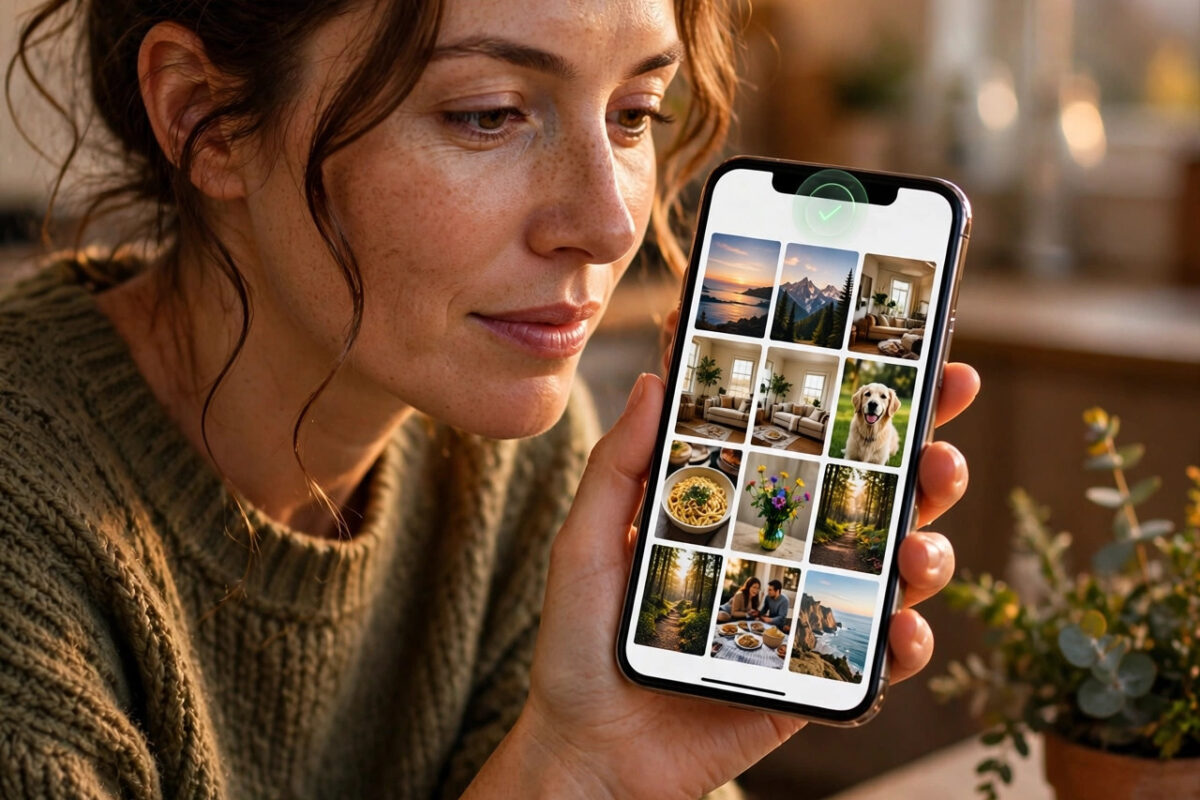
The Hidden album in Photos is only truly private when it is locked. If anyone can tap into it, hiding photos does not protect you when you hand your iPhone to a child, a colleague, or a repair shop. Face ID solves this neatly: the album opens only when your phone recognises your face.
On modern iPhones, including the iPhone 18 range running iOS 27, Apple locks the Hidden album by default. Still, settings can be changed, phones get handed down, and many people never check whether the lock is actually on. This guide shows you how to confirm the lock, turn it on if it is missing, test it properly, and fix the most common problems.
Quick Answer
To lock the Hidden photo album with Face ID, go to Settings > Apps > Photos and turn on the option to use Face ID to view the Hidden album. From then on, opening the Hidden album in Photos requires a Face ID scan, Touch ID, or your passcode. On iOS 27 this protection is enabled by default, but it is worth checking because it can be switched off in the same menu.
Why Locking the Hidden Album Matters
Hiding a photo removes it from your library, Memories, and widgets, but the Hidden album itself sits in the Albums list. Without a lock, anyone holding your unlocked phone is two taps away from everything you tried to keep private. A short lapse, such as showing someone a holiday picture, can expose documents, personal photos, or screenshots you never meant to share.
Face ID makes the lock effortless. You do not type anything; you simply look at your phone, and the album opens for you and no one else. It also protects the Recently Deleted album in the same way, so a stranger cannot permanently erase your photos either. Apple describes this protection in its official notes on keeping hidden photos private on iPhone, and it remains one of the simplest privacy wins on the device.
How to Turn On the Face ID Lock
Follow these steps once, and the setting stays in place across restarts and software updates.
- Open the Settings app on your iPhone.
- Scroll down and tap Apps, then find and tap Photos. On older iOS versions, Photos appears directly in the main Settings list.
- Look for the option labelled Use Face ID (wording may read “Require Face ID to view Hidden and Recently Deleted albums” on some versions).
- Turn the switch on so it shows green.
- Confirm with a Face ID scan or your passcode if the phone asks.
That is all it takes. There is no separate password to create or remember, because the lock uses the same Face ID you already use to unlock your phone and approve payments.
Make Sure Face ID Itself Is Set Up
The album lock cannot work if Face ID is not enrolled. Check this first if the Photos setting is greyed out or missing.
- Open Settings and tap Face ID & Passcode.
- Enter your passcode.
- Make sure Face ID is set up for iPhone Unlock. If not, tap Set Up Face ID and follow the on-screen head movements.
- Return to the Photos settings and turn the album lock on.
If you wear glasses or often unlock with a mask, consider adding an alternate appearance in the same menu. A more reliable Face ID means fewer annoying passcode prompts when you open your album.
How to Test That the Lock Works
Never assume a privacy setting works; test it. The check takes twenty seconds.
- Open Photos and tap the Albums tab.
- Scroll down to Utilities and find Hidden. It should show a small lock icon.
- Tap it. The phone should ask for Face ID before showing anything.
- Look away or cover the camera and try again. Access should be denied, with a passcode offered as backup.
- Lock your phone, unlock it, and repeat once more to confirm the behaviour is consistent.
If the album opened instantly without any check, the lock is off or Face ID is not working. Return to Settings and repeat the steps above before trusting the album with anything sensitive.
What If Face ID Fails or You Use a Passcode Instead?
Face ID is the front door, but your passcode is the spare key. When Face ID cannot recognise you, perhaps in bright sunlight or after several failed attempts, the iPhone falls back to asking for your passcode. That means the real strength of your album lock also depends on a strong passcode.
- Use at least a six-digit passcode; avoid birthdays and simple patterns like 123456.
- Consider a longer alphanumeric passcode in Settings > Face ID & Passcode > Change Passcode if you store very sensitive images.
- Never share your passcode with people who should not see the album. Children who know the family passcode can open it, because the phone cannot tell them apart from you at the passcode screen.
For shared family devices, a better approach is to move truly private images off the phone entirely, for example into an encrypted note or a separate account, rather than relying on the Hidden album alone.
Locking on iPad and Older iPhones With Touch ID
The same idea works across the range. On an iPad or an iPhone with a Home button, the album unlocks with Touch ID instead of Face ID. The setting lives in the same place: Settings > Apps > Photos, where the switch mentions Touch ID or your device’s biometric method.
Older phones running much older software may not offer a lock at all. In that case, updating iOS is the real fix, because the locked Hidden album was introduced as a standard feature in newer versions and improved again through iOS 26 and iOS 27. Check for updates in Settings > General > Software Update, following Apple’s guidance on updating iOS on iPhone safely.
Common Mistakes and Pro Tips
Turning off Show Hidden Album and calling it locked. Hiding the album from the list is not a lock. If someone turns the setting back on, everything is visible. Use the Face ID switch for real protection; use Show Hidden Album only as an extra layer of tidiness.
Forgetting the Recently Deleted album. The same lock protects Recently Deleted, which is good, but remember that deleting a photo is not the same as hiding it. Keep private items in Hidden, not in the trash.
Leaving Photos open after unlocking. The album stays unlocked while the Photos app session continues. If you open it and then hand the phone over, close the app first or lock the phone so the next open requires Face ID again.
App Lock as a second wall. iOS lets you require Face ID for the Photos app itself. Touch and hold the Photos icon, then choose Require Face ID. This protects your entire library, not just the Hidden album, and pairs well with the album lock.
Pair this with good storage habits. A locked album still uses storage, and big private video collections fill phones quickly. If space is tight, read our guide to managing iPhone storage without deleting photos you care about alongside locking your album.
Conclusion
Locking the Hidden album with Face ID takes less than a minute and turns a simple tidy-up feature into genuine privacy. Check the switch in Settings > Apps > Photos, make sure Face ID itself is healthy, and test the album with the camera covered so you know the lock works. Keep a strong passcode behind it, add App Lock if you want a second wall, and your private photos stay private even when your phone is in someone else’s hands.
Frequently Asked Questions
Is the Hidden album locked by default on iOS 27?
Yes. On iOS 27 and recent versions before it, the Hidden and Recently Deleted albums require Face ID, Touch ID, or your passcode by default. The setting can be switched off, however, so it is still worth checking once in Settings > Apps > Photos.
What happens if Face ID stops recognising me?
The iPhone simply asks for your passcode instead, so you are never locked out of your own photos. If failures happen often, re-enrol Face ID in Settings > Face ID & Passcode, and add an alternate appearance if your look changes during the day.
Can I set a different password just for the Hidden album?
No. Apple does not offer a separate password for the album. It uses your existing Face ID, Touch ID, or device passcode. If you need a completely separate lock, store the images in a password-protected note or a dedicated vault app instead.
Does the lock also protect hidden photos on my Mac and iPad?
Yes, when you use iCloud Photos, hidden items stay hidden across devices, and each device asks for its own authentication: Face ID or Touch ID on iPhone and iPad, and your login password or Touch ID on a Mac.
Will locking the album stop hidden photos appearing in search?
Hidden photos are already excluded from search results, Memories, and widgets whether the lock is on or off. The lock adds protection at the album itself, stopping anyone from browsing the collection directly.



Leave a Reply