
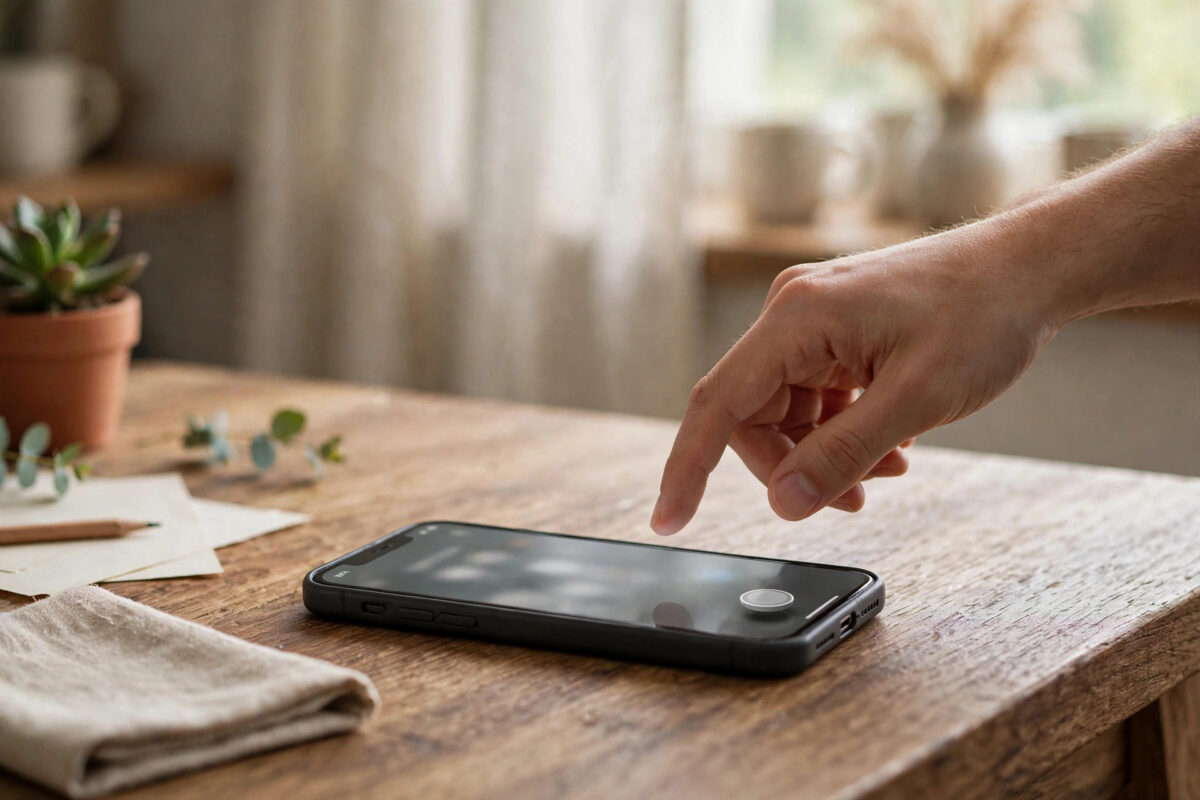
AssistiveTouch is one of the most useful features hidden in your iPhone’s accessibility settings. It adds a small floating button to your screen that can replace physical buttons and complex gestures. People use it when a button is broken, when one-handed use is difficult, or simply because a single on-screen menu is faster than reaching for buttons.
Turning it on takes less than a minute, and you can turn it off just as quickly. This guide covers every way to enable it, how to customise the menu, and how to make the button almost invisible when you do not need it.
Quick Answer
To turn on AssistiveTouch on iPhone, go to Settings, Accessibility, Touch, AssistiveTouch and switch it on. A floating button appears on your screen that you can tap for actions like Home, Screenshot, and Control Centre. You can also ask Siri to “turn on AssistiveTouch” or add it to the Accessibility Shortcut.
What Is AssistiveTouch and Who Is It For?
AssistiveTouch is a software button that floats above everything on your screen. Tapping it opens a small menu of actions. Instead of pressing the side button, squeezing for a screenshot, or swiping from awkward corners, you tap this one button and choose what you want.
It was designed as an accessibility feature for people who find physical buttons or multi-finger gestures hard to perform. In practice, many other people love it too:
- Owners of a phone with a faulty volume, power, or Home button.
- People who use a large iPhone one-handed and cannot reach every corner comfortably.
- Users who take screenshots many times a day and want a one-tap method.
- Anyone whose thick case makes the physical buttons stiff to press.
The button can be moved anywhere on the edge of the screen, and it politely dims when idle, so it does not ruin your view of photos or videos.
Method 1: Turn On AssistiveTouch in Settings
This is the main method and the one worth memorising:
- Open Settings.
- Scroll down and tap Accessibility.
- Under the Physical and Motor heading, tap Touch.
- Tap AssistiveTouch at the top of the list.
- Turn the AssistiveTouch switch on. It turns green, and the floating button appears immediately.
There is nothing to save and no restart needed. Tap the new button to see the default menu, which includes Notification Centre, Device, Control Centre, Home, Siri, and Custom. Tap anywhere outside the menu to close it.
To turn the feature off again, return to the same screen and switch it off. The button vanishes instantly. Apple summarises these steps in its official support article on using AssistiveTouch on iPhone, which also covers connecting pointer devices for advanced users.
Method 2: Ask Siri to Turn It On
If your hands are busy, Siri can do it for you. Wake Siri with “Hey Siri” or by holding the side button, then say “Turn on AssistiveTouch.” The button appears straight away. Saying “Turn off AssistiveTouch” removes it again.
This is also the fastest way to demonstrate the feature to a family member over the phone, because they do not need to dig through menus while following your voice.
Method 3: Use the Accessibility Shortcut
The Accessibility Shortcut lets you toggle AssistiveTouch by triple-clicking the side button, or the Home button on older models.
- Open Settings, then Accessibility.
- Scroll to the very bottom and tap Accessibility Shortcut.
- Tap AssistiveTouch so a tick appears next to it.
- Triple-click the side button at any time to show or hide the floating button.
If you assign several features to the shortcut, triple-clicking shows a small list and you tap the one you want. Keeping AssistiveTouch as the only item makes the toggle instant. There is also a shortcut tile you can add to Control Centre for the same job, which many people find gentler than triple-clicking.
How to Customise the AssistiveTouch Menu
Change the top-level menu icons
- Go back to the AssistiveTouch settings screen.
- Tap Customise Top Level Menu.
- Use the + and – buttons to change the number of icons, up to eight.
- Tap any icon, then choose a replacement action from the list, such as Screenshot, Lock Screen, Restart, or App Switcher.
- Tap Reset at any time if you want the original layout back.
Set custom actions for taps
You do not always need to open the menu at all. In the AssistiveTouch settings, the Custom Actions section lets a Single-Tap, Double-Tap, or Long Press on the button perform one action directly. A favourite combination is Single-Tap to open the menu, Double-Tap to take a screenshot, and Long Press to lock the screen. That gives you three instant functions from one small button.
If you enjoy invisible controls like this, you may also like the tap gestures described in our practical guide to using Back Tap on iPhone to open apps and run shortcuts, which pairs well with AssistiveTouch for a fully custom setup.
Make the Button Less Noticeable
The most common complaint about AssistiveTouch is that the button looks distracting. Two settings fix that:
- Idle Opacity: On the AssistiveTouch screen, tap Idle Opacity and drag the slider down to around 15–30 percent. The button fades to a ghost when untouched and brightens when you use it.
- Position: Drag the button to a bottom corner or an edge you rarely tap in your apps. It snaps to the nearest edge and stays out of menus and keyboards.
With lower opacity and a quiet corner, most people forget the button is there within a day, until the moment they need it.
Common Mistakes and Troubleshooting
- The button vanished. The Accessibility Shortcut may have toggled it off, or a settings reset switched it off. Triple-click the side button to test, then re-check the main AssistiveTouch switch.
- I cannot find Touch in Accessibility. It sits under the Physical and Motor heading. If the list looks different, use the search bar at the top of Settings and type “AssistiveTouch.”
- The menu opens when I only wanted one action. Assign your most-used action to Double-Tap or Long Press under Custom Actions, so you can skip the menu for that job.
- The button covers app content. Drag it to another edge, or lower the idle opacity. It cannot be hidden completely while the feature is on, but it can become very subtle.
- Siri does not understand the request. Use the exact phrase “Turn on AssistiveTouch,” and check that Siri is enabled under Settings, then Siri.
Helpful Things AssistiveTouch Can Do
Beyond the basics, explore the Device section of the menu for volume controls, screen rotation lock, mute, and a shake gesture. The Custom section lets you create your own gestures, such as a pinch or a long swipe, and replay them with one tap. This is valuable in apps or games that demand gestures some users cannot perform comfortably.
AssistiveTouch also works with a connected mouse or trackpad, turning the iPhone into a small computer-style setup with a visible pointer. For most readers, though, the simple wins are enough: a working Home action, easy screenshots, and a lock button that never wears out.
Conclusion
Turning on AssistiveTouch takes four taps: Settings, Accessibility, Touch, AssistiveTouch, on. From there, customise the menu, assign direct actions to taps, and lower the idle opacity so the button stays out of your way. Whether your physical buttons are failing or you just prefer on-screen controls, AssistiveTouch makes your iPhone easier and more comfortable to use every single day.
Frequently Asked Questions
Does AssistiveTouch slow down my iPhone or drain the battery?
No. It is a lightweight system feature with no meaningful effect on speed or battery life. The floating button simply waits on screen until you tap it, even on older iPhone models.
Can I use AssistiveTouch instead of a broken Home button?
Yes, that is one of its most popular uses. The menu includes a Home action that behaves like the Home button, and you can assign Home to a single tap for the closest replacement experience.
How do I remove the AssistiveTouch button?
Turn the switch off in Settings, Accessibility, Touch, AssistiveTouch. You can also tell Siri to turn off AssistiveTouch, or triple-click the side button if you set up the Accessibility Shortcut.
Can I take a screenshot with AssistiveTouch?
Yes. Open the button’s menu, tap Device, then More, then Screenshot, or save a step by assigning Screenshot directly to a double-tap or long press in the Custom Actions settings.
Why does the button move when I rotate my phone?
The button repositions itself to stay on a screen edge in the new orientation. That is normal. Drag it back to your preferred corner afterwards and it will remember the spot for that orientation.



Leave a Reply