
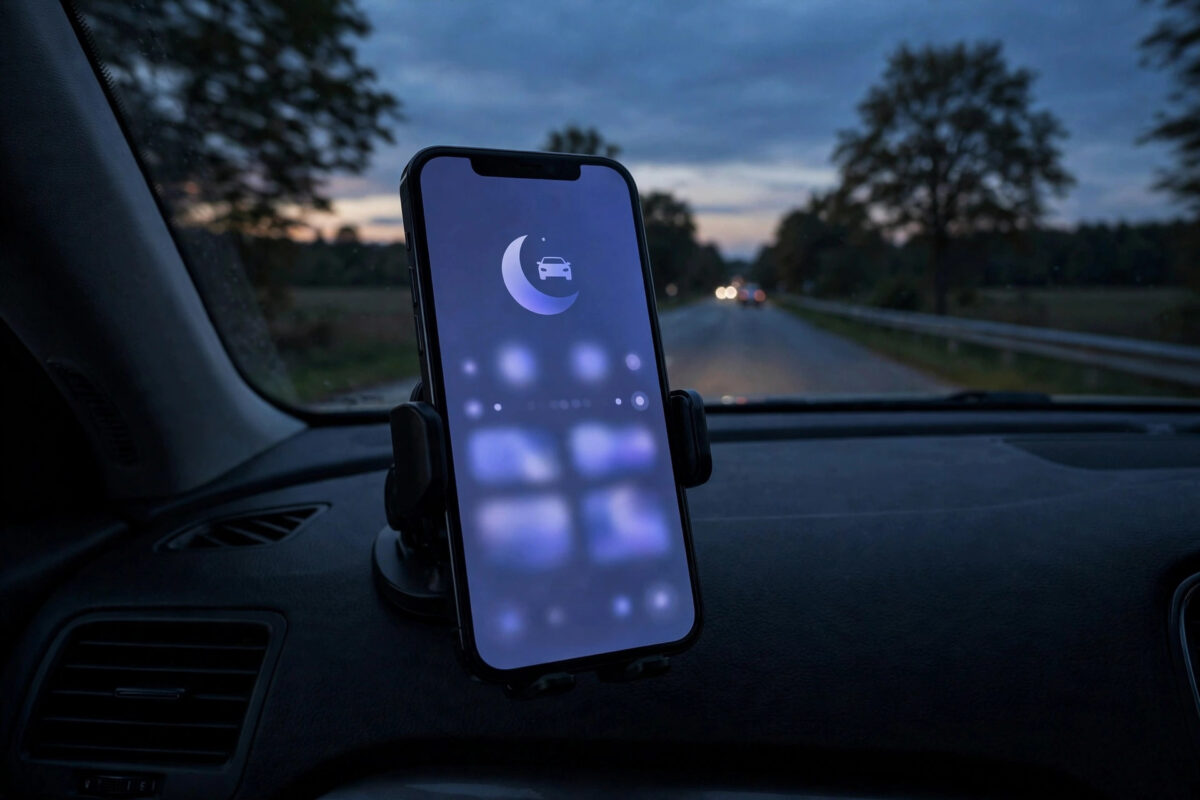
Every buzz in your pocket while driving is a temptation to glance down, and glancing down at motorway speed is genuinely dangerous. The Driving Focus mode exists to remove that temptation entirely: it silences calls and notifications, and can even answer texts for you while you drive.
Driving Focus can switch itself on automatically when you connect to your car’s Bluetooth or CarPlay, or when the phone detects driving motion, so you never have to remember it at the start of a journey.
This guide sets it up properly: activation, who can still reach you in an emergency, the automatic text reply, and the settings passengers and non-drivers need to know.
Quick Answer
To stop calls and notifications while driving, go to Settings, Focus, Driving, and set it up: choose which people and apps (if any) may notify you, then under Turn on Automatically select When Connected to Car Bluetooth or CarPlay, or Automatically for motion detection. Turn on Focus Status so the auto-reply tells texters you are driving. Emergency contacts and repeated urgent calls can still break through if you allow them.
Set Up Driving Focus
Driving is one of the preset Focus modes, so you do not need to build it from scratch. You just need to open it once and make it yours.
- Open Settings and tap Focus.
- Tap Driving. If it is not listed, tap the plus button and choose Driving.
- Work through People and Apps to decide what, if anything, is allowed.
- Tap Customise Focus if prompted to finish the initial setup.
Out of the box, Driving silences almost everything. Most people keep it that way and configure only the emergency paths described below, because a driving mode that lets social media through is not doing its job.
Make It Turn On Automatically
Automatic activation is the feature that makes Driving Focus genuinely useful. Find the ‘While Driving’ or ‘Turn on Automatically’ section inside the Driving Focus settings.
- CarPlay: activates whenever CarPlay starts. The most reliable option if your car has it.
- When Connected to Car Bluetooth: activates on pairing with your car’s hands-free system. Ideal for older cars.
- Automatically: uses motion sensors to detect likely driving. Works without any car connection, but can trigger when you are a passenger or on a train.
- Manually: only from Control Center. Not recommended; you will forget.
Choose Bluetooth or CarPlay if you can, because they know you are in YOUR car as the driver. Motion detection cannot tell the driver from a passenger, which matters for the next section.
Decide Who Can Still Get Through
Total silence is the default, but most drivers want a narrow emergency channel. Configure it deliberately rather than opening the gates.
- In Driving’s People settings, add only true emergency contacts, such as your partner, your children’s school, or a parent you care for.
- Allow calls from those people, and enable the option for repeated calls to break through, so anyone who rings twice in three minutes in a real emergency can reach you.
- Keep apps fully silenced, or allow only navigation-related and safety apps.
- Remember the car itself: with CarPlay or Bluetooth, allowed calls come through the car speakers hands-free, which is the safe way to take them.
If you prefer a completely bespoke arrangement rather than the preset, our guide to creating a custom Focus mode shows how to build one from zero with the same automations.
Turn On the Automatic Text Reply
Driving Focus can answer incoming texts with an automatic message explaining that you are driving and will reply later. Senders of urgent messages can reply ‘urgent’ to push their message through, depending on your settings.
- Inside the Driving Focus settings, find Auto-Reply.
- Choose who receives it: No One, Recent contacts, Favorites, or All Contacts.
- Edit the message text if you like; the default explains you are driving with notifications silenced.
- Make sure Focus Status is on in the main Focus settings, because the reply system depends on it.
The auto-reply only applies to Messages (and supported messaging through CarPlay). It does not answer WhatsApp or other third-party apps, which are simply silenced until you park.
If You Are a Passenger, Not the Driver
Motion-based activation cannot tell who is holding the steering wheel. If Driving Focus switches on while you are a passenger and you need your notifications back:
- Tap the Driving indicator on the lock screen, or open Control Center and tap the Focus button.
- Tap Driving to turn it off, or tap ‘I’m Not Driving’ when iOS shows that prompt.
- Consider switching activation to Bluetooth or CarPlay only, so it never triggers in someone else’s vehicle or on public transport.
Driving Focus and Your Family’s Peace of Mind
One underrated benefit of Driving Focus is what it tells other people. With Focus Status and the auto-reply active, your family sees that you are driving rather than ignoring them, and the automatic message sets the expectation that you will reply when parked. That small piece of communication prevents the worried second and third calls that the mode is designed to silence.
Parents of new drivers find a second use: setting up Driving Focus on a teenager’s phone, with activation locked to the car’s Bluetooth, means the phone is quiet on every journey without relying on the teenager remembering. Pair it with a conversation about the repeated-call rule, so the young driver knows a genuine emergency from you can still get through by calling twice.
If you share one car between several drivers, remember each person’s phone needs its own setup, because Focus lives on the device, not the vehicle. A five-minute family setup session (everyone enables Driving, links the car Bluetooth, adds each other as allowed contacts) makes every journey in that car quieter and safer for everyone.
Common Mistakes and Helpful Tips
- If Driving Focus never activates, check that its automation is set and that Bluetooth is on before journeys. A forgotten Bluetooth toggle is the most common cause.
- Navigation apps still work normally. Maps directions and traffic alerts come through the car system; Focus silences the distractions, not the tools.
- Tell your family the twice-call trick for emergencies, and add them to the allowed list so it actually works.
- When you park, Driving turns itself off as the Bluetooth disconnects; your waiting notifications are all in Notification Center, none are lost.
Apple’s driving safety documentation explains activation options and the auto-reply wording. See the official Apple page on Driving Focus for the exact current settings.
Conclusion
Driving Focus does its best work when you never think about it: set it to activate with your car’s Bluetooth or CarPlay, silence everything except a small emergency list, and let the auto-reply handle your texts. Configure the passenger escape route if you rely on motion detection. Five minutes of setup buys you quieter, safer journeys and a tidy stack of notifications waiting when you park.
Frequently Asked Questions
Does Driving Focus block emergency calls?
Only if you configure it that way. By default you can allow specific people, and the repeated-call option lets any persistent caller through on the second call within three minutes. Calls to emergency services from your phone always work normally.
Will my passengers’ phones also go quiet?
No. Driving Focus is per-device. It only activates on phones whose owners set it up, though motion-detected activation can catch a passenger’s phone if they enabled the automatic option on their own device.
Can I still use maps and music while Driving Focus is on?
Yes. Navigation and media through CarPlay or the car system work as usual. Focus blocks notifications and non-allowed calls, not your driving tools. Music apps are controlled through the car interface without notification interruptions.
Why does Driving Focus turn on when I’m on a train?
The Automatic (motion) option detects sustained vehicle-like movement and cannot distinguish trains from cars. Switch activation to Car Bluetooth or CarPlay, or use the ‘I’m Not Driving’ option when it triggers on public transport.
Does the auto-reply tell people my location?
No. The automatic reply only says you are driving with Focus on and will respond later (plus any text you customise). It does not share your location, destination or speed.



Leave a Reply