
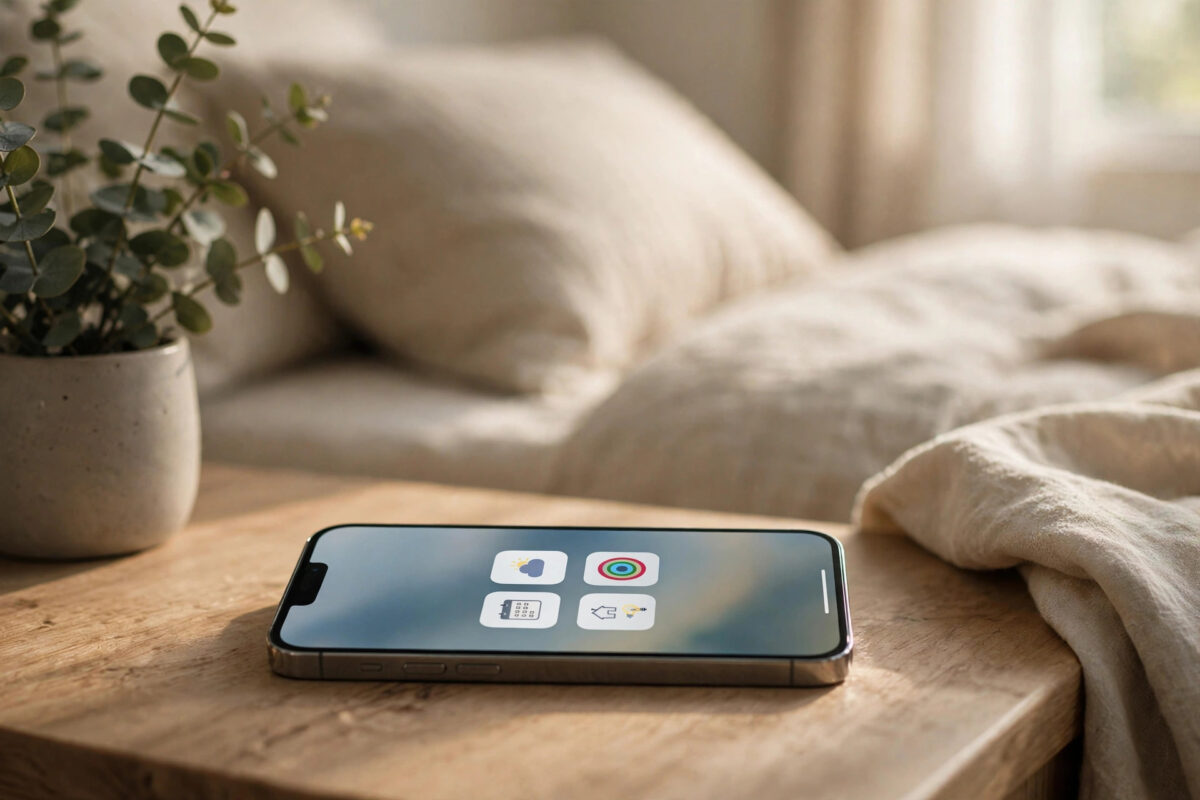
Your lock screen is the screen you see most: dozens of glances a day. Lock screen widgets put useful information into those glances, so you can check the weather, your next event, or your AirPods battery without unlocking the phone at all.
Lock screen widgets are small and glanceable by design, split between a thin strip above the clock and a row below it. They pair with your wallpaper and Focus mode, so you can have a work lock screen and a weekend lock screen that swap automatically.
This guide shows how to add widgets to both zones, which widgets are worth the tiny space, and how to stop lock screen widgets revealing private information to anyone who picks up your phone.
Quick Answer
To add lock screen widgets, unlock your iPhone, touch and hold the lock screen, and tap Customise, then Lock Screen. Tap the widget strip above the clock or the widget area below it, choose widgets from the panel, and arrange up to four small widgets (or two larger ones) below the time. Tap Done, then select the wallpaper pair to apply it.
Open the Lock Screen Editor
Lock screen customisation starts from the lock screen itself, not from Settings. Face ID must unlock the phone first so the editor opens.
- Wake the iPhone and let Face ID unlock it, but do not swipe up to the Home Screen.
- Touch and hold anywhere on the lock screen until the wallpaper gallery appears.
- Tap Customise under your current lock screen, then choose Lock Screen.
- You are now editing: tap the widget zones to change them, the clock to change its style, and the wallpaper to change the photo.
If holding the lock screen does nothing, the phone has not unlocked yet, or lock screen editing is restricted. Unlock fully with Face ID and try again, keeping your finger still rather than swiping.
Add Widgets Below the Clock (The Main Zone)
The rectangle below the time is the main widget area. It holds the equivalent of four small widgets: four small squares, two rectangles, or a mix.
- Tap the widget area below the clock (it shows Add Widgets if empty).
- Browse the suggested widgets or scroll to an app’s name for all its options.
- Tap or drag widgets into the area. Tapping adds them in order.
- Drag placed widgets sideways to reorder them, and tap one again in the panel to remove it.
- Tap the close button, then Done, when the row looks right.
Best-value choices for this small space: Weather conditions, Calendar next event, Batteries, and Activity rings if you wear an Apple Watch. A flashlight-style shortcut is not a widget; those two buttons at the bottom are handled separately, and our shortcut guide covers them.
Add Widgets Above the Clock (The Date Strip)
The single line above the clock, where the date normally sits, accepts one small inline widget that shares the line with the date.
- In the lock screen editor, tap the date line above the clock.
- Pick one inline widget, such as weather temperature, a calendar event name, or a fitness ring summary.
- Tap Done to apply.
This strip is best for one number or short phrase you check constantly, like the current temperature or your next meeting title. Space is tiny, so dense widgets are wasted here.
Use Different Lock Screens for Different Focus Modes
Each lock screen design can be linked to a Focus, so the phone swaps wallpapers and widgets when the Focus starts, for example at work or at bedtime.
- In the wallpaper gallery, tap Focus on the lock screen you want to link.
- Choose the Focus, such as Work, Sleep or Personal.
- Set that Focus to start on a schedule or location in Settings, Focus.
- Build each lock screen’s widgets for its context: calendar and commute at work, alarm and weather at home.
The lock screen swap is one of the most satisfying parts of the Focus system, and it pairs with the Home Screen pages described in our Home Screen widgets guide.
Privacy: What Strangers Can See
Lock screen widgets are visible to anyone holding your phone. Choose their content with that audience in mind, or lock down the sensitive ones.
- Calendar widgets may show meeting titles and names. If that is sensitive, use the icon-only widget style or remove it from shared lock screens.
- Weather, battery, fitness rings and alarms reveal little and are safe choices.
- In Settings, Face ID and Passcode, the ‘Allow Access When Locked’ section controls features like Today View and Notification Center; review it alongside your widgets.
- Notification previews should be set to ‘When Unlocked’ for private apps, which is separate from widgets but part of the same lock screen privacy picture.
Matching Widgets to Your Day: Three Ready-Made Setups
If you are not sure where to start, steal one of these proven combinations. The commuter setup: inline widget above the clock shows the temperature; below the clock sit next calendar event, Batteries, and a transit or traffic widget if your maps app offers one. One glance before leaving tells you the weather, your first meeting, and whether your AirPods survive the journey.
The parent setup: next calendar event and Reminders below the clock, so school runs and pickups are always visible, plus the alarm widget on school nights to confirm tomorrow’s wake-up is set. The fitness setup: Activity rings inline above the clock (they compress beautifully), with Workout, Weather and Batteries below, everything a morning-runner needs on one sleepy glance.
Notice what all three share: information that changes during YOUR day and demands action. Static widgets (a favourite photo, a permanent quote) are decoration, and the lock screen’s tiny space is too valuable for decoration. Review your choices monthly; the widget you needed in January’s commute may be dead weight by June.
Common Mistakes and Helpful Tips
- You cannot edit the lock screen while it is locked. If Customise seems missing, unlock with Face ID first without swiping up.
- Widget changes apply to the wallpaper pair you are editing. If you use several lock screens, repeat the setup on each.
- Third-party widget options depend on the app being installed and opened at least once.
- A neat trick: put the Batteries widget on the lock screen so one glance tells you if your AirPods or Watch needs charging before you leave.
Apple’s user guide covers lock screen widgets alongside wallpapers and Focus linking. See the official Apple page on customising the lock screen for the current editor layout.
Conclusion
Lock screen widgets reward a two-minute setup every single day. Add up to four small widgets below the clock for your weather, calendar and batteries, one inline widget above it, and link different designs to your Focus modes for work and rest. Keep private content out of them, and your lock screen becomes a useful dashboard that never asks you to unlock first.
Frequently Asked Questions
How many widgets fit on the lock screen?
Below the clock you can fit four small square widgets, or the equivalent space in wider ones (two rectangles, or one rectangle and two squares). Above the clock there is room for exactly one inline widget next to the date.
Why can’t I add widgets? The option is missing.
Lock screen widgets need iOS 16 or later. Also, you must unlock the phone before editing, and if the device is managed by an employer or restricted by Screen Time content rules, editing may be blocked. Update iOS and try again from an unlocked lock screen.
Do lock screen widgets work with Always-On display?
Yes. On Pro models with Always-On, the lock screen dims but the widgets stay visible at a glance, refreshing at a reduced rate to save power. It is one of the nicest uses of the feature, especially for calendar and weather.
Can I add a flashlight or camera widget?
Those are not widgets; they are the two fixed buttons at the bottom corners. On recent iOS versions and newer models you can change what those buttons do. Widgets live only in the strip above the clock and the row below it.
My widget shows a blank box on the lock screen. What’s wrong?
Usually the app behind it needs opening once after an update, or it requires its own sign-in again. Open the app, then return to the lock screen. If it stays blank, remove the widget in the editor and add it again.



Leave a Reply