
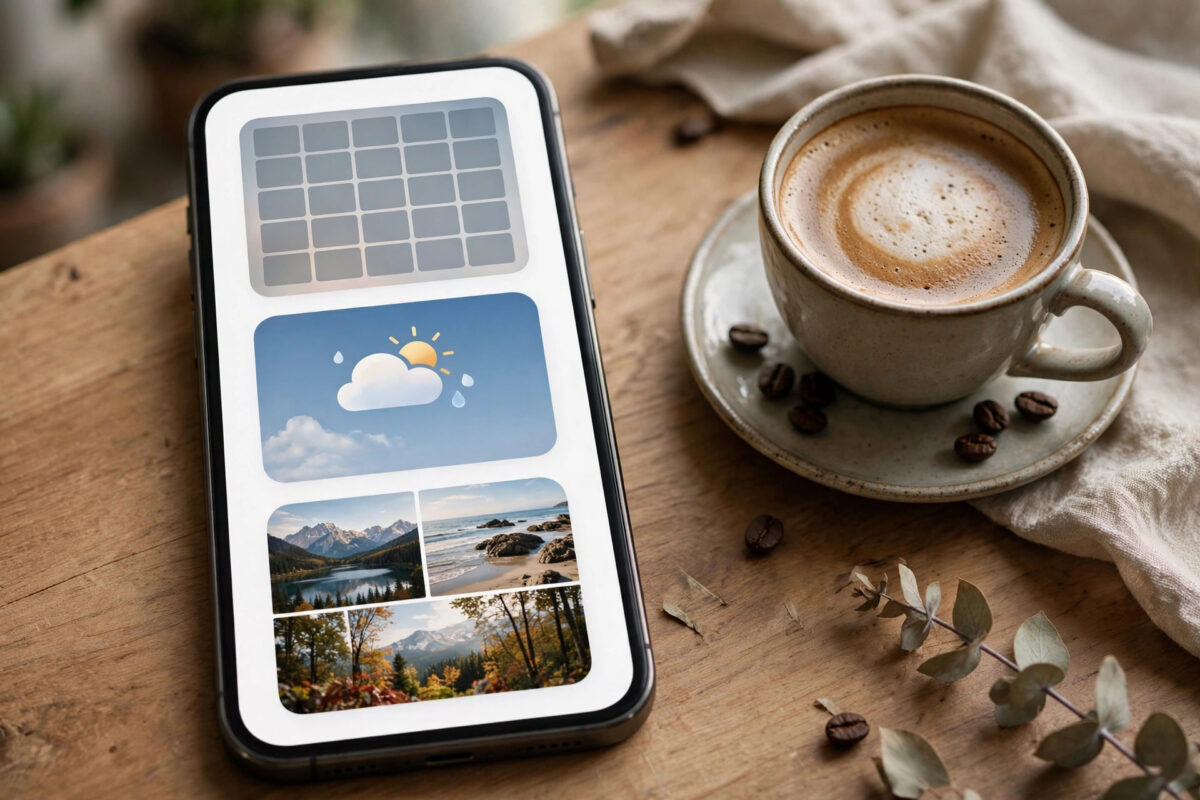
Widgets turn your Home Screen from a grid of app icons into a live dashboard. Your next meeting, the weather, your battery levels, your photos and your reminders can all sit in front of you without opening a single app.
iOS widgets come in three sizes, can be stacked on top of each other to save space, and can even change automatically depending on the time of day or your Focus mode. Most people use a fraction of what is possible.
This guide covers adding and editing widgets, building Smart Stacks, choosing the right sizes, and tying different Home Screens to work and personal Focus modes.
Quick Answer
To add a widget, touch and hold an empty area of the Home Screen until the icons jiggle, tap the plus button (or Edit, Add Widget) in the corner, pick an app and a widget size, then tap Add Widget and drag it into place. Long-press any widget later to edit it, resize it, or add it to a stack. Smart Stacks let several widgets share one space and rotate automatically.
Add Your First Widget
Every widget starts the same way, whether it is from Apple or a third-party app. You just need a little empty space or a willingness to rearrange.
- Touch and hold any empty part of the Home Screen until the icons start to jiggle.
- Tap the plus icon in the top corner, or Edit then Add Widget on newer versions.
- Browse or search the widget gallery. Tap an app to see its widget styles.
- Swipe through the sizes: small (the size of 4 icons), medium (8 icons wide row) and large (half the screen).
- Tap Add Widget, drag it where you want it, and tap Done.
Good first widgets for most people: Calendar (medium), Weather (small or medium), Batteries (small, if you use AirPods or a Watch), and Photos (large, for a rotating personal touch).
Edit a Widget’s Settings
Many widgets are configurable. A weather widget can follow a fixed city, a calendar widget can hide certain calendars, and a news widget can follow chosen topics.
- Touch and hold the widget itself (not an empty area).
- Tap Edit Widget if the option appears.
- Adjust the available options, such as location, list, account or content.
- Tap outside the panel to save.
Not every widget offers editing. If Edit Widget is missing, the widget shows fixed content, and your only choices are its size and position. Deleting and re-adding a widget in a different size is done from the same long-press menu with Remove Widget.
Build and Use Smart Stacks
A Smart Stack is a pile of widgets in one space that you swipe through vertically, and iOS can rotate them automatically based on your habits and the time of day.
- Create a stack by dragging one widget of the same size directly on top of another while in jiggle mode.
- Add more widgets the same way, up to a sensible handful.
- Long-press the stack and tap Edit Stack.
- Turn on Smart Rotate so iOS surfaces the most relevant widget, and Widget Suggestions if you want iOS to add temporary widgets, such as a boarding pass at travel time.
- Drag entries in the list to reorder what you see first.
Stacks are the secret to a clean screen: one medium stack can hold your calendar, weather, reminders and music while taking the space of a single widget.
Different Home Screens for Work and Personal Time
Focus modes can each have their own Home Screen pages, so your phone literally rearranges itself when you arrive at work or clock off.
- Create the pages first: one with work widgets and apps, one with personal ones.
- Go to Settings, Focus, and choose a Focus such as Work.
- Under Customise Screens, choose which Home Screen pages appear while that Focus is active.
- Repeat for your Personal or Sleep Focus with the calmer pages.
Our complete walkthrough on creating a custom Focus mode goes further into the Focus settings themselves, including schedules and filters.
Today View and the Lock Screen Connection
The widget panel one swipe right of your first Home Screen, called Today View, holds widgets without taking Home Screen space. It suits reference widgets you check a few times a day.
- Add widgets to Today View the same way: scroll to the bottom, tap Edit, then the plus button.
- Widgets you place there do not appear on the Home Screen unless you add them there too.
- Small lock screen widgets are a separate system, added from the lock screen customisation, and covered in our lock screen widget guide.
- Keep the most time-sensitive widget, like your next calendar event, on the Home Screen itself where you will actually see it.
Widget Ideas Most People Never Try
Beyond calendar and weather, a few less obvious widgets earn their space quickly once you try them. The Shortcuts widget puts two or four one-tap actions on the screen: start a focus playlist, text your partner that you are leaving, log a glass of water, or open a specific note. Anything you do daily through three taps deserves a shortcut button.
The Screen Time widget is quietly life-changing for people trying to cut down: your daily usage stares back at you every time you unlock, which does more for habits than any settings lecture. The Notes widget pinned to one specific note (a shopping list, a packing list, a child’s medication schedule) turns the Home Screen into a shared family noticeboard. And the Find My widget, showing where a family member or a tagged item is, saves the multi-tap dig through the app when you just want to know someone got home.
Rotate one experimental slot. Keep a single medium space on a second page where you try a new widget for a week, deliveries this month, a habit tracker next. Most get deleted, but the survivors genuinely improve the phone, and the page never turns into a graveyard of good intentions.
Common Mistakes and Helpful Tips
- Too many large widgets push your essential apps off the first screen. Balance glanceable info against one-tap access to the apps you open hourly.
- Photo widgets occasionally surface an awkward memory. Use a chosen album rather than the automatic selection if you hand your phone to others.
- Third-party widgets update on a budget set by iOS. A widget that looks stale usually refreshes when you tap into its app.
- If a widget is blank or grey, remove it and add it again; its stored configuration has usually corrupted.
Apple’s user guide has a full widget chapter with pictures for each iOS generation. The official Apple guide to adding widgets is the reference for exact menu names.
Conclusion
A good Home Screen takes ten minutes to build: add a calendar and weather widget, stack the rest into one or two Smart Stacks, and edit each widget’s options so it shows the right account or city. Tie pages to Focus modes if your work and personal life want different phones. Start small, live with it for a week, and adjust; the perfect setup is the one that survives your real routine.
Frequently Asked Questions
Can I put a widget anywhere, or only in a grid?
Widgets snap to the same icon grid as apps and come in fixed sizes, so placement is flexible but grid-based. You cannot overlap widgets freely or place them at angles. Empty spaces appear as the layout allows, and icons flow around widgets automatically.
Why does my widget show old information?
iOS limits how often widgets can refresh to save battery. Most update every 15 to 60 minutes or when their app is opened. Widgets showing live data like sports scores use special live activities instead. Tapping the widget to open the app always shows fresh data.
How many widgets can I add to a stack?
There is no strict published limit, but practically a stack of five to eight widgets stays usable. Beyond that, swiping to find the right one is slower than just opening apps. Smart Rotate also works better with a focused selection.
Do widgets drain the battery?
Slightly, because they update in the background, but the cost is small and managed by iOS. Location-based widgets like weather use a little more. If battery is a concern, remove the widgets you never look at rather than all of them.
Can I use different widgets on different days automatically?
Yes, indirectly, through Focus modes. Link a Home Screen page full of work widgets to your Work Focus on a weekday schedule, and a personal page to your evenings and weekends, and iOS swaps them for you.



[…] The lock screen swap is one of the most satisfying parts of the Focus system, and it pairs with the Home Screen pages described in our Home Screen widgets guide. […]
[…] Home Screen pages show while the mode runs, hiding games and social apps from sight entirely. Our Home Screen widgets guide shows how to build pages worth […]