
Selling or giving away your old iPhone is a great way to fund an upgrade, but handing it over without wiping it properly is a serious privacy risk. Your phone knows your photos, messages, emails, saved passwords and banking details. A factory reset done the right way removes all of it and unlinks the phone from your Apple account so the buyer can actually use it. Here is the safe order to do everything in.
Quick Answer
Back up your iPhone first, then sign out of iCloud and turn off Find My, unpair your Apple Watch if you have one, and go to Settings > General > Transfer or Reset iPhone > Erase All Content and Settings. Follow the prompts, and when the phone restarts to the “Hello” setup screen, it is wiped, unlinked from you, and ready to sell.
Step 1: Back Up Everything First
Once erased, your data on that phone is gone for good, so the backup is non-negotiable. Back up to iCloud (Settings > your name > iCloud > iCloud Backup > Back Up Now) or to a computer for a complete copy. Check that the backup shows as completed with today’s date before going any further. If you have already moved to your new phone using a transfer, double-check that your newest photos and messages are safely on it before wiping the old one.
Step 2: Prepare the Phone for Its New Owner
A few small jobs make the sale smoother and protect loose ends:
- Unpair your Apple Watch from the Watch app, which automatically backs up the watch and removes Activation Lock from it.
- Turn off iMessage if you are moving to Android, so your texts do not keep arriving on the old phone’s number.
- Remove the SIM card or arrange your eSIM transfer with your carrier.
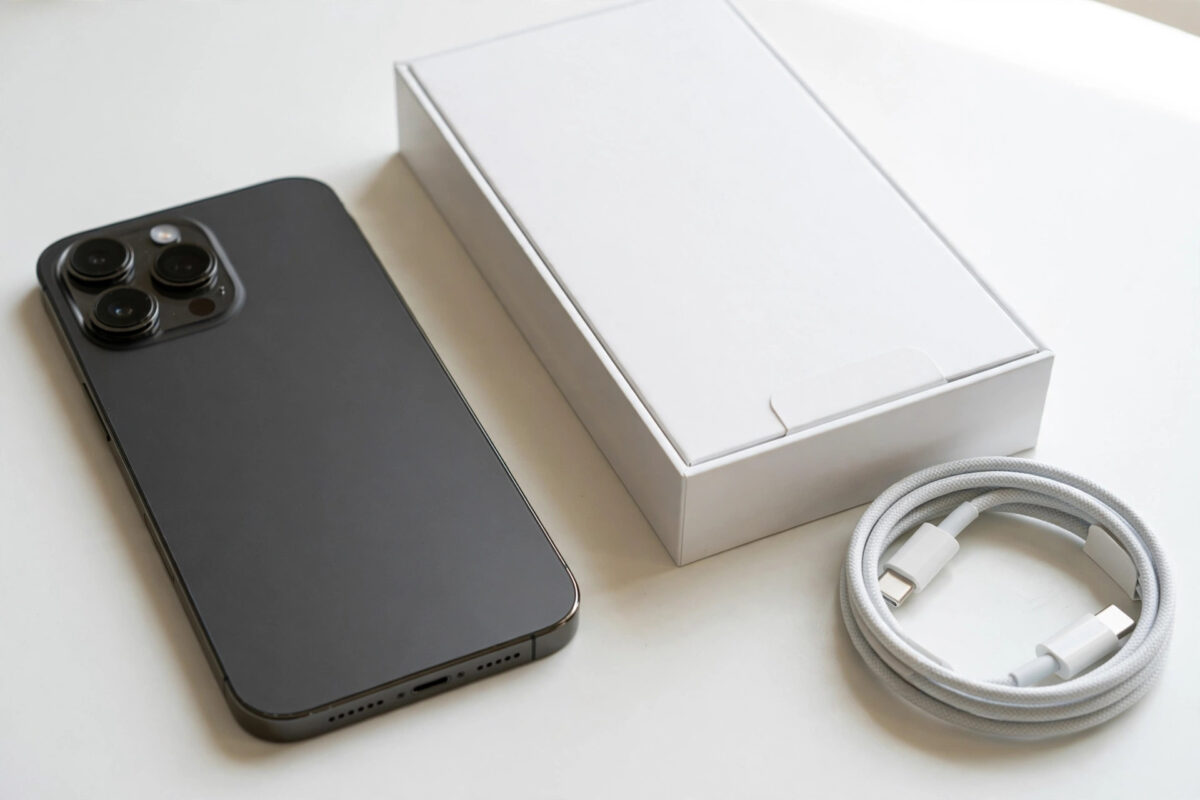
- Note the phone’s condition and include its box and cable if you have them; they genuinely raise the sale price.
There is a fuller checklist in our guide on what to turn off before selling your old iPhone, which covers the settings people most often forget.
Step 3: Erase the iPhone
- Open Settings > General > Transfer or Reset iPhone.
- Tap Erase All Content and Settings.
- Review the list of what will be removed and tap Continue.
- Enter your passcode, then your Apple ID password when asked. This step turns off Find My and Activation Lock.
- Confirm the erase. The phone will restart and show a progress bar under the Apple logo.
- When you see the multilingual “Hello” setup screen, the reset is complete. Do not set it up again.
Modern iPhones with iOS 15 and later handle the sign-out steps inside this single flow: entering your Apple ID password during the erase turns off Find My and removes the device from your account automatically. On older versions you may be prompted to sign out of iCloud separately first, which the phone will guide you through.
Why Activation Lock Matters
Activation Lock ties the phone to your Apple ID even after an erase. If it stays on, the buyer faces a phone that demands your password on the very first setup screen, and it is useless to them and unsellable for you. Erasing with the steps above, while signed in and entering your password, switches it off properly. You can confirm afterwards by checking that the phone no longer appears in your device list in Settings on your other devices, or in Find My.
After the Erase
Give the phone a final physical clean, photograph it honestly for your listing if selling online, and remove it from your trusted devices list if it still appears anywhere. Apple’s support site offers an official checklist for sellers in its iPhone User Guide and support pages, which is worth a quick comparison before you hand the phone over.
Mistakes to Avoid
Never just delete your photos and apps by hand and call the phone wiped; deleted items leave account data, saved logins and message history behind, and much of it can be recovered. Do not remove the phone from your Apple account on the web before erasing, because done in the wrong order it can leave Activation Lock in a confusing state. And do not erase before your new phone is fully set up and verified; once the old phone is wiped, there is no undo.
Selling, Trading In, or Giving Away: Small Differences
The erase itself is identical whatever you do with the phone, but the surrounding steps differ slightly. For a trade-in with Apple or a carrier, follow their posted instructions as well; some ask you to remove the device from your account in a specific order, and the phone must arrive with Find My off or the trade-in value collapses. For a private sale, meet safely, show the phone powering to the Hello screen, and let the buyer insert their own SIM or start setup in front of you so there is no later dispute about Activation Lock. For gifting to family, you can go further and help them set it up under their own Apple ID straight away, which avoids the classic Christmas Day problem of a phone still signed into the giver’s account.
Whatever the route, keep your proof: a photo of the phone’s serial number, your backup confirmation, and any sale receipt. If anything is questioned later, whether the erase happened, whether the phone was yours to sell, those small records settle it instantly.
Conclusion
A safe pre-sale reset is a simple sequence: back up, unpair and prepare, then Erase All Content and Settings with your Apple ID password, finishing at the Hello screen. Done in that order, your data stays private, Activation Lock is removed, and the buyer gets a phone that works the moment they switch it on.
Resetting a Phone You Are Keeping
Everything in this guide also applies when the erase is for your own fresh start rather than a sale: a phone plagued by glitches, or one being passed to your own child under their new account. The order is the same, back up, prepare, erase, because the risks are the same. The one difference is afterwards: when it is still your household’s phone, you control the setup, and you can restore your own backup or set it up cleanly under a fresh Apple ID, knowing the erase was done properly either way.
Frequently Asked Questions
Does a factory reset remove my Apple ID from the phone?
Yes, when you follow the erase flow and enter your Apple ID password, the phone is signed out of iCloud, Find My and Activation Lock are turned off, and the device is removed from your account ready for a new owner.
Can the buyer recover my photos after a factory reset?
No. iPhone storage is encrypted, and erasing destroys the encryption keys, making the old data unreadable. This is different from simply deleting files by hand, which is why the full erase is the safe method.
What if I forgot to back up before erasing?
Unfortunately the data erased from the phone cannot be recovered. Check whether an automatic iCloud backup from the previous night exists; you can restore that to another device and recover almost everything up to that point.
Should I remove my SIM card before selling?
Yes. Your physical SIM belongs to your number and account, so take it out before handing the phone over. For eSIM, delete the eSIM during the erase if you are not transferring it, and confirm the plan with your carrier.
The buyer says the phone asks for my password. What went wrong?
Activation Lock is still on, which means the erase did not include your Apple ID sign-out. You can remove the device from your account remotely: sign in to iCloud on the web, open Find My, select the phone and choose Remove from Account.



[…] This is the single most important item on the list. Find My powers Activation Lock, which keeps the phone tied to your Apple ID after an erase. Leave it on and the buyer gets a brick that asks for your password forever. When you erase through Settings > General > Transfer or Reset iPhone > Erase All Content and Settings and enter your Apple ID password, Find My and Activation Lock are switched off as part of the process. Our full walkthrough of the erase itself is in the guide on factory resetting an iPhone before selling it. […]
[…] switched off and the phone is removed from your account. The complete sequence is in our guide on factory resetting an iPhone before selling it, and it is the safest order to follow because it protects your data as well as unlocking the […]