
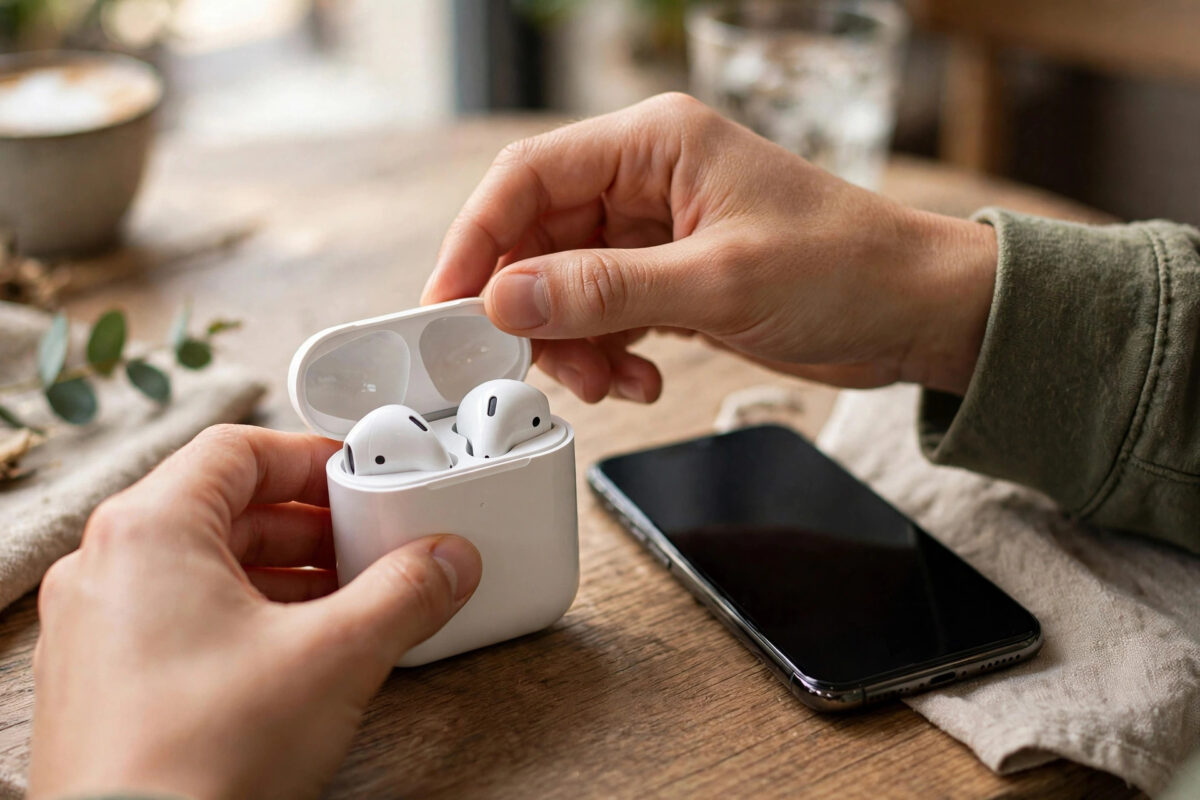
Samsung’s Galaxy Buds On are a first for the company: clip-on earbuds that grip the outer ear instead of sealing inside it. They are comfortable and awareness-friendly, but the different shape makes first-time setup slightly less obvious than with ordinary earbuds — especially if you want all the smart features switched on from day one.
This guide takes you from unboxing to a fully set-up pair: pairing with your Galaxy phone, fitting the clip-on design properly, and turning on the settings most owners miss.
Quick Answer
To set up Galaxy Buds On with a Galaxy phone, charge the case first, then open the case near your unlocked phone and tap Connect on the pairing pop-up. Finish the walkthrough in the Galaxy Wearable app, which pairs the earbuds, updates their firmware, and shows you the controls. Then fit each bud by clipping it over the middle ridge of your ear so the speaker sits just outside the ear canal, and run through the Wearable app’s settings to enable notifications, voice controls, and your preferred touch gestures. The whole process takes about ten minutes, including the first firmware update, which you should not skip.
What’s Different About Clip-On Earbuds
Galaxy Buds On do not push into your ear canal. Each bud clips over the outer ear, holding a small speaker close to — but not inside — the ear opening. That design:
- Lets you hear traffic, announcements, and people talking to you
- Avoids the plugged, pressured feeling of in-ear buds
- Means fit is about clip position, not ear-tip size — there are no tips to swap
- Produces a more open sound, with less deep bass than sealed earbuds
Understanding this upfront prevents the most common first-day complaint — “they sound thin” — which is usually the speaker sitting too far from the ear rather than a fault.
Step-by-Step Setup
- Charge first. Put both buds in the case and charge for at least 20 minutes. New earbuds often arrive nearly empty.
- Open the case near your phone. With your Galaxy phone unlocked and Bluetooth on, open the lid. A setup card pops up — tap Connect.
- Confirm the pairing request and allow the requested permissions, including nearby devices and notifications if you want spoken notifications.
- Open the Galaxy Wearable app if it does not open by itself. It will check the buds and offer a firmware update — accept it and keep the buds in the case, near the phone, until it finishes.
- Do the fit check. Clip each bud over the ridge of your ear (the concha ridge, roughly the middle of the outer ear) so it grips gently and the speaker faces your ear canal. It should feel secure when you shake your head, without pinching.
- Play a test track and slide each bud a few millimetres up or down. The sound fills out noticeably when the speaker aligns with your ear opening.
- Customise controls in the Wearable app: tap, double-tap, and touch-and-hold actions for each side.
- Walk through the smart features — voice assistant, head gestures, and spoken notifications — and enable the ones you will actually use.
Settings Worth Changing on Day One
- Touch-and-hold action: assign it to your voice assistant or to voice-memo recording rather than leaving the default.
- Read notifications aloud: choose which apps may speak through the buds; messages yes, every shopping app no.
- Equaliser: the “Bass boost” or “Dynamic” presets compensate for the open design if you prefer fuller sound.
- Find My Earbuds: confirm the buds appear in Samsung’s find-my-device tools now, not after you lose one.
- Auto-switch: if you own a Galaxy tablet or watch, enable automatic switching so the buds follow the device you are using.
Samsung documents each of these options in its official Galaxy wearables support pages, which are worth bookmarking because menu names shift slightly between app updates.
Getting the Fit Right
Fit decides both comfort and sound quality on clip-on buds. The clip should sit on the flatter part of your outer ear, not on the thin top edge — too high pinches within the hour, too low feels loose and leaks sound. Wear them for a full hour on day one, not five minutes; clip-on discomfort shows up slowly, and adjusting the angle slightly usually fixes it.
If one ear feels different, that is normal — ears are not identical. Adjust each side independently. A good fit also powers the extra features: features such as answering calls with head gestures rely on the buds sitting still enough to read your movements accurately.
Your First Week With Galaxy Buds On
Clip-on earbuds reward a short adjustment period. In the first days, wear them for longer stretches at home rather than debuting them on a long commute, so you can fine-tune each side’s position without pressure. Try them on a call early — the open design means your voice sounds natural to you, but you will want to know how you sound to the other end, and a quick test call answers that. Experiment with one feature at a time: gestures one day, spoken notifications the next, the equaliser after that. Enabling everything in the first hour makes it impossible to tell which setting caused an annoyance.
By the end of the week, most owners settle into a personal configuration and stop opening the Wearable app altogether, which is the sign of a successful setup. Keep the charging case in your daily bag rather than a drawer; the buds’ battery life is designed around quick top-ups between uses, and a case that is always elsewhere is how earbuds end up dead at the exact moment you want them.
Common Mistakes and Useful Tips
Skipping the firmware update. First-release firmware on a brand-new product line is always the buggiest. Update before judging anything.
Wearing them like normal earbuds. Pushing clip-on buds toward the ear canal feels wrong and sounds wrong. Let the clip do the holding.
Pairing through Bluetooth settings only. You can, but you will miss the Wearable app features — gestures, EQ, find-my — that make these buds worth buying. Pair through the pop-up or the app.
Ignoring the left/right check. The buds are shaped per ear. If the fit feels odd on both sides, you may have them swapped; the case markings show which is which.
Conclusion
Set up Galaxy Buds On through the Galaxy Wearable app, update the firmware immediately, and spend your effort on fit — clip position is the whole game with this design. Once they sit correctly, the open, comfortable sound and the hands-free smart features make sense, and the settings you enabled on day one will carry you through daily use without another thought.
Frequently Asked Questions
Can I use Galaxy Buds On with a non-Samsung Android phone?
Yes for music and calls — they pair as normal Bluetooth earbuds. However, the Galaxy Wearable features such as gesture setup, EQ, and firmware updates are designed for Galaxy phones, and some smart features are limited or unavailable on other brands.
Why do my Galaxy Buds On sound quiet or thin?
Almost always position. The speaker needs to sit close to and facing the ear opening. Slide the bud slightly along the ear ridge and angle it inward; the difference is dramatic. Also try the Bass boost equaliser preset in the Wearable app.
Do Galaxy Buds On fall off during exercise?
The clip holds well for walking, commuting, and gym work for most people. For running, test your fit at home first with head shakes and a jog on the spot — ears vary, and a secure-feeling fit at rest is the best predictor.
How do I update Galaxy Buds On firmware?
Place both buds in the case with the lid open near your phone, open Galaxy Wearable, tap Earbud settings, then Earbuds software update. Keep the case open and the phone close until the update completes.
Can I use just one Galaxy Buds On at a time?
Yes. Either bud works alone for calls and audio, and the other can stay charging in the case. This is handy for long call days — swap buds at midday and you effectively double your talk time.



[…] clip means your head moves but the bud wobbles late, confusing the sensors. Revisit your fit using our Galaxy Buds On setup guide before blaming the […]
[…] has not been slid fully to one side — a setting people change once and forget for a year. Our Galaxy Buds On setup and fit guide shows the correct clip position to compare […]