
Is your laptop fan suddenly roaring like a hairdryer? Does your PC slow down, stutter, or switch itself off during games or heavy work? Excess CPU heat is one of the most common causes, and the frustrating part is that Windows does not show you the CPU temperature anywhere obvious. A free temperature monitor tool fixes that in minutes, giving you real numbers instead of guesswork.
Quick Answer
To check your CPU temperature for free, install Core Temp or HWiNFO, open the tool, and read the temperature for each CPU core. Idling temperatures of roughly 30–50°C are normal, 60–80°C under load is typical, and sustained readings above 90°C mean your cooling needs attention. If your PC is overheating, clean the dust from fans and vents, improve airflow, and replace the thermal paste if the cooler has not been serviced in years.
Why CPU Temperature Matters
Your processor protects itself. As it approaches its maximum safe temperature (often around 100°C, depending on the model), it deliberately slows down — called thermal throttling — which is why an overheating PC feels sluggish even though nothing is “broken.” If temperatures keep climbing, the system shuts down without warning to prevent damage. Months of running hot also age components faster. A quick temperature check tells you whether your problem is cooling or something else entirely, before you spend money on the wrong fix.
The Best Free CPU Temperature Monitor Tools
Core Temp – Simplest for a Quick Check
Core Temp does one job clearly: it shows the temperature of every core, the current load, and the highest temperature reached since you opened it. That “Max” column is gold — leave it running during a game or export and check afterwards what the peak was. Download it only from the official Core Temp website, and during installation untick any bundled extras offered by the installer.
HWiNFO – The Deep-Dive Option
HWiNFO’s Sensors window shows temperatures for the CPU package, individual cores, the graphics card, drives, and motherboard, plus fan speeds and voltages. It logs minimums, maximums, and averages, and can record everything to a file. It is the best free choice if you want to diagnose rather than just peek, and it doubles as one of the tools in our guide to the best free system information tools for full PC specs.
Open Hardware Monitor / Libre Hardware Monitor – Lightweight and Open-Source
These free, open-source monitors show temperatures, fan speeds, and loads in a clean tree view and can plot graphs over time. Libre Hardware Monitor is the actively maintained fork and the one to pick. They are great if you want a small tool that can also display readings in the taskbar area while you work.
How to Check Your Temperature Properly: Step by Step
- Install one tool from its official site and open it. Note the idle temperature after the PC has sat at the desktop for five minutes.
- Use the PC normally — open your game, editing software, or heavy browser session — for 15–20 minutes.
- Check the maximum temperature recorded during that load, not just the current reading after you stop.
- Compare with the safe ranges: under 50°C idle and under 85°C sustained load is comfortable for most CPUs; brief spikes into the high 80s during heavy work are not unusual.
- If you see sustained 90°C+ or shutdowns, work through the fixes below in order before assuming hardware failure.
What To Do If Your CPU Is Overheating
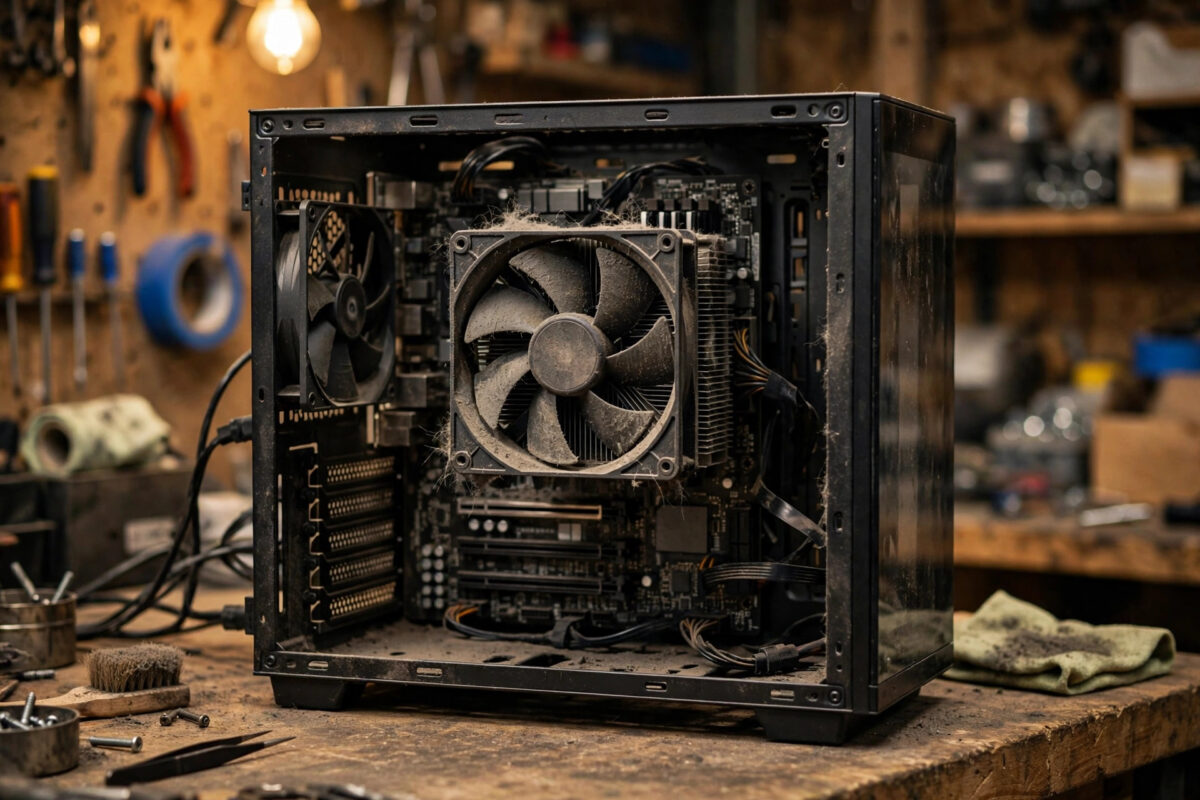
- Clean the dust. Power off, unplug, and blow dust from fans, heatsinks, and vents with short bursts of compressed air while holding fan blades still. Dust is the number-one cause, especially in laptops and older desktops.
- Check the fans actually spin. A dead case or CPU fan shows up instantly in HWiNFO as 0 RPM. A failed CPU fan needs replacing before anything else.
- Improve airflow. Move a desktop away from walls and radiators, tidy cables blocking vents, and make sure a laptop sits on a hard flat surface, not a bed or sofa.
- Replace thermal paste. The paste between CPU and cooler dries out after several years. Reapplying fresh paste can drop load temperatures by 10°C or more on older machines — a job for confident users, or a cheap one for a repair shop.
- Check for runaway software. Open Task Manager and sort by CPU. A stuck process or malware mining in the background can pin the CPU at 100% and mimic a cooling fault.
- Raise fan curves. In the BIOS or your motherboard software, a slightly more aggressive fan profile trades a little noise for cooler running.
Common Mistakes to Avoid
- Judging by one instant reading. Always check the maximum reached under real load.
- Downloading monitor tools from random download portals that bundle adware — use official sites only.
- Opening a laptop to change paste without experience. Watch a model-specific guide first or use a shop.
- Blasting fans with a vacuum cleaner, which can spin them dangerously and create static. Use compressed air in short bursts.
- Assuming a hot-running gaming laptop is faulty — many run in the 80s under load by design; check the manufacturer’s guidance for your model.
Laptop vs Desktop: Why the Same Number Means Different Things
A reading that would alarm a desktop owner can be routine in a laptop. Desktop coolers are large, with big fans and room to breathe, so healthy gaming desktops typically hold their CPUs in the 60s and 70s under load. Laptops squeeze the same job into a chassis a couple of centimetres thick, sharing heat pipes between the CPU and graphics chip, so many gaming and performance laptops run their CPUs in the mid-80s to low-90s during heavy games by design, with the manufacturer setting the throttle point accordingly.
What should worry you, on either type of machine, is change. A laptop that used to peak at 82°C and now touches 98°C has a problem developing: dust mats building on the internal fins, a fan bearing wearing out, or paste drying up. This is why it is worth noting your temperatures when the machine is healthy — a two-minute baseline today makes a future diagnosis instant. HWiNFO makes this easy because it records minimum and maximum for the whole session, so one gaming session per season gives you a comparable number.
External factors matter too. A heatwave, a desk in direct sun, or a laptop used on a bed (where the duvet seals the intake vents completely) can each add ten degrees without anything being wrong inside. Before opening the machine, re-test on a hard desk in a cool room with the vents visibly clear. If numbers return to your baseline, your “fault” was furniture, not hardware.
Finally, keep an eye on the graphics card during games. In many systems the GPU runs hotter than the CPU and shares the same cooling air; a GPU pinned at its limit will heat the whole chassis and drag CPU temperatures up with it. Both HWiNFO and Libre Hardware Monitor show GPU readings alongside the CPU, so check the pair before choosing a fix.
Conclusion
A free tool like Core Temp or HWiNFO turns the vague worry of “my PC feels hot” into a number you can act on. Check idle and load temperatures, compare them with healthy ranges, and if they are high, work through the simple fixes — dust, airflow, fans, and paste — before considering repairs. Five minutes of monitoring can explain months of mysterious slowdowns and shutdowns.
Frequently Asked Questions
What is a normal CPU temperature?
Most CPUs idle between 30°C and 50°C, sit between 60°C and 80°C under normal load, and can spike to the high 80s during heavy gaming or rendering. Sustained temperatures above 90–95°C are a warning sign worth investigating.
Can I check CPU temperature in Windows without any tool?
Not the live core temperatures — Windows itself does not display them. Some BIOS/UEFI setup screens show a temperature, but they only reflect an idle machine. A free monitor tool is the practical answer.
Why does my temperature jump around so much?
Small spikes are normal: modern CPUs boost their speed in short bursts for background tasks, and temperature follows within a second. What matters is the sustained temperature under steady load and the maximum reached.
Will high temperatures damage my CPU permanently?
Modern CPUs throttle and shut down to protect themselves, so instant damage is unlikely. However, running very hot for months can shorten the life of the CPU, the motherboard, and nearby components, and it guarantees throttling and shutdowns meanwhile.
My laptop is hot but the tool shows normal temperatures. Why?
The chassis can feel hot while the CPU is within limits, especially on thin metal laptops where heat spreads into the body. Trust the sensor numbers, and check the GPU temperature too if the heat appears during games.



[…] lower the output resolution to 1080p, and check your PC is not already overheating — our guide on checking CPU temperature with a free monitor tool will tell you in […]
[…] speeds, and power draw for nearly every component — the same tool recommended in our guide on checking CPU temperature and fixing overheating. Its summary window alone out-details most rivals, and it can log everything to a file for […]