
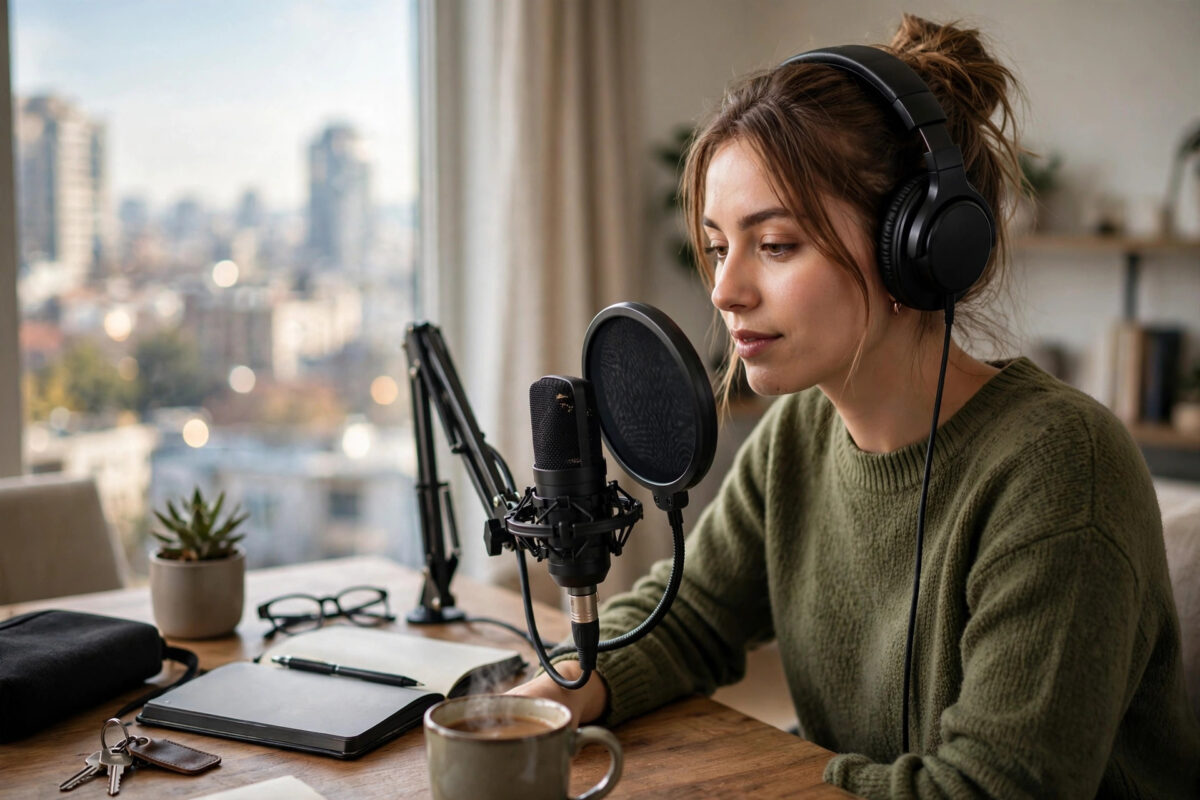
You recorded a great video, podcast or voice note — and then you hear it: the fan humming, the traffic outside, the air conditioner, your neighbour’s dog. Background noise makes even smart content sound amateur, and listeners quietly leave. Re-recording is not always possible. AI noise removers fix this after the fact, separating your voice from everything else and keeping only the voice.
This guide compares the best AI tools for removing background noise from audio recordings, explains how to clean a recording step by step, and shows how to avoid the underwater, robotic sound that comes from pushing the tools too hard.
Quick Answer
The best AI tool for removing background noise from audio recordings is Adobe Podcast Enhance, because it is free, works in the browser, and turns rough recordings into studio-like speech in one upload. Descript’s Studio Sound is the best choice when you also want to edit the recording by text, Riverside’s editor suits podcasters recording guests online, and Audacity with OpenVINO effects is the best fully free desktop option. All work by uploading or importing your audio and letting the AI isolate the voice — no technical skill needed.
How AI Noise Removal Works
Traditional noise reduction needed a sample of the noise and subtracted that pattern, which often damaged the voice too. Modern AI tools are trained on thousands of hours of speech in noisy environments, so they recognise what a human voice is and rebuild the recording around it, discarding fans, wind, traffic, echo and hum as “not voice”.
This is why the results feel like magic on speech — and why the same tools are less reliable on music. A singing voice with instruments is not what most of them were trained to isolate. For talking content — videos, podcasts, interviews, voiceovers, online classes — AI cleanup is now the standard first step. It is also the perfect preparation before other audio work, such as generating narration from a clean sample like we describe in our guide to cloning your own voice safely with AI tools, where a noisy sample permanently bakes noise into the clone.
The Best AI Noise Removal Tools
1. Adobe Podcast Enhance — best overall and free
Upload an audio or video file to Adobe Podcast’s Enhance Speech tool and it returns a version that sounds like it was recorded in a treated studio: noise gone, voice fuller and clearer. The free tier processes a generous amount with limits on file length, and there is nothing to install. For most creators, this is the first and often only tool needed.
2. Descript Studio Sound — best inside an editor
Descript applies its Studio Sound effect inside a full editor where you cut audio by editing its transcript. If you record podcasts or talking videos regularly, cleaning and editing in one place saves a lot of exporting and re-importing, and a strength slider lets you control how aggressive the cleanup is.
3. Riverside — best for online interviews
Riverside records remote guests in high quality and includes AI noise removal and normalisation in its editor. If your noise problem comes from guests recording in kitchens and spare rooms, fixing it inside the same platform that recorded it is the smoothest workflow.
4. Krisp — best for live calls
Krisp works in real time rather than on files: it sits between your microphone and apps like Zoom, Teams and Meet, removing your background noise (and even other voices in your room) before anyone hears it. It also cleans the incoming side, so a noisy guest sounds clearer to you. For live calls and webinars, nothing else is as convenient.
5. Audacity with OpenVINO — best free desktop option
The free audio editor Audacity can run Intel’s OpenVINO AI noise suppression locally, with no uploads and no limits. It takes a little setup, but for long recordings, privacy-sensitive material or zero budget, it is unbeatable value.
How to Remove Background Noise Step by Step
- Keep the original file untouched. Always clean a copy. If the result sounds wrong, you can start again only if the raw recording still exists.
- Trim first, clean second. Cut out long silences and unusable sections before uploading, so you do not waste processing limits on audio you will delete anyway.
- Upload to your chosen tool. For Adobe Podcast, drag the file into Enhance Speech and wait for processing — a few minutes for typical files.
- Listen on headphones before downloading. Check a loud section, a quiet section, and the spaces between words. Listen for warbling, watery artefacts or words being clipped.
- Adjust the strength if available. If your voice sounds underwater, reduce the effect strength and process again. Around 70–85% is the sweet spot for many recordings.
- Download and match loudness. After cleaning, normalise the file so its volume matches your other content — cleaned audio sometimes comes back quieter.
- Save both versions. Archive the raw and cleaned files together so future edits start from the right source.
Tips for Cleaner Results
- Fix the room next time. AI helps, but a quiet room, soft furnishings and a microphone close to your mouth will always beat any cleanup tool.
- Clean before you edit. Noise removal works best on the raw recording. Apply it first, then cut, mix and add music.
- Clean each speaker separately. In interviews, process each person’s track on its own — the AI tunes itself to one voice and one room at a time. This also helps if you later create voiceovers from the same recordings.
- Leave a breath of room tone. Absolute digital silence between words sounds unnatural. Moderate settings keep speech human.
- Check the quietest speaker most carefully. Soft voices are where over-processing eats words. If the quiet guest sounds garbled, lower the strength for their track.
Common Mistakes to Avoid
- Maximum strength on everything. The strongest setting is not the best setting. Aggressive cleanup causes the classic robotic, underwater sound.
- Cleaning music recordings with speech tools. These models may treat instruments as noise. Use tools designed for music, or traditional EQ, for songs.
- Deleting the raw file. Storage is cheap; regret is expensive. Always keep originals.
- Uploading private recordings to random websites. Use known tools with clear privacy policies for client calls, interviews or anything confidential — or process locally with Audacity.
- Judging on laptop speakers. Artefacts hide on small speakers and shout on headphones. Always check with headphones before publishing.
Conclusion
Background noise no longer has to ruin a good recording. Adobe Podcast Enhance handles most jobs free in a browser, Descript and Riverside fold cleanup into editing, Krisp fixes live calls, and Audacity covers the fully free desktop route. Use a moderate strength, keep your originals, and check the result on headphones — your listeners will hear a clear voice and never think about the fan that was running behind you.
Frequently Asked Questions
Can AI remove background noise completely?
Steady noises like fans, hum and traffic can be removed almost completely. Sudden sounds — a door slam, a shout — are harder because they overlap the voice, but even those are usually reduced a lot. The goal is clean, natural speech rather than absolute silence.
What is the best free tool to clean audio?
Adobe Podcast Enhance is the best free option for files, with a generous free tier and no installation. Audacity with the OpenVINO noise suppression effect is the best completely free desktop choice with no limits at all.
Will noise removal make my voice sound robotic?
It can if the effect is set too strong or the original is extremely noisy. Reduce the strength, process each speaker separately, and compare against the original on headphones to find the natural-sounding setting.
Can I remove noise from a video, or only audio files?
Most tools accept video files directly and return cleaned audio or a new video. Adobe Podcast Enhance and Descript both handle video uploads, so you do not need to extract the audio yourself first.
Is it better to remove noise during recording or afterwards?
Both help, but recording cleanly wins. A quiet room and a close microphone prevent the problem; AI cleanup afterwards is the safety net. Live tools like Krisp bridge the gap for calls by cleaning in real time.



Leave a Reply