
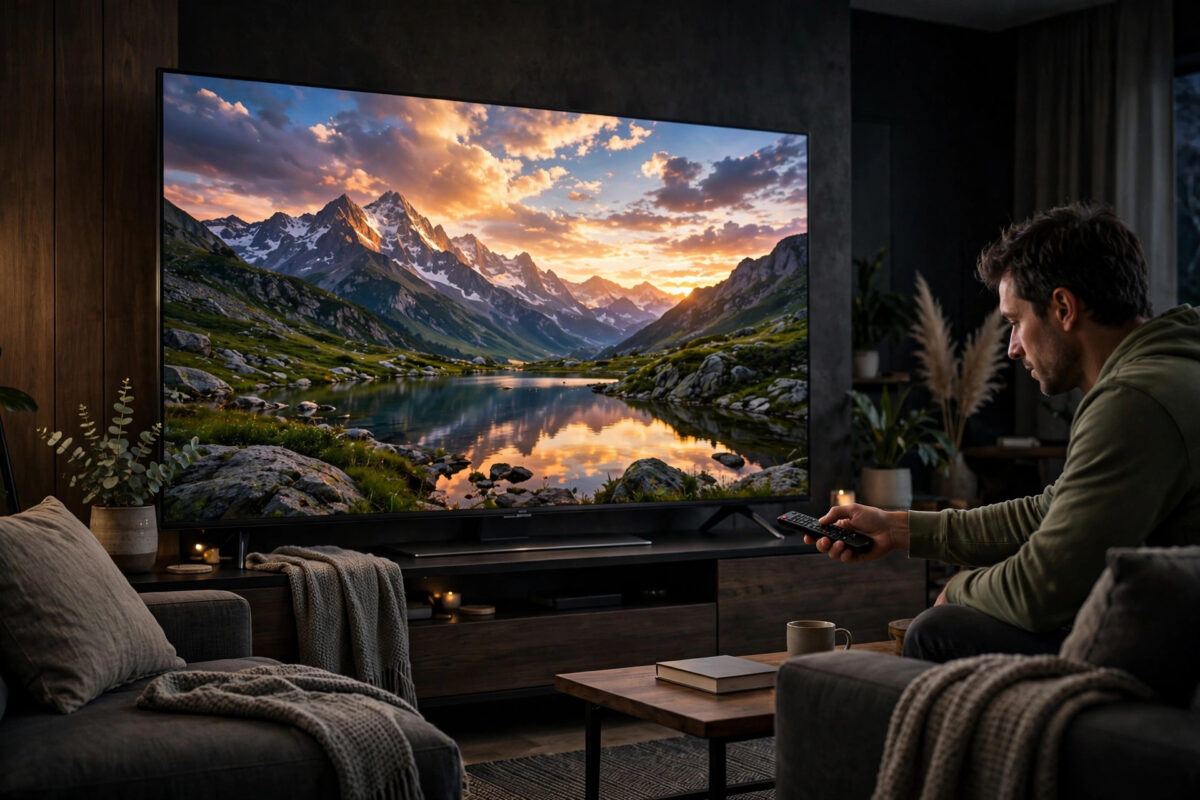
Your TV almost certainly arrived with picture settings designed to win a showroom contest, not to show films the way directors intended. Colours are pushed too blue, sharpness is cranked up, and motion smoothing turns movies into soap operas. The good news: you do not need professional calibration equipment to get dramatically better movie picture quality. Twenty minutes with the right settings gets you most of the way there.
Quick Answer
For accurate movie colours, select the Movie, Cinema, or Filmmaker Mode picture preset, set colour temperature to Warm (or Warm2), turn off dynamic contrast, eco sensors, and motion smoothing, set sharpness near zero, and adjust brightness and contrast using a test pattern so blacks stay deep without crushing detail. Filmmaker Mode, if your TV has it, applies most of these in one step.
Why TVs Look Wrong Out of the Box
Manufacturers ship TVs in Vivid or Standard modes with a very cool (blue-tinted) colour temperature, because bright blue-white pictures grab attention under shop lights. Film and TV content, however, is mastered to a specific standard: a white point called D65, and the Rec. 709 or DCI-P3 colour spaces for HD and 4K HDR. When your TV’s settings drift from those targets, skin tones look sunburnt or ghostly, grass looks neon, and night scenes turn grey-blue. Calibration simply means steering your TV back to the standard the content was made for.
Step 1: Choose the Right Picture Mode
Open Settings > Picture and select the picture mode for your movie input:
- Filmmaker Mode (LG, Samsung, Panasonic, Philips and others): the most accurate out-of-the-box option — it also disables motion smoothing and edge enhancement automatically, exactly as the film industry intends.
- Movie / Cinema / True Cinema: the closest preset on TVs without Filmmaker Mode.
- Avoid: Vivid, Dynamic, Sports, and Standard for films — all exaggerate colour and brightness.
Remember that most TVs store picture settings per input and per signal type. You may need to set your chosen mode separately for the HDMI input your player uses, for built-in apps, and again when an HDR signal plays (the TV switches to HDR picture modes when it detects HDR content).
Step 2: The Core Settings, One by One
Colour Temperature: Warm
Find Colour Temperature (sometimes called White Balance) and choose Warm, or Warm2 if there are two warm options. The picture will look yellow-ish for the first evening if you are used to a cool screen; that is your eyes adjusting. Within days it will look natural, and the old setting will look icy blue. This single change is the biggest accuracy improvement most TVs can make.
Brightness and Contrast
Despite its name, Brightness controls black level and Contrast controls white level. Use a free test pattern (YouTube hosts many “black level test” videos; the THX Optimizer and Disney WOW discs are classics; the YouTube picture quality guidance explains how resolution and source quality affect what you see):
- On a near-black test pattern, lower Brightness until the darkest grey bar just disappears, then raise it one step so it barely reappears. Blacks are now as deep as possible without losing shadow detail.
- On a white pattern, raise Contrast until the brightest bars start merging into one white, then back off slightly so each bar is distinct.
- For most LED TVs, Contrast ends up around 85–95 and Brightness near its middle default. OLED TVs often need little change from their Movie mode defaults.
Colour and Tint
Leave Colour (saturation) at or very near the Movie mode default — it is usually already accurate there. Tint/G/R almost never needs touching on a modern TV. If skin tones look wrong after the warm temperature change, wait a few days before adjusting; perception needs time to settle.
Sharpness: Near Zero
HD and 4K sources are already sharp. Extra sharpness adds artificial white outlines (“halos”) around edges. Set Sharpness to 0–10 on a 0–100 scale for HD/UHD inputs.
Backlight / OLED Light
This controls overall brightness for your room, separate from the Contrast control. Set it for comfortable evening viewing: lower in a dark room (which also deepens perceived blacks), higher for daytime. It does not harm accuracy to adjust this one to taste.
Step 3: Turn Off the “Enhancements”
- Motion smoothing / interpolation (TruMotion, Motionflow, Auto Motion Plus): OFF for films. It invents frames and creates the soap opera effect. Leave a low setting only if you also watch sport in the same mode.
- Dynamic contrast / contrast enhancer: OFF — it constantly rewrites the picture’s brightness and ruins dark scenes.
- Eco / ambient light sensor: OFF while calibrating, otherwise the TV keeps changing your settings with the room light.
- Noise reduction: OFF for HD and 4K sources (it smears detail and film grain); a low setting can help only for poor-quality old broadcasts.
- Edge enhancement / super resolution: OFF — same halo problem as excess sharpness.
If these menus feel familiar, it is because many of them also appear when you first set the TV up — our walkthrough on setting up a smart TV for the first time flags the same settings worth changing on day one.
Step 4: HDR Settings
When HDR10 or Dolby Vision content plays, the TV switches mode automatically. Use the HDR version of Movie/Cinema or Filmmaker Mode, and for Dolby Vision choose “Dolby Vision Dark” in a dark room or “Bright” in daylight. Leave HDR tone mapping (often called HDR Tone Mapping or Dynamic Tone Mapping) on its default for your chosen mode; turning it off can make HDR look dull on mid-range sets. Backlight and OLED light in HDR modes should stay at maximum — HDR needs the headroom.
Step 5: Check With Real Films
Finish with content you know: a film with dark scenes (a Batman or space film), one with strong natural colour (a nature documentary), and one with close-up faces. Skin should look like skin, night skies should stay inky without swallowing stars, and grass should be green, not fluorescent. If faces look too red, nudge Colour down two or three points — small changes only.
Common Mistakes to Avoid
- Calibrating with the eco sensor on: The TV fights your adjustments as room light changes.
- Copying settings from a different model: Panel variation means shared settings are a starting point at best, and only for the same model and size.
- Judging Warm temperature in five minutes: Give it two or three evenings; your eyes adapted to years of blue-white screens.
- Forgetting per-input settings: Your player, apps, and HDR each need the mode applied once.
- Maxing the backlight at night: Eye strain and washed-out blacks follow; match the room instead.
Conclusion
Real calibration is mostly disciplined choosing: Filmmaker or Movie mode, Warm colour temperature, sharpness down, processing off, and brightness/contrast set with a test pattern. That twenty-minute routine brings any modern TV remarkably close to the reference the film was mastered on — no meter, no engineer, no cost. If you later want perfection, a professional calibration builds on exactly these foundations.
Frequently Asked Questions
Is Filmmaker Mode the same as calibrating?
Not exactly, but it is close for most viewers. Filmmaker Mode applies the correct colour temperature, disables processing, and matches frame rates automatically. A professional calibration with a meter goes further by measuring your specific panel, but Filmmaker Mode captures most of the benefit free.
Why does the Warm setting look yellow?
Because your eyes are used to the overly blue default. D65, the film standard, is a neutral warm white. After a few evenings the warm setting looks natural and the cool setting looks blue and harsh.
Should I use the same settings for gaming?
Use Game mode for gaming — it cuts input lag dramatically. Modern TVs keep decent colour in Game mode; apply the Warm temperature and low sharpness there too, and accept that some processing options are unavailable by design.
Do I need to recalibrate for HDR?
You need to select the right HDR picture mode once per source, because TVs store HDR settings separately. Choose the HDR Movie/Cinema or Filmmaker preset, leave backlight at maximum, and the TV remembers it whenever HDR plays.
Can an app calibrate my TV?
Phone apps and built-in tools (Samsung Smart Calibration, LG’s calibration features, THX Tune-Up) can improve basic settings like brightness and contrast. They help, but a TV’s own Movie/Filmmaker preset plus the steps in this guide achieves similar results without extra cost.



Leave a Reply