
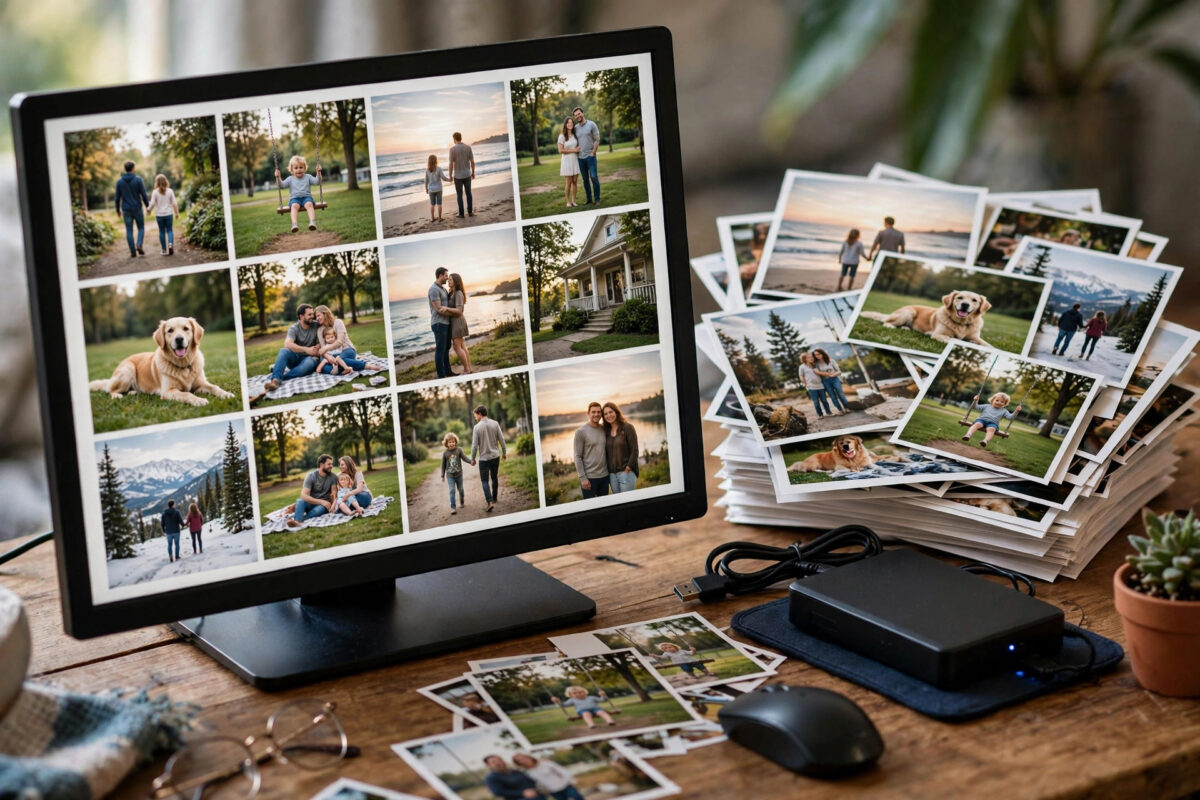
If your computer holds ten years of phone backups, camera imports, screenshots, and duplicates scattered across dozens of unnamed folders, you are not alone. Organising thousands of photos feels overwhelming only because most people try to sort everything at once, file by file. With a simple folder system, a consistent naming habit, and the batch tools already built into Windows, macOS, and free photo apps, you can turn the mess into a library you can actually search in a weekend.
This guide gives you a complete system: gather everything safely, remove duplicates, build a year-and-month structure, rename in batches, and set up a backup.
Quick Answer
Gather all photos into one master folder, back it up, then remove duplicates with a dedicated tool. Sort what remains into folders by year and month, rename files in batches using the date and a short description, and use a photo app to tag people and places. Keep three copies, including one off-site or in the cloud.
Step 1: Gather Everything Into One Master Folder
You cannot organise what you cannot see. The first job is consolidation, done by copying, not moving, so nothing is lost if something goes wrong.
- Create a master folder. On your largest drive, create a folder called Photos Master. Everything will be copied here first.
- Find your photo sources. Check Pictures, Downloads, Desktop, Documents, old phone backup folders, SD card imports, and any external drives you own.
- Search for stray images. On Windows, open File Explorer, go to This PC, and search for kind:=picture. On a Mac, open Finder and use a search filtered to Kind is Image.
- Copy, do not move. Copy each source folder into the master folder, keeping the original folder name for now, such as Phone Backup 2022. Keeping source names helps you understand where duplicates came from later.
- Include cloud downloads. If photos live only in a cloud account, download a full copy. For Google accounts, the official export route is described in the Google Account help guide for downloading your data, which covers Google Takeout exports including Photos.
Step 2: Back Up Before You Delete Anything
- Copy the entire master folder to an external hard drive. Do not use the same drive the original sits on.
- Verify the copy by comparing folder size and file count with the original.
- Label this drive clearly, for example Photo Backup Original Unsorted, and put it aside. This is your safety net, not your working copy.
- If you have cloud storage with enough space, start an upload of the same folder in the background while you work.
Step 3: Remove Duplicates Safely
Duplicates are usually the biggest source of clutter. The same photo often exists in a phone backup, a messaging app folder, an edited version, and a cloud download.
Understand the Types of Duplicates
Exact duplicates are identical files, often named IMG_2041 and IMG_2041 (1). Near duplicates are burst shots or slightly edited copies. Treat them differently. Exact duplicates can go after a careful check. Near duplicates need a quick human decision, because the best version is not always the largest file.
Use a Duplicate Finder
- Use a reputable duplicate finder that compares file content, not just names. Scan only the master folder, never your whole system drive.
- On Mac, you can also use the Duplicates album in Apple Photos if your library is imported there.
- Sort results by size so the biggest space savings come first. Open a sample from each group and confirm the files really are identical.
- Keep the copy with the highest resolution, the original camera filename, and the earliest date. Send the rest to the Recycle Bin or Trash, but do not empty it yet.
- Work in batches of a few hundred, then check your library still opens correctly before continuing.
Step 4: Build a Simple Year and Month Folder Structure
The most durable structure is also the simplest: one folder per year, with one folder per month inside it.
- Inside a new folder called Photos Organised, create year folders such as 2021, 2022, and 2023.
- Inside each year, create month folders named with numbers first, for example 01 January and 02 February. Numbering keeps them in chronological order.
- Add an event suffix only for big occasions, such as 06 June – Family Wedding. Everyday photos just go in the month folder.
- Create two extra folders: Scans and Old Family Photos for digitised prints with unreliable dates, and To Sort as a permanent inbox for new photos.
Resist deep category trees such as Family, then Cousins, then Birthdays. Deep trees break down the moment a photo fits two categories. Dates go in folders; subjects belong in tags. If you enjoy this kind of file management, you will find more computer organisation guides on Network Ustad for documents, downloads, and backups as well.
Step 5: Sort Photos Into the New Structure
Most photos contain the date they were taken in their metadata, called EXIF data. Use that instead of guessing from folder names.
- Sort by date. In Windows File Explorer, switch to Details view, add the Date taken column, and sort by it. On a Mac, Finder can sort by Date Created, and the Photos app shows the true capture date.
- Move photos month by month. Select all photos from one month and move them into the matching year and month folder. Work through one source folder at a time.
- Handle wrong dates. Screenshots and saved social media images often carry the download date, not the event date. Put them in the closest month you are confident about, or in To Sort, rather than guessing wildly.
- Fix dates in bulk if needed. Photo apps let you select a group and use an Adjust Date and Time command to shift a whole batch with the wrong camera date.
Step 6: Rename Files in Batches
Camera names like DSC_8841.JPG tell you nothing in a search. Use the pattern YYYY-MM-DD Description Number, for example 2024-06-15 Wedding 001. The date guarantees sorting, the description makes search useful, and the number keeps files unique.
- On Windows, select a group from one event, press F2, type the base name such as 2024-06-15 Wedding, and press Enter. Windows renames the group with sequential numbers. For more control, PowerRename in Microsoft PowerToys handles patterns across thousands of files.
- On Mac, select the group in Finder, right-click, and choose Rename Items. Use the Format option to set a custom name with a starting number.
- Be consistent. Decide your pattern once and use it everywhere. Consistency matters more than the exact pattern.
Step 7: Use a Photo App for Tags, Faces, and Search
- Apple Photos recognises faces and creates People albums automatically, and its search understands objects and places.
- Microsoft Photos imports folders, creates albums, and offers basic face grouping and search.
- Google Photos offers the strongest search if you are comfortable with a cloud library, including searching for terms like beach or dog.
Import your organised folders into one app only. Using two apps on the same library creates conflicting edits and new duplicates. Add keywords or albums for major themes, and mark your best shots as favourites so you can find them instantly.
Common Mistakes to Avoid
- Deleting before backing up: Never deduplicate an only copy. Make the untouched backup first.
- Emptying the Trash too early: Leave deleted duplicates recoverable until the whole library has been checked.
- Building an overcomplicated folder tree: Deep category folders collapse within a year. Dates in folders, subjects in tags.
- Renaming without a pattern: Random names are no better than camera names. Pick one pattern and stick to it.
- Organising inside multiple apps: Pick one library app to avoid conflicting databases.
- Trying to finish everything in one sitting: Work year by year. A finished year is more useful than a half-sorted everything.
Conclusion
Organising thousands of photos is a systems problem, not a patience problem. Gather everything into one master folder and back it up untouched, remove exact duplicates carefully, file what remains into year and month folders, rename in batches with a date-first pattern, and let one photo app handle faces, places, and search. Then protect the result with three copies, on two different types of storage, with one copy off-site or in the cloud. An hour of maintenance each month, filing new photos from your To Sort inbox, will keep the library tidy permanently.
Frequently Asked Questions
How long does it take to organise 10,000 photos?
With batch tools, most people need one focused weekend: a few hours for gathering and backup, a few for deduplication, and the rest for sorting and renaming by year. Working one year at a time in evening sessions across a week is equally effective.
Should I keep RAW files as well as JPG files?
Keep RAW files if you edit photos seriously or the shots are irreplaceable, because they hold more editing data. For casual phone photos, keeping the best JPG is usually enough. Store RAW files in a separate subfolder so they do not clutter everyday browsing.
What should I do with photos that have no date information?
Scans and old saved images often lack capture dates. Estimate a year from the people, places, or events shown, file them in that year’s folder, and note the date as approximate in the filename if it matters. A dedicated Scans folder is better than leaving them unsorted forever.
Is cloud storage a good main home for my photo library?
Cloud storage is excellent as one copy and for search and sharing, but it should not be your only copy. Accounts can be locked, subscriptions lapse, and sync mistakes can delete files everywhere at once. Keep a local copy and another on an external drive.
How do I keep new photos organised from now on?
Import new photos into your To Sort inbox weekly or monthly, then file them into the current year and month folder while you still remember the events. Delete obvious failures at import time, rename event batches immediately, and check your backup still runs every few months.



Leave a Reply