
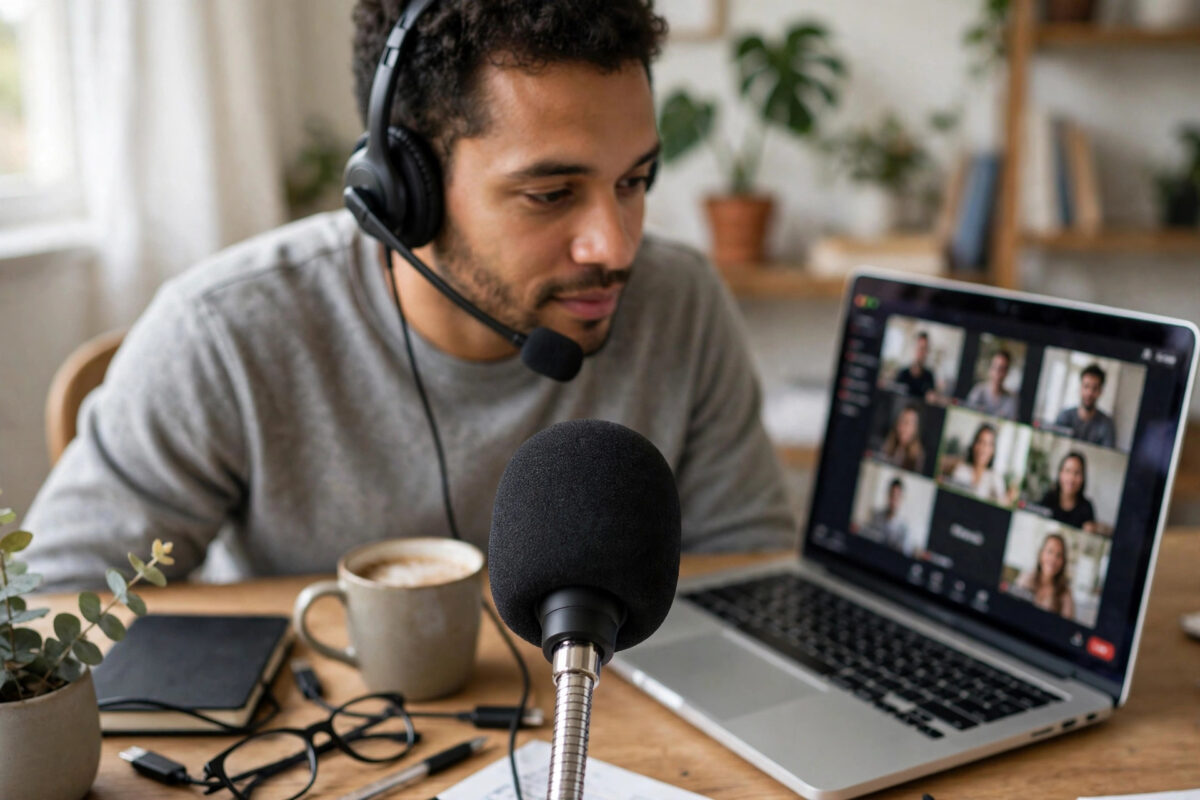
Few things are more frustrating than joining an important meeting and realising nobody can hear you. Your camera works, you can hear everyone else, but your microphone in Microsoft Teams is silent, distorted, or not detected at all. The good news is that this problem is almost always caused by a simple setting in Teams, Windows, or your browser, and you can work through the fixes in a logical order in about fifteen minutes.
This guide covers the exact checks and menu paths for Teams on Windows, Mac, and the web. Start at the top and test after each step, because the first two or three fixes solve the problem for most people.
Quick Answer
Open Teams, go to Settings and then Devices, and make sure the correct microphone is selected, then make a test call. Next, check that Windows or macOS allows Teams to use the microphone under Privacy settings. If it still fails, reconnect the headset, update the audio driver, and test the mic in another app.
Step 1: Check the Basics Inside the Meeting
- Check you are not muted. In the meeting toolbar, look at the microphone icon. If it has a line through it, click it or press Ctrl + Shift + M on Windows or Command + Shift + M on Mac to unmute.
- Check for a hardware mute. Many headsets have a physical mute button on the cable, ear cup, or boom arm. Flip the boom up and down once and check any inline control, because a raised boom on some headsets mutes the mic automatically.
- Check the meeting device settings. In the meeting, click More actions (the three dots), then Settings, then Device settings. Under Microphone, confirm your headset or webcam mic is selected, not an empty input.
- Watch the volume indicator. Speak normally while looking at the bar next to the microphone selection. If the bar moves, Teams is receiving sound and the problem may be at the other end. If it never moves, continue below.
Step 2: Set the Correct Microphone in Teams Settings
Teams sometimes switches to the wrong device after you plug in a new headset, dock your laptop, or install an update. Setting it explicitly fixes a large share of cases.
- Open Teams Settings. Click your profile picture or the three dots at the top of Teams, then click Settings.
- Go to Devices. In the left panel of the Settings window, click Devices.
- Select your microphone. Under the Microphone dropdown, choose your headset, webcam, or microphone by name. Avoid Same as system while troubleshooting, because it hides which device is really being used.
- Turn off automatic adjustment if levels are strange. If people say you fade in and out, toggle off Automatically adjust mic sensitivity on the same page.
- Make a test call. On the same Devices page, click Make a test call. Record a short message and listen to the playback. Clear playback means Teams itself is now working.
Microsoft maintains detailed help for this workflow, and the Microsoft Teams support hub on support.microsoft.com is worth bookmarking for device troubleshooting updates.
Step 3: Fix Windows Microphone Permissions and Settings
Allow Microphone Access in Privacy Settings
- Press Windows key + I to open Settings.
- Go to Privacy and security, scroll to App permissions, and click Microphone.
- Turn on Microphone access and Let apps access your microphone.
- Turn on Let desktop apps access your microphone. The classic Teams desktop app depends on this toggle, and it is the one most often missed.
Set the Correct Default Device in Sound Settings
- In Settings, go to System and then Sound.
- Under Input, select your headset or microphone and speak. The Test your microphone bar should move.
- Click the device name to open its properties and check the Input volume slider. Set it to around 75 to 90 if it is very low.
- If the bar never moves here either, the problem is below Teams, so continue to the driver and hardware steps.
If a headset appears in Windows but is disabled, right-click the speaker icon, choose Sound settings, then More sound settings. Click the Recording tab, right-click your microphone, choose Enable if it is greyed out, then Set as Default Device.
Step 4: Fix Microphone Permissions on Mac
- Open the Apple menu and go to System Settings.
- Click Privacy and Security, then click Microphone.
- Find Microsoft Teams in the list and turn its toggle on.
- Quit Teams completely with Command + Q, then reopen it. Permission changes often do not apply until the app restarts.
- Also check System Settings, then Sound, then Input, and confirm the correct microphone is selected and the input level moves when you speak.
Step 5: Fix Teams in a Web Browser
- Open Teams in the browser and click the padlock or tune icon at the left of the address bar.
- Open Site settings and find Microphone. Set it to Allow and select the correct device if a dropdown is shown.
- Reload the page and rejoin the meeting. Click Allow if the browser asks for microphone permission again.
- Close other tabs or apps that may be holding the microphone, such as Zoom or a voice recorder, then try again.
The desktop app is usually the more reliable option for regular meetings. For more day-to-day fixes like this, see the everyday tech troubleshooting guides on Network Ustad for Windows, Office, and communication apps.
Step 6: Update Drivers, Reconnect Hardware, and Clear the Cache
Update the Audio Driver on Windows
- Right-click the Start button and open Device Manager.
- Expand Audio inputs and outputs and Sound, video and game controllers.
- Right-click your microphone or audio device and choose Update driver, then Search automatically for drivers.
- Restart the computer after any driver update, even if Windows does not ask you to.
Reconnect and Test the Hardware
Unplug a USB headset, wait ten seconds, and plug it into a different USB port, avoiding a hub for the test. For Bluetooth headsets, go to Settings, then Bluetooth and devices, remove the headset, and pair it again. Then test the same microphone in another app such as Windows Voice Recorder. If it fails everywhere, the headset is likely faulty. If it works everywhere except Teams, the issue is a Teams setting or cache problem.
Clear the Teams Cache
A corrupt cache can leave Teams stuck on a device that no longer exists. Quit Teams fully, including from the system tray, then follow Microsoft’s cache-clearing steps for your Teams version, delete the cache contents, and reopen Teams. On a Mac, quitting the app and restarting the computer clears most temporary states, and reinstalling Teams from Microsoft’s site is the safest next step if problems continue.
Common Mistakes to Avoid
- Testing only inside a live meeting: Always use the test call first. It separates your problem from other people’s speaker problems.
- Leaving the input set to Same as system: This hides mistakes. Select the device by name while troubleshooting.
- Forgetting the desktop apps privacy toggle: App access can be on while desktop app access is off, which blocks the classic Teams app.
- Having two meeting apps open: Another app can hold exclusive control of the microphone. Close Zoom, Webex, and recorders before testing.
- Skipping the restart: Permission, driver, and pairing changes often need a full restart to take effect.
Conclusion
A Teams microphone that is not working is usually a selected-device, permission, or mute problem rather than broken hardware. Work in order: check mute and the in-meeting device, set the microphone by name in Settings and then Devices, run a test call, confirm Windows or macOS privacy permissions, and only then update drivers, reconnect the headset, or clear the cache. Test after each change so you know what fixed it. Once your test call plays back clearly, your next real meeting should work without last-minute panic.
Frequently Asked Questions
Why can people hear me in other apps but not in Teams?
Teams is almost certainly using a different microphone than the other apps. Open Teams Settings, go to Devices, and select your headset by name instead of leaving it on the system default. Then make a test call to confirm before joining a real meeting.
Why does my microphone work but sound very quiet or distorted?
Check the input volume in Windows Sound settings or macOS Sound Input and raise it if it is very low. In Teams, turning off automatic mic sensitivity adjustment can stop the level dropping mid-sentence. Also move the microphone closer and keep it away from a fan or keyboard.
Teams does not list my microphone at all. What should I do?
Check whether Windows or macOS lists the device in Sound Input settings. If the system cannot see it, reconnect it, try another port or cable, and reinstall its driver. If the system sees it but Teams does not, restart Teams, check privacy permissions, and clear the cache or reinstall the app.
Do I need admin rights to fix Teams microphone problems?
Most fixes, including Teams device settings, privacy toggles, and browser permissions, do not need admin rights. Driver updates and work-managed laptops may require IT approval. If your device is managed by an employer, contact IT before reinstalling drivers or changing security policies.
Will reinstalling Teams delete my chats and files?
No. Your chats, teams, and files are stored in your Microsoft 365 account, not only on your computer. Reinstalling the app and signing back in restores them. You will need to set your device choices again, so note them before you uninstall.



Leave a Reply