
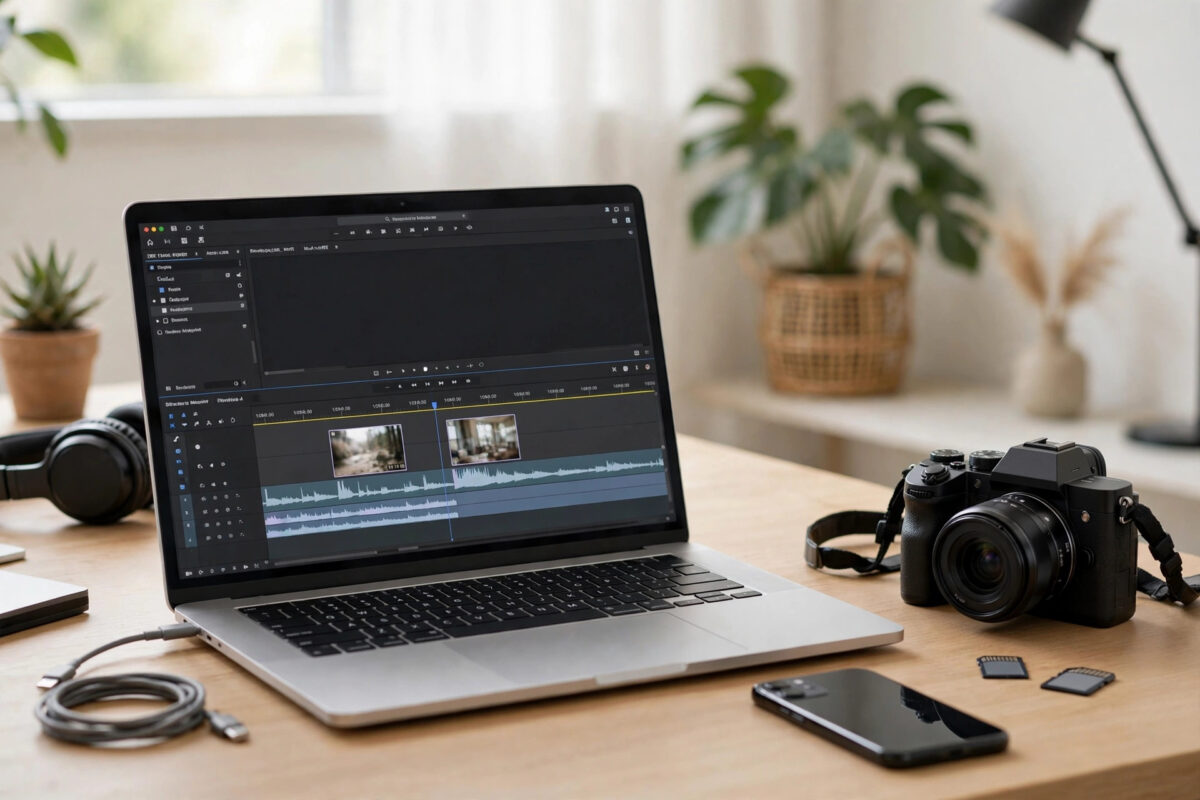
You have two short clips that belong together: two halves of an interview, a before-and-after pair, or separate takes of the same event. Installing a full video editor just to join them feels like overkill.
Online video mergers let you combine clips directly in your browser, add a simple transition if you want one, and download a single finished video. The process is quick once you know the right order of steps.
Quick Answer
Upload both clips to a free online merger like Clideo or Kapwing, drag them into the right order on the timeline, choose your export format and resolution, then export and download the combined video. Most two-clip merges finish in five to ten minutes including upload time.
Why Merge Videos Online Instead of Installing Software?
Online tools require no installation, no updates, and no powerful computer. All the heavy processing happens on the service’s servers or in your browser.
That makes them perfect for one-off jobs and for people using a work laptop, a Chromebook, or a borrowed computer where installs are blocked.
Desktop editors still win for complex projects with many tracks, effects, and colour work. For simply joining clips, online is faster to start and finish.
The trade-offs are upload time and file size limits on free tiers. Two phone clips are fine; two hours of 4K footage will be slow and may exceed limits.
Privacy is the other consideration. Public or family clips are low risk on reputable tools, while confidential footage deserves a more careful choice.
If you merge videos regularly for a channel or business, an installed editor will eventually save time. For occasional merges, online tools are the sensible default.
Before You Start: Prepare Your Two Clips
Watch both clips fully before uploading anything. Note where each one should start and end, and decide which clip plays first in the final video.
Check that both clips have a similar orientation. Merging a vertical phone clip with a horizontal clip creates awkward black bars unless the tool can adjust it.
Check resolution and quality as well. A sharp clip followed by a very low-resolution clip looks jarring, even though the merge itself will work.
Rename your files clearly before upload, such as part-1-intro and part-2-main. Clear names prevent ordering mistakes on the timeline later.
If either clip is very long, consider trimming it first. Uploading only the footage you actually need saves significant time and storage.
Finally, make sure you have the right to use and combine the footage. Your own recordings and licensed clips are safe to merge and share.
How to Merge Two Videos Online: Step by Step
Merging with a browser-based editor
- Open a trusted online video merger or editor in your browser.
- Click Upload and select the first video clip from your device.
- Upload the second clip using the add media option.
- Drag both clips onto the timeline in the order you want them to play.
- Trim the end of the first clip or the start of the second if there is overlap or dead space.
- Add a simple transition like a fade if the cut feels abrupt.
- Choose the export resolution and format, usually MP4.
- Click Export, wait for processing, then download the merged video.
- Play the full downloaded video to check the join, sound, and ending.
The timeline is the heart of the process. Take ten extra seconds to confirm the order, because exporting with clips reversed is the most wasted effort of all.
Merging with a simple joiner tool
- Open a dedicated video joiner page in your browser.
- Upload both clips using the file picker or drag and drop.
- Arrange the clips in order using the up and down controls.
- Select whether to keep the original format or convert to MP4.
- Click Merge or Join and wait for processing to complete.
- Download the combined file and verify it plays correctly.
Simple joiners are faster when both clips share the same format and resolution. Full editors handle mixed formats better by normalising them during export.
Whichever tool you use, keep the tab open during upload and processing. Closing it early is a guaranteed way to lose your progress.
You will find more browser-based media workflows in our Online Tools guides and tutorials on NetworkUstad if you edit clips often.
Matching Format, Resolution, and Sound
MP4 is the safest export format for sharing. It plays on phones, browsers, social platforms, and messaging apps without extra players.
Export at the resolution of your better clip at most. Exporting a 720p source at 4K only inflates file size without adding real detail.
If one clip is vertical and the other horizontal, decide on one canvas size. Most tools let you fit, crop, or add blurred backgrounds to fill the frame.
Audio needs a quick check at the join point. A sudden volume jump between clips is distracting, so use volume controls or a short fade if available.
Some tools add their own intro handling for clips recorded on different devices. A brief crossfade of half a second smooths most rough cuts nicely.
The YouTube upload specifications from Google Support are a useful reference for choosing export settings that work well online.
Free Limits, Watermarks, and Privacy
Most free online mergers limit file size, export resolution, or total projects per month. Two short clips normally fit comfortably inside free limits.
Some tools add a small watermark on free exports. If the video is for professional use, check the preview carefully before sharing the result.
Paid tiers mainly remove watermarks, raise size limits, and speed up processing. For occasional personal merges, the free tier is usually enough.
For privacy, choose services that state how long files are kept and when they are deleted. Avoid uploading sensitive footage to unknown sites.
Never pay or enter card details on a site that promised a fully free merge and then blocks your download. Close it and use a better-known alternative.
After downloading, you can usually delete your project from the service. Doing so is a good habit for client or family footage.
Fixing Problems at the Join
If there is a black flash between clips, trim a few frames from the end of the first clip. Phones sometimes add a blank frame when recording stops.
If the second clip starts mid-sentence, extend its start slightly or add a fade from black. A clean entry matters more than keeping every frame.
If the merged file will not play, export again as MP4 with standard settings. Exotic codecs from simple joiners occasionally confuse media players.
If the file is too large to share, re-export at a lower resolution. Dropping from 1080p to 720p greatly reduces size with modest quality loss on phones.
If audio drifts out of sync in a long merge, split the work: export each half separately, then join those two finished files in a second pass.
Common Mistakes and Tips
The most common mistake is uploading clips in the wrong order and exporting without previewing. Always watch the join before you download and share.
Another mistake is merging untrimmed clips with long silences at the start or end. Two minutes of dead footage makes viewers leave immediately.
Many people forget to check sound levels across clips. Normalise volume where the tool allows it, or at least soften the louder clip.
Do not delete your original clips until the merged video has been watched in full. The originals are your only backup if the export has a flaw.
Tip: add a short title card between clips if they show different scenes or days. A simple text screen prevents confusion for viewers.
Tip: keep a consistent file naming system, such as event-merged-final.mp4. You will thank yourself when searching for the video months later.
Conclusion
Merging two videos online without downloading software is straightforward: prepare your clips, upload them in order, trim the join, export as MP4, and check the result. Most merges take just a few minutes from start to download.
Simple joiners are best for matching clips, while browser editors handle mixed formats, transitions, and volume fixes more gracefully. Both beat installing heavy software for a single job.
Keep your originals safe, respect free-tier limits, and preview before sharing. With those habits, your combined videos will look intentional and polished every time.
Frequently Asked Questions
Can I merge two videos online for free without a watermark?
Yes, some tools offer watermark-free free exports, while others add a small watermark. Check the export preview and the tool’s free-tier terms before starting a long upload.
What is the best format for a merged video?
MP4 is the best general choice. It balances quality and size and plays on almost every phone, browser, and social platform without issues.
Can I merge videos with different resolutions?
Yes. A browser editor will fit both clips to one canvas size during export. Expect bars, cropping, or a blurred background if the shapes differ a lot.
How long does it take to merge two videos online?
For two short phone clips, allow five to ten minutes including uploads. Large files, slow connections, and busy services can make it longer.
Is it safe to upload private videos to online mergers?
Use reputable services with clear deletion policies for personal footage. For highly sensitive or confidential video, an offline editor is the safer choice.



Leave a Reply