
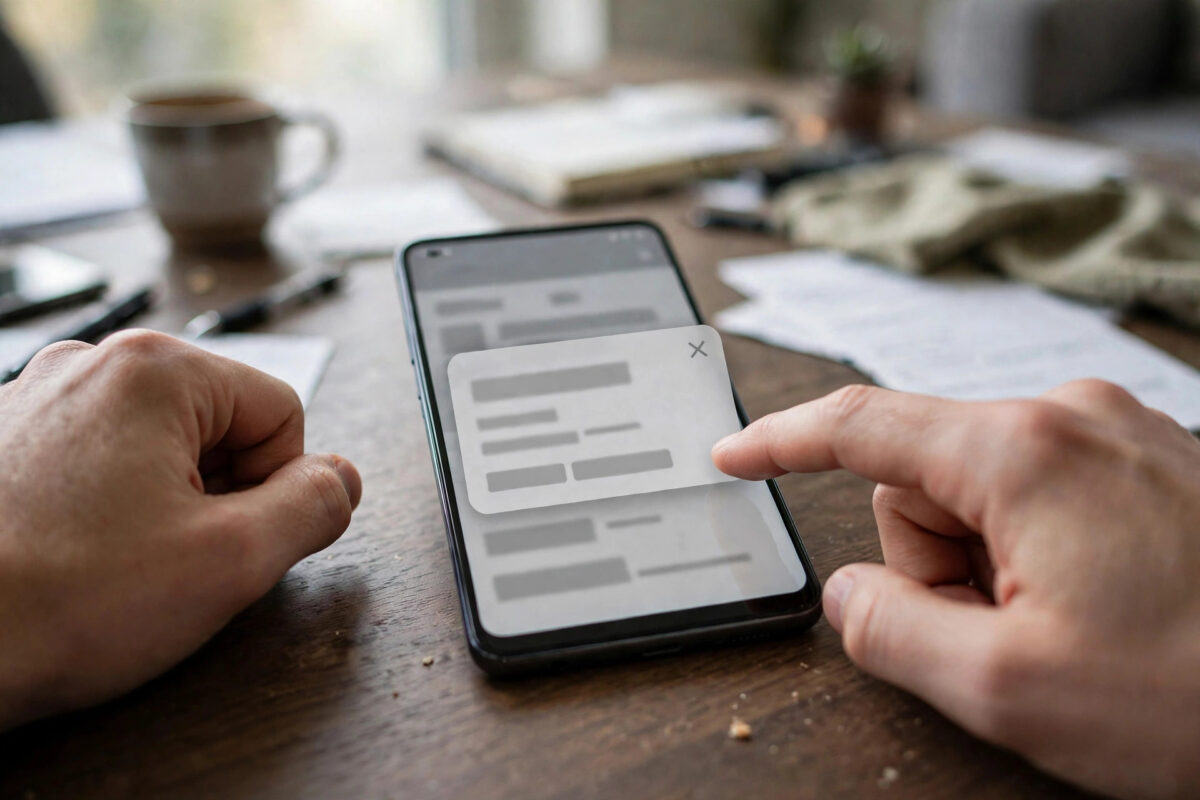
Full-screen adverts appear on your home screen even when no app is open. They interrupt calls, games, and messages, and they seem to come from nowhere.
Android itself does not show adverts like that. Almost always, one badly behaved app you installed is pushing them in the background.
Quick Answer
These ads come from a recently installed app with Display over other apps permission. Android itself does not show them.
Revoke that permission in Settings > Apps > Special app access and uninstall suspect apps. Run Play Protect, and the ads stop when the culprit is removed.
Why These Ads Appear on Your Home Screen
Legitimate apps show adverts inside their own screens. Home screen pop-ups are different, because they appear over everything else.
To do that, an app needs special overlay permission. Android calls it Display over other apps, and users often grant it without noticing.
Free flashlight, scanner, cleaner, and wallpaper apps are common culprits. Some free games and file managers behave the same way.
The app waits quietly after installation. Ads may start days later, which makes the real culprit harder to spot.
Your phone is not necessarily infected with a virus. In most cases this is aggressive advertising, not true malware, though both need removing.
Step One: Think About What You Installed Recently
The timing almost always gives the culprit away. Ads normally start shortly after the offending app arrives.
- Try to remember when the pop-ups first started.
- List apps installed in the week before that date.
- Pay special attention to cleaners, boosters, and free utilities.
- Include wallpaper, ringtone, and emoji keyboard apps.
- Note any app installed from outside Google Play.
- Start with the most recent app on that list.
Apps installed from websites or message links deserve suspicion first. They bypass some of Google Play’s checks entirely.
An app with a blank icon or no name is a major warning sign. So is an app you simply do not remember installing.
Step Two: Find Apps That Can Display Over Others
This permission check points straight at likely culprits. Only a small number of apps genuinely need overlay access.
- Open Settings and tap Apps.
- Tap the three-dot menu or See all apps if needed.
- Tap Special app access.
- Tap Display over other apps.
- Review every app listed as Allowed.
- Turn off access for anything you do not trust.
On Samsung, the path is Settings > Apps > three dots > Special access > Appear on top. The idea is exactly the same.
Facebook Messenger chat heads legitimately use this permission. So do some accessibility and screen-recording tools you installed deliberately.
Everything else on that list deserves a hard look. Revoking access stops its pop-ups even before you uninstall it.
For related fixes, browse our Android troubleshooting guides at Network Ustad. They cover unwanted apps, permissions, and phone security step by step.
Step Three: Uninstall the Culprit App
Revoking permission is a test, but uninstalling is the cure. Remove suspect apps one at a time and watch the result.
- Open Settings > Apps and find the suspect app.
- Tap the app name to open its info page.
- Tap Uninstall and confirm.
- Use the phone normally for several hours.
- If ads continue, uninstall the next suspect app.
- Restart the phone after removing the final culprit.
If Uninstall is greyed out, the app may have device admin rights. Remove those rights first, as explained below.
- Open Settings > Security and privacy.
- Tap Other security settings or Device admin apps.
- Find the suspect app in the list.
- Turn its admin access off.
- Return to Apps and uninstall it normally.
Google’s own guidance follows the same approach. Read the official help on unwanted ads and removing harmful apps if an app refuses to uninstall.
Step Four: Run Google Play Protect
Play Protect scans apps for harmful behaviour. It is built into most Android phones and costs nothing to run.
- Open the Google Play Store app.
- Tap your profile icon at the top right.
- Tap Play Protect.
- Tap Scan and wait for the result.
- Follow any prompt to remove a harmful app.
- Turn on Scan apps with Play Protect if it is off.
A clean scan does not guarantee innocence. Adware sometimes passes scans because its adverts are aggressive rather than technically malicious.
Trust your own evidence over a clean scan. If ads stopped after an uninstall, you already found your answer.
Check Your Browser and Notification Ads Too
Not every pop-up comes from an app overlay. Some come from browser notifications you allowed on a shady website.
- Open Chrome and tap the three-dot menu.
- Tap Settings, then Notifications.
- Review sites allowed to send notifications.
- Block or remove any site you do not recognise.
- Also check Settings > Notifications for noisy apps.
- Turn off notifications for apps that abuse them.
Lock screen adverts point to a different culprit. Some wallpaper and lock screen apps replace your lock screen with advertising.
Uninstall lock screen and wallpaper apps you added recently. Then check your lock screen settings return to the standard Android style.
Common Mistakes and Prevention Tips
The biggest mistake is installing a cleaner to fix adverts. Many cleaner apps are themselves the worst pop-up offenders.
Another mistake is tapping the adverts themselves. Close them with the back button, never through buttons inside the advert.
Fake virus warnings deserve special mention. Real Android warnings never appear as flashing web pages demanding urgent action.
Prevent a repeat by checking permissions before installing. Be wary of simple apps demanding overlay, admin, or accessibility access.
Read recent one-star reviews on Google Play first. Other users usually report pop-up behaviour there very quickly.
Keep installations to Google Play where possible. Sideloaded apps from random websites carry the highest adware risk.
What to Do If Ads Still Appear After Cleaning
If adverts continue after removing every suspect, restart into Safe Mode. Hold the power button, then press and hold Power off until Safe Mode appears.
Safe Mode disables all third-party apps temporarily. If ads stop there, another installed app is definitely still responsible.
Leave Safe Mode by restarting normally afterwards. Then continue uninstalling recent apps, starting with the newest remaining one.
Check your launcher app as a final step. Some fake launcher and home screen apps exist purely to serve adverts.
- Open Settings > Apps > Choose default apps.
- Tap Home app and note what is selected.
- Switch back to your phone’s original launcher if changed.
- Uninstall any launcher you do not recognise.
- Restart the phone and monitor for a full day.
Only consider a factory reset after all these steps fail. Back up photos and contacts first, because a reset erases everything on the phone.
Conclusion
Home screen pop-ups are not part of Android. A recently installed app with overlay permission is almost always responsible.
Check Display over other apps, uninstall suspects one by one, and run Play Protect. The adverts stop when the culprit is gone.
Afterwards, install more carefully and review permissions. That simple habit prevents the same problem returning next month.
Frequently Asked Questions
Can Android itself put ads on my home screen?
No, stock Android does not place full-screen adverts on your home screen. An installed app with overlay permission is almost always the source.
How do I know which app is showing the ads?
Check apps installed just before the ads started, then review Display over other apps in Special app access. Uninstall suspects one by one until the ads stop.
What if the uninstall button is greyed out?
The app probably has device admin access. Turn that access off in Settings > Security > Device admin apps, then uninstall it normally.
Are these pop-up ads a virus?
Usually they are adware rather than a true virus, meaning aggressive advertising from a free app. It should still be removed, and Play Protect should be run.
Will a factory reset stop the pop-ups?
Yes, but it should be a last resort because it erases everything. Uninstalling the culprit app fixes the problem in almost every case without data loss.



Leave a Reply