
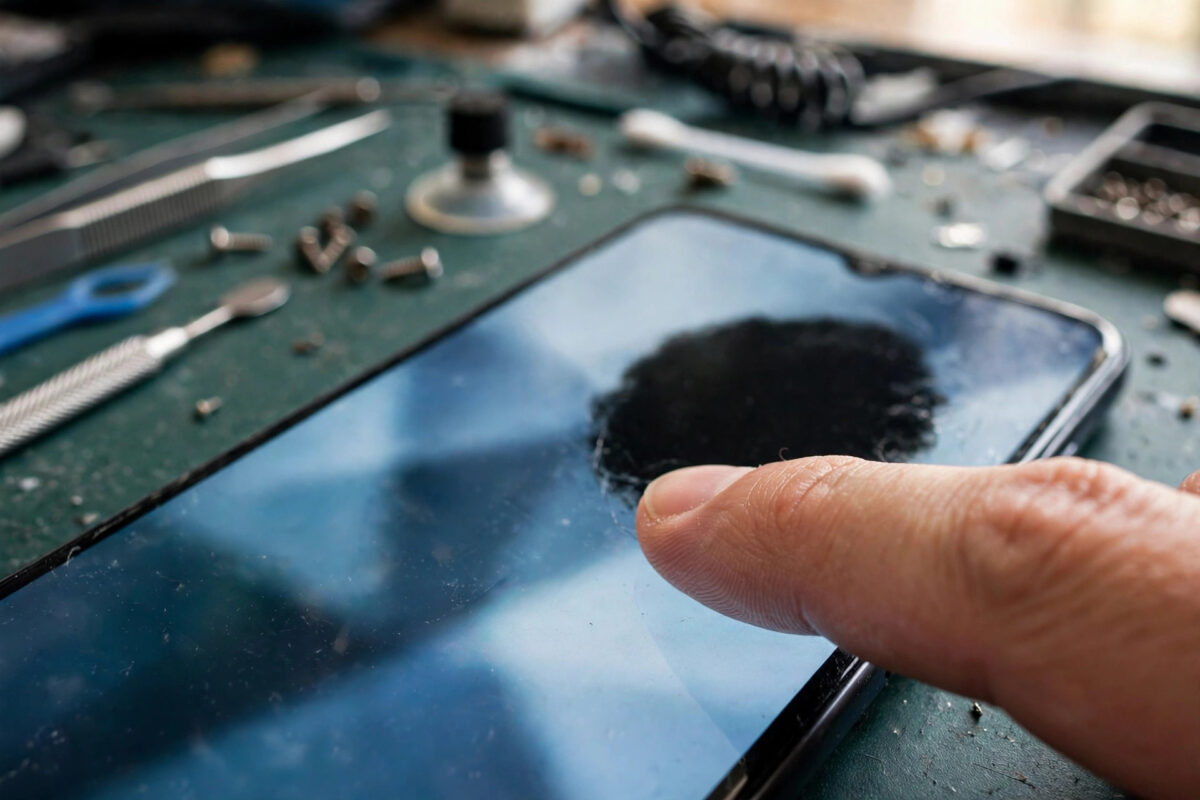
You tap the same letter three times and nothing happens. A strip down the side of the screen ignores swipes, while the rest of the phone works perfectly.
Dead zones like this are frustrating because the phone seems half-broken. In reality, the cause ranges from a cheap screen protector to a genuinely failing digitiser.
This guide helps you tell software from hardware. Follow the tests in order, and you will know whether this is a free fix or a repair-shop job.
Quick Answer
Remove the case and screen protector, clean the screen, restart the phone, and test the dead area in safe mode or with a touch-test diagnostic.
If one fixed area still fails after those steps, the digitiser or display is almost certainly damaged and needs professional repair.
How a Touchscreen Works, in Brief
Modern phone screens use a capacitive touch layer called a digitiser. It senses the tiny electrical signal from your fingertip across a grid.
If part of that grid is damaged, that area stops responding. The picture underneath can look completely normal while touch is dead.
Software can also block touch in one area. Floating apps, screen overlays, and corrupted settings sometimes create a fake dead zone that looks like hardware damage.
That is why testing matters before paying for a screen. The tests below separate a blocked area from a broken grid.
Step 1: Clean the Screen and Remove Accessories
Grease, moisture, and a lifting screen protector all interfere with capacitive touch. A protector that has cracked or peeled at one edge often kills touch exactly there.
- Power the phone off before cleaning.
- Wipe the screen with a dry or slightly damp microfibre cloth.
- Remove the case, especially magnetic or wallet-style cases.
- Peel off the screen protector carefully and keep it aside.
- Power on and test the dead area with a clean, dry finger.
- Try a different finger and make sure your hands are not wet or wearing gloves.
If touch returns without the protector, replace the protector. Tempered glass that is too thick or poorly fitted causes this problem surprisingly often.
Samsung phones have a touch sensitivity option for protectors. Find it later in Settings > Display > Touch sensitivity if a new protector feels less responsive.
Step 2: Restart and Test in Safe Mode
A restart clears temporary glitches in the touch driver. Safe mode then tells you whether an installed app is blocking part of the screen.
- Restart the phone normally and test the area again.
- Press and hold the power button, then press and hold Power off until Safe mode appears.
- Tap OK and wait for safe mode to load.
- Test the same area carefully in safe mode.
- If touch works in safe mode, restart normally and remove recent overlay, launcher, or floating-button apps.
- If the same area fails in safe mode, suspect hardware or system software.
Common overlay culprits include chat heads, blue-light filters, button remappers, and screen recorders. They draw over other apps and can swallow touches in one region.
Google’s general advice for unresponsive screens is summarised in its official Android guide to fixing a screen that is not working properly. It recommends the same restart and safe mode sequence used here.
Step 3: Map the Dead Zone Precisely
Guessing helps nobody, least of all a repair technician. Map exactly which area fails, and whether the failure is total or intermittent.
- On Samsung, open the Phone app and dial *#0*# to open the diagnostic menu, then choose Touch.
- Draw across every square of the grid, including the dead area.
- On Pixel and other phones, install a reputable touch-screen test app from Google Play instead.
- Alternatively, open a drawing app and scribble slowly over the whole screen.
- Screenshot or photograph the result showing the untouched region.
- Note whether the dead area is a strip, a corner, a rectangle, or scattered spots.
A clean vertical or horizontal strip usually means a damaged digitiser connection or grid line. A rectangle matching an app window suggests a software overlay instead.
Scattered random failures with ghost touches point elsewhere. Those often involve moisture, a failing display cable, or a swelling battery pressing on the screen.
Step 4: Check Settings That Affect Touch
Several accessibility and display settings change how touches register. A setting changed by accident, or by a child, can mimic a dead zone.
- Open Settings > Accessibility > Interaction and dexterity on Samsung, or Settings > Accessibility on Pixel.
- Check Touch and hold delay and set it back to Short if it was changed.
- Turn off Ignore repeated touches and similar filters while testing.
- Open Settings > Display and turn off glove mode or extra-high sensitivity if your phone offers it, then test again.
- Disable one-handed mode and edge panels temporarily to rule out edge touch rejection.
- Turn off accidental touch protection on Samsung if edge areas seem ignored, then retest.
Edge rejection deserves special mention. Phones deliberately ignore some edge touches to prevent palm mistakes, which can feel like a dead strip on curved screens.
More display and accessibility explanations are available through Network Ustad’s Android troubleshooting and settings guides. Checking related guides helps if your model names these options differently.
Step 5: Update, Then Consider a Factory Reset
A system update sometimes corrupts the touch configuration. Equally, a later update often contains the fix for a known touch bug.
- Open Settings > Software update on Samsung, or Settings > System > System update on Pixel.
- Install any pending update and restart the phone.
- Update all apps in the Play Store, especially launchers and system components.
- Test the dead area again after updating.
- Back up everything if the problem survives all earlier steps.
- Only then perform a factory reset from Settings > General management > Reset or Settings > System > Reset options.
If the exact same area fails on a freshly reset phone, stop troubleshooting software. The evidence now strongly points to the display hardware itself.
Hardware Causes That Need a Repair Shop
The most common hardware cause is drop damage to the digitiser. The glass can survive while the touch grid underneath fractures invisibly.
Water damage is another frequent cause, even weeks later. Corrosion spreads slowly across connectors and can kill one screen region at a time.
A swelling battery can also press against the display from inside. If the screen looks lifted, the back is bulging, or the phone rocks on a table, stop using it and get it checked promptly.
Loose display connectors after a previous repair can create intermittent strips. A technician can reseat the connector quickly if the digitiser itself is undamaged.
Screen replacement costs vary widely by model. Flagship OLED screens are expensive, so get a written quote and ask whether the replacement is original or third-party before agreeing.
Workarounds While You Arrange a Repair
- Rotate the phone so important buttons move out of the dead area.
- Turn on the accessibility Assistant menu in Settings > Accessibility for a floating control button.
- Connect a USB mouse with a USB-C OTG adapter to control the phone precisely.
- Use voice typing and Google Assistant for tasks inside the dead zone.
- Move important home-screen icons away from the unresponsive area.
- Back up photos, chats, and authenticator codes before the screen gets worse.
These workarounds are temporary, not fixes. A failing digitiser usually spreads, so treat backup as urgent rather than optional.
Common Mistakes and Useful Tips
The biggest mistake is pressing harder on the dead area. Extra pressure cannot restore a broken touch grid and can crack the glass.
Another mistake is paying for a screen before removing the protector. Repair shops see protector-caused dead zones every week.
Do not put a wet phone in rice and hope touch returns. Power it off, let it dry, and get corrosion checked properly instead.
Useful tip: test with the charger unplugged. Faulty chargers inject electrical noise that can disturb touch, especially in one area of the screen.
Also note whether the problem began after a drop, a repair, or an update. That single detail helps a technician diagnose the phone much faster.
Finally, photograph your touch-test result. Showing the exact dead pattern is far more useful than describing it from memory at the repair counter.
Conclusion
A touchscreen that ignores one area is either being blocked or is physically failing. Accessories, cleaning, safe mode, and a touch-grid test separate those two possibilities quickly.
If the same strip or corner fails in safe mode, after updates, and after a reset, the digitiser is damaged. At that point, professional screen repair is the honest answer.
Use a mouse, rotation, and the assistant menu to keep the phone usable meanwhile. Back everything up now, because dead zones rarely stay small.
Frequently Asked Questions
Can a screen protector really cause a dead spot?
Yes. A cracked, lifting, or overly thick protector disrupts the capacitive signal in that exact area. Removing it is the first test because touch often returns immediately.
Why does only one strip of my screen not work?
A single strip usually means one line of the digitiser grid or its connector is damaged, often from a drop. If it also fails in safe mode, it is almost certainly hardware.
Will a factory reset fix an unresponsive screen area?
Only if the cause is software, such as a corrupted update or bad overlay app. A reset cannot repair a damaged digitiser, so do the safe mode and grid tests first.
What are ghost touches, and are they related?
Ghost touches are taps the phone registers without you touching it. They often share causes with dead zones, including moisture, charger noise, screen damage, and a swelling battery.
Is it worth replacing the screen on an old phone?
Compare the repair quote with the phone’s value and battery health. If the quote is over half the phone’s worth, many people replace the phone instead and restore from backup.



Leave a Reply