
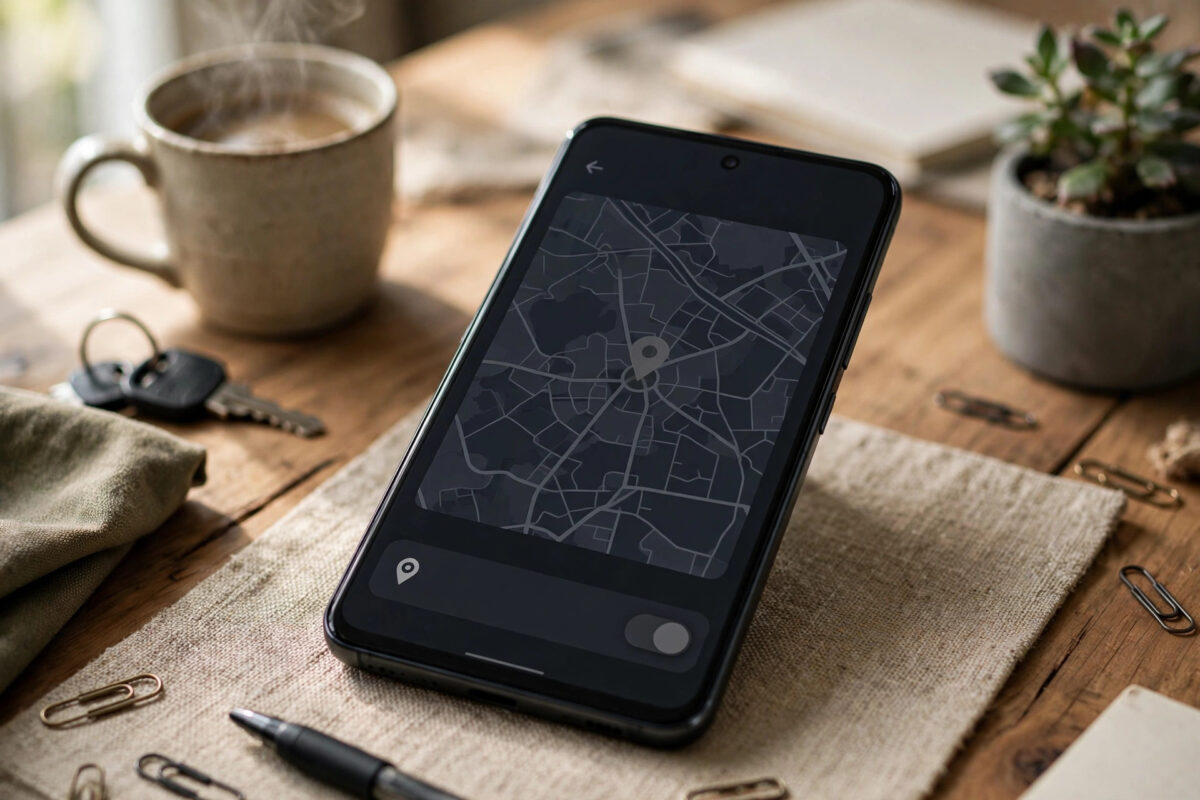
Your phone knows where you live, where you work, and which route you took yesterday. That location history powers useful features, but it also builds a detailed record of your life.
Many people want to turn location tracking off completely. Others only want to stop certain apps, adverts, or Google from storing their movements.
Android gives you several layers of control. This guide covers each layer, from the master switch to per-app permissions and history deletion.
Quick Answer
Swipe down twice and tap the Location tile off, or go to Settings > Location and turn off Use location to stop all location access at once.
To stop tracking and history while keeping maps working, set apps to “Don’t allow” or “Approximate only,” turn off Google Location History, and disable Wi-Fi and Bluetooth scanning.
Understand the Three Layers of Location Tracking
First, the phone’s location services estimate where the device is. They combine GPS, Wi-Fi networks, mobile towers, and Bluetooth beacons.
Second, individual apps request access to that location. A maps app needs it, while a torch app or simple game usually does not.
Third, Google can store your movements in Location History, now called Timeline. That history is separate from whether an app used your location today.
Turning off only one layer leaves the others running. For real privacy, work through all three layers in this guide.
Method 1: Turn Off All Location With the Master Switch
The master switch is the fastest full stop. When it is off, no app or service can get the phone’s location, including emergency-free features like weather.
- Swipe down from the top of the screen twice to open full Quick Settings.
- Find the Location tile and tap it so it is greyed out.
- Alternatively, open Settings > Location from the Settings app.
- Turn off the Use location toggle at the top.
- Check that maps now show a “location off” message when opened.
On Samsung phones the path is the same: Settings > Location, because One UI keeps location in the main Settings list. The Quick Settings tile also works identically.
Remember that Find My Device cannot locate a phone with location fully off. Many people accept that trade-off, but decide consciously before a trip.
Method 2: Control Location App by App
Most people get better results from per-app control. Maps and ride-hailing keep working, while everything else loses access.
Android offers four choices per app. “Allow all the time,” “Allow only while using the app,” “Ask every time,” and “Don’t allow” give very different privacy levels.
- Open Settings > Location > App location permissions.
- On Samsung, this may appear as Settings > Location > App permissions.
- Review the “Allowed all the time” list first and downgrade anything surprising.
- Set most apps to Don’t allow or Ask every time.
- Keep maps and delivery apps on Allow only while using the app.
- Tap an app and turn off Use precise location where approximate location is enough, such as weather or news apps.
Approximate location tells an app your general area, within a few kilometres. That is plenty for weather, local news, and many shopping apps.
Google explains these permission levels in its official Android guide to managing location settings. Re-reading that page after major Android updates helps you spot any new options.
Method 3: Turn Off Google Location History and Timeline
Even with careful app permissions, Google’s own history may still record your movements. Turning this off stops the long-term record, not live navigation.
- Open Settings > Location > Location services > Google Location History.
- On some phones, open the Google Maps app, tap your profile picture, then Your Timeline instead.
- Sign in to the correct Google account if prompted.
- Turn Location History off for the account and for the device.
- Choose an auto-delete option such as 3 months for any remaining activity.
- Delete existing history from the Timeline or My Activity page if you want a clean start.
Also check Web and App Activity in the same account controls. Search and Maps activity can reveal places even when Location History is off.
If several Google accounts are on the phone, repeat this for each one. History is stored per account, not per device.
Method 4: Stop Wi-Fi and Bluetooth Scanning
Even with location off, Android can scan nearby Wi-Fi networks and Bluetooth devices to improve location accuracy. That scanning can still estimate where you are.
- Open Settings > Location > Location services.
- Tap Wi-Fi scanning and turn it off.
- Go back and tap Bluetooth scanning and turn it off.
- On Samsung, find both toggles under Settings > Location > Improve accuracy.
- Turn off Google Location Accuracy in the same list if you want GPS-only positioning when location is on.
Turning scanning off can make indoor positioning slower when you do use maps. For most privacy-focused users, that small delay is worth it.
Method 5: Reduce Ad Tracking Linked to Location
Advertisers combine location with an advertising ID to build profiles. You can reset or delete that ID and limit personalised adverts.
- Open Settings > Privacy > Ads on Pixel and stock Android.
- On Samsung, open Settings > Privacy > Other privacy settings > Ads or search Settings for “Ads.”
- Tap Delete advertising ID where available, or reset it.
- Turn off ad personalisation options offered on that screen.
- Review Settings > Privacy > Permission manager > Location once more for apps you missed.
Similar privacy walkthroughs for other Android settings are collected in Network Ustad’s Android privacy and settings guides. Reviewing them together gives you a fuller picture of what your phone shares.
What Still Works, and What Breaks, With Location Off
Calls, texts, mobile data, and normal browsing keep working normally. Your network operator still handles calls using tower connections, which is outside these phone settings.
Navigation, ride-hailing pickup points, geotagged photos, location sharing, and Find My Device will not work properly. Weather apps will need a manually entered town instead.
Emergency services are a special case. Android’s Emergency Location Service can still send location during an emergency call in supported regions, even with normal location settings off.
You can read about that exception inside Settings > Location > Location services > Emergency Location Service. Most privacy guides recommend leaving that one safety feature understood, not feared.
Common Mistakes and Useful Tips
The biggest mistake is turning off the master switch but leaving Location History untouched. When you turn location back on for maps, the recording resumes.
Another mistake is trusting an app’s in-app privacy toggle only. Always set the system permission too, because the system setting is what Android actually enforces.
Do not forget secondary accounts and work profiles. A work profile app follows its own permissions, so check both profiles if you use one.
Useful tip: review location permissions every few months. New apps ask during setup, when people tend to tap Allow without thinking.
Use “Ask every time” for apps you use rarely. That gives you a fresh choice at the exact moment the app wants your location.
Finally, check photo geotagging in your camera settings. Turning off location for the Camera app stops your pictures storing where they were taken.
Conclusion
Turning off location tracking properly means handling three layers. Use the master switch for a full stop, per-app permissions for daily balance, and account controls for history.
Add the scanning and advertising ID steps, and very little location data leaves your phone. Maps can still be allowed temporarily when you genuinely need them.
Review these settings a few times a year and after major updates. Five minutes of checking keeps your movements your own business.
Frequently Asked Questions
Can apps still track me if location is turned off?
Apps cannot get GPS or system location with the master switch off. However, your network operator and your IP address can still reveal a rough area to websites and services.
Does turning off location stop Google Timeline completely?
Turning off Location History in your Google account stops Timeline recording. Turning off only the phone’s location switch pauses it, but history resumes when location is switched back on.
Will Find My Device work with location off?
No, it cannot show a live position with location fully off. It may show the last known location from before the setting changed, depending on your account settings.
What is the difference between precise and approximate location?
Precise location can pinpoint you to a few metres. Approximate location only reveals a general area, which is enough for weather and news but protects your exact address.
Can I turn location on for just one app?
Yes. Keep the master switch on, set that one app to “Allow only while using the app,” and set everything else to “Don’t allow.” The app then works without opening location to all apps.



Leave a Reply