
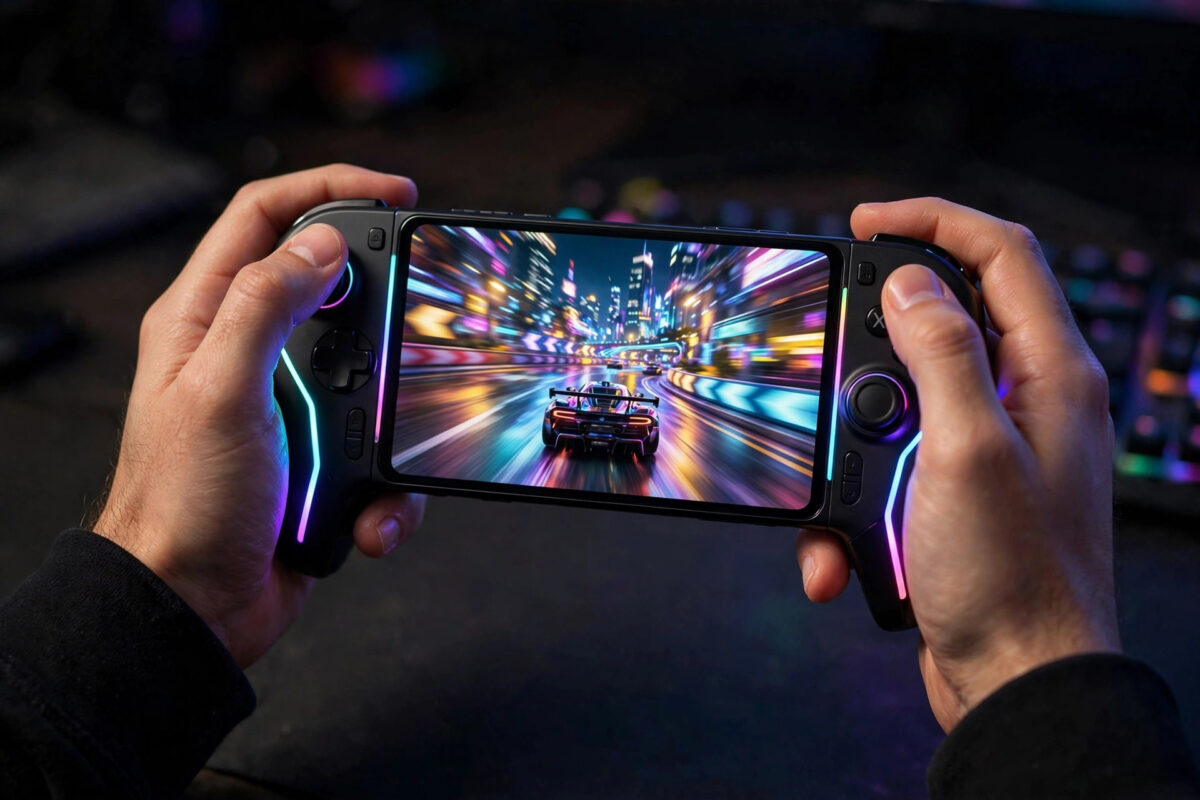
Your game stutters in team fights, aiming feels delayed, and the phone gets hot after fifteen minutes. Meanwhile, the same game runs smoothly on a friend’s similar phone.
That gap is rarely about raw power alone. Background apps, heat, display settings, storage pressure, and network ping all steal performance from Android games.
The fixes below are ordered by impact. Work through them in sequence and test after each stage, so you know what actually helped.
Quick Answer
Close background apps, free storage, turn on your phone’s game mode, set the game to its performance or high-refresh option, and keep the phone cool.
For smoother online play, use 5 GHz Wi-Fi or strong mobile data, lower in-game graphics one step, and remove the case while gaming.
Step 1: Free Up RAM, Storage, and Background Load
Games need free RAM for textures and free storage for cache files. A nearly full phone forces Android to work harder at exactly the wrong moment.
Social apps are the worst background offenders. They sync, refresh feeds, and wake the processor while you are trying to play.
- Open Settings > Storage and keep at least 10 to 15 percent free.
- Delete downloaded videos and clear large app caches to reach that target.
- Before a gaming session, open the Recents screen and close heavy apps.
- Open Settings > Apps and restrict background battery use for social apps you do not need live.
- Pause cloud photo backups and app updates while you play.
- Restart the phone if you have not done so for several days.
A weekly restart clears memory leaks in long-running apps. Many players notice smoother play immediately after this simple habit.
Step 2: Turn On Game Mode and Performance Settings
Almost every Android brand now includes a gaming mode. It prioritises the game, blocks interruptions, and may raise processor limits.
On Samsung Galaxy phones
- Open Settings > Advanced features > Game Booster settings, or open the Game Launcher app.
- Set Game performance to focus on performance where the option appears.
- During a game, swipe to open Game Booster from the navigation bar shortcut.
- Turn on Priority mode to block calls and notifications while playing.
- Check the temperature and frame rate display inside Game Booster.
On Pixel and stock Android
- Open Settings > Apps > See all apps and find your game.
- Alternatively, open Settings > Notifications > Do Not Disturb > Schedules and add a gaming schedule.
- During play, swipe down twice and check the Game Dashboard tile if your model offers it.
- Use the Dashboard to switch optimisation on and to record or check frame rates.
On Xiaomi, OnePlus, and gaming brands
- Open the built-in Game Turbo, Game Space, or Armoury Crate style app for your brand.
- Add your game to the gaming library if it is not detected automatically.
- Select the performance or esports mode rather than balanced mode.
- Disable battery saver for the game inside that same tool.
Battery saver is a hidden performance killer on all brands. It caps the processor, so always check Settings > Battery and turn Battery Saver off before competitive matches.
Step 3: Set Display and Refresh Rate Correctly
A high-refresh screen feels smoother only if the phone and game both use it. Many phones ship set to a standard 60 Hz mode to save battery.
- Open Settings > Display > Motion smoothness on Samsung, or Settings > Display > Smooth display on Pixel.
- Choose High or Adaptive up to 90 Hz or 120 Hz, depending on your model.
- Open your game’s own settings and set frame rate to High, Extreme, or 90/120 FPS if offered.
- Match the game’s frame rate target to what your screen supports.
- Raise brightness manually instead of using auto-brightness during play.
Higher refresh rates drain battery faster and create more heat. If your phone throttles after long sessions, 60 FPS held steadily feels better than 90 FPS that keeps dropping.
Android’s own developer guidance explains how frame pacing and refresh behaviour affect smoothness in detail. The Android developer guide to optimising games for performance is a good background read for curious players.
Step 4: Tune the In-Game Graphics Settings
Default graphics presets often favour pretty screenshots over stable frame rates. Shadows, anti-aliasing, and ultra textures cost the most performance.
The goal is stability, not the lowest possible settings. A locked frame rate with medium graphics beats ultra settings that swing wildly.
- Set graphics quality one step below the maximum, such as High instead of Ultra.
- Turn shadows to Low or Off, because shadows are expensive to render.
- Disable anti-aliasing if your game separates it from overall quality.
- Keep texture quality at Medium or High if your phone has enough RAM.
- Turn off motion blur and depth of field for clearer, cheaper frames.
- Prioritise the frame rate setting over every visual option.
Change one setting at a time between matches. That way you learn which option your specific phone struggles with most.
For phone-specific tuning examples and accessory ideas, see the gaming coverage within Network Ustad’s Android performance and gaming guides. Different chipsets respond best to different setting combinations.
Step 5: Control Heat, the Silent Performance Killer
Every Android processor slows itself down when hot. This thermal throttling is the main reason a game starts smooth and degrades after twenty minutes.
Heat comes from the processor, the bright screen, charging, and the case trapping warmth. You cannot disable throttling, but you can delay it a lot.
- Remove the phone case before long gaming sessions.
- Never play demanding games while fast-charging.
- Play in a cool room and keep the phone out of direct sunlight.
- Lower brightness slightly if the back of the phone feels hot.
- Take a five-minute break every 45 minutes of heavy play.
- Consider a clip-on phone cooling fan if you play competitively for hours.
If the phone gets hot within five minutes of light gaming, something else is wrong. Check for a runaway background app in Settings > Battery > Battery usage.
Step 6: Fix Ping and Network Lag for Online Games
Frame rate and ping are different problems. A game can run at 90 FPS and still feel broken if your connection to the server is unstable.
- Use 5 GHz Wi-Fi close to the router instead of crowded 2.4 GHz Wi-Fi.
- Sit in the same room as the router for competitive matches where possible.
- Pause downloads, streams, and backups on other devices during matches.
- Check the game’s server region and choose the closest region to you.
- On mobile data, play where signal is strong and stable, not merely present.
- Turn off any VPN, which usually adds ping to game servers.
Test your ping inside the game’s network screen before ranked matches. If ping jumps wildly at home, the router or line is the problem, not the phone.
Common Mistakes and Useful Tips
The biggest mistake is installing “game booster” apps from ads. Most just close apps aggressively, show adverts, and add another background process.
Another mistake is maxing every graphics setting because the phone is new. Even flagship phones throttle in long sessions at ultra settings.
Do not use task killers repeatedly during the day. Android reloads killed apps, which wastes more power than leaving them idle.
Useful tip: download game resources and updates on Wi-Fi before travelling. Mid-game asset downloads cause stutters that look like performance problems.
Keep your phone and games updated, but avoid updating a game minutes before an important session. Day-one patches occasionally introduce new bugs.
Finally, check touch sampling settings if aiming feels unresponsive. Some gaming modes offer a touch sensitivity option that helps, especially with screen protectors or gaming gloves.
Conclusion
Better mobile gaming performance on Android comes from removing friction, not magic apps. Free resources, use the built-in game mode, and turn battery saver off.
Then set refresh rate and in-game graphics for stability, control heat, and clean up your network. Each step protects the frame rate in a different way.
Work through the stages in order and test between them. Most phones gain noticeably smoother, longer gaming sessions without spending anything at all.
Frequently Asked Questions
Does closing all apps really improve gaming performance?
Closing heavy apps helps if RAM is tight or an app is syncing in the background. On modern phones with plenty of RAM, the bigger wins are game mode, heat control, and graphics settings.
Is 120 Hz always better for mobile gaming?
Only if the game supports high frame rates and the phone can sustain them. A stable 60 FPS feels better than an unstable 90 or 120 FPS that drops during fights.
Why does my game lag after 20 minutes?
That is classic thermal throttling. The processor slows down to control heat, so frame rates fall. Remove the case, stop charging while playing, and lower graphics or brightness.
Do game booster apps from the Play Store work?
Most third-party boosters add little beyond what the built-in game mode already does. Some make things worse with adverts and background processes, so prefer the manufacturer’s own tool.
Should I use mobile data or Wi-Fi for online games?
Strong 5 GHz Wi-Fi near the router usually gives the lowest, steadiest ping. Good 4G or 5G in a strong-signal area can be equally good, but weak mobile signal causes spikes.



Leave a Reply