
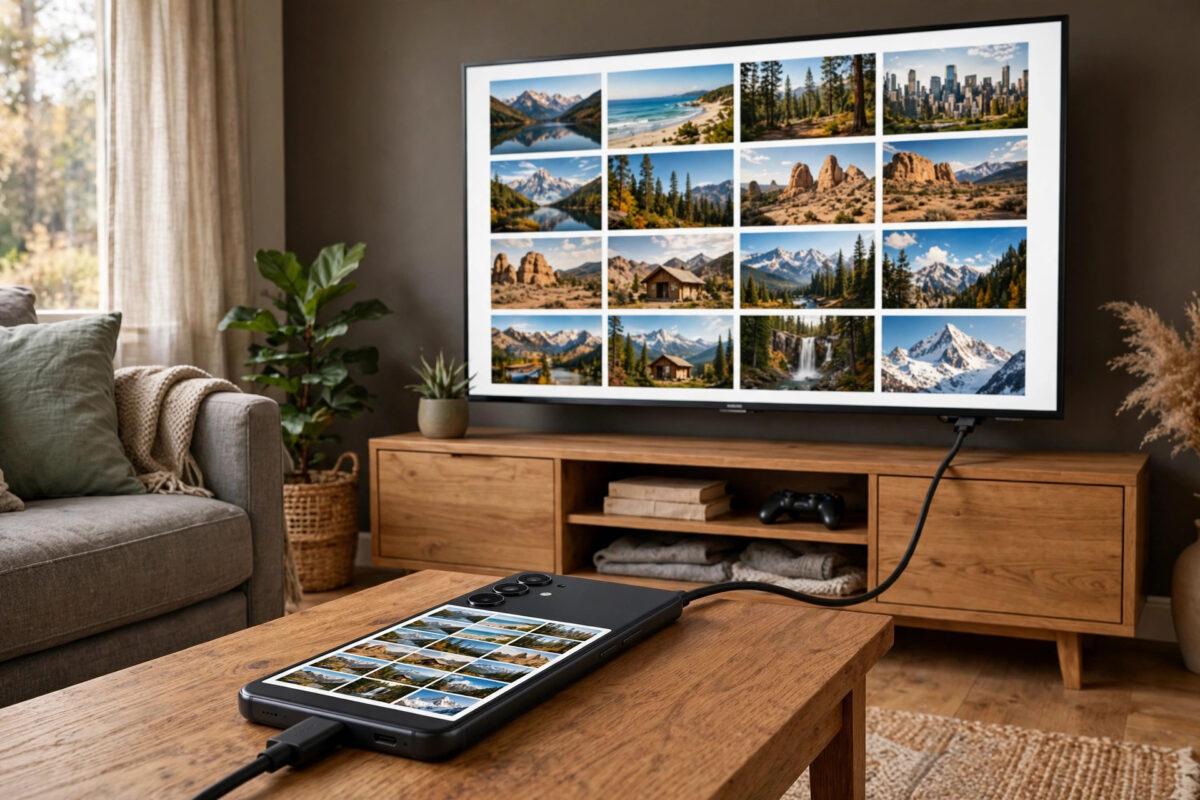
Wireless casting is convenient until Wi-Fi drops, the picture lags during a match, or you are in a hotel with no shared network. A cable avoids all of that.
A wired connection gives the sharpest picture and zero casting lag. It also works in offices, caravans, classrooms, and anywhere else without reliable Wi-Fi.
The only confusing part is compatibility. Not every USB-C port sends video, so you need to match the method to your phone first.
Quick Answer
If your phone supports DisplayPort Alt Mode, plug a USB-C to HDMI cable from the phone to the TV, then select that HDMI input on the TV.
Older micro-USB phones may need an MHL adapter, and phones with no video output need a DisplayLink adapter with its companion app.
Method 1: USB-C to HDMI With DisplayPort Alt Mode
Most flagship and many mid-range Android phones can output video from USB-C. This feature is called DisplayPort Alt Mode.
Samsung Galaxy S and Note models, Pixel 8 and later, and many OnePlus, Motorola, Sony, and Honor phones support it. It carries picture and sound in one cable.
Samsung phones can also launch DeX this way. DeX turns the TV into a desktop-style workspace with resizable windows.
What you need
- A single USB-C to HDMI cable, or a USB-C to HDMI adapter plus a standard HDMI cable.
- An adapter with USB-C charging pass-through, if you plan long films or presentations.
- The TV remote, so you can select the correct HDMI input.
Steps to connect
- Plug the HDMI end into a TV HDMI port and note its number.
- Connect the USB-C end firmly to your phone.
- Turn on the TV and select the matching HDMI input with the Source or Input button.
- Unlock your phone and wait a few seconds.
- Check that the TV mirrors your screen and plays sound through its speakers.
- On Samsung, choose Samsung DeX or plain mirroring from the notification if it appears.
If a thick case stops the plug seating fully, remove it. Partial contact is a very common cause of flickering or a blank screen.
You can confirm model support on Samsung’s official guide to connecting a Galaxy phone to a TV. Look for the words DisplayPort or HDMI output in your own manufacturer’s specs too.
Method 2: Check Video Output Before You Buy Anything
Many budget phones have a USB-C port for charging and data only. No adapter can add video output that the hardware does not have.
Checking first saves money and returns. Galaxy A models below the A5x line, many entry-level Redmi and Poco phones, and budget Motorola phones often lack this feature.
- Find your exact model name in Settings > About phone.
- Search that model name plus “DisplayPort Alt Mode” or “HDMI output.”
- Check the result on the manufacturer’s official specification page.
- If video output is not listed, do not buy a plain USB-C to HDMI cable.
- Use the MHL or DisplayLink options below instead.
Method 3: MHL for Older Phones With Micro-USB
Older phones with micro-USB may support MHL, short for Mobile High-Definition Link. Samsung Galaxy S2 to S5 era phones, some Sony Xperia, and some HTC models used it.
MHL adapters also need power. That power usually comes from a USB cable plugged into the TV or a wall charger.
- Buy an MHL adapter that specifically lists your phone model.
- Connect the adapter to the phone’s micro-USB port.
- Connect an HDMI cable from the adapter to the TV.
- Connect the adapter’s power lead to USB power.
- Select the correct HDMI input on the TV.
- Unlock the phone and check for mirroring.
Samsung used two pin layouts during the MHL years. An adapter with an 11-pin to 5-pin converter avoids the most common compatibility trap.
If your micro-USB phone does not support MHL, a passive adapter will never work. Move to the powered display adapter method instead.
Method 4: USB Display Adapters With Their Own Chip
Phones with no built-in video output still have one wired option. Adapters with a DisplayLink chip render the picture themselves over normal USB data.
These adapters need a free companion app, usually DisplayLink Presenter. The app sends a compressed video stream from the phone to the adapter.
- Buy a DisplayLink-certified USB display adapter.
- Install the companion app recommended by the adapter maker.
- Connect the adapter between the phone and the TV HDMI port.
- Open the app and allow the screen-capture permission it requests.
- Select the TV’s HDMI input and test with a photo or slide.
Expect some limits with this method. Resolution is usually lower, slight lag is possible, and Netflix may show black because of copy protection.
For slides, documents, photos, and web pages, it works well. Classrooms and offices use these adapters for exactly that kind of presentation work.
Getting Sound, Resolution, and Picture Size Right
Sound going to the TV
With USB-C to HDMI and MHL, audio travels through the cable automatically. If sound still comes from the phone, try these checks in order.
- Disconnect the cable, unlock the phone, then reconnect it.
- Check the TV is not muted on that HDMI input.
- On Samsung, check Settings > Sounds and vibration > Separate app sound is not forcing media to the phone.
- Disconnect Bluetooth headphones, which can pull audio back from the TV.
Black bars and wrong aspect ratio
Modern phones are taller than a 16:9 TV screen. Mirroring therefore often shows black bars at the sides, which is normal.
Video apps usually fill the screen correctly in landscape full-screen mode. YouTube is a good quick test for this behaviour.
- Open the TV picture size settings.
- Choose Screen Fit, Just Scan, or 16:9, depending on your TV brand.
- Avoid Zoom settings, which crop the edges of the picture.
Charging while connected
A plain USB-C to HDMI cable does not charge the phone. Video output also drains the battery faster than normal use.
Use a hub or adapter with power-delivery pass-through for long sessions. Plug your charger into the hub, and the hub into the phone.
A hub also adds USB ports for a mouse, keyboard, or drive. More desk setups like this appear across Network Ustad’s practical Android and connectivity guides for readers building a phone-as-computer setup.
Troubleshooting: Connected but Nothing on Screen
- Confirm the TV is on the exact HDMI input you used.
- Unlock the phone, because some phones will not start output from a timed-out screen.
- Reseat both ends of every cable and try a different HDMI cable.
- Restart the phone with the cable already connected.
- Test the phone and adapter on a different TV or monitor.
- Remove the case and check the USB-C port for pocket lint if the picture flickers.
Cables are the single most frequent failure in this list. Always test with a short, known-good HDMI cable before blaming the phone or adapter.
Lint deserves special attention on older phones. A wooden toothpick used gently can remove compacted fluff that stops the plug seating fully.
Common Mistakes and Useful Tips
The biggest mistake is buying a plain cable for a phone without DisplayPort Alt Mode. When it fails, people wrongly assume the cable is faulty.
The second mistake is mixing up phone systems. Apple Lightning adapters are completely different and will not work for Android phones.
Avoid the cheapest unbranded adapters for important presentations. Bargain adapters often overheat and drop the signal mid-meeting.
Turn on Do Not Disturb before connecting for films. That stops private notifications appearing on the big screen in front of everyone.
Increase screen timeout in Settings > Display > Screen timeout for slideshows. That prevents the phone sleeping and blanking the TV.
Keep your adapter and a short HDMI cable together in one bag. You will never waste time debugging someone else’s unknown cable again.
Conclusion
Connecting a phone to a TV with a cable starts with one question. Does your phone send video from its port, and by which standard?
If it supports DisplayPort Alt Mode, a USB-C to HDMI cable gives instant, lag-free mirroring or DeX. Older phones may work through MHL instead.
Phones with no video output can still present through DisplayLink. Check compatibility first, choose the right input, add charging pass-through, and the wired setup will work every time.
Frequently Asked Questions
Why does my USB-C to HDMI cable show a black screen?
Usually the phone lacks video output, the TV is on the wrong input, or the plug is not fully seated. Verify DisplayPort Alt Mode support first, then test cables and inputs.
Can I connect any Android phone to a TV with a cable?
Not directly. The phone needs DisplayPort Alt Mode, MHL, or a DisplayLink adapter with its app, otherwise a simple cable cannot carry the picture.
Does a wired connection work for Netflix and YouTube?
Yes with native USB-C to HDMI or MHL output. With DisplayLink adapters, protected apps may block the picture and show black instead.
Will my phone charge while connected to the TV?
Not through a basic cable. Use an adapter or hub with power-delivery pass-through and plug your normal charger into it.
What is the difference between mirroring and Samsung DeX?
Mirroring copies your phone screen exactly, which suits games and video. DeX creates a desktop workspace on the TV, which suits documents, browsing, and presentations.



Leave a Reply