
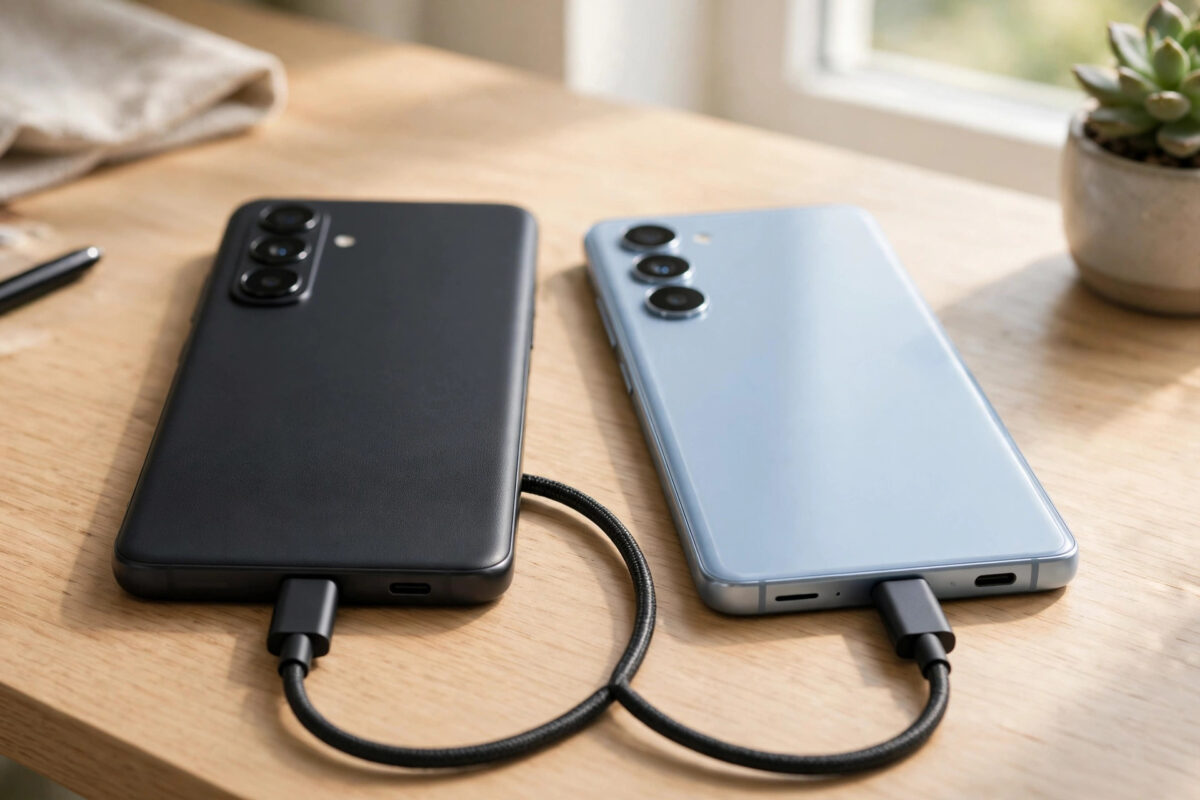
Moving to a new Android phone should feel exciting, not stressful. Yet many people worry about losing photos, contacts, or WhatsApp chats during the switch.
The good news is Android now handles most of the work for you. With a fresh backup and the right cable, you can move almost everything in under an hour.
Quick Answer
Back up your old phone in Settings > Google > Backup, then turn on the new phone and choose Copy apps and data during setup. Connect both phones with a USB-C cable, select everything to copy, and finish setup. Handle WhatsApp, authenticator, and banking apps separately afterwards.
What Transfers and What Does Not
Most personal data moves automatically with Google backup or a cable transfer. This includes contacts, photos in Google Photos, installed apps, SMS, call history, and Wi-Fi passwords.
It also includes many settings like wallpaper, display preferences, and saved networks. App data transfers for many apps, but not all of them.
Some items need manual attention. Banking apps, government apps, and authenticators always ask you to sign in again for security.
Files in the Downloads folder, offline music, and WhatsApp chats also need a separate check. WhatsApp has its own backup inside the app.
Think of the move in three parts: Google account data, media files on the device, and data inside individual apps. Checking all three prevents surprises.
Prepare Both Phones First
Ten minutes of preparation prevents most transfer failures. Do these steps on the old phone before you touch the new one.
- Charge both phones to at least 70%. A transfer that stops mid-way can force you to restart setup.
- Connect both phones to the same fast home Wi-Fi. Stay close to the router if you have a large photo library.
- Update the old phone. On Pixel go to Settings > System > Software update. On Samsung go to Settings > Software update. On Xiaomi go to Settings > About phone and tap the HyperOS or MIUI version.
- Run a Google backup. On Pixel go to Settings > Google > Backup and tap Back up now. On Samsung go to Settings > Accounts and backup > Back up data. On Xiaomi go to Settings > Additional settings > Backup and restore.
- Open Google Photos and confirm backup is finished with no pending uploads. Open WhatsApp, go to Settings > Chats > Chat backup, and tap Back up.
Wait until the backup shows today’s date and time. An old backup is the main reason messages or photos appear missing later.
You can learn more in our Android tips and guides at Network Ustad, which cover backup settings for every major brand.
Method 1: Transfer With a Cable During Setup
This is the fastest and most complete method. Use the USB-C cable that came with your new phone.
- Turn on the new phone and follow the prompts until you see Copy apps and data, then tap Next.
- Choose the cable option when asked. Connect the old and new phones together.
- Unlock the old phone and tap Allow or Trust if a prompt appears. Enter your old PIN if requested.
- On the new phone, leave all items selected: apps, photos, videos, messages, call history, and settings.
- Keep both phones unlocked and connected until the screen says the copy is complete.
A 64GB cable transfer usually takes 20 to 40 minutes. Do not unplug early, even if progress looks paused.
After copying, sign in to your Google Account and let apps reinstall. Leave the phone on Wi-Fi and charging for the first hour.
Method 2: Transfer Wirelessly Without a Cable
Wireless transfer is useful if your old phone uses micro-USB or you lack an adapter. It is slower, especially for videos.
- During setup on the new phone, tap No cable or Copy without a cable when prompted.
- Follow the pairing steps. You may need to confirm a shape, pattern, or code on both screens.
- Select the data you want to copy and keep both phones close together on the same Wi-Fi.
- Wait for the transfer to finish without moving the phones to another room.
If you have more than 30GB of media, expect an hour or more. For very large libraries, cable or cloud restore is more reliable.
Samsung may offer Galaxy wireless transfer and Xiaomi may suggest Mi Mover. The Google wireless method works best when switching brands.
Method 3: Restore From Google Backup
Cloud restore is ideal when the old phone is already gone or damaged. It depends entirely on how recent your backup is.
- During setup, skip the cable option and choose Restore from cloud backup or Can’t use old device.
- Sign in with the same Google Account used on the old phone.
- Select the most recent backup from your old device from the list.
- Choose apps, settings, SMS, and call history to restore, then continue setup.
Photos do not copy directly in this method. They appear through Google Photos once sync finishes on Wi-Fi.
If you already finished setup without restoring, you cannot add the full restore later. A factory reset and fresh setup is the only way to get that option back.
For official steps, see the Google support guide to backing up and restoring Android data.
Method 4: Use Samsung Smart Switch or Mi Mover
Brand tools often copy extras that Google misses, like home screen layout and brand-specific settings. They are worth using when moving to Samsung or Xiaomi.
- On a new Samsung, open Settings > Accounts and backup > Transfer data with Smart Switch and tap Receive data.
- On Xiaomi, open Settings > Additional settings > Mi Mover and choose the receiver option.
- Install the matching app on the old phone if needed, choose Send data, and connect by cable or Wi-Fi.
- Review the list, start the transfer, and wait for the confirmation screen on both phones.
OnePlus and Oppo use Clone Phone for the same job. Pixel phones stick with the standard Google flow, which is already very complete.
Move WhatsApp, Authenticator, and Banking Apps
These apps need separate handling even after a perfect transfer. Plan extra time for them and do not wipe the old phone yet.
- For WhatsApp, on the old phone go to Settings > Chats > Transfer chats, then scan the QR code shown during WhatsApp setup on the new phone. Alternatively, restore the Google Drive backup.
- For Google Authenticator, on the old phone tap Transfer accounts > Export accounts and scan the QR code with the new phone.
- Open each banking or payment app on the new phone, sign in, and complete SMS, email, or biometric verification.
Re-registering banking apps is normal security behaviour, not a failed transfer. Test each app with a small check, like viewing your balance.
Check Everything Arrived
Do a quick audit before you reset or sell the old phone. This takes five minutes and catches almost every gap.
- Open Contacts and search for three recent contacts by name.
- Open Google Photos and check your newest and oldest photos and videos.
- Open Messages and Files > Downloads to confirm threads and downloaded files are present.
- Open your five most important apps and confirm you are signed in correctly.
Leave the new phone on Wi-Fi for a few hours afterwards. App data often continues restoring quietly in the background.
Common Mistakes to Avoid
The biggest mistake is wiping the old phone too early. Keep it untouched for at least two to three days as a safety net.
Using a different Google Account on the new phone is another common error. Your backup will simply not appear if the accounts do not match.
People also forget the separate WhatsApp backup and lose the last day of chats. Run it manually right before you start.
Finally, avoid starting a wireless transfer on low battery or weak Wi-Fi. That is when transfers stall at 99% and need restarting.
Conclusion
A successful Android transfer comes down to preparation, a fresh backup, and using a cable during setup whenever possible. Add separate steps for WhatsApp, authenticator, and banking apps, then verify everything before wiping the old device. Follow that order and your new phone will feel familiar from the first day, with nothing important left behind.
Frequently Asked Questions
Can I transfer data after I already set up my new phone?
Partly, yes. Contacts, photos, and files can sync at any time, and Smart Switch still works after setup. Full restore of SMS, call history, and settings only appears during initial setup, so you would need a factory reset to use it.
How long does an Android to Android transfer take?
A cable transfer of 30GB to 60GB usually takes 20 to 45 minutes, plus time for apps to reinstall. Wireless can take twice as long. Cloud restore depends on your internet speed and photo library size.
Will my passwords transfer to the new phone?
Passwords saved in Google Password Manager sync when you sign in with the same Google Account. Many apps keep you signed in, but banking and security apps will always ask you to verify again.
Should I move my SIM before or after transferring?
Transfer over Wi-Fi first without moving the SIM. Then insert the SIM or activate eSIM, and test a call plus mobile data. Keep the old SIM handy in case activation codes arrive by SMS.
What should I do with my old phone afterwards?
After a few days of checks, sign out of your Google Account and factory reset the old phone from Settings. This erases your data and prepares it safely for sale, trade-in, or giving away.



Leave a Reply