
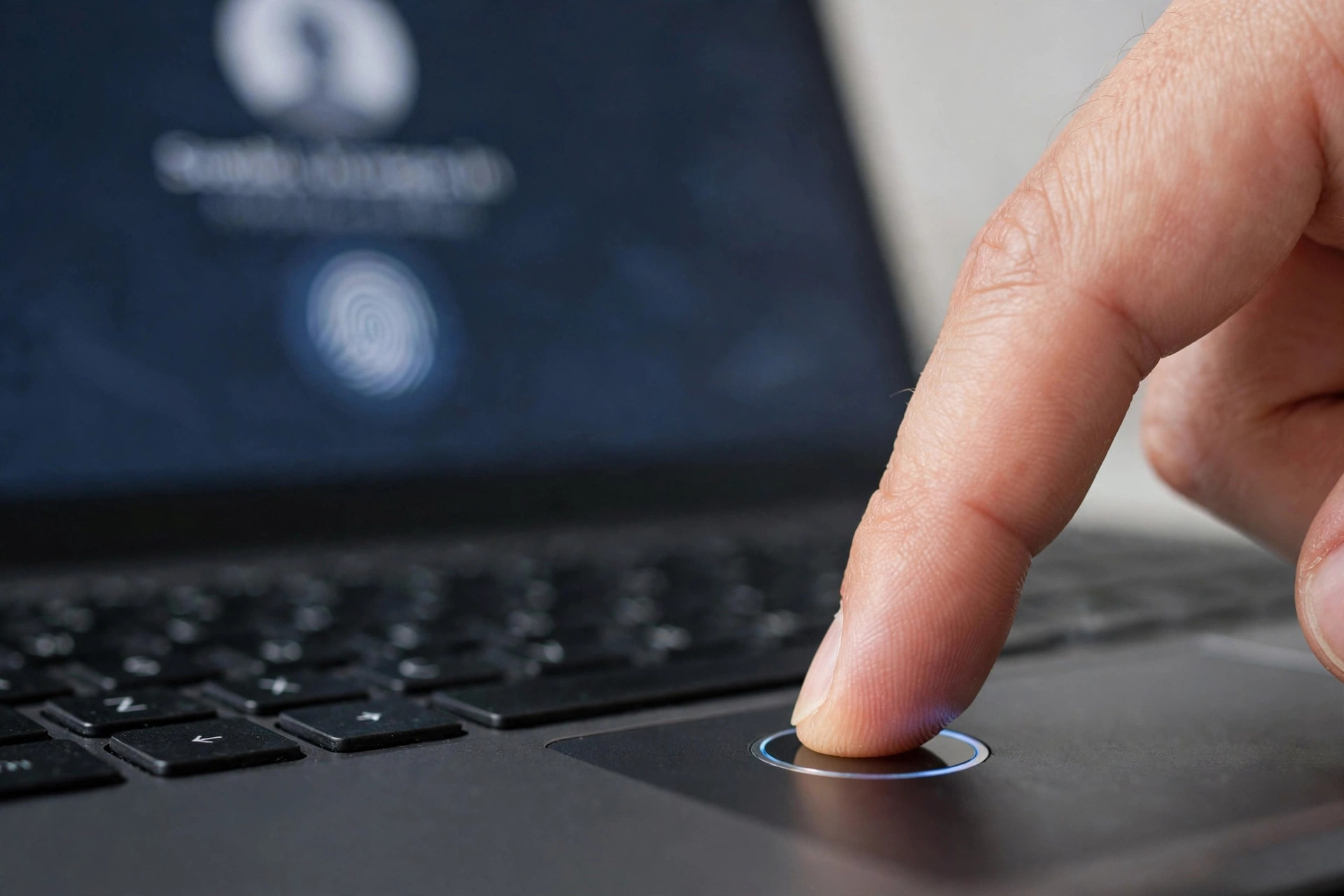
A laptop password alone is no longer the most convenient — or the most practical — way to protect your device. Typing a long, strong password every time you open the lid is tedious, and tedium tempts people to choose weak passwords they can type quickly.
Many people assume a four-digit PIN must be weaker than a password, but laptop PINs work very differently from bank card PINs and are backed by hardware protections most users never see. This guide explains how PIN.
Quick Answer
On Windows, go to Settings, Accounts, Sign-in Options, and set up Windows Hello: create a PIN first, then add fingerprint or facial recognition if your laptop supports it. On a MacBook.
How PIN and Biometric Sign-In Actually Work
A laptop PIN is not sent to the internet and is not stored on a company server. It is linked only to the one device where you created it.
Biometrics work in a similar local way. When you register a fingerprint or your face, the laptop creates a mathematical template stored securely on the device itself. Your actual fingerprint image or photo is not uploaded to the cloud. At sign-in, the new scan is compared on the device with the stored template, and the laptop unlocks only if they match closely enough. Microsoft explains this device-bound model clearly in its Windows Hello overview and setup guidance, which is worth reading if you want the technical detail.
Because the PIN and biometrics never leave the laptop.
Before You Begin: Preparation Checklist
- Update your system: Install pending Windows or macOS updates and restart, so you are using the latest sign-in and security features.
- Know your current password: You will be asked for your existing account password during setup. If you have forgotten it, recover the account first on a trusted device.
- Check your hardware: Look for a fingerprint reader — often built into the power button or beside the keyboard — and check whether your webcam supports face recognition. On Windows, unsupported features simply appear as unavailable in settings.
- Clean the sensor and camera: A quick wipe with a dry microfibre cloth improves fingerprint and face recognition accuracy from the very first scan.
- Decide on a strong PIN: Choose at least six digits if your system allows it, and avoid birthdays, anniversaries, repeated numbers, and simple sequences such as 123456.
How to Set Up a PIN and Biometrics on Windows
Windows calls its system Windows Hello. The steps below apply to Windows 11 and are very similar in Windows 10.
- Open sign-in options: Select Start, then Settings, then Accounts, then Sign-in Options. You will see sections for Facial Recognition, Fingerprint Recognition, and PIN.
- Create your PIN first: Select PIN (Windows Hello), choose Set Up, enter your account password when asked, then type your new PIN twice. Tick the option to include letters and symbols if you want a longer, stronger device PIN, then confirm.
- Add fingerprint sign-in: If your laptop has a reader, select Fingerprint Recognition, choose Set Up, enter your PIN, and repeatedly lift and place your finger on the sensor, adjusting its angle each time as prompted.
- Add facial recognition: If your camera supports it, select Facial Recognition, choose Set Up, enter your PIN, and look directly at the camera in normal lighting until the setup finishes. If you wear glasses, complete the additional scan the wizard offers with and without them.
- Adjust sign-in requirements: On the same page, set how soon Windows should require sign-in after sleep or after the screen turns off. For most people, requiring sign-in whenever the laptop wakes is the right balance.
- Test everything: Lock the laptop with the Windows key plus L, then sign in once with your fingerprint or face and once with your PIN, so you know both methods work before you rely on them.
Windows also offers a helpful recovery habit: after several restarts or a long period without use, it will ask for your PIN or password instead of biometrics. That is normal behaviour.
How to Set Up Fingerprint Sign-In on a MacBook
MacBooks with a Touch ID sensor — usually the top-right key on the keyboard — use your fingerprint to unlock the laptop, approve purchases.
- Open Touch ID settings: Choose the Apple menu, then System Settings, then Touch ID and Password in the sidebar.
- Add a fingerprint: Select Add Fingerprint, enter your Mac account password, and follow the prompts to place and lift your finger repeatedly on the sensor, including the edges of your fingertip, until the scan is complete.
- Name and add extra fingerprints: Label each fingerprint so you know which finger it is, and add a second finger for flexibility. You can store fingerprints for more than one user only if each person has their own Mac user account.
- Choose what Touch ID unlocks: Turn on the options to unlock your Mac, autofill passwords, and confirm purchases, according to your preference. Unlocking and password autofill are the most valuable for daily security.
- Set lock timing: In Lock Screen settings, require a password or Touch ID immediately after sleep or the screensaver begins, especially if you use the laptop outside your home.
- Test it: Close and reopen the lid or let the Mac sleep, then unlock with your fingerprint and once with your typed password to confirm both paths work.
Apple’s own walkthrough in Apple’s guide to using Touch ID on Mac includes photographs of the sensor positions on different models if you are unsure where to place your finger.
Making Your Setup Stronger
A PIN and fingerprint are only part of laptop protection. Turn on device encryption — BitLocker on supported Windows editions or FileVault on Mac — so data stays protected even if the laptop is stolen and its drive is removed.
For shared family laptops, give each person their own user account with their own PIN and fingerprints. Sharing one account and one PIN removes all accountability, exposes everyone’s files to each other, and makes it impossible to limit what children can install or change. Separate accounts take minutes to create and are covered alongside other everyday safeguards in NetworkUstad’s laptop and home device security guides.
Troubleshooting Common Problems
Fingerprint is not recognised
Clean and dry both the sensor and your finger, then try again. Cold, very dry, or wet fingers scan poorly. If failures continue, delete the fingerprint in settings and register it again in normal indoor conditions, covering more of the fingertip edges during setup.
Face recognition fails in dim light
Sit facing a light source, remove sunglasses or face coverings for the scan.
You have forgotten your PIN
On the Windows sign-in screen, choose Sign-in Options, select the password icon, and sign in with your account password. Then return to Settings and reset the PIN.
Common Mistakes to Avoid
- Using an obvious PIN: Birthdays, 1234, and repeated digits are the first combinations anyone picking up your laptop would try.
- Registering someone else’s fingerprint on your personal account: Anyone whose fingerprint is registered has full access to that account, including password autofill on many systems.
- Weakening the backup password: Choosing an easy password because biometrics feel sufficient defeats the design. The password protects recovery, new devices, and sensitive changes.
- Turning off the sign-in requirement after sleep: A laptop that wakes straight to the desktop is unprotected in cafes, offices, trains, and shared homes.
- Ignoring encryption: A sign-in screen does not protect files if the drive can be removed. Enable FileVault or BitLocker as well.
- Never testing the backup method: Try your PIN and password occasionally so you are not locked out on the one day the fingerprint reader fails.
Conclusion
Setting up a PIN and biometric lock is one of the rare security improvements that also makes everyday life faster. Sign-ins take a second, there is nothing long to type in public view.
The whole setup takes about ten minutes on most laptops. Do it today, test both the biometric and the backup method, and enjoy the combination of speed and peace of mind every time you open the lid.
Frequently Asked Questions
Is a PIN really safer than a password on my laptop?
For signing in to that laptop, yes, in practical terms. The PIN works only on the one device, is protected by hardware that slows down guessing attempts, and is never sent across the internet.
Can someone unlock my laptop with a photo of my face or a copied fingerprint?
Modern Windows Hello cameras use infrared sensing that distinguishes a live face from a photograph, and quality fingerprint readers check for a real finger rather than an image. No system is perfect.
What happens if my fingerprint reader or camera breaks?
You can still sign in with your PIN or password. That is why testing the backup methods during setup matters. If the hardware is faulty, check the manufacturer’s support options — sensor failures on newer laptops are usually repairable under warranty.
Should children have their own PINs and fingerprints?
Yes, on their own user accounts. Separate accounts let you apply parental controls, protect your own files and saved passwords, and remove a child’s access easily later. Never register a child’s fingerprint on an adult’s account or share one PIN across the family.
Does biometric data get sent to Microsoft or Apple?
No. Fingerprint and face templates are stored in a secure area on your own device and are not uploaded to the cloud or shared with other services. If you delete a fingerprint or face profile in settings, the template on that device is removed.



Leave a Reply