
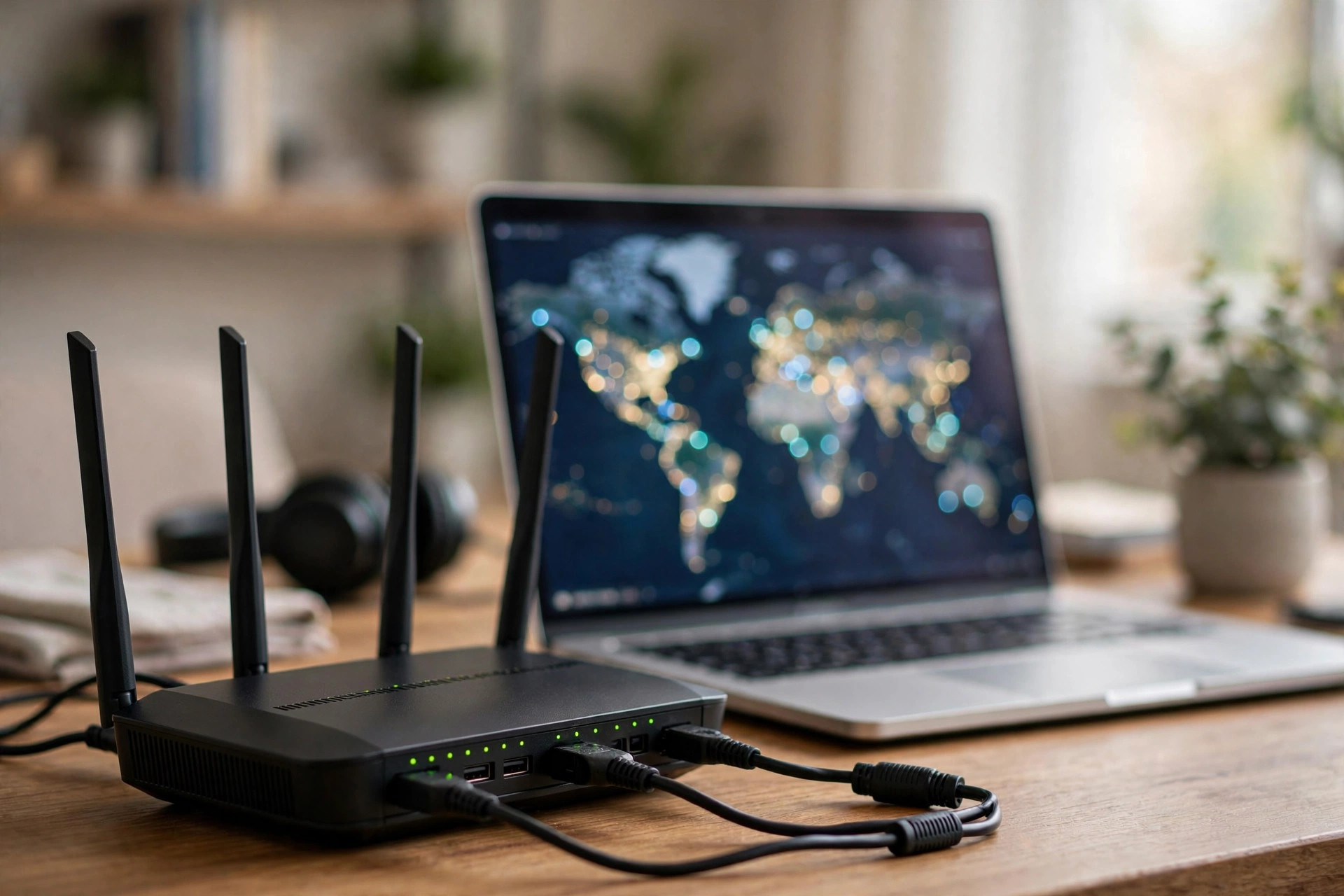
Setting up a VPN on individual phones and laptops works fine — until you count the devices. The smart TV cannot run your VPN app. Neither can the games console, the streaming stick, or the work laptop your employer manages. And every new gadget means another install, another login, another subscription slot used up. A router-level VPN solves all of that at once: configure it once on the router, and every device that joins your Wi-Fi is protected automatically.
In this guide we will explain what a router VPN does and does not do, check whether your router supports it, and walk through the full setup using a typical VPN provider and protocols like WireGuard and OpenVPN, step by step.
What a Router VPN Actually Does
A VPN (Virtual Private Network) creates an encrypted tunnel between your network and a VPN server somewhere in the world. With the VPN on your router, all traffic from all connected devices travels through that tunnel: your internet provider sees only an encrypted stream to the VPN server, websites see the VPN server’s IP address and location instead of yours, and devices that could never run a VPN app — TVs, consoles, streaming sticks — gain the same protection and region appearance as everything else.
Be clear about the limits, too. A router VPN does not make you anonymous in any absolute sense, does not protect traffic after it leaves the VPN server, and routes your entire household through one location — if the server is in another country, everyone’s streaming catalogues and search results change accordingly. It also encrypts everything through the router’s modest processor, which brings us to hardware.
Step 1: Check Whether Your Router Supports a VPN Client
Not every router can run a VPN. You need a router with “VPN client” functionality (not just VPN passthrough or a VPN server). Many ASUS routers include it, as do GL.iNet travel routers and models running or compatible with custom firmware such as Asuswrt-Merlin, DD-WRT, or OpenWrt. ISP-supplied routers almost never offer it. Log in to your admin page and look for a VPN section; if there is only a “VPN server” option, your router can accept incoming connections but cannot connect out to a provider — a different job entirely. If your router lacks client support, the practical options are buying one that has it or running the VPN on a small always-on device instead.
Step 2: Choose a VPN Provider and Protocol
Pick a reputable paid provider that explicitly supports router installations — free VPNs rarely do, and router traffic volumes make free tiers impractical anyway. For protocol, prefer WireGuard where offered: it is modern, lean, and dramatically faster on router hardware than the older OpenVPN. OpenVPN remains the most widely supported fallback and is perfectly fine for streaming and general privacy. The router’s CPU is the bottleneck for encryption; a router that manages 600 Mbps unencrypted may only push 60–150 Mbps through OpenVPN, while WireGuard on the same hardware often doubles or triples that. The official WireGuard project site explains why the protocol is so much lighter than its predecessors.
Step 3: Download the Configuration Files
In your VPN account dashboard, find the “manual setup” or “router” section. Choose a server location — pick one geographically close for speed unless you specifically need another country’s library — and download the configuration: a .conf file for WireGuard (containing your private key and the server’s details) or an .ovpn file plus your service username and password for OpenVPN. Save these somewhere safe; treat key files like passwords.
Step 4: Enter the Configuration in Your Router
For WireGuard
In the router’s VPN client section, add a new profile and upload the .conf file (many routers parse it automatically) or paste in the interface private key, address, and the peer’s public key, endpoint, and allowed IPs (0.0.0.0/0 to route everything). Apply and activate the profile.
For OpenVPN
Import the .ovpn file, then enter the service username and password from your provider (these often differ from your account login). Apply, activate, and watch the status change to Connected, usually with the VPN’s public IP displayed.
Step 5: Verify, Then Fine-Tune
On any connected device, visit an IP-check website and confirm the address and location match your chosen VPN server, then run a DNS leak test to ensure DNS queries are also going through the tunnel — your provider’s manual setup page usually links one. Enable the “kill switch” option if your router offers it, so traffic stops rather than leaking if the VPN drops. Run speed tests before and after to know your real cost. Finally, consider policy routing if your router supports it: many users route TVs through the VPN but let banking-sensitive or latency-critical devices (work laptops, gaming PCs) bypass it, avoiding region blocks and extra ping. For more router configuration walkthroughs, see Network Ustad’s advanced router guides.
Testing the Result: What to Check Before You Relax
Give the finished setup a thirty-second examination. On a phone connected to the router’s Wi-Fi, an IP-check website should display the VPN server’s address and country, not your home one. A DNS leak test should show only the VPN provider’s resolvers. Streaming services should behave as if you are in the server’s country. Finally, try a site or app known to block VPNs — some banks and video services refuse VPN traffic; if one matters to you, that device is a candidate for the bypass list in your policy-routing rules, or for temporarily pausing the router VPN from the admin page. Knowing these quirks on setup day beats discovering them mid-film on Friday night.
Common Mistakes and Tips
The biggest mistake is expecting no speed loss — encryption on a small router CPU always costs something, so choose WireGuard and a nearby server. Second, connecting the whole house to a distant country and then wondering why local services, banking apps, and shop websites behave oddly. Third, skipping the DNS leak test: a working IP change with leaking DNS still exposes your browsing to your ISP. A useful tip is to set up two profiles — a nearby server for everyday use and one abroad for streaming — so switching takes seconds when you need it.
Conclusion
A router VPN is the set-and-forget way to protect an entire household, including the TVs and consoles that cannot protect themselves. Check your router supports a VPN client, choose a provider and WireGuard if possible, import the configuration, verify with IP and DNS leak tests, and enable the kill switch. Do it once, and every device that walks through your front door is covered.
Frequently Asked Questions
Will a router VPN slow down my whole network?
Somewhat — the router’s processor must encrypt all traffic. WireGuard on decent hardware keeps the loss modest (often 10–30 percent); older routers using OpenVPN can lose much more. A nearby server minimises the impact.
Can my ISP-supplied router run a VPN client?
Almost never. ISP routers typically lack VPN client features. Most people buy a VPN-capable router (ASUS and GL.iNet are popular choices) and put it behind or in place of the ISP unit.
Is it legal to use a VPN on my router?
In most countries, yes — VPNs are legal everyday privacy tools. A few jurisdictions restrict them, and using a VPN does not make illegal activity legal. Check your local rules if unsure.
Can I choose which devices use the VPN?
On many routers, yes — this is called policy-based or selective routing. You can send the TV through the VPN while your work laptop connects directly. Simpler routers route everything or nothing.
What happens if the VPN connection drops?
Without a kill switch, your router silently falls back to your normal unencrypted connection. Enable the kill switch option so traffic pauses instead of leaking until the tunnel reconnects.



Leave a Reply