
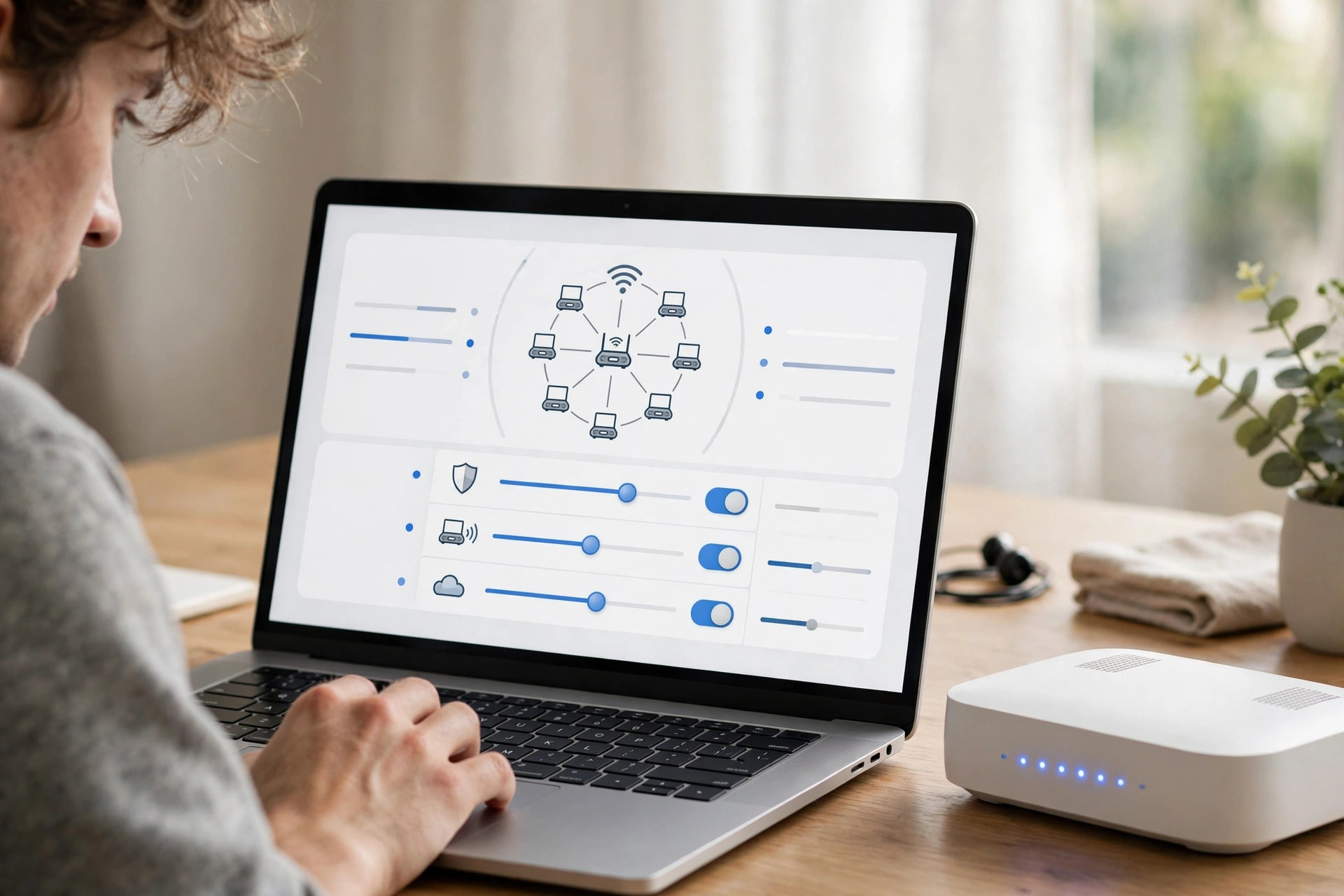
Logging in to your router admin page for the first time feels intimidating if you have never done it, but it is actually one of the most useful skills any home internet user can learn. That single page is where you change your Wi-Fi name and password, check who is connected, update firmware, set up parental controls, and fix many of the slow or unstable connection problems people blame on their internet provider. You do not need to be an engineer, and you do not need any special software. All you need is a phone, tablet, or computer connected to the router, the router’s login address, and the default sign-in details printed on the device itself.
This guide walks you through the entire first login, step by step, for most home routers from TP-Link, Netgear, ASUS, Linksys, D-Link, Huawei, and provider-supplied models. We will cover how to find the correct address, what to do when the password is rejected, and the three settings to change immediately afterwards.
What Is the Router Admin Page and Why Does It Matter?
Your router runs its own small built-in website, stored on the router itself rather than on the internet. When you type its address into a browser, you are talking directly to the router over your home network. That is why the admin page works even when your internet connection is down, as long as your device is connected to the router by Wi-Fi or cable.
Inside the admin panel you will usually find sections for wireless settings, connected devices, security, port forwarding, and system tools. Router makers arrange these menus differently, but the core options are similar everywhere. If you have never opened this page, your network is almost certainly still using factory defaults, and factory defaults are public knowledge. Anyone within Wi-Fi range who knows the model can look up those defaults in seconds, which is why a first login followed by a password change matters so much.
What You Need Before You Start
Gather a few things first and the process will take under five minutes. You need a device connected to the router, ideally a laptop connected with an Ethernet cable for the very first setup, although Wi-Fi works fine on most modern routers. You need the router within reach so you can read the sticker on its base or back panel. That sticker normally lists the default Wi-Fi name and password, the admin address, and the admin username and password.
It also helps to know your router’s brand and model number, printed on the same sticker. Finally, use a modern browser such as Chrome, Edge, Firefox, or Safari, and avoid using a VPN while you do this, because a VPN can route your request away from your local network and make the page unreachable.
Step-by-Step: Your First Router Login
Step 1: Connect to the Router
Connect your computer or phone to the router’s network. For a wired connection, plug one end of an Ethernet cable into a yellow LAN port on the router and the other end into your computer. For Wi-Fi, join the network name printed on the sticker and enter the printed Wi-Fi password. On a brand new router there may be two names, one ending in 2.4G and one in 5G. Either will let you reach the admin page.
Step 2: Find the Router’s IP Address
Most home routers use one of a handful of private addresses. The most common are 192.168.0.1 and 192.168.1.1. TP-Link commonly uses 192.168.0.1, Netgear often uses 192.168.1.1, and many provider routers use 192.168.1.254 or 10.0.0.1. Many brands also provide a friendly address such as tplinkwifi.net, routerlogin.net, or myrouter.local, which forwards to the same page.
If none of those work, find the address from your device. On Windows, open Command Prompt, type ipconfig, and look for the Default Gateway value. On a Mac, open System Settings, go to Network, select your connection, and check the router address in the details. On an iPhone, go to Settings, Wi-Fi, tap the information icon next to your network, and read the Router field. On Android, open the Wi-Fi connection details and look for Gateway. That gateway address is your router.
Step 3: Open the Address in Your Browser
Type the address into the browser’s address bar exactly, without adding www or searching for it in Google. Press Enter. Some routers use HTTPS and show a warning that the connection is not private. That warning is expected for a local device with a self-signed certificate. Click Advanced and then Proceed to continue. If the page times out instead, double-check that you are connected to the right network and that no VPN or proxy is active.
Step 4: Enter the Default Username and Password
On the login screen, enter the credentials from the sticker. Historically, many routers used admin for both the username and password, or admin with password left blank. Newer models increasingly force you to create an admin password during first setup instead of using a shared default, and some use the Wi-Fi password from the sticker as the initial admin password. Type carefully, because these fields are case-sensitive, and check that Caps Lock is not on.
If you are following our wider home networking guides and router tutorials, you will see this same sticker-first approach recommended everywhere, because it avoids guessing and avoids the outdated credential lists that circulate online.
Step 5: Complete the Quick Setup Wizard
Many routers launch a quick setup wizard on first login. It typically asks for your region and time zone, your internet connection type, and new Wi-Fi names and passwords. For most home broadband connections the connection type is Dynamic IP or PPPoE. If your provider gave you a PPPoE username and password on your welcome letter, enter those exactly. If you are unsure, Dynamic IP is the safest starting point for cable and most fibre services, and you can change it later without resetting anything.
The Three Settings to Change Immediately
Getting in is only half the job. Before you close the page, change these three things. First, set a new administrator password that is different from your Wi-Fi password, at least twelve characters long, and store it in a password manager or written down somewhere safe at home. Second, change the Wi-Fi password from the printed default to something unique, and use WPA2-AES or WPA3 security if your router offers it. Third, check for a firmware update under Advanced, System Tools, or Administration, and install it if one is available. Firmware updates patch security holes and often improve stability.
While you are there, consider renaming your Wi-Fi network to something that does not reveal your name, address, or router model. A neutral name gives away nothing to neighbours scanning for networks. The UK National Cyber Security Centre device security guidance makes the same point in broader terms: change defaults, keep software updated, and use strong unique passwords on home devices.
Common Mistakes and Troubleshooting Tips
The most common mistake is typing the router address into a search engine instead of the address bar, which returns web results rather than your router. The second is trying to log in while connected to a different network, such as a neighbour’s Wi-Fi, a mobile hotspot, or a mesh satellite that has not finished syncing. The third is confusing the Wi-Fi password with the admin password. They are two different credentials, and changing one does not change the other.
If the login page loads but the password is rejected, re-read the sticker under good light. Characters such as 0 and O, or 1 and l, are easy to mix up. If a previous owner or installer changed the password and nobody remembers it, the only reliable route back in is a factory reset. With the router powered on, press and hold the reset button, usually recessed in a pinhole, for about ten seconds until the lights blink. The router will return to its printed defaults, but you will need to set up your Wi-Fi again afterwards.
If the page will not load at all, restart both the router and your device, try a different browser, and try a wired connection.
Conclusion
Your first router login comes down to four moves: connect to the router, find its gateway address, open that address in a browser, and sign in with the details on the sticker. Changing the admin password, setting a strong Wi-Fi password, and updating the firmware should be treated as part of the same five-minute job. Once you have done it once, every future task becomes straightforward, because you already know your way into the control room of your home network.
Frequently Asked Questions
What is the most common router login address?
The two most common addresses are 192.168.0.1 and 192.168.1.1. If neither works, check the sticker on your router or look up the Default Gateway value in your device’s network settings, which always points to your router.
Can I log in to my router from my phone?
Yes. Connect the phone to the router’s Wi-Fi, open the browser, and type the router address. Many brands also offer an app, such as TP-Link Tether or Netgear Nighthawk, but the browser method works on almost every model.
Is it safe to accept the browser security warning on the login page?
On your own home network, yes. The warning appears because the router uses a local self-signed certificate rather than a public one. Only proceed when you are connected to your own router and you typed the address yourself.
What if the default password does not work on a new router?
Check whether the model asks you to create a password on first use instead of accepting a default. If someone else set it up before you, perform a factory reset with the reset pinhole and sign in using the printed defaults.
Should the admin password and Wi-Fi password be the same?
No. Keep them different. The Wi-Fi password gets shared with guests and typed into many devices, while the admin password protects the router’s settings. Using separate passwords limits the damage if one of them leaks.



[…] and admin on older hardware. If you need a refresher on this part, our detailed walkthrough on accessing your router admin page for the first time covers every brand’s address and login […]
[…] inspect lights, logs, and connection status properly, you will need the admin pages. This guide to logging in to your router admin page for the first time walks through finding the address, usually 192.168.0.1 or 192.168.1.1, and signing in […]
[…] our detailed walkthrough on logging in to your router admin page for the first time if you have never opened the router settings […]
[…] will need to access your main router’s settings during setup, so our guide on how to log in to your router admin page for the first time is worth reading before you […]