
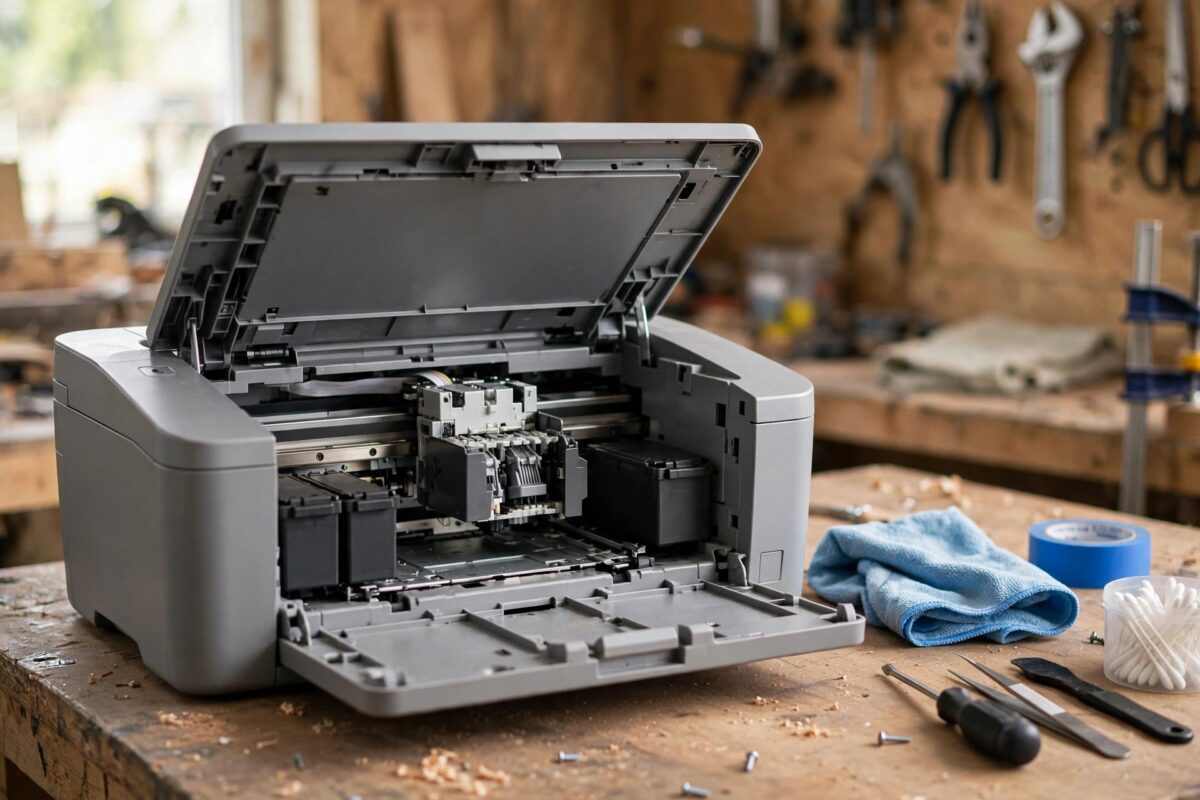
Error 0xc19a0023 on an HP OfficeJet 6950 stops everything: no printing, no scanning queue, just a message saying there is a problem with the printer or printhead. This code belongs to HP’s ink system error family, and while it sometimes means the printhead really has failed, in many cases it is triggered by a cartridge the printhead cannot read, dried ink blocking the head, or a glitch that a proper reset clears. This guide shows you how to work through the recoverable causes before you spend money on a replacement printhead.
Quick Answer
HP error 0xc19a0023 means the printer has detected a printhead or ink system fault. Remove all cartridges, restart the printer with them out, clean the cartridge and printhead contacts, reseat the cartridges firmly, and run the printhead cleaning cycle. If the error survives with a different set of cartridges fitted, the printhead itself has most likely failed and needs replacement or repair.
What This Error Code Covers
The 0xc19a family of codes on HP inkjet printers covers ink system failures — the printer expected ink to be delivered or sensed in a certain way and got something unexpected. Code 0xc19a0023 is most often associated with the printhead itself, but the printer cannot always tell the difference between:
- A cartridge whose chip or vent is faulty, so ink cannot flow.
- Electrical contacts between cartridge, carriage, and printhead that are dirty or damaged.
- A printhead clogged so badly with dried ink that it overheats or fails its self-test.
- A genuine electronic failure inside the printhead.
That is why the troubleshooting order matters: cheap, reversible checks first, replacement last.
Step 1: Reset with the Cartridges Removed
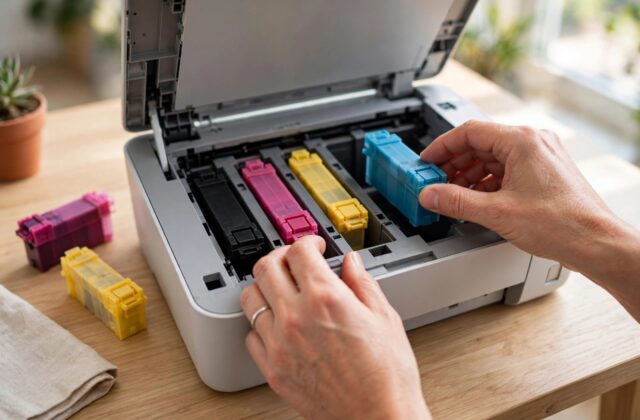
- With the printer switched on, open the cartridge access door and remove all four cartridges. Set them nozzle-up on a sheet of paper.
- Close the door. The printer will complain about missing cartridges — that is expected.
- Unplug the power cable from the back of the printer while it is still on, and unplug it from the wall.
- Wait two full minutes. Press and hold the power button for 15 seconds during this time to drain residual power.
- Reconnect power directly to a wall socket and switch the printer on.
- When prompted, refit the cartridges one at a time, pushing each firmly until it clicks.
- Let the printer run its initialisation and alignment without interruption.
This sequence forces the printer to re-detect the ink system from scratch, and it clears a surprising number of 0xc19a errors on its own.
Step 2: Clean Contacts and Check the Cartridges
If the error returns, inspect the ink system closely:
- Check each cartridge’s vent on top — a blocked vent (tape residue is common) starves the printhead of ink and can trigger this code. Clear it with a pin.
- Wipe the gold contacts on each cartridge with a dry lint-free cloth.
- With the printer unplugged, gently wipe the matching contacts inside the carriage.
- Look for pooled ink or paper fibres inside the carriage area and remove them carefully.
- If you have a spare cartridge — even an old empty one — swap the cartridges one at a time to find whether a single cartridge triggers the error.
Step 3: Clean and Align the Printhead from the Menu
If the printer reaches its home screen without the error, immediately run maintenance before it comes back: Setup, Printer Maintenance, Clean Printhead. Run it up to two or three times, printing the diagnostic page after each run. Then run Align Printhead. HP describes the same routine in its ink system failure troubleshooting document. If a particular colour is missing entirely from the diagnostic page, that channel of the printhead is clogged or dead.
For a head that is clogged but electrically healthy, careful manual cleaning can save it — our guide to cleaning printer heads safely explains the warm-water soak method and what to avoid.
Step 4: When the Printhead Really Has Failed
The OfficeJet 6950’s printhead is not designed as a simple user-swappable part like a cartridge, but replacement heads are available and the swap is possible for confident users. Before buying one, be sure of the diagnosis: the error persists after a full reset, contacts are clean, and it appears with known-good cartridges fitted. Also weigh the cost — a replacement printhead can approach half the price of a new printer, so for a heavily used 6950 a replacement printer may be the smarter spend. If the printer is under warranty or a care pack, contact HP instead of opening anything.
Common Mistakes to Avoid
- Removing the printhead or cartridges while the printer is mid-cycle — always let the carriage park first.
- Using compressed air inside the carriage — it drives ink and debris deeper into the mechanism.
- Running cleaning cycles endlessly — each run uses ink and a head that fails its self-test will not be cured by ten more cycles.
- Buying a printhead before testing other cartridges — one faulty cartridge chip fakes a printhead failure perfectly.
How to Tell a Clogged Printhead from a Dead One
The distinction decides whether cleaning is worth your time. A clogged printhead usually falters gradually: print quality declines over weeks, colours go missing in bands, and cleaning cycles restore it partially each time. The error, when it appears, often clears after a reset and returns only after heavy printing. A printhead that has failed electronically behaves differently — the error appears suddenly, often first thing in the morning after the printer sat idle, and returns immediately after every reset regardless of cartridges fitted. Another clue is heat and smell: a printhead that gets noticeably warm around the carriage or produces a faint electrical smell during its self-test is failing, not clogging. Test with a spare cartridge set if you can borrow one; it is the cheapest way to be certain before spending on parts. And if the printer is one of several in a small office, label it clearly once diagnosed — otherwise the next person repeats the whole troubleshooting sequence from the top.
Whatever the outcome, note the date the error first appeared and what finally cleared it — even if the answer turns out to be a replacement printhead. Ink system errors on this model tend to recur as it ages, and a short history turns the next occurrence from a full investigation into a five-minute confirmation of a known pattern.
Conclusion
Error 0xc19a0023 sounds terminal, but a structured approach — reset with cartridges out, clean contacts, check vents, test with different cartridges, then clean the head — rescues many OfficeJet 6950 printers. Only when the code survives all of that should you price up a printhead or a replacement printer.
Frequently Asked Questions
Can low ink cause error 0xc19a0023?
Low ink alone normally triggers a low-ink warning, not this code. However a completely empty or dried-out cartridge can contribute to an ink system fault, so test with cartridges that have ink in them.
Does this error affect scanning too?
On most OfficeJet models the error blocks the whole device, including scan-to functions, until it is cleared, because the printer will not initialise.
How long should I wait during the power reset?
At least 60 seconds, and two minutes is better for ink system errors. The point is to fully discharge the board so the ink system is re-detected from zero.
Can third-party cartridges cause this error?
Yes — a cartridge with a faulty chip or poor contact fit is a classic trigger. Testing with a genuine HP cartridge is the quickest way to rule this in or out.
Is the printhead on the 6950 replaceable by the user?
It is not an official consumable like a cartridge, but replacements exist and fitting one is moderately involved. Treat it as a careful DIY job or a repair-shop task.
Leave a Reply