
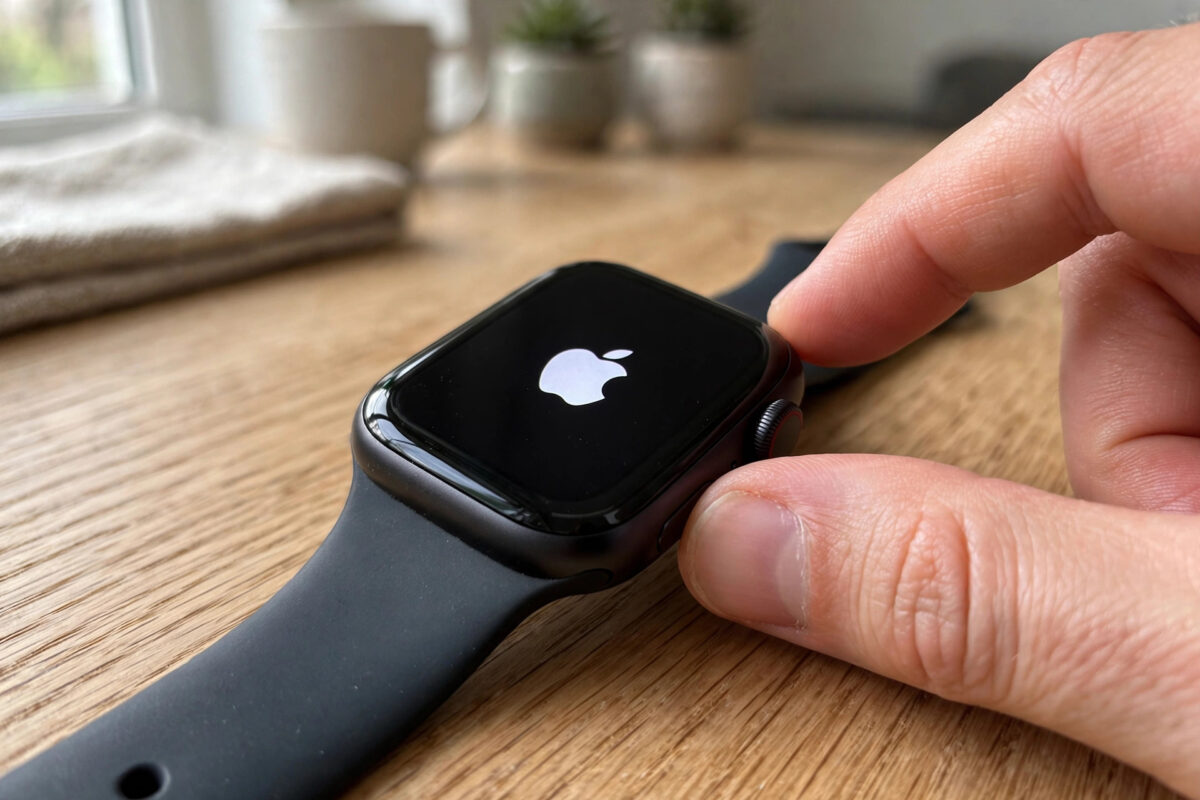
You press the side button, the Apple logo appears, and then nothing happens. Minutes pass, the logo stays on screen, and the watch never reaches your watch face. A watch stuck on the Apple logo during startup is alarming, especially if it happens right after an update, but it is usually a software stall rather than dead hardware.
The logo screen simply means the watch started booting and then got stuck partway through loading watchOS. A flat battery, an interrupted update, a corrupted setting, or almost-full storage can all cause it. The fixes below move from the safest option, a force restart, to a full unpair and restore, so try them in order and stop when the watch boots normally.
Quick Answer
To fix an Apple Watch stuck on the Apple logo, first put it on its charger for at least 30 minutes, then force restart it by holding the side button and the Digital Crown together for about ten seconds until the logo reappears. If it still will not boot, unpair it from the Watch app on your iPhone and set it up again, restoring from backup. A watch that loops the logo after all of this needs Apple service.
Why an Apple Watch Gets Stuck on the Apple Logo
During startup the watch loads the system, checks its storage, and reconnects to your iPhone. Anything that interrupts that short sequence can freeze the boot process on the logo screen.
- An interrupted watchOS update. If the watch left its charger or lost its connection mid-update, the system files may be half-written.
- A deeply drained battery. A watch with almost no charge may show the logo, fail to finish booting, and loop back to the logo again.
- Corrupted settings or a misbehaving app. Bad data loaded early in startup can stall the whole system.
- Very low free storage. A watch packed with music, podcasts, and apps may not have room to complete an update or boot cleanly.
- Hardware trouble. Water damage, a swollen battery, or a failing component can also stop the boot, though this is the least common cause.
Step 1: Charge the Watch Properly First
Do not skip this step. Many logo loops are simply a battery that cannot supply enough power to finish starting up.
- Place the watch flat on its original magnetic charger and confirm the cable is firmly plugged into a working wall adapter.
- Leave it charging for at least 30 minutes without pressing buttons. A fully drained watch may show nothing at all for the first few minutes.
- Look for the green charging bolt on screen. If you see a red bolt or a cable icon, the battery is still very low, so keep waiting.
- After 30 minutes, leave the watch on the charger and move to the force restart below.
Step 2: Force Restart the Watch
A force restart cuts power to the frozen system and starts the boot again. It does not erase any data, which makes it the safest real fix to try.
- Press and hold both the side button and the Digital Crown at the same time.
- Keep holding for about ten seconds. Ignore anything that appears on screen while you hold.
- Release both buttons when the Apple logo reappears.
- Wait two to three minutes. A restart after a crash or update can take longer than a normal boot.
- If your watch face appears, unlock the watch and let it sit for a few minutes so background tasks can finish before you use it heavily.
If the logo returns and freezes again, repeat the force restart once more while the watch is on its charger. Twice is enough; if it still loops, move on to unpairing.
Step 3: Unpair and Restore From Your iPhone
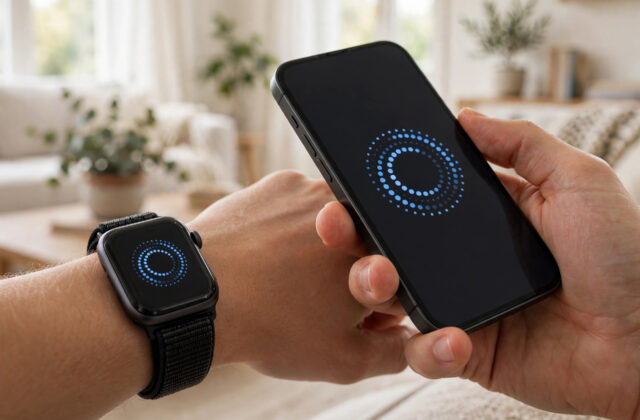
Unpairing erases the watch and reinstalls a clean copy of its settings from the backup stored on your iPhone. This clears the corrupted data that a force restart cannot fix. Storage-related boot failures are common after updates, and our guide to the watchOS update not enough storage error and its fix explains how to free space so the restored watch does not fall into the same trap.
- Keep the watch on its charger and close to your iPhone.
- Open the Watch app on the iPhone, tap My Watch, then tap All Watches.
- Tap the information button next to your watch and tap Unpair Apple Watch.
- Confirm, and enter your Apple Account password if asked to turn off Activation Lock.
- Wait for the watch to erase fully. It will return to the welcome and language screen.
- Pair it again through the Watch app, choose Restore from Backup, and select the most recent backup.
- Keep the watch charging and near the iPhone until setup and syncing complete.
If the Watch app cannot see the watch at all because it never finishes booting, try the erase from the watch itself once it responds, or leave it charging for an hour and attempt another force restart before repeating the unpair.
Step 4: If the Logo Appeared During an Update
Update-related stalls need a little patience before you intervene. A large watchOS update can sit on the logo or a progress ring far longer than feels normal.
Give the update real time
If the screen shows a progress ring around the logo, the update is still working. Keep the watch on its charger, keep the iPhone nearby on Wi-Fi, and wait at least an hour before deciding it is stuck. Interrupting a genuinely running update creates the very corruption you are trying to fix.
Force restart only when nothing changes
If the logo has been completely static, with no progress ring movement, for well over an hour, a force restart is reasonable. After the restart, open the Watch app, tap General, then Software Update, and check whether the update needs to be downloaded and installed again. Apple’s official guidance on updating Apple Watch software stresses the same conditions an update needs to finish properly: the watch on its charger, well charged, and the iPhone nearby on Wi-Fi.
Common Mistakes to Avoid
- Force restarting during an active update. If the progress ring is moving, wait. Cutting power mid-install is a leading cause of logo loops.
- Trying fixes on an empty battery. A drained watch cannot finish booting no matter how many times you restart it. Charge first.
- Repeating the force restart endlessly. If three attempts fail, the problem is data or hardware, not timing. Move to unpairing.
- Restoring and then refilling the storage. If a full watch caused the failure, leave free space after the restore and remove downloads you do not use.
- Using a weak third-party charger. Some cheap pucks deliver too little power for a deeply drained watch to recover. Use the original cable for troubleshooting.
Conclusion
A watch frozen on the Apple logo is usually suffering from low power, a stalled update, or corrupted data, and the correct order of fixes matters. Charge it fully, force restart it once or twice, and only then unpair and restore from your iPhone backup. If the watch still cannot get past the logo after a clean restore, or the case is hot, damaged, or swollen, stop troubleshooting and book service through Apple’s official Apple Watch service and repair page. Hardware faults cannot be fixed with button presses, and Apple can test the battery and logic board safely.
Frequently Asked Questions
Will a force restart erase my Apple Watch data?
No. A force restart is just a hard reboot. Your apps, settings, health data, and watch faces stay exactly as they were. Only unpairing or erasing the watch removes data, and unpairing saves a backup first.
How long should the Apple logo stay on screen during a normal startup?
A normal boot shows the logo for under a minute, and a boot after an update may take a few minutes. If the logo has not changed for thirty minutes with no progress ring, treat the watch as stuck and start with charging and a force restart.
Why did my watch get stuck on the logo after an update?
Updates replace core system files, so anything that interrupts them, such as low battery, low storage, or losing the iPhone connection, can leave the system unable to boot. Restoring through unpairing replaces the damaged files with a clean setup.
My watch shows a red exclamation mark instead of the logo. What does that mean?
A red exclamation mark usually points to a failed update or a hardware problem. Restart the watch once. If the mark returns, the watch generally needs service from Apple rather than home troubleshooting.
Can I fix a logo-stuck watch without my iPhone?
You can charge and force restart without the phone, and those two steps fix many cases. A full restore, however, needs the paired iPhone, because the backup and the setup process both live there.
Leave a Reply