
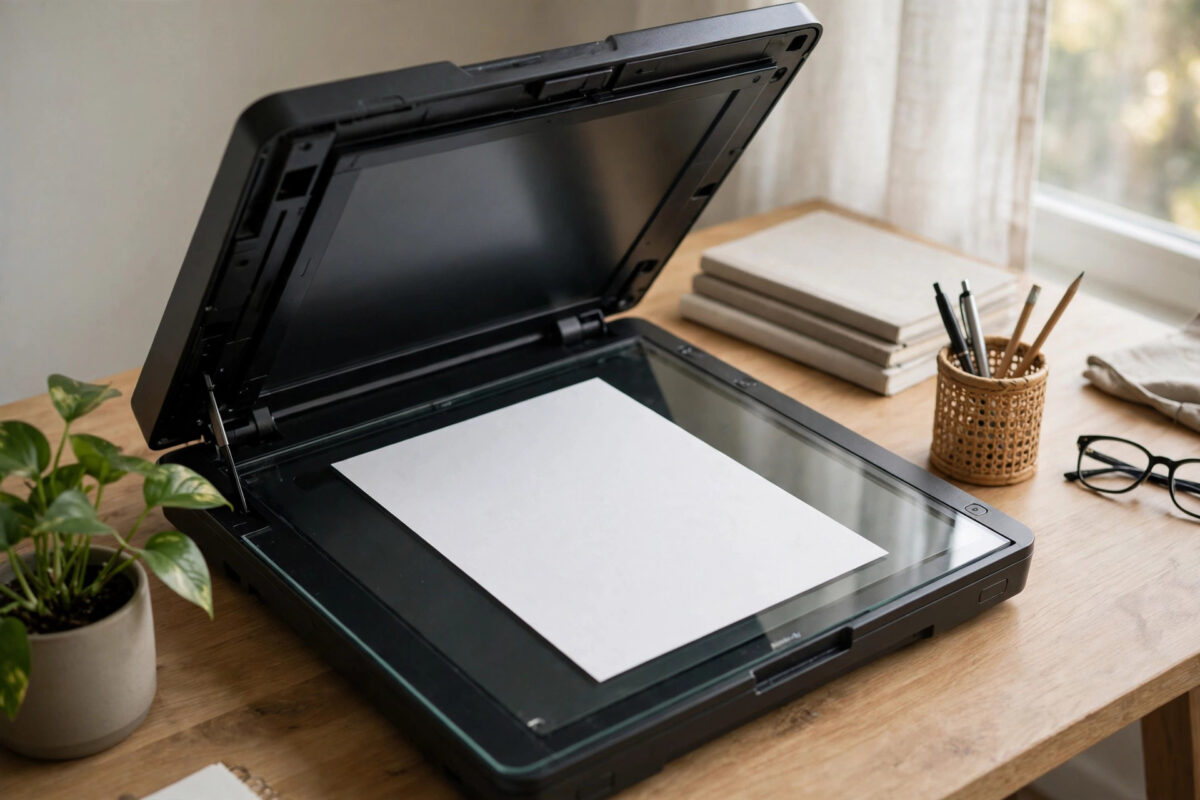
You place a full A4 letter on the scanner glass, press Scan, and the saved file shows only the top half — or a small rectangle from one corner — of the page. The scanner is not broken. In almost every case it is faithfully scanning exactly the area it was told to scan; the scan area setting, a leftover preview crop, or an automatic cropping feature has shrunk that area without you noticing.
This guide works through the settings that control scan size on Windows, in the order most likely to fix the problem.
Quick Answer
A flatbed scanner that only scans half the page is usually set to the wrong paper size or has a small preview crop saved in its scanning profile. Open your scanning software, set the paper/document size to A4 or Letter (or “Maximum area” / “Full platen”), run a fresh Preview, drag the crop box to cover the whole page, and turn off automatic cropping for a test scan. That restores full-page scans in most cases.
Cause 1: The Paper Size Is Set Too Small
Scanners remember the last document size used. If someone last scanned a photo or a receipt, the size may be stuck on 4×6 inches, A5, or a custom area — and a full page placed on the glass gets cut to that smaller frame.
- Open the scanning program you normally use (the manufacturer’s app, Windows Scan, or Windows Fax and Scan).
- Start a New Scan and look for Paper size, Document size, or Scan size.
- Set it to match your paper: A4 (210 × 297 mm) or Letter (8.5 × 11 in). If there is an option like Full Platen, Maximum Area, or Entire scan area, choose that.
- Check the Source setting too: for a page on the glass it must say Flatbed (or Glass/Platen), not Document Feeder. A feeder setting on some software limits the scan length or waits for paper that never comes.
- Scan again and check the result.
Cause 2: A Saved Preview Crop Box
Most scanning software shows a preview with a draggable selection box, and many programs remember that box between sessions. A crop drawn last month around a small photo will silently apply to today’s full page.
- In the scan dialog, click Preview to generate a fresh preview image.
- Look at the dashed selection rectangle. If it covers only part of the page, drag its corners and edges to the full extent of the paper, or look for a Select all / full-area button.
- If the software saves profiles (such as the profiles in Windows Fax and Scan), save your corrected settings as the default profile, so the small crop does not return next time. Profiles are also the culprit behind another common complaint: our guide on why a scanner saves everything as PDF instead of JPG explains how those saved settings control file type the same way.
- Run the real scan from the corrected preview.
Cause 3: Automatic Cropping Is Guessing Wrong
Features named Auto Crop, Auto Detect Size, Deskew, or Trimming try to find the edges of your document automatically. They fail when the page has large white margins, when the document is smaller than the glass but placed in a corner, or when dirt on the glass confuses the detection.
- Turn auto crop off temporarily and scan with a fixed A4/Letter size. If the full page appears, you have found the culprit; you can experiment with turning it back on later.
- Align the page with the corner mark. Flatbeds have an arrow or diagram at one corner of the glass. The scan starts from that corner — a page placed carelessly at the opposite end can be partly outside the sensed area on some models.
- Clean the glass. Smudges and white correction-fluid marks near the edges are read as “part of the document” or “end of the document” by detection logic. Use a soft, lint-free cloth slightly dampened with water or glass cleaner sprayed on the cloth, never directly on the glass.
- Close the lid fully. Auto detection uses the light contrast when the lid is down; a half-open lid floods the glass with room light and defeats it.
Cause 4: The Driver or Software Is Limiting the Area
If the settings all look right but scans still come out cropped, test with a different program. Scan once with the manufacturer’s software and once with the built-in Windows Scan app (free from the Microsoft Store) or Windows Fax and Scan. If one app scans the full page and the other does not, the problem is that app’s profile or settings — reset or reinstall that app rather than the scanner. If every app crops the scan, reinstall the scanner driver: uninstall the device in Device Manager, unplug it, restart the PC, then install the latest driver and full software package from the manufacturer’s support site. Microsoft’s Windows support pages also note that scanner drivers are frequently bundled with the printer’s full software suite rather than offered separately, so download the complete package for your model.
A Quick Word About Feeder (ADF) Scans
If the half-page problem happens with the automatic document feeder instead of the glass, the causes change slightly. The feeder’s paper guides must be snug against the page — loose guides let pages skew and trip the length sensor early. The page size setting still matters, and a “long page” or mixed-size batch can stop mid-scan. Test one single, clean sheet through the feeder after setting the size correctly; if that works, the original batch likely contained a torn, folded, or oversized page that confused it.
Mistakes to Avoid
- Assuming the scanner hardware has failed. Genuine sensor failures usually produce lines, streaks, or completely black scans — not a neatly cropped half page. Cropping is a settings problem.
- Changing settings in one app and testing in another. Each program keeps its own size and crop settings. Fix and test in the same program.
- Ignoring the preview. The preview is the fastest diagnostic there is: if the preview itself shows only half the page, the software never saw the rest.
- Cranking up the resolution to compensate. Higher DPI makes the half-page file bigger, not bigger in area. Fix the scan size first.
Conclusion
A flatbed scanner that scans only half the page is almost always obeying a forgotten setting: a small paper size, a saved crop box, or over-eager automatic cropping. Set the size to A4 or Letter, refresh the preview, disable auto crop for a test, and clean the glass. If every program still crops, reinstall the driver with the manufacturer’s full software package and the full page will come back.
Frequently Asked Questions
Why does my scanner cut off the bottom of A4 pages specifically?
Usually because the size is set to Letter while your paper is A4. A4 is longer than Letter, so the extra length at the bottom falls outside the scan area. Set the document size to A4 and the full page will fit.
The preview looks fine but the saved scan is cropped. Why?
Some software applies the profile’s saved crop or file settings at save time, ignoring the on-screen preview. Edit and save the profile itself (or create a new profile with the full area) rather than only adjusting the preview window.
Does scanning at a higher DPI fix cut-off pages?
No. DPI controls detail, not area. A 1200 DPI scan of a half-page area is just a very detailed half page. Fix the document size and crop first.
My scanner only scans half the page after a Windows update. What happened?
Updates can reset scanning profiles or replace the manufacturer’s driver with a generic one that has different defaults. Check the paper size setting first, then reinstall the manufacturer’s full software package if the problem persists.
How do I know whether to choose A4 or Letter?
Match the setting to the physical paper in your country and printer tray: A4 is standard in most of the world; Letter is standard in the US and Canada. When in doubt, measure the sheet — A4 is 210 × 297 mm, Letter is 216 × 279 mm.
Leave a Reply