
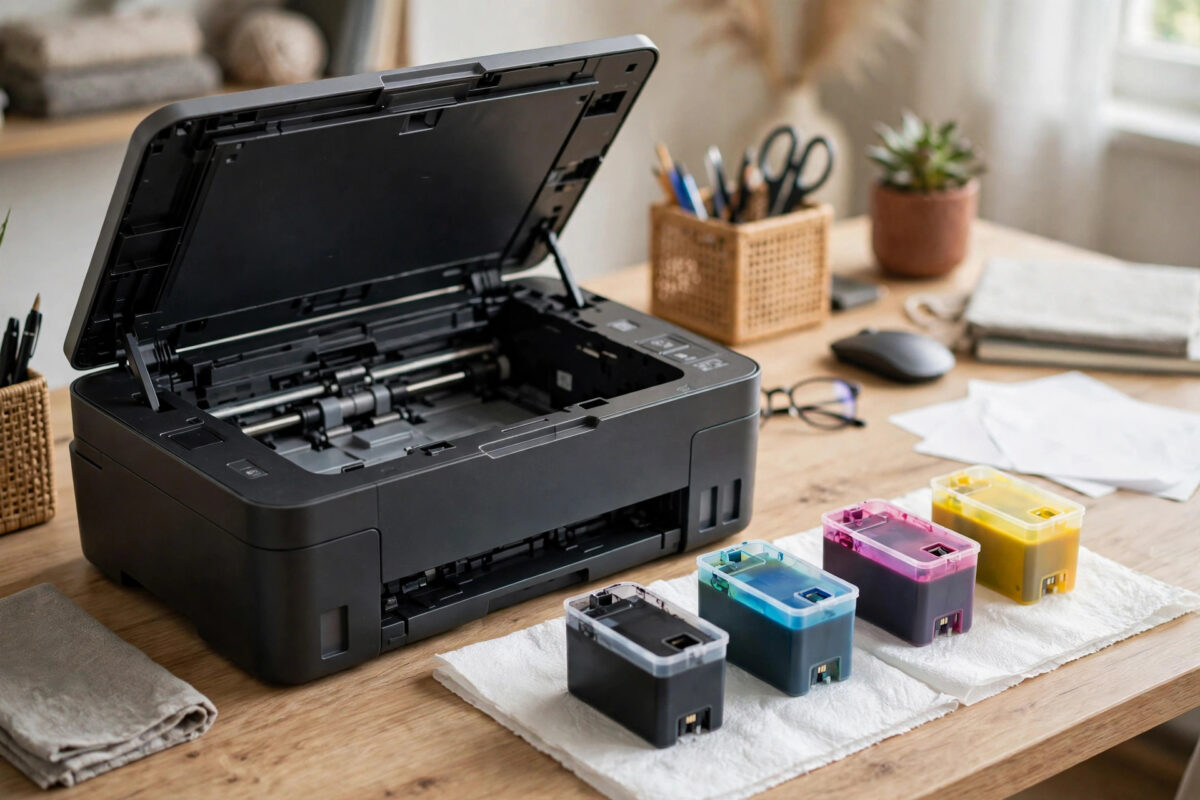
Support code 1682 stops everything. You changed or refilled an ink tank, and now your Canon printer refuses to print, saying two ink tanks are installed or that multiple tanks of the same color are installed. You look inside and everything looks normal, so it is hard to know what it is complaining about.
The good news is that 1682 is almost always an installation problem, not a serious hardware failure. Canon printers with separate tanks expect exactly one tank per color, in exactly the right slot, with a readable chip. When the printer reads two tanks as the same color, it raises 1682 to protect print quality. This guide shows you how to check each slot in order and clear the error safely without forcing anything.
Quick Answer
Support code 1682 means the printer thinks two tanks of the same color are installed. Open the cover, remove all tanks, check each tank code matches its slot label, clean the chip contacts, and reinstall only one tank per color until each clicks. Close the cover firmly and wait for the printer to re-read the tanks, which clears 1682 in most cases.
What Support Code 1682 Means
Every tank has a chip that tells the printer its color and type. The printer keeps a map: one black, one cyan, one magenta, one yellow, and on some models extra photo black or pigment black. That map must have no duplicates and no gaps for printing to start.
Code 1682 appears when that map breaks. The most common example is putting a black tank where a photo black tank belongs, or installing two magenta tanks because the colors look similar indoors. It can also happen when a chip is dirty or damaged and is misread, or when a compatible tank carries the wrong chip for its color.
Unlike a low ink warning, 1682 is a blocking error. The printer will not print until the tank set is correct. That is by design, because printing with wrong color logic would ruin prints. You may see it worded as “Two ink tanks are installed” or “Multiple ink tanks of the same color are installed.” Both mean the same check has failed.
Before You Start
- Keep the printer on when you open the cover, so the carriage moves to the center change position. Never pull the carriage by hand.
- Work in good light on a clean surface. Cyan versus photo blue and black versus photo black are easy to confuse in dim light.
- Have a lint-free cloth and paper towel ready for cleaning contacts and catching ink drops.
- Take a photo of the current tank order before removing anything. It helps you spot what was wrong.
Do not try to bypass 1682 by holding buttons randomly. The Stop button override for low ink does not fix a duplicate color problem. The printer needs to read a correct set of tanks.
Step-by-Step Fix for Support Code 1682
Step 1: Remove All Tanks
- Turn the printer on and open the top cover or ink door.
- Wait until the carriage stops moving and is silent.
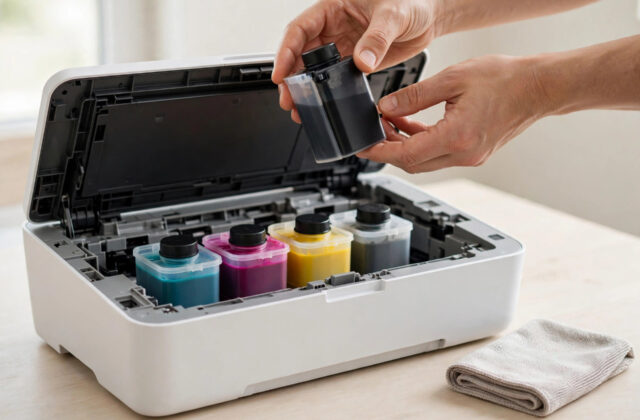
- Press the tab on the first tank and lift it out. Place it upright on the paper towel.
- Repeat for every tank, keeping them in removal order. Leave none inside.
- Look inside the empty carriage for leftover tape, packaging, or heavy ink on the contacts.
Step 2: Check Every Tank Against Its Slot
- Read the carriage labels from left to right and write the order down, for example PGBK, BK, C, M, Y.
- Read the full code on each tank, not just the cap color. A tank marked 571 BK and one marked 571 PGBK are different, even though both are black.
- Sort the tanks so each matches exactly one slot. If two tanks have the identical code, one does not belong in this set. Set the duplicate aside.
- If you just bought a new tank, compare its code with the old tank it replaced. A single letter difference matters, and codes differ by region.
- Check each chip and tank body for cracks or damage. A damaged chip will be misread even in the right slot.
Step 3: Clean the Chip Contacts
- Hold each tank by its plastic sides, never by the gold chip.
- Wipe the gold contacts gently with a dry lint-free cloth. Two light passes are enough.
- If dried ink is present, use a cloth barely dampened with distilled water, wipe once, then dry completely.
- Wait one minute to ensure the tank is fully dry before reinstalling.
The official Canon page for support code 1682 gives the same core advice: confirm only one tank of each color is installed, in its correct position.
Step 4: Reinstall One Tank at a Time
- Start with the leftmost slot. Insert its matching tank at a slight angle, push down gently, and press until it clicks.
- Check it sits flat and level. A tilted tank may be misread.
- Continue slot by slot, in order, until all tanks are in.
- Never force a tank. If it does not click easily, remove it and re-check the code match.
- Close the cover firmly and wait 30 to 60 seconds while the printer re-reads every chip.
If 1682 clears, print a nozzle check page from Maintenance to confirm all colors print. If one color is missing, run one head cleaning and test again. Do not run many cleanings in a row.
If You Do Not Have a Duplicate Tank
Sometimes there is no visible duplicate, yet 1682 returns. Then the printer is misreading a tank.
- Wrong compatible chip: Some cheap tanks have a chip programmed for another color. The cap says magenta, but the chip says cyan, and the printer trusts the chip. Replace that tank.
- Chip moved during refilling: A chip shifted by even one millimeter can be misread. Compare its position with a good tank.
- Dirty carriage contacts: Turn the printer off and unplug it. Wipe the contacts inside the carriage gently with a dry cloth. Do not use liquid inside and do not bend the small pins.
- Temporary reading error: Turn off, unplug for 60 seconds, plug back in, and reinstall all tanks from scratch.
If one tank causes 1682 wherever it is placed, while others read fine, its chip is faulty. Replace just that tank. If every tank triggers the error in a known correct order, the carriage or print head may need service.
An old error can also stay on your computer screen after the printer is fixed. Restart the print queue and follow our guide to fixing a printer that keeps showing offline to confirm the printer is truly ready again.
How to Prevent 1682 in the Future
Replace one tank at a time instead of removing all tanks at once, unless you must. Keep the empty tank beside its slot until the new one is in, so you never guess the order.
Store spares by color and keep the box until the tank prints correctly. If you refill, do one color per session and cap it immediately.
Common Mistakes to Avoid
- Judging by cap color only: Black and photo black look identical. Always read the printed code on the tank body.
- Leaving a tank half-seated: A tank that looks in but has not clicked is often misread as a duplicate. Push until you feel the click and check it is level.
- Leaving protective tape on: Remove all tape over the chip or vent as directed on the box before installing.
- Swapping tanks with power off: The carriage will not be in the change position, and forcing tanks risks misalignment. Always open the cover with power on and wait for the carriage to stop.
- Ignoring the first warning: Fix a tank warning right after installing. Repeatedly opening the cover without correcting the order makes the error harder to clear.
When to Contact Canon Support
Contact support if 1682 remains after verifying the order, cleaning contacts, and testing with known-good tanks. Have your model, tank codes, and message wording ready. Find help via Canon PIXMA support for consumer printers by searching your model and code 1682.
Conclusion
Support code 1682 means your Canon cannot accept the current tank set because it reads two tanks as the same color. The fix is methodical: remove all tanks, read every code, match one tank to each slot, clean the chips, and reinstall in order until each clicks. Most users clear it in five to ten minutes with no new parts. If one tank triggers the error alone, replace that tank and you should be back to correct-color printing.
Frequently Asked Questions
Does support code 1682 mean my printer is broken?
Usually not. It is most often caused by a duplicate color, a tank in the wrong slot, or a dirty or faulty chip. The printer blocks printing to protect quality. Correcting the order and cleaning contacts clears it without repair in most cases.
Can I print in black only while 1682 is showing?
No. While 1682 is active the printer blocks printing until it reads a valid set with one tank per color. You must fix the duplicate or misread tank first, even for a black-only page.
I have one of each color, so why does 1682 keep showing?
The printer reads chips, not cap colors. A compatible or refilled tank may carry a chip for the wrong color, or its chip may be damaged or dirty. Clean it, check its full code, and test with a known-good tank to find the faulty one.
What is the difference between PGBK and BK?
PGBK is pigment black for sharp text on plain paper. BK is dye black for photos and graphics. They use different slots and are not interchangeable. Putting one in the other’s slot is a common cause of 1682.
Will removing all tanks waste ink or damage the print head?
No, if you work quickly and correctly. Place tanks upright, do not touch nozzles or chips, and reinstall within a few minutes. Do not leave the carriage empty for a long time, as the print head can dry out.
Leave a Reply