
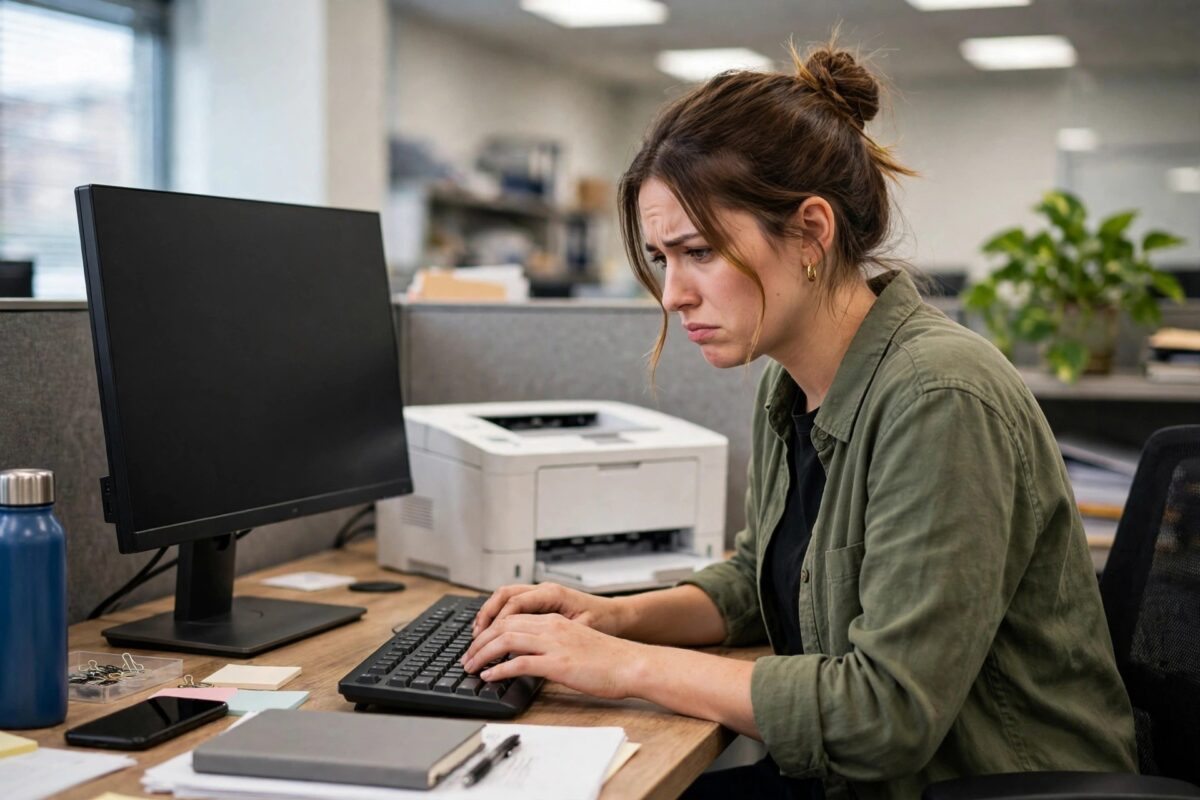
“Printer in error state” is one of Windows 10’s least informative messages — and it often appears right after a Windows update, which makes the timing feel like sabotage. Your HP printer may look perfectly healthy, with paper loaded and no warning lights, yet Windows refuses to print and shows this grey, unhelpful status. The causes are usually simple: a stalled spooler, a driver the update disturbed, a port that no longer matches, or a real hardware flag like an open cover that Windows reports poorly. This guide works through them in order.
Quick Answer
To fix “HP printer in error state” on Windows 10, first check the printer itself for paper jams, open doors, or empty cartridges and clear anything real. Then restart the Print Spooler service, remove and reinstall the printer with the latest HP driver, and confirm the port matches how the printer is connected. If the error began right after a Windows update, reinstalling the driver fixes the majority of cases.
Step 1: Rule Out a Real Fault on the Printer
Windows sometimes reports genuine printer conditions as a vague “error state”, so start at the machine:
- Look at the printer’s own screen or lights for a specific message — jam, no paper, door open, low or empty cartridge, or a blinking attention light.
- Open and firmly close every door and tray; a cover that is 95% shut still triggers an error state.
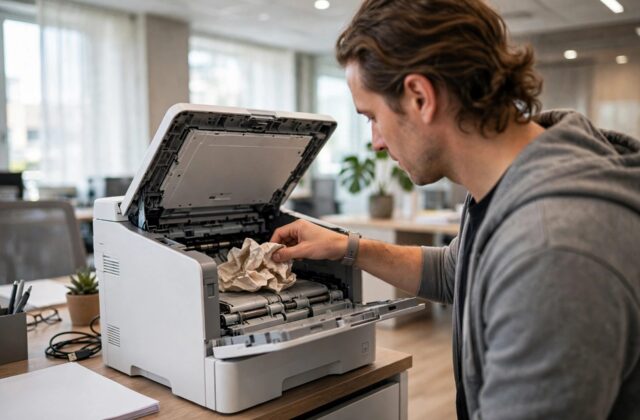
- Check for paper jams, including scraps at the back, and make sure paper is loaded correctly.
- Power the printer off, unplug it for 60 seconds, and switch it back on so it runs a fresh self-check.
- Print an internal page from the printer’s menu. If the printer cannot print its own page, fix the hardware issue first.
Step 2: Restart Print Services and Clear the Queue
- Open the print queue for the HP printer and cancel all documents.
- Press Windows key + R, type
services.msc, and press Enter. - Right-click Print Spooler and choose Restart.
- Confirm Print Spooler is set to start Automatically; a stopped spooler shows every printer as being in an error state.
- Try a Windows test page: Settings, Devices, Printers & scanners, your printer, Manage, Print a test page.
Step 3: Reinstall the Printer and Driver
Windows updates have a long history of disturbing printer drivers — replacing files, resetting ports, or breaking shared printing. A clean reinstall returns everything to a known-good state:
- Remove the HP printer in Settings, Devices, Printers & scanners.
- Open Print Server Properties, Drivers tab, and remove the HP driver package for your model.
- Restart the PC.
- Download the current full driver for your model from HP’s official support downloads and install it fresh.
- Add the printer again and print a test page before your real document.
If your printer is also dropping off the network, pair this with the connection fixes in our guide to a printer that keeps showing offline — the two errors often share a root cause in the port.
Step 4: Check the Port and Connection Type
In Printer Properties, select the Ports tab. A USB printer should sit on a USB virtual port; a network printer on a Standard TCP/IP port with the printer’s correct IP address. Updates sometimes switch a network printer to a WSD port or leave it pointing at an old IP address, both of which produce a permanent error state. Set the correct port, click Apply, and test again. For network printers, reserve the IP address in your router so this cannot drift again.
Step 5: If It Started Right After an Update
If the timing points squarely at a Windows update and a driver reinstall has not helped:
- Check Windows Update history for a newer cumulative update — Microsoft frequently ships printer fixes in the following patch.
- Run the built-in printer troubleshooter (Settings, Update & Security, Troubleshoot, Additional troubleshooters, Printer) — it occasionally catches a service or permission issue.
- As a last resort, uninstall the specific update that broke printing from Update History, then pause updates for a week until a fixed version lands.
Common Mistakes to Avoid
- Skipping the physical check — an unlatched rear door really does present as “error state” and no software fix will clear it.
- Stacking fixes without testing — change one thing, test, then move on, or you will never know what worked.
- Downloading drivers from third-party sites — use HP or Windows Update only; driver-updater sites bundle junk and wrong versions.
- Leaving duplicate printer entries — apps print to a dead “Copy 1” entry and report errors from a queue that goes nowhere.
Checking for a Stuck Job Masquerading as an Error
One cause deserves its own mention because it survives casual queue-clearing: a print job that Windows believes is still printing, owned by the spooler at a level the normal queue view does not fully show. Symptoms include an error state that returns the instant the spooler restarts, even with the printer switched off. To clear it properly, stop the Print Spooler service, browse to the spool folder at C:\Windows\System32\spool\PRINTERS, and delete every file inside it — these are the raw job files, and removing them while the service is stopped cannot harm anything except the stuck jobs themselves. Then start the spooler again and add a fresh test print. Jobs sent from other computers to a shared printer can lodge here too, which is why an error state sometimes persists until the host machine’s spool folder is cleared, not just the machine you are printing from. If several users share this printer, clear the host’s spool folder before reinstalling drivers anywhere else.
If this printer is shared from a Windows 10 PC, remember that the host machine’s state governs everyone else’s experience. An error state on the host — a stalled spooler, a disturbed driver after the host’s own update — presents as an error on every client that prints through it, while the printer itself sits blameless. Always start troubleshooting at the host: confirm it can print a test page locally before touching any of the client machines. Many office printer failures are resolved entirely on the host in ten minutes, with the clients recovering the moment the host does, no changes needed at their end at all.
None of these steps risks your documents or the printer itself, so work through them calmly in order rather than reinstalling everything at once.
Conclusion
“Printer in error state” is Windows shorthand for “something in the chain is unhappy”, and after an update the driver or port is the usual suspect. Confirm the printer itself is fault-free, restart the spooler, reinstall the driver cleanly, and verify the port. That sequence resolves the great majority of HP error-state reports on Windows 10.
Frequently Asked Questions
Why did this happen immediately after a Windows update?
Updates can replace driver files, reset port assignments, or tighten security around shared printers. The printer hardware is unchanged — the software path to it is what broke.
All my printers show error state, not just the HP. What then?
That points to the Print Spooler service or a system-level problem rather than one printer. Restart the spooler and check it is running before troubleshooting individual printers.
The printer’s screen shows Ready but Windows still says error state. Why?
Windows is working from stale or broken communication — usually the port or driver. Reinstall the driver and set the correct port; the two status reports will agree again.
Does turning off “Let Windows manage my default printer” help?
It helps a related confusion: Windows switching your default to a different printer after updates. Set your HP as default manually and keep the setting off.
When should I suspect actual hardware failure?
When the printer cannot print its own internal test page, shows a specific hardware error code of its own, or the error state persists when connected to a completely different computer.
Leave a Reply