
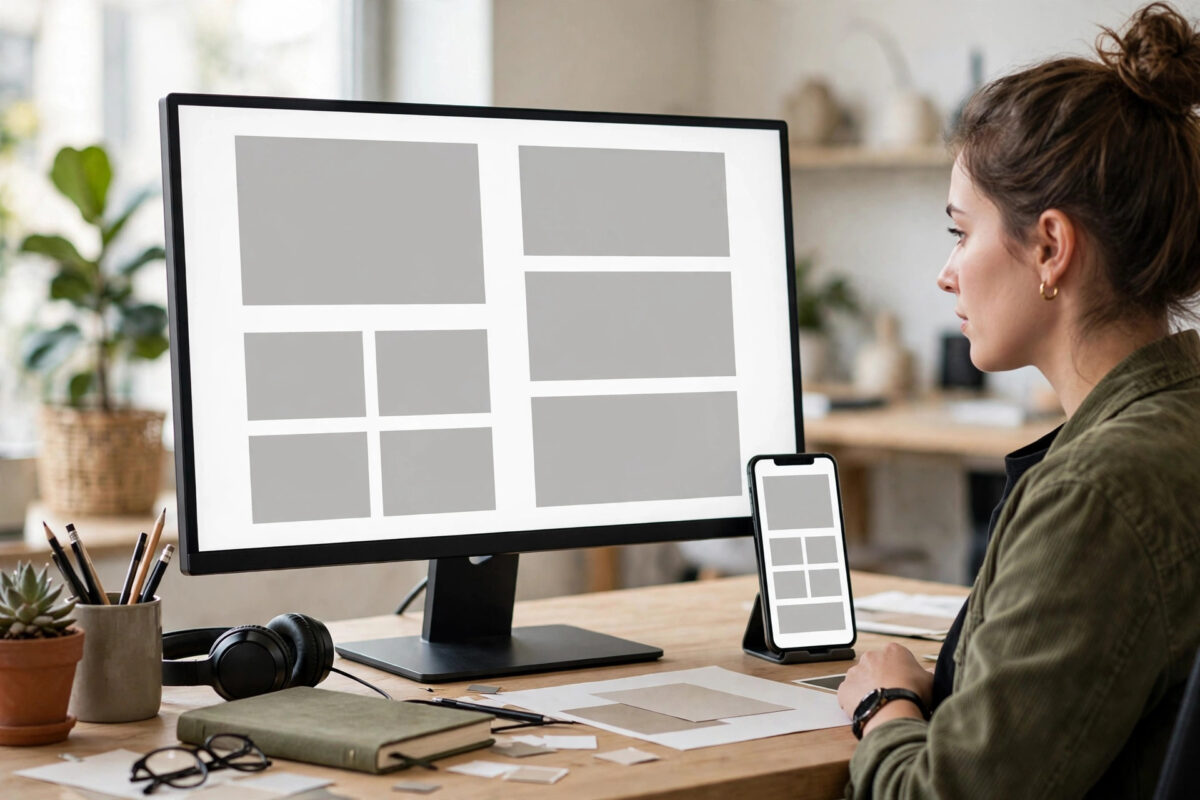
Two columns is one of the most useful shapes on the web. A main article beside a sidebar, a product photo beside its details, or text beside an image all use the same basic pattern. For years developers built it with floats and careful clearing. CSS Grid now does the job with a few honest lines of code.
Grid is also the easiest layout tool to make responsive. You describe how wide each column should be, tell the browser what to do when space runs out, and the layout adjusts itself. No fixed pixel widths, no mystery gaps, and no broken stacking on phones.
In this guide you will build a simple two-column layout from an empty page, understand every line, and then make it collapse neatly into one column on small screens.
Quick Answer
Create a container, set display: grid on it, and define two columns with grid-template-columns: 2fr 1fr plus a gap for spacing. Then add a media query at a small width, such as 768 pixels, that changes the columns to a single 1fr so the two areas stack vertically on phones.
The HTML You Need
Grid works on a parent and its direct children. You need one wrapper element and two children inside it. That is all.
<div class="layout"> <main class="content">...</main> <aside class="sidebar">...</aside> </div>
Use meaningful elements where you can. A main element for the primary content and an aside for the supporting column help screen readers and search engines understand the page. The class names are yours to choose, but keep them descriptive so the CSS stays easy to read months later.
Why the wrapper matters
Only direct children become grid items. If you place the two areas deeper inside other wrappers, Grid cannot arrange them as columns. When a layout refuses to form, checking that your two elements are truly side by side inside the container is the first debugging step, and it solves the problem surprisingly often.
Step 1: Turn the Container into a Grid
- Select the wrapper in your CSS with its class, for example
.layout. - Add
display: gridto switch the container into grid mode. - Save and reload. At this point the children stack in a single column, because a grid with no column definition starts with one column.
That stacking result is useful to see. It proves the container is working as a grid before you add the interesting parts. Building in small steps like this makes later problems much easier to locate.
Step 2: Define Two Columns with fr Units
Add one line to the same rule:
.layout { display: grid; grid-template-columns: 2fr 1fr; gap: 24px; }
Each value in grid-template-columns describes one column from left to right. The fr unit means a fraction of the free space. With 2fr 1fr, the free space is split into three equal parts, the first column takes two parts, and the second column takes one part. The main content is therefore twice as wide as the sidebar, at any screen size.
Choosing your column sizes
- Use
1fr 1frfor two equal halves, such as an image beside text. - Use
2fr 1fror3fr 1frfor content with a sidebar. - Use a fixed size for one column, such as
300px 1fr, when a sidebar must stay a steady width while the content flexes. - Use
1fr 300pxwhen the fixed sidebar belongs on the right.
The gap property adds space between the columns and between rows, without any margins on the items themselves. This avoids the old problem where margins on the last item pushed a layout wider than its container. The MDN guide to CSS Grid layout is the best official reference for every property used in this tutorial.
Step 3: Style the Two Areas
Give each area a little breathing room and a background colour while you learn, so you can see the columns clearly:
.content { padding: 20px; } .sidebar { padding: 20px; }
Notice what you did not have to do. You did not set widths on the two areas, you did not float anything, and you did not add a clearing element. Grid items automatically fill their column. If one column is taller than the other, both stretch to the same row height by default, which keeps side-by-side designs looking tidy. You can change that with align-items: start on the container if you prefer each item to keep its natural height.
Step 4: Make It Responsive with One Media Query
Two columns become cramped on a narrow phone screen. The standard solution is to stack them:
@media (max-width: 768px) { .layout { grid-template-columns: 1fr; } }
- Place this query after your main grid rule in the stylesheet.
- At widths of 768 pixels and below, the single
1frcolumn replaces the two-column definition. - The sidebar moves below the main content, in the order it appears in the HTML.
- Resize the browser slowly to watch the change happen at the breakpoint.
Order in the HTML now matters for readers. On the stacked phone view, whatever comes first is read first. Put the main content before the sidebar in your markup, even if the sidebar looks more exciting. If you build other layouts on this site, the same stacking approach pairs well with the patterns in our guide to creating a responsive navigation menu, so the whole page adapts at the same breakpoint.
Step 5: Centre the Layout and Limit Its Width
On very wide monitors, a layout that stretches edge to edge makes lines of text painfully long. Add a maximum width and automatic side margins to the container:
.layout { max-width: 1100px; margin: 0 auto; }
The container now stops growing at 1100 pixels and sits in the centre of larger screens, while on smaller screens it simply fills the available space. Add a small side padding on a parent element, or on the container itself with border-box sizing, so content never touches the edges of a phone screen.
Optional: Let Grid Decide When to Stack
There is a second responsive approach that needs no media query at all. This line creates columns that are at least 300 pixels wide and lets the browser fit as many as the space allows:
grid-template-columns: repeat(auto-fit, minmax(300px, 1fr));
On a wide screen, your two items sit side by side. When the container becomes too narrow for two 300 pixel columns, the second item wraps to a new row automatically. This pattern shines in galleries and card lists. For a fixed main-and-sidebar page shape, the media query approach in step 4 gives you more control over exactly when the change happens. The web.dev course chapter on CSS Grid explores both patterns with interactive examples worth trying.
Common Mistakes to Avoid
- Setting widths on the grid items: fixed widths fight the column definition and cause overflow. Let the grid size the items.
- Forgetting the gap and using margins instead: margins on items add outside the columns and can break the fit. Grid gap was made for this job.
- Placing the media query before the main rule: the later base rule then wins, and the layout never stacks. Queries belong after the styles they adjust.
- Using too many fixed pixel columns: two rigid widths cannot shrink, so the layout overflows on tablets. Fractions flex; pixels do not.
- Skipping the phone check: a layout that looks fine in a half-size desktop window can still misbehave at a true phone width, so test at 360 pixels.
- Nesting the columns too deep: grid only arranges direct children, so extra wrapper elements between the container and the areas will block the layout.
Conclusion
A responsive two-column layout with CSS Grid takes three honest ingredients: a container with display: grid, a grid-template-columns line that describes the proportions, and a gap for clean spacing. One media query stacks the columns on small screens, and a maximum width keeps the design comfortable on large ones. Once this pattern feels familiar, you can extend it to three columns, footers, and full page layouts using exactly the same ideas.
Frequently Asked Questions
What does the fr unit mean in CSS Grid?
The fr unit stands for a fraction of the free space in the container. Columns of 2fr and 1fr divide the space left after gaps and any fixed sizes into three shares, giving the first column two shares and the second column one share.
Can I make the sidebar appear first on mobile?
You can reorder items with the order property in your media query, but be careful. Visual order that differs from the HTML order can confuse keyboard and screen reader users, so only reorder when the reading experience still makes sense.
Should I use Grid or Flexbox for two columns?
Both can do it. Grid is usually clearer when you want to define the column sizes up front and control rows as well. Flexbox suits a single row of items that should size themselves by content. Many real layouts use both in different places.
Why is there a gap below my columns on the page?
Grid rows are only as tall as their content, so the layout ends where the content ends. Empty space below usually comes from margins or padding on surrounding elements, or from the page simply having no more content, which is normal behaviour.
How do I add a third column later?
Add a third value to grid-template-columns, such as 1fr 2fr 1fr, and place a third child inside the container. Then adjust your media query so the layout stacks or simplifies at the width where three columns become too tight.



Leave a Reply