
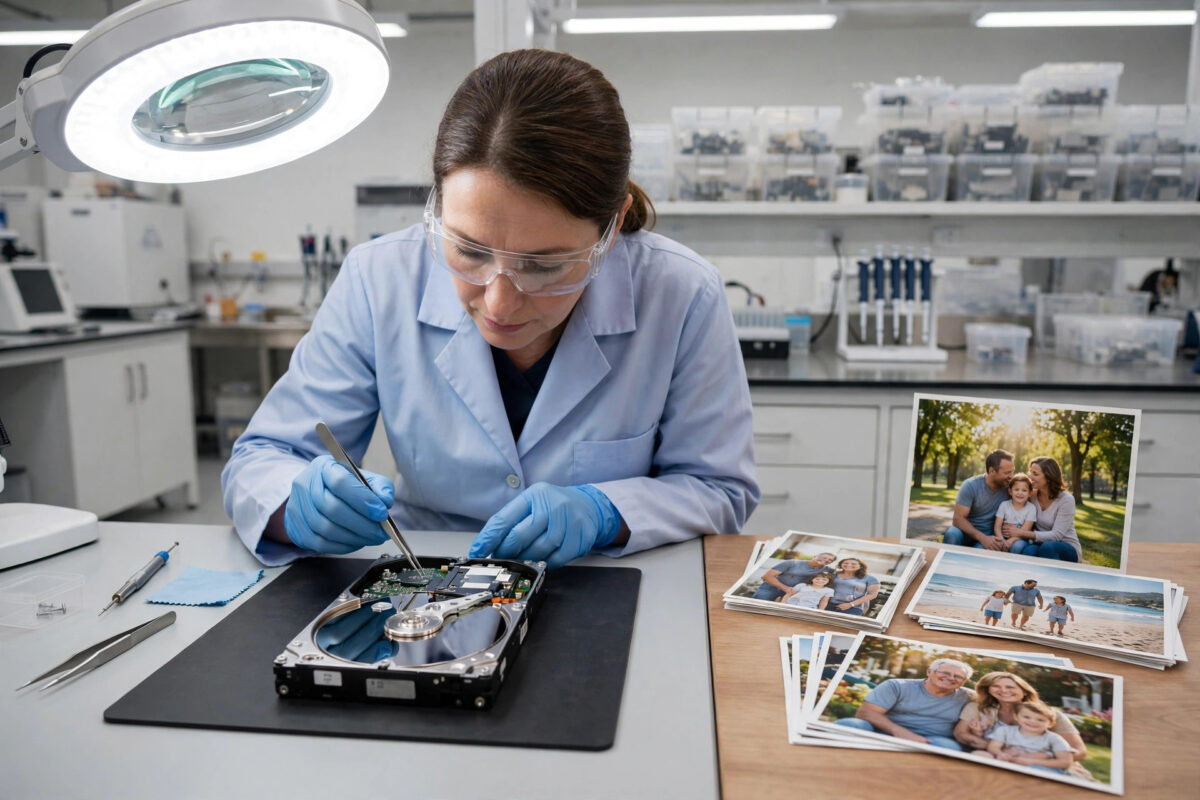
Few moments feel worse than a drive failing with years of family photos on it. In that moment of panic, the choice you make in the first hour matters more than anything you do later. One wrong move can turn a recoverable drive into a lost one.
The decision is between trying recovery yourself at home and sending the drive to a professional recovery lab. Neither answer is always right. The correct choice depends on what the drive is doing, what the photos are worth to you, and how much risk you can accept.
This guide gives you a clear way to decide, the danger signs that mean “stop and call a lab”, and the safe DIY steps.
Quick Answer
If the drive clicks, grinds, beeps, or is not recognised at all after a drop, stop immediately, do not keep powering it on, and treat it as a professional lab case, because every extra power-on can destroy more data. If the drive spins normally, is recognised by the computer, and the problem is deleted files or a corrupted file system, careful DIY recovery to a different drive is reasonable. When the photos are truly irreplaceable and you cannot accept any risk of making things worse, choose the lab first.
First: The Warning Signs That Mean Lab, Every Time
Some symptoms describe physical damage inside the drive. No home software can fix physical damage, and running the drive makes it worse.
- Clicking or ticking sounds, often called the click of death, usually mean the read/write heads or their control parts are damaged.
- Grinding or scraping sounds suggest parts are touching surfaces they should never touch, damaging the disks where your photos actually live.
- Beeps or buzzing with no spinning sound can mean the motor is stuck or the heads are trapped on the disk surface.
- The drive is silent and completely dead after being dropped, soaked, or burned.
- A burning smell or a drive that gets very hot in a short time.
If you hear or see any of these, switch the drive off and leave it off. Do not try it “one more time” in another computer, do not shake it, and do not put it in a freezer, which is an old myth that causes condensation and more damage. Each power-on of a clicking or grinding drive can score the disk surface and turn a partial lab recovery into no recovery at all. This is a lab case, full stop.
Problems That Are Often Safe for Careful DIY
Other problems are logical, not physical. The data is usually still sitting on the drive, and software can often bring it back if you work carefully.
- You deleted photos by accident and the drive has had little use since.
- The drive asks to be formatted, but it spins normally and is recognised at the right size.
- A memory card or drive shows a corrupted file system after being removed too early.
- The computer crashed during a copy and now some folders will not open.
- An old backup drive is very slow and shows SMART warnings, but still reads.
Even in these gentler cases, the golden rule applies: never recover files back onto the same drive you are recovering from. New writes can overwrite the very photos you are trying to save. You always need a second, healthy drive with at least as much free space.
The Honest Difference Between Lab and DIY
What a Professional Lab Actually Does
A real lab opens the drive in a dust-free clean room, swaps failed parts such as heads or circuit boards using matching donor drives, and reads the disks with specialist hardware that can work around damaged areas slowly and gently. This is why labs succeed with dropped, clicking, and dead drives where software cannot even start. It is also why labs cost much more: you are paying for rare parts, clean facilities, and skilled time. Many reputable labs offer a free assessment and a no-data, no-fee policy, so ask about both before sending anything.
What DIY Recovery Can and Cannot Do
DIY tools work through the drive’s normal connection and can only succeed if the drive still communicates and reads. Good software can rebuild broken file systems, find deleted photos, and copy data off a drive that is starting to struggle. What it cannot do is read a disk whose heads have failed, and long DIY scanning sessions can push a weak drive over the edge. For a drive that is readable but failing, the safest DIY method is to clone it first with a fault-tolerant tool, as explained in this guide on how to clone a failing drive with ddrescue, then run recovery software on the clone rather than on the fragile original.
A Simple Decision Checklist
Work through these questions in order. Stop at the first one that gives you a clear answer.
- Does the drive make clicking, grinding, or beeping noises? If yes: power off, lab only.
- Was the drive dropped, crushed, wet, or in a fire? If yes: lab only, even if it seems to work now.
- Is the drive recognised by the computer at the correct capacity? If never, and it is not a loose cable: lab case.
- Are the photos backed up anywhere else? If yes, restore from backup and skip recovery entirely.
- Could you accept losing these photos forever if a DIY attempt goes wrong? If no: lab first, because DIY always carries some risk.
- Is the fault clearly logical, such as deletion or a format prompt, with a healthy-sounding drive? If yes: careful DIY is a sensible choice.
- Is the drive slow, with SMART errors, but still reading? Clone it to a new drive first, urgently, and recover from the clone.
If you choose a lab, research it first. Look for a real clean room, clear pricing after assessment, and reviews describing recovered data. The Microsoft backup and restore guidance is also worth reading afterwards.
Safe DIY Steps If Your Case Qualifies
- Stop using the drive immediately. Do not save anything else to it.
- Prepare a healthy destination drive with enough free space.
- If the drive shows any weakness, clone it sector by sector first, then work on the clone.
- Run trusted recovery software, scan the clone, and preview the photos it finds.
- Recover the files to the destination drive, never back to the source.
- Open a sample of recovered photos to confirm they are complete, and check the rest before wiping or reusing anything.
- Once your photos are safe, verify your copies match the originals, and set up a real backup routine so this decision never has to happen again.
Common Mistakes to Avoid
- Powering a clicking drive on again and again. Every attempt can cause more physical damage. Clicking or grinding means stop immediately and do not keep powering it on.
- Running disk repair tools on a failing drive. Utilities that try to fix a file system in place write to the drive and stress it. They can destroy data that a gentle copy would have saved.
- Recovering files onto the same drive. This overwrites deleted data. Always recover to a different, healthy drive.
- Using the freezer trick or opening the drive at home. Opening a drive outside a clean room lets dust onto the disks, and freezing causes condensation. Both turn lab cases into lost cases.
- Sending the drive to the cheapest advertiser without checking. A failed amateur attempt before the real lab gets the drive can reduce what the lab can save. Choose carefully the first time.
- Having no backup after a lucky recovery. Follow the 3-2-1 rule from now on: three copies, two types of storage, one copy away from home. A backup inside the same PC does not protect family photos against theft or fire.
Conclusion
Let the drive’s symptoms decide for you. Noise, physical damage, or total silence means power off and a professional lab. A healthy-sounding, recognised drive with a logical problem can often be handled at home, slowly, by cloning first and recovering to a different drive. Above all, be honest about how much the photos matter: if losing them is unthinkable, the lab is the first call, not the last resort. And once your family photos are safe again, back them up properly and test your backups by restoring a file, so this frightening choice never returns.
Frequently Asked Questions
How much does professional lab recovery usually cost?
Prices vary widely with the damage. Simple electronic faults sit at the lower end, while head replacements and badly damaged disks cost much more, often several hundred pounds or higher. A trustworthy lab will assess the drive first, quote before working, and charge nothing if no data can be recovered.
Can a lab recover photos from a drive that was formatted?
Often yes, if little new data has been written since the format, because formatting usually removes the index rather than the photo data itself. A quick format is far more recoverable than a full format. Stop using the drive at once either way, since every new file may overwrite old photos.
My drive clicks only sometimes. Can I try one quick DIY scan?
No. Intermittent clicking is still a sign of failing heads or mechanics, and a scan is one of the hardest jobs you can give a drive. That one quick attempt can be the moment the heads damage the disk surface. Power it off and treat it as a lab case.
How long does lab recovery take?
A straightforward case may take a few days, while a drive needing donor parts can take several weeks if parts must be sourced. Most labs offer a slower standard service and a faster priority service at a higher price. Ask for both options when you request the assessment.
What should I check before posting my drive to a lab?
Confirm the assessment is free, whether the policy is no-data no-fee, how your drive and data are kept secure, and how recovered files will be returned to you. Pack the drive in anti-static protection with plenty of padding, use a tracked service, and keep a note of the drive’s serial number.


Leave a Reply