
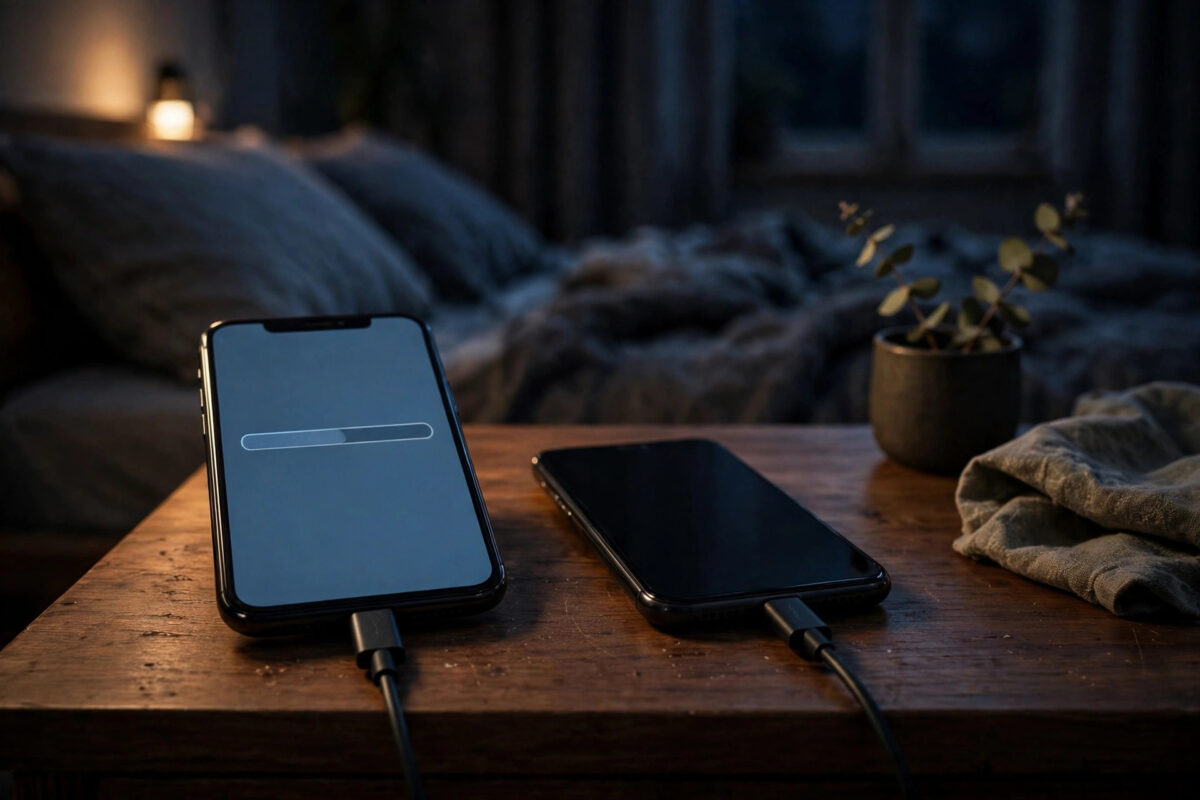
It said one minute remaining forty minutes ago. The phones sit there, warm, doing something — or possibly nothing — while your entire WhatsApp history hangs in the balance. This is the most reported frustration in the whole Android-to-iPhone migration, and the cruel part is that sometimes “1 minute” is a lie the app tells while it is genuinely working.
WhatsApp transfers make this worse because Move to iOS must encrypt and package your entire chat database before the move, and that preparation phase reports progress terribly. Here is how to tell a slow transfer from a dead one, and how to set up the retry so it actually finishes.
Quick Answer
If the phones have been stuck under an hour and your WhatsApp history is large, wait — the estimate is unreliable and the transfer often completes. If nothing has changed after two hours, cancel and restart with better conditions: both phones on chargers, screens kept awake, Android in airplane mode with Wi-Fi on, mobile data and battery savers off, and large junk media deleted from WhatsApp first. On the retry, use a wired connection if your phones support it, or keep the phones side by side near the router.
Why “1 Minute Remaining” Lies
Move to iOS estimates remaining time from transfer speed, but WhatsApp migration is not a simple file copy. The app exports your chats from WhatsApp’s database, converts them, encrypts the package, and only then streams it. During the long preparation phase almost no data moves, the estimate collapses to “1 minute,” and the display freezes — while real work continues underneath. Histories with years of photos and videos can legitimately spend over an hour in this state. That said, a genuine stall also looks identical, which is why a time-based decision rule helps: under an hour, wait; past two hours with zero change, restart properly.
Before Restarting: Signs of Life
- Heat and battery drain on the Android phone suggest it is working hard. A cold, idle phone suggests it is not.
- The iPhone’s progress bar may move in tiny increments even when the time estimate does not.
- Recent activity: if the displayed percentage or stage changed at all in the last 30 minutes, leave it alone.
If you do cancel, accept the cost honestly: the iPhone setup must be restarted and the whole migration run again from the beginning. There is no resume. That is why waiting an extra 30 minutes is usually cheaper than restarting in a panic.
The Restart, Done Properly
- Cancel the transfer on both phones and restart both devices.
- Shrink WhatsApp first. On Android, open WhatsApp Settings, Storage and data, Manage storage, and delete the giant forwarded videos and dead chats. Every gigabyte removed is time and failure-risk removed.
- Charge both phones to full and leave them plugged in. Low-battery throttling slows the export and some phones pause transfers to save power.
- Fix the network. Put the Android phone in airplane mode, then manually turn Wi-Fi back on and join your home network. This stops the phone from jumping to mobile data mid-transfer — one of the most common stall causes. Also tell the phone to forget other known Wi-Fi networks temporarily if it keeps roaming.
- Disable battery optimisation for Move to iOS and WhatsApp on Android, and set both phones’ screens to stay awake while plugged in (developer options on Android; on iPhone, the setup process keeps it awake if charging).
- Keep the phones together, side by side, near the router — not in different rooms.
- Run the migration again following the full sequence in our guide to transferring WhatsApp from Android to iPhone with Move to iOS, and this time do not touch either phone until it finishes.
Consider the Wired Option
Newer versions of Move to iOS support a wired transfer between phones with a USB-C cable (or a USB-C to Lightning cable for older iPhones). A cable removes Wi-Fi from the equation entirely — no roaming, no interference, no router quirks — and is both faster and more stable for very large WhatsApp histories. If your first attempt died on Wi-Fi and your phones have the ports for it, the retry should be wired. Apple outlines the supported setups on Apple Support.
Common Mistakes to Avoid
- Cancelling at minute 45 of a huge transfer. For a 30GB WhatsApp history, an hour at “1 minute remaining” can be completely normal. Restarting costs you the whole run.
- Retrying with nothing changed. Same network behaviour, same battery saver, same junk media — same stall. Change the conditions, then retry.
- Answering calls or messages mid-transfer. Using either phone interrupts the process. Put a note on them if you must, but leave them alone.
- Moving the phones apart. The direct connection weakens with distance and walls. Side by side, near the router, every time.
- Updating apps between attempts. Consistency beats novelty mid-migration. Finish the move on the versions you started with.
Reading the Other Stages: Where Exactly Did It Stick?
Not all stalls are equal, and the stage tells you the remedy. Stuck during “Preparing” or while WhatsApp shows its own export screen points at the Android phone’s workload: huge media, a nearly full phone storage (the export needs working room roughly equal to your WhatsApp data size), or thermal throttling — phones laid on a bed under a pillow genuinely slow themselves down. Free space, cool the phones, remove the cases, and retry. Stuck during “Transferring” with a percentage that crawls points at the connection: distance, interference, or the Android phone hopping networks, which the airplane-mode trick exists to defeat. Stuck at 99% or “finishing up” for a modest time is usually bookkeeping on the iPhone side and resolves with patience disproportionate to its appearance.
One more overlooked condition: storage on the iPhone itself. If the iPhone’s free space runs out mid-migration — because the phone is a smaller model than the data you are bringing — the process can stall without a clear error. Check the arithmetic before starting: WhatsApp size on Android, plus photos and everything else you ticked, must fit inside the iPhone with room to spare. If it does not fit, the fix is not optimism; it is trimming the Android data or choosing a bigger phone.
Conclusion
“1 minute remaining” is a progress estimate, not a promise, and with WhatsApp it is often wrong for an hour or more while real work happens. Give a large transfer time, watch for signs of life, and if you must restart, restart with discipline: lighter WhatsApp data, chargers in, airplane mode with Wi-Fi on, battery savers off, phones side by side — or a cable between them. The second attempt, set up properly, is the one that finishes.
Frequently Asked Questions
How long is too long to wait?
For a small account, 30–45 minutes. For a large WhatsApp history (20GB+ of media), up to two hours can still be genuine work. Beyond two hours with no change in stage or percentage, restart with better conditions.
If I cancel, do I lose my WhatsApp data?
No — your data stays intact on the Android phone. What you lose is the attempt: the iPhone must be set up again and the migration restarted from zero.
Why did it get stuck at exactly the WhatsApp stage?
Because WhatsApp requires a full export-and-encrypt preparation before transfer, unlike photos or contacts that stream directly. It is the heaviest stage of the entire migration and the worst at reporting progress.
Does deleting media in WhatsApp really help?
Yes, significantly. Manage Storage shows which chats hold gigabytes of forwarded videos. Removing dead weight shrinks both the preparation and transfer phases.
Can I do the whole thing by cable instead?
Yes, current Move to iOS versions support wired transfer between compatible phones. For stall-prone large migrations, the cable is the most reliable route available.



Leave a Reply