
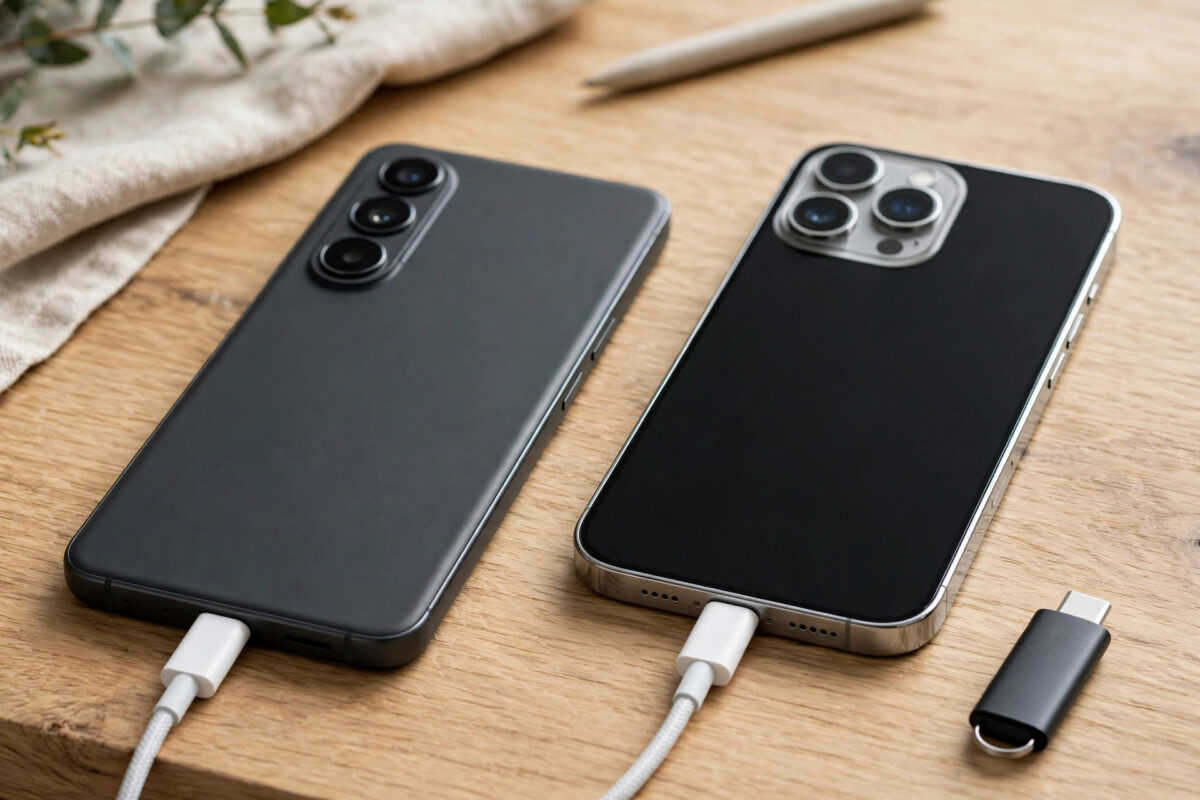
Both phones have USB-C ports, so it feels obvious: plug a cable between your Galaxy S24 and your iPhone 16 and drag the files across. The reality is close to that — but with one quirk. iPhones treat connected devices as storage to browse, not as partners to pair with, and knowing which direction the conversation flows makes the transfer straightforward.
There are three wired approaches: phone-to-phone with the iPhone browsing the Galaxy, a USB-C flash drive as the middleman, or a computer in between. For a full migration including WhatsApp and messages, Apple’s Move to iOS is a separate process again.
Quick Answer
The most dependable cable method is a USB-C flash drive or SSD: copy files from the Galaxy to the drive using My Files, plug the drive into the iPhone, and copy them into the Files app or Photos. A direct phone-to-phone cable can also work — connect the two, set the Galaxy’s USB mode to File Transfer, and browse it from the iPhone’s Files app — but results vary with cables and file types. For a full phone switch including WhatsApp, use Move to iOS instead.
Method 1: Direct Cable, iPhone Browsing the Galaxy
- Use a good USB-C to USB-C cable — the one supplied with either phone is ideal.
- Connect the phones. Unlock both. The Galaxy may start charging the iPhone or vice versa; that is normal and harmless for a transfer session.
- On the Galaxy, set the USB mode. Pull down the notification shade, tap the USB notification, and choose File Transfer (MTP). Without this, the Galaxy presents itself as a charging device only.
- On the iPhone, open the Files app and look under Locations. The Galaxy typically appears as a browsable storage device.
- Copy what you need. Long-press files or folders and choose Copy or Move, then paste them into On My iPhone or an app folder. Photos and videos destined for the Photos library are better saved via the share sheet’s Save Image option, or imported by selecting them and choosing Save to Photos where available.
- Be patient with big folders. The Files app shows minimal progress detail. Let each copy finish before disconnecting, and work folder by folder rather than grabbing ten thousand items at once.
Method 2: USB-C Drive as Middleman (Most Reliable)
- Plug a USB-C flash drive or SSD into the Galaxy. Open My Files, browse to your documents, photos or downloads, and copy them onto the drive.
- Eject the drive from the Galaxy’s storage settings before unplugging.
- Plug the drive into the iPhone and open Files. The drive appears under Locations.
- Copy files into the iPhone — documents into On My iPhone or the relevant app folder, and photos or videos into the Photos library using the share sheet.
This method is slower but bulletproof: it works regardless of cable quirks, it leaves you with a bonus backup on the drive, and it handles very large video files gracefully. If the drive is FAT32, remember its 4GB per-file limit — format it to exFAT first if you move large videos.
What Will Not Move This Way
File copying moves files — documents, photos, videos, music, downloads. It does not move app data, messages, or settings. WhatsApp chats need the dedicated migration path covered in our guide to transferring WhatsApp from Android to iPhone with Move to iOS, and it matters because that process has strict timing rules. Signal and Telegram have their own backup and sync systems, and Apple Support documents exactly what Move to iOS does and does not carry across. Also note the iPhone cannot open every Android file type: APK files are useless on iOS, and some niche document formats need a compatible app installed before the Files app can do anything with them.
Common Mistakes to Avoid
- Expecting the Galaxy to browse the iPhone. The browsing direction is iPhone-reads-Galaxy, not the reverse. If you open the Galaxy’s file manager looking for the iPhone, you will not find it.
- Leaving the Galaxy in charging-only USB mode. File Transfer mode is the switch that makes the phone’s storage visible at all.
- Unplugging during a silent copy. The iPhone’s Files app gives little feedback on large copies. Wait for the operation to visibly finish.
- Trying to move WhatsApp by copying its folder. Android WhatsApp backups are encrypted for the Android account and cannot be dropped into an iPhone. Use Move to iOS.
- Using a charge-only cable. Some cheap USB-C cables carry power but no data. If nothing appears, swap the cable before troubleshooting anything else.
Moving the Specific Things People Actually Ask About
Contacts do not travel as files you copy — export them from the Galaxy’s Contacts app as a single .vcf file, move that file across by any method in this guide, and open it on the iPhone to import everyone at once. Music files (MP3, FLAC) copy into the iPhone’s Files app happily, but to appear in the Apple Music app they traditionally route through a computer’s music library — moving the files is step one, library import is step two. PDFs and documents land in Files or in the app you share them to (Books for PDFs you want to read). Downloaded streaming content — Netflix, Spotify, YouTube downloads — does not transfer at all; those are licences tied to accounts and apps, and you simply sign in and re-download on the iPhone. Knowing this list in advance stops the common frustration of hunting for files that were never files.
Photos taken on the Galaxy deserve one decision: copy them into Files (where they sit as ordinary files) or save them into the iPhone’s Photos library (where they join your camera roll, iCloud Photos and memories). For a permanent switch, Photos is the right home; for a temporary loan of a few documents, Files is cleaner. And if the Galaxy is being traded in, do a final pass through its Downloads folder and messaging-app media folders before wiping — those corners hold the files people forget they had.
Whichever method you used, finish with a tidy-up: open a handful of the transferred items on the iPhone — play a video, open a document, zoom into a photo — and only then delete anything from the Galaxy or format the middleman drive. A transfer you have not opened is a transfer you have merely attempted, and the two minutes of checking is what separates a migration from a rumour.
Conclusion
For a handful of documents, the direct cable with the iPhone browsing the Galaxy works well. For anything large or precious, the USB-C drive middleman is slower but certain, and it leaves a spare copy behind. And for a true phone switch — chats, messages and all — put the cable down and run Move to iOS properly.
Frequently Asked Questions
Which phone should I start the copy from?
The iPhone. Connect the phones, set the Galaxy to File Transfer, then browse and copy from the iPhone’s Files app. The Galaxy cannot browse the iPhone’s storage.
Can I move photos straight into the iPhone Photos app?
Yes. Select the photos in Files and use the share sheet’s Save Image option, which places them in the Photos library. Files copied into a folder stay in Files instead — which you choose depends on where you want them to live.
Why does the iPhone charge from the Galaxy (or the other way round)?
USB-C devices negotiate power automatically, and phones often trade charge when connected. It does not affect the transfer; just keep both phones reasonably charged or plug one into a charger afterwards.
Will this transfer my WhatsApp messages?
No. Cable file copying cannot migrate WhatsApp. Use Move to iOS during iPhone setup for chats, or accept that WhatsApp history stays behind.
The Galaxy does not appear in the iPhone’s Files app. What now?
Check the cable carries data, unlock both phones, re-set the Galaxy’s USB mode to File Transfer, and reconnect. If it still refuses, use the USB-C drive method — it bypasses the phone-to-phone negotiation entirely.



Leave a Reply