
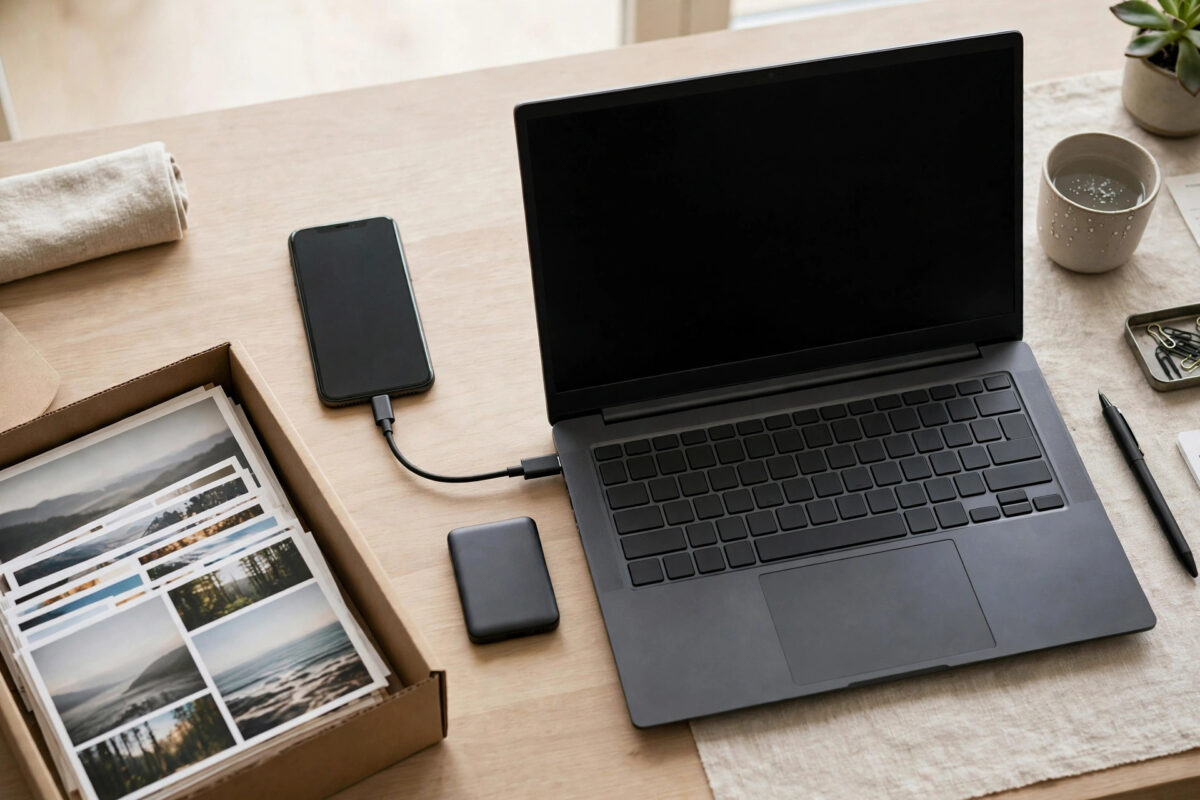
Forty thousand photos is not a quick copy job. At typical iPhone photo and video sizes, you are looking at somewhere between 150GB and 300GB of data, and every “just plug it in and copy” attempt that fails at photo 31,000 teaches the same lesson: this transfer needs a plan, not a cable and a prayer.
You can absolutely do it without iCloud. The method below uses a wired connection, works in batches so a failure never costs you the whole run, and verifies as it goes — because at this scale, “it said it finished” is not the same as “everything arrived.”
Quick Answer
Connect the iPhone to the PC with a good Lightning cable, unlock the phone and tap Trust, then import with the Windows Photos app or copy from the DCIM folders in File Explorer — in batches of a few thousand photos, not all 40,000 at once. Set the iPhone’s transfer mode to Keep Originals so files arrive untouched, keep the phone unlocked with auto-lock off during copying, and verify each batch’s file count before moving on. Expect the whole job to take several hours.
Before You Start: Space, Cable and Settings
- Check your free space. The destination drive needs the full size of the library plus working room. An external SSD is ideal; copying 250GB to a nearly full internal drive invites a failure at 90%.
- Use a quality cable. The cable in the iPhone box or another certified Lightning cable. Cheap cables are the number one cause of transfers dying mid-batch.
- Set Photos transfer to Keep Originals. On the iPhone: Settings, Photos, then under Transfer to Mac or PC choose Keep Originals. The alternative, Automatic, converts HEIC photos and HEVC videos during transfer, which slows everything down and changes your files.
- Turn off Auto-Lock temporarily. Settings, Display & Brightness, Auto-Lock, Never — just for the duration of the job. A phone that locks is a phone that pauses or drops the connection. Keep it plugged into power as well.
- Decide about iCloud Photos. If iCloud Photos is on with Optimise Storage, many of those 40,000 items exist on the phone only as small previews, with originals in iCloud — and you said no iCloud. In that case the phone must download originals first (connect to Wi-Fi, open Photos, and let it work through the library), or this wired method will faithfully copy thousands of tiny placeholders. If iCloud Photos is off entirely, every original is already on the phone and you can proceed.
The Transfer, in Batches
- Connect and trust. Plug the iPhone into the PC, unlock it, and tap Trust on the prompt. The phone appears in File Explorer as Apple iPhone, containing an Internal Storage drive with DCIM folders named by year and month, like 202401__.
- Copy folder by folder. The DCIM subfolders are natural batches. Copy a few month-folders at a time to your destination, rather than selecting the entire DCIM tree at once. A failed folder costs you minutes, not the whole afternoon.
- Alternatively, use the Windows Photos app import — the same flow Apple Support describes for moving an iPhone library to a computer. It handles large libraries gracefully and can skip duplicates on later runs. Its weakness is less control; File Explorer copying is more transparent. Either is fine — consistency matters more than the choice.
- Verify each batch. After each group of folders, compare the file count in the destination against the source folder. Counts that match, plus a few random photos opened at full size, mean the batch is good.
- Keep a simple log. A text file noting which month-folders are done turns a multi-session job into a checklist instead of a memory test.
- Work through the library until every DCIM folder is copied and verified. Then, and only then, think about deleting anything from the phone.
When the Copy Fails Halfway
Large iPhone-to-PC copies sometimes fail with a device-unreachable error. The usual fixes: a different cable, a different USB port (rear ports on a desktop, direct ports on a laptop — no hubs), restarting both devices, and reducing batch size. If a specific folder always fails at the same photo, that file may be a downloaded-on-demand item or slightly corrupt on the phone; open it in Photos on the phone first, then copy again. Our guide on generating checksums for a folder of photos before deleting the originals shows how to prove a batch arrived intact when the photos are irreplaceable.
After the Transfer: Verify, Back Up, Then Delete
With 40,000 photos verified on the PC, make a second copy on a different drive before deleting anything from the iPhone. A single copy on one PC drive is not a backup — it is just a new single point of failure. Once two copies exist and both verify, you can safely clear space on the phone, ideally by deleting in stages and re-checking the PC copies as you go. Also spot-check the oldest and newest photos, a few videos, and any Live Photos, whose video components copy as separate small files alongside the stills.
Common Mistakes to Avoid
- Selecting all 40,000 and copying at once. One hiccup at hour three restarts the entire job. Batches turn disasters into inconveniences.
- Leaving Optimise Storage originals in iCloud. You will copy thumbnails and believe you copied photos. Download originals to the phone first, or accept a cloud step.
- Deleting from the phone before verifying. File count first, spot-checks second, second backup third, delete last — in that order, every time.
- Using a random free “iPhone transfer” program. Many are adware in a trench coat. The built-in Explorer and Photos app methods need no third-party software at all.
- Letting the phone sleep or the PC sleep. Disable sleep on both for the duration, or schedule the job while you are around to nudge it.
A Word About Videos, Live Photos and ProRAW
In a 40,000-item library, the photos are not the heavy part — the videos are. A handful of long 4K clips can outweigh ten thousand stills, and they are also the files most likely to trip a transfer near the end of a batch. Consider copying video-heavy month folders separately, in smaller groups, and check your destination space again before the video phase: libraries routinely surprise their owners by being 60% video by size. Live Photos arrive as a still image plus a short MOV file sharing the same name; both halves are in the DCIM folders, and both must copy if you ever want the moving version back. ProRAW and ProRes files, if you shoot them, are enormous — a single ProRes clip can be several gigabytes — so hunt them down first and give them their own dedicated batches rather than letting one giant file stall a folder of five thousand ordinary photos.
Conclusion
Forty thousand photos move successfully when you treat the job like a migration, not a copy: originals on the phone, a cable you trust, month-sized batches, a count check after each one, and a second backup before anything is deleted. It takes an afternoon. It also only has to be done once, properly.
Frequently Asked Questions
How long will 40,000 photos take to copy?
Over Lightning’s USB 2.0 speeds, expect roughly 20–30MB per second in real conditions — so 200GB takes around two to three hours of actual copying, plus pauses between batches. Plan for an afternoon, not a coffee break.
My PC only shows some of my photos in DCIM. Where are the rest?
Almost always, iCloud Photos with Optimise Storage: the originals are in iCloud and the phone holds previews. The missing photos appear once the phone downloads the originals over Wi-Fi, which you can trigger by opening Photos and staying connected.
Should I convert HEIC photos during the transfer?
No. Keep Originals preserves your files exactly as shot. You can convert copies later if some program needs JPGs; converting during a 40,000-file migration adds hours and risk for no benefit.
The copy keeps failing on the same folder. What do I do?
Copy that folder’s contents in smaller groups to isolate the problem file, open the suspect photo on the phone itself, and swap the cable and port. A single damaged item should never block the other 39,999.
Can I delete the photos from my iPhone afterwards?
Yes — after the PC copy is verified by count and spot-checks, and after a second copy exists on another drive. Delete in stages and re-verify as you go.



Leave a Reply